Connect Meeting Notes to Claude, Cursor & ChatGPT via MCP
Your meeting notes are only useful if you can find the right detail at the right moment. The Model Context Protocol (MCP) turns that search into a conversation: instead of scrolling through transcripts, you ask your AI assistant — "what did we promise the client last Tuesday?" — and it reads the answer straight from your recordings.
This guide shows how to connect Speak-Y's built-in MCP server to Claude, Cursor, ChatGPT and other MCP clients, exactly what the assistant can read and what it can change, and prompts that work well in practice.
What is MCP, in one paragraph
The Model Context Protocol is an open standard that lets AI applications talk to external data sources through a common interface. An MCP server exposes data — in this case your meeting recordings — and an MCP client (Claude, Cursor, ChatGPT Desktop and dozens of others) consumes it. One server, every assistant: you configure access once and every MCP-compatible tool on your machine can use it.
What the Speak-Y MCP server exposes
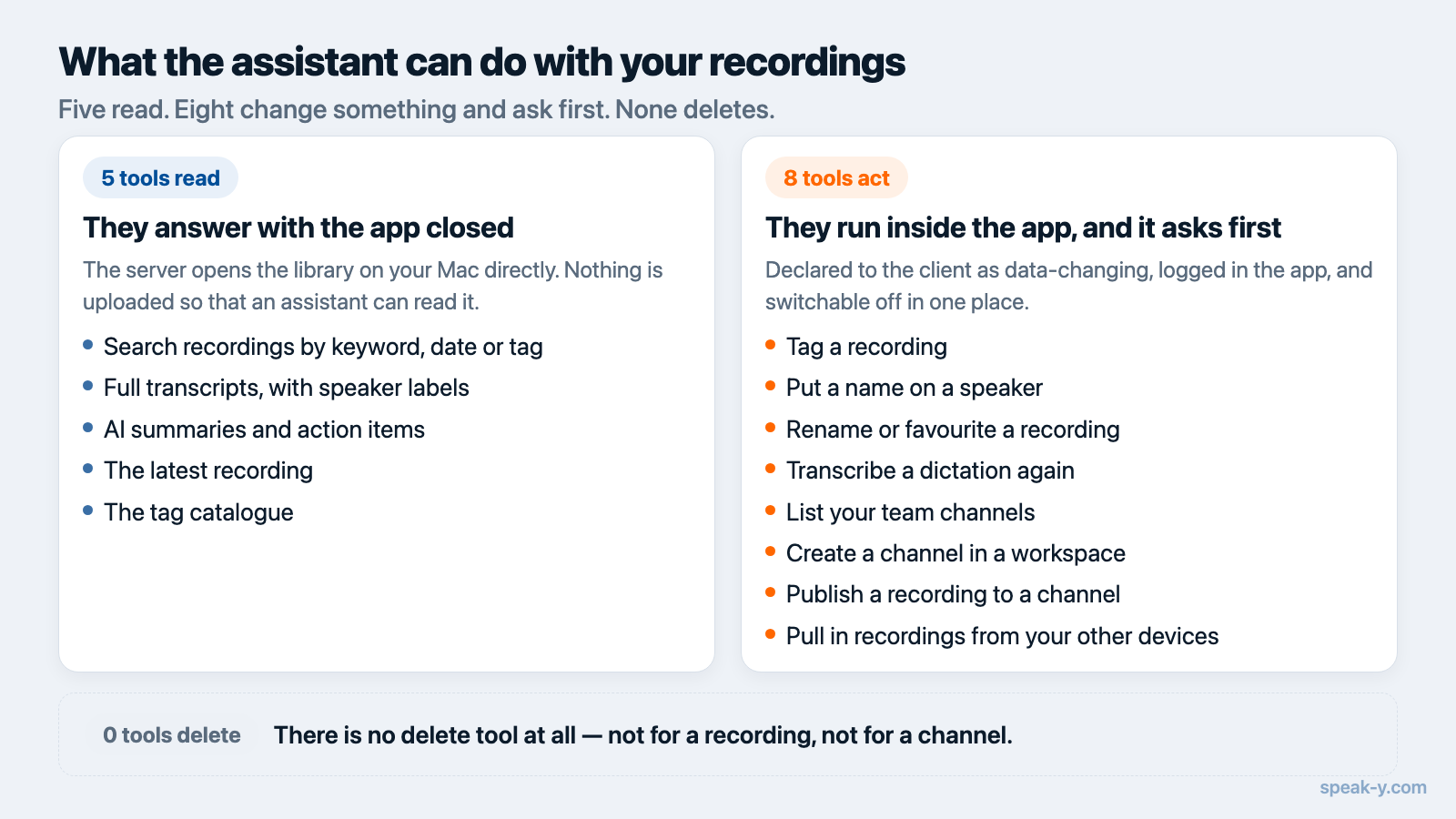
Speak-Y ships with an MCP server built into the desktop app. It offers thirteen tools, in two groups that behave differently.
Five tools read, and they work on their own. The server opens the recording library on your Mac directly, so these answer even when the Speak-Y app is not running:
- Recording search — find dictations and meetings by keyword, date or tag.
- Full transcripts — with speaker labels for meetings.
- AI summaries and action items — the structured notes Speak-Y extracts after each meeting.
- The latest recording and the tag catalogue — for "what did I just dictate?" and "how is my library labelled?".
Eight tools act, and they run inside the app. Changing a recording, or touching an end-to-end encrypted team channel, needs the app itself: it holds the database and the encryption keys. With Speak-Y running, an assistant can tag a recording, put a person's name on a speaker in a meeting, rename a recording or mark it a favourite, transcribe a dictation again, list your team channels, create a channel in an existing workspace, publish a recording to a channel, and pull in recordings made on your phone or another Mac before answering.
Nothing in that list deletes anything: there is no delete tool at all.
Three things make this setup different from cloud notetakers:
- Local. The server runs on your machine and reads local data. Nothing is uploaded so that an assistant can read it.
- Actions are gated, not absent. Every tool that changes something is declared to the client as data-changing, so your assistant asks before calling it; the app logs what was done; and one switch turns all actions off while reading keeps working.
- Free on every plan. MCP access costs nothing, including on the Free plan — while most notetakers that offer MCP at all sell it as part of paid business tiers.
Setup: one click for most clients
- Open the Speak-Y desktop app.
- Go to Settings → Integrations.
- Pick your client — Claude Desktop, Claude Code, Cursor, ChatGPT Desktop and others have one-click install. Speak-Y writes the MCP configuration for you.
- Restart the client and look for the Speak-Y tools in its MCP tool list.
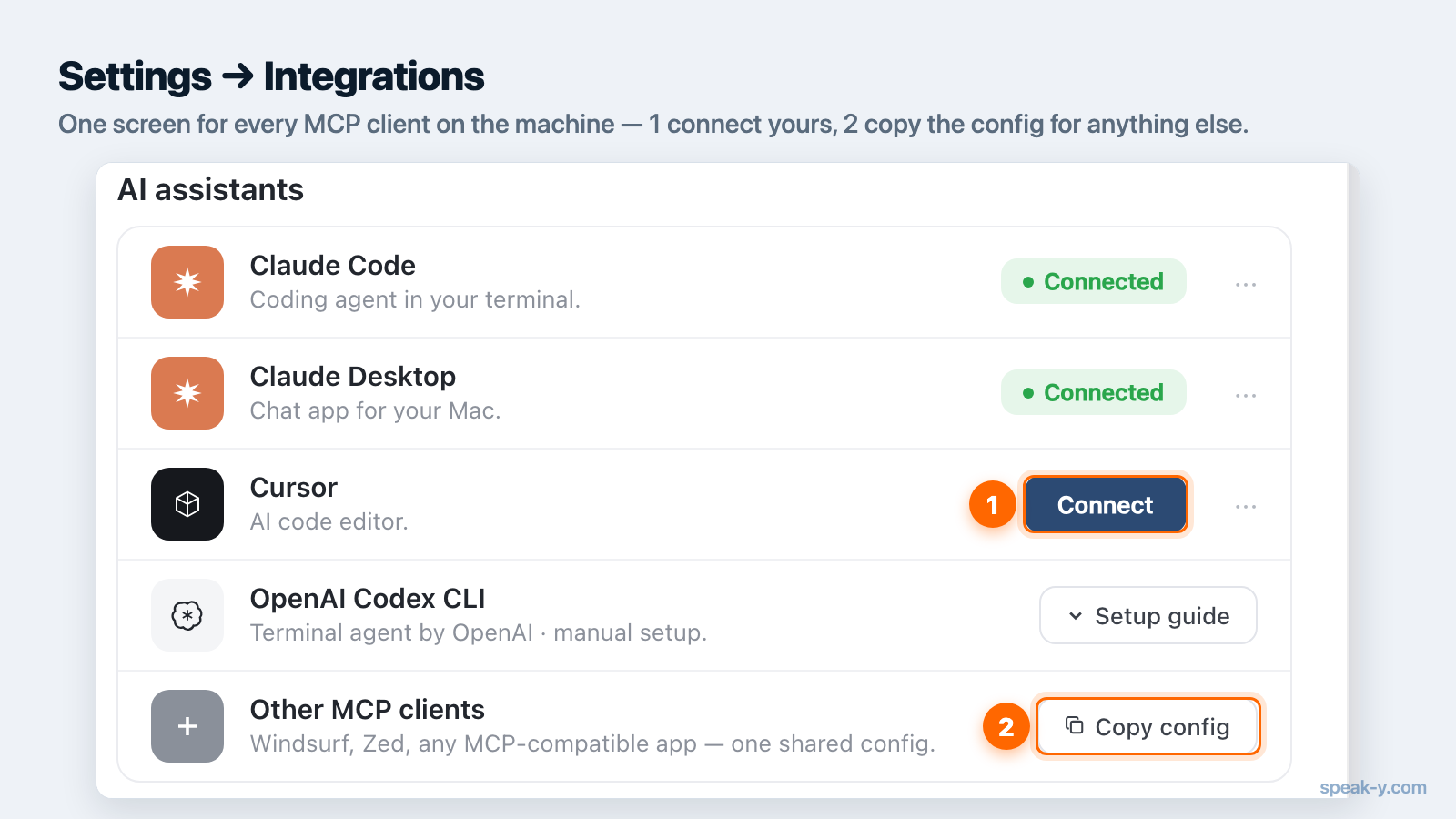
For clients without one-click install, the same screen shows the manual configuration snippet to paste into the client's MCP config file. The MCP documentation covers every supported client, manual configuration and troubleshooting.
Prompts that work well
Once connected, the assistant decides when to call the Speak-Y tools. These patterns work reliably:
- "Search my recordings for the pricing discussion with Acme and summarize what we agreed."
- "Read the transcript of my last meeting and list every action item with an owner."
- "What objections came up in my last three sales calls?"
- "Find the meeting where we discussed the Q3 roadmap and draft a follow-up email based on it."
- "Speaker 2 in yesterday's meeting is Anna — put her name on it, and tag the recording by topic."
- In Cursor or Claude Code: "Check my meeting notes from this week for any bugs we promised to fix, and find the related code."
The common thread: name what you are looking for (topic, person, timeframe) and say what you want done with it. The assistant chains search → read → act on its own.
Can the assistant change my recordings?
Yes, and the line is worth stating precisely, because "read-only" is the easy answer and it is no longer the true one.
- What it can change: tags, speaker names, a recording's title and favourite flag, the text of a dictation (by transcribing it again), and — if you use a team workspace — the channels your colleagues read, by creating one or publishing a recording into it.
- What it cannot do at all: delete a recording, remove a channel or a workspace, create a workspace, start or stop recording, or read what other people have shared into a channel.
- What you cannot undo from the chat: publishing to a team channel — colleagues see it as soon as it lands, and taking it back is done in the app. Transcribing a dictation again replaces the current text, including any manual edits.
Three mechanisms sit between the model and your library, and they are structural rather than a promise:
- The client asks. Data-changing tools are marked as such in the protocol, so MCP clients surface a confirmation before calling one. Sharing to a channel and re-transcribing are additionally flagged as destructive.
- The app logs it. Every action is written to an activity log in Settings → Integrations: time, operation, which recording, the result — and for a publication, the workspace and channel. Transcript text is not written there.
- You can switch it off. The same screen has a toggle for assistant actions. Off, the action tools refuse and the read tools keep working — the read-only setup, when that is what you want.
Privacy model
The privacy question matters more here than with most integrations, because meeting recordings are some of the most sensitive data on your machine. Speak-Y's answer is structural rather than contractual: reading is local, transcripts stay on your device by default, and audio is deleted after processing. The assistant reads exactly what you could read in the app yourself — no more — and it leaves the machine only for what you asked for: syncing your own devices, or publishing a recording to a team channel, both end-to-end encrypted. Details are in the privacy policy.
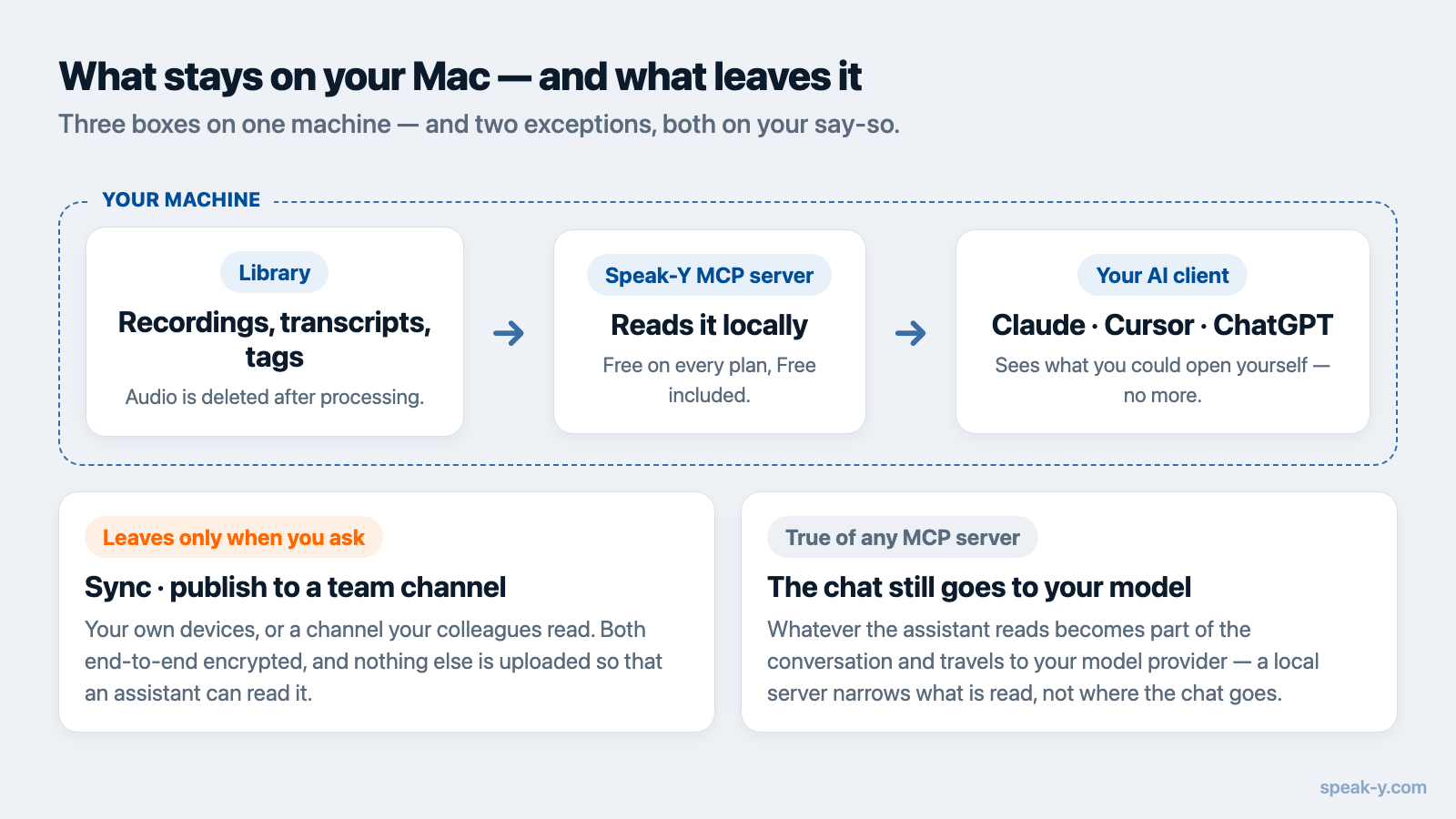
One limit no local server removes: whatever the assistant reads becomes part of your conversation and travels to your model provider like the rest of the chat. That distinction is unpacked in what an MCP server actually is.
Where this goes next
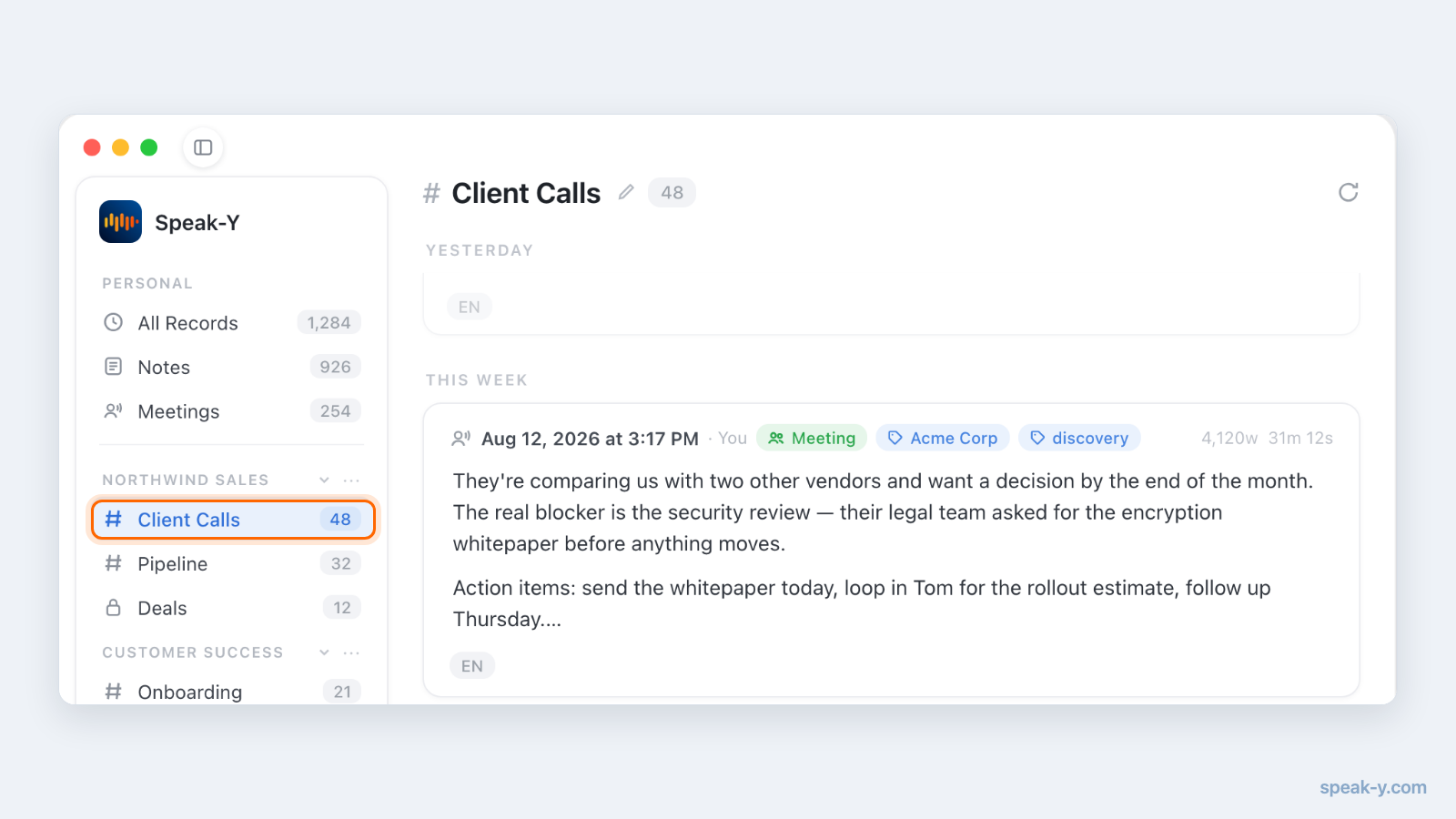
Connecting your own notes is step one. If your team shares meetings into a Speak-Y team workspace, the same conversational access applies to the knowledge your team has decided to share — with end-to-end encryption handling who can see what. That combination — searchable team memory plus an AI assistant that can read it, and file into it when you say so — is what turns meeting notes from an archive into something you actually use every day.
FAQ
Does my meeting data leave my computer?
Reading is local. The Speak-Y MCP server opens the recording library on your own machine, and nothing is uploaded so that an assistant can read it. Data leaves the Mac only for actions you ask for — syncing your other devices, or publishing a recording to a team channel — and both are end-to-end encrypted.
Is MCP access a paid feature?
No. The built-in MCP server is free on every Speak-Y plan, including the Free plan. Most meeting notetakers that offer MCP gate it behind paid cloud tiers.
Which AI clients work with the Speak-Y MCP server?
Any MCP-compatible client: Claude Code, Claude Desktop, ChatGPT Desktop, Cursor, Windsurf, VS Code, Zed, JetBrains AI Assistant, Raycast, Warp, Cline, Continue, Gemini CLI, LM Studio and others.
Can the AI assistant edit or delete my recordings?
It can edit some things and delete nothing. Five tools read; eight more can tag a recording, name a speaker, rename it, transcribe a dictation again, create a team channel or publish a recording into one. Those are declared to the client as data-changing, so your assistant asks before calling them, and every action is logged in the app. No tool deletes a recording.
Can I keep the assistant read-only?
Yes. Settings → Integrations has a switch for assistant actions. Turned off, the eight action tools refuse and the five read tools keep working, so search and transcripts stay available with nothing writable.