One Workspace per Client: How Consultants Keep Client Calls Apart
If you consult for several clients and record your calls in Speak-Y, give each client its own workspace. A workspace has its own channels, its own members and its own Recovery Kit, so the client's team sees that client's calls and nothing else: not your other clients, not your personal recordings, not even the names of people you work with elsewhere. One Pro account can own several workspaces, and the client's people join free on any plan.
This guide follows one case: Nadia Rao, an independent operations consultant with three clients at once — Harbor Foods, Alder Health and, starting this week, Brightline Energy. It covers why one shared workspace for every client is an access mistake, how to set up a workspace for a new client, how to invite the client's team, and what to do when the engagement ends. Product details were checked against the Speak-Y macOS app, version 1.17.26, on October 19, 2026.
Why is one shared workspace for all clients a mistake?
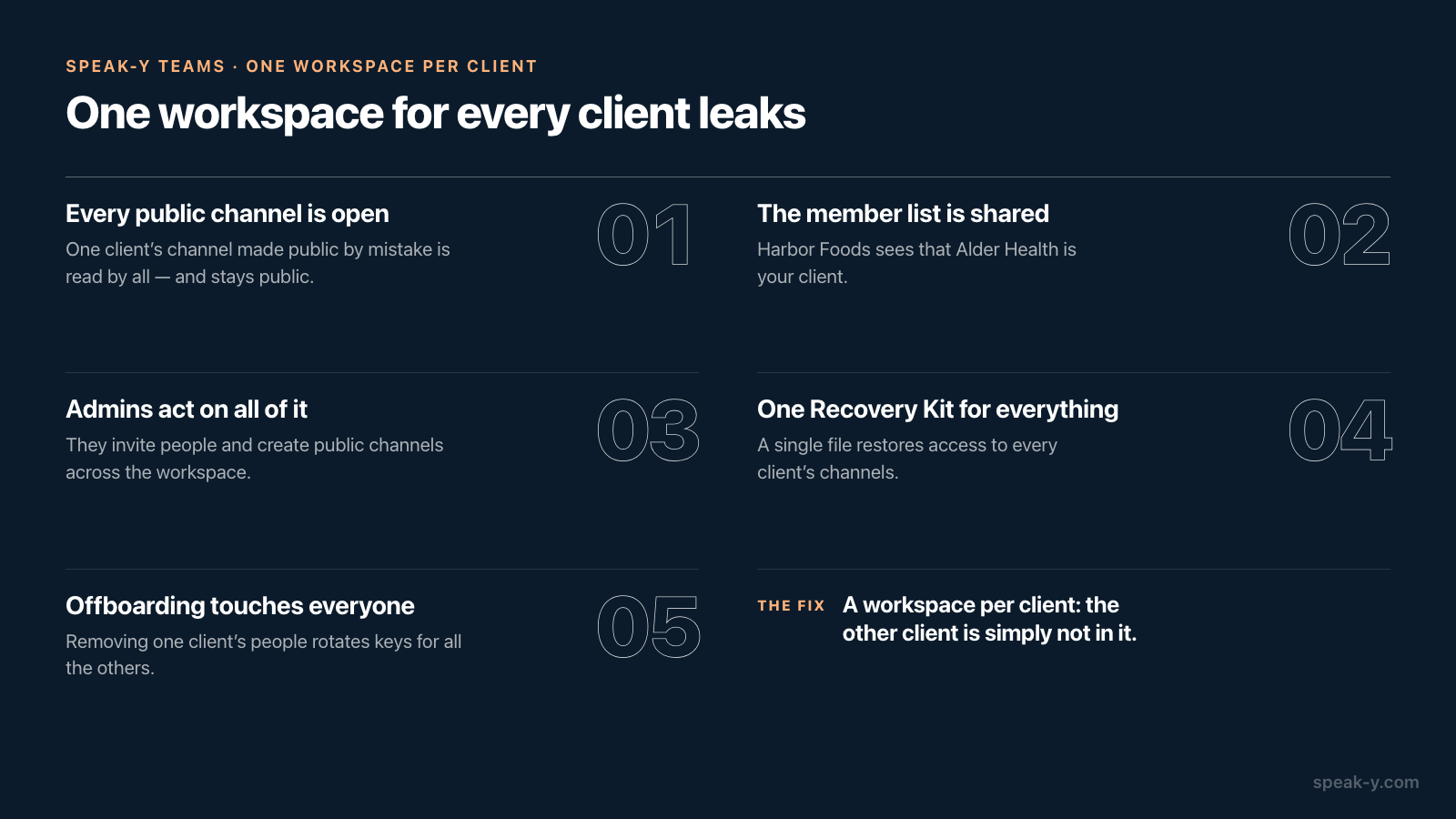
Because a workspace is the boundary of trust, not a folder. The first instinct is one workspace called "Clients" with a channel per client. It looks tidy for a week, and then it leaks in ways that are hard to undo:
- Everyone sees every public channel. A public channel is open to every member of its workspace. Make one client's channel public by mistake and another client's team reads it — and a public channel cannot be made private again, because everyone already has its history.
- The member list is shared. Every member sees who else is in the workspace, so Harbor Foods learns that Alder Health is your client.
- Admins act on all of it. An admin can invite people and create public channels across the whole workspace, not just for "their" client.
- One Recovery Kit covers every channel. The Kit restores access to the workspace's channels, so one file now unlocks all of your clients.
- The end of one engagement touches everyone. Removing a client's people rotates keys of the workspace and its public channels for all the other members too.
Separate workspaces make each of these a non-issue: there is no channel to make public by mistake, because the other client is simply not in the workspace.
What do you need for a workspace per client?
Less than it sounds. Creating a workspace needs the Pro plan or higher, or the trial; as of October 19, 2026, Pro is $10 a month, and the same account can own as many client workspaces as you have clients. The people you invite need only a Speak-Y account with an email address, on any plan, including Free. Workspaces, channels and sharing are in the macOS app.
That pricing matters for consultants more than for anyone. In tools built around one shared team, guests usually cost seats: Fireflies' own help center, checked on October 19, 2026, says each teammate added is billed as an additional seat at the admin's tier. In Speak-Y the bill stays one Pro plan, however many client people you invite.
How do you set up a workspace for a new client?
Nadia's first call with Brightline Energy is on Thursday. Before it, she sets up the workspace in four steps, the same ones described in detail in setting up a team workspace:
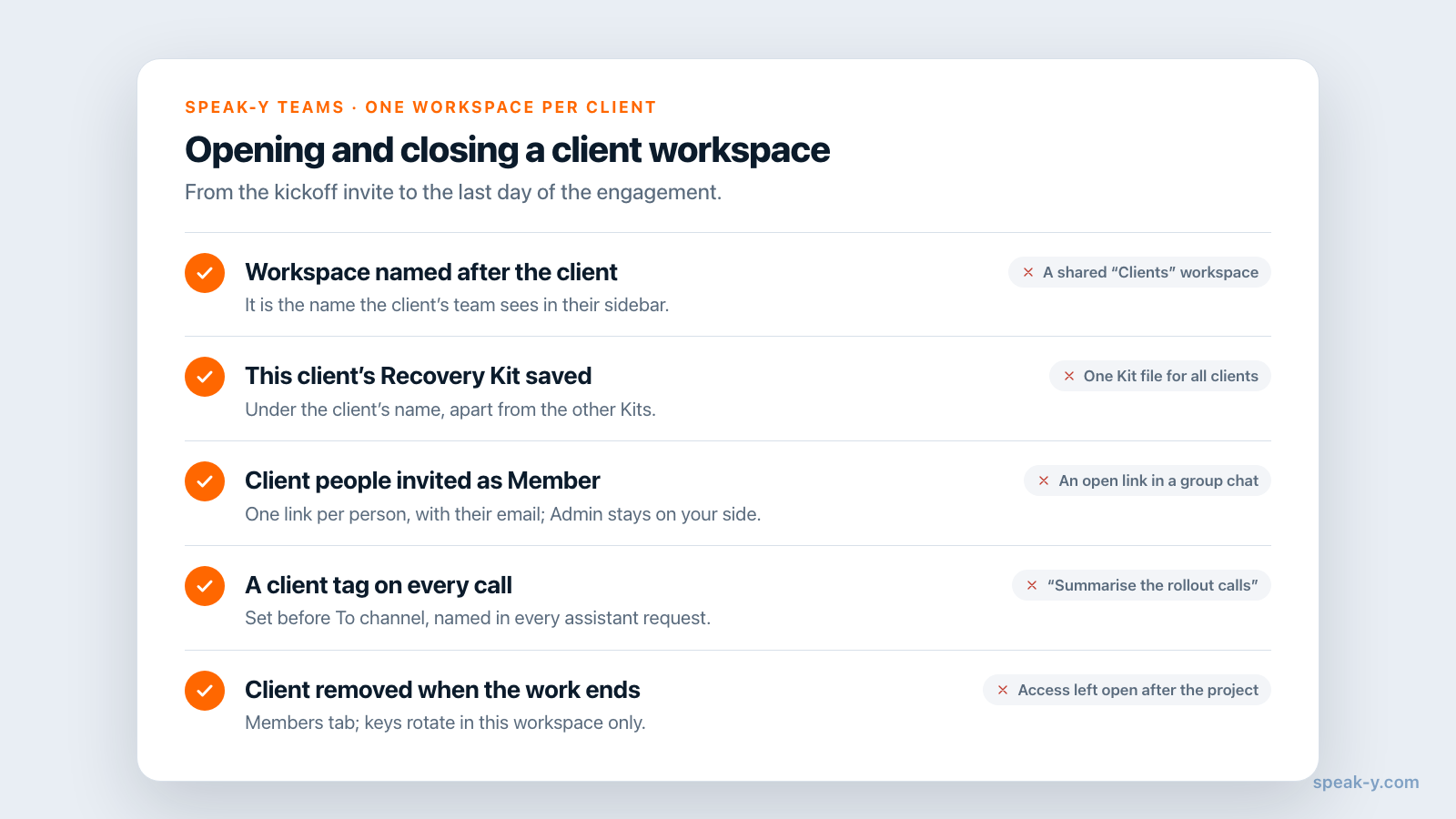
- Create the workspace. In the sidebar, open ⋯ next to any workspace you already have (or next to the Workspaces heading if you have none yet) and choose New workspace. Name it after the client — "Brightline Energy" — because that is the name the client's team will see in their own sidebar. The team encryption password is asked only the first time you create or join a workspace on a Mac; the second and third client reuse the key already on the device.
- Save this client's Recovery Kit. The Kit is shown once, right after the workspace is created, and is per workspace. Save it under the client's name and keep it apart from the other clients' Kits. The Recovery Kit explained covers what it can and cannot restore.
- Create the first channel. From the workspace's ⋯ menu, New channel. One public channel for the engagement ("Brightline Project") is enough to start. Add a private one only for calls a narrower group should see, such as a pricing discussion with the sponsor.
- Tag your calls with the client. Pick one short tag per client —
brightline— and put it on every call before you press To channel. Channels separate people; tags are what your AI assistant filters by later.
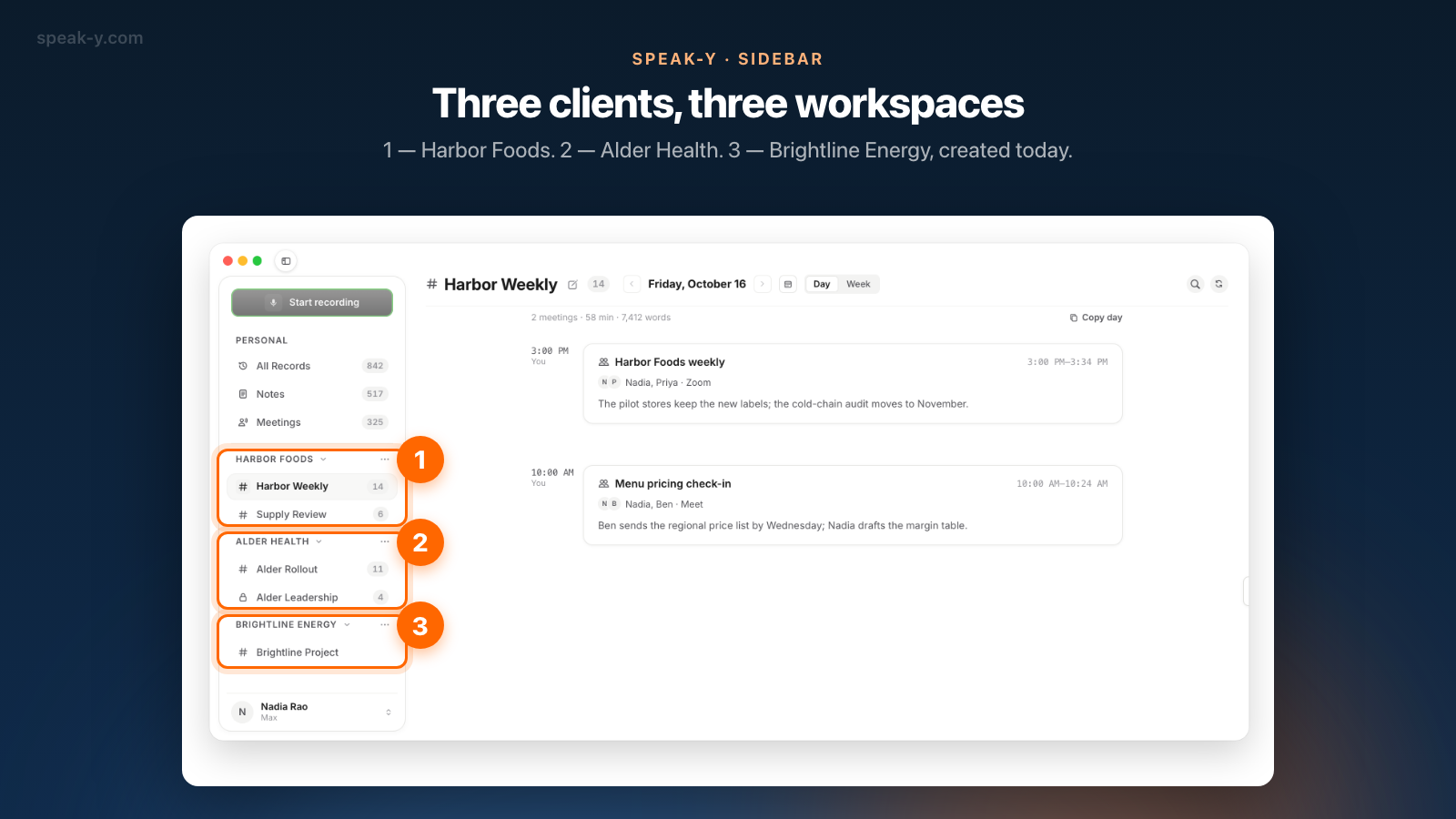
After that, the sidebar shows three workspaces, each with its own channels, and a call can only be shared into one channel at a time.
How do you invite the client's team?
Open the workspace page by clicking the workspace's name in the sidebar, go to Members and press Invite. The invitation has two fields:
- Email (optional). Type the client's address — Nadia types Omar's at Brightline — and the link works only for an account signed in with that email. Leave it empty and anyone who opens the link first can use it, which is a poor fit for client work.
- Role. The owner chooses Member or Admin. Invite client people as Member: they can read the channels, share their own recordings into public ones and leave, but they cannot invite anyone else or remove people.
The app creates the link; it does not send email. Paste it into your own message to the client. Each link works once and expires in 7 days, so create one per person and send it close to the kickoff call.
Keep the Admin role for your side. If you bring in an associate for a project, make them admin of that client's workspace only — they help with that client and never see the other two.
What does the invited client see?
When Omar opens the link, Speak-Y shows Join a workspace with the workspace name, his role and who invited him. He sets his own encryption password if this is his first workspace, presses Accept, and Brightline Energy appears in his sidebar.
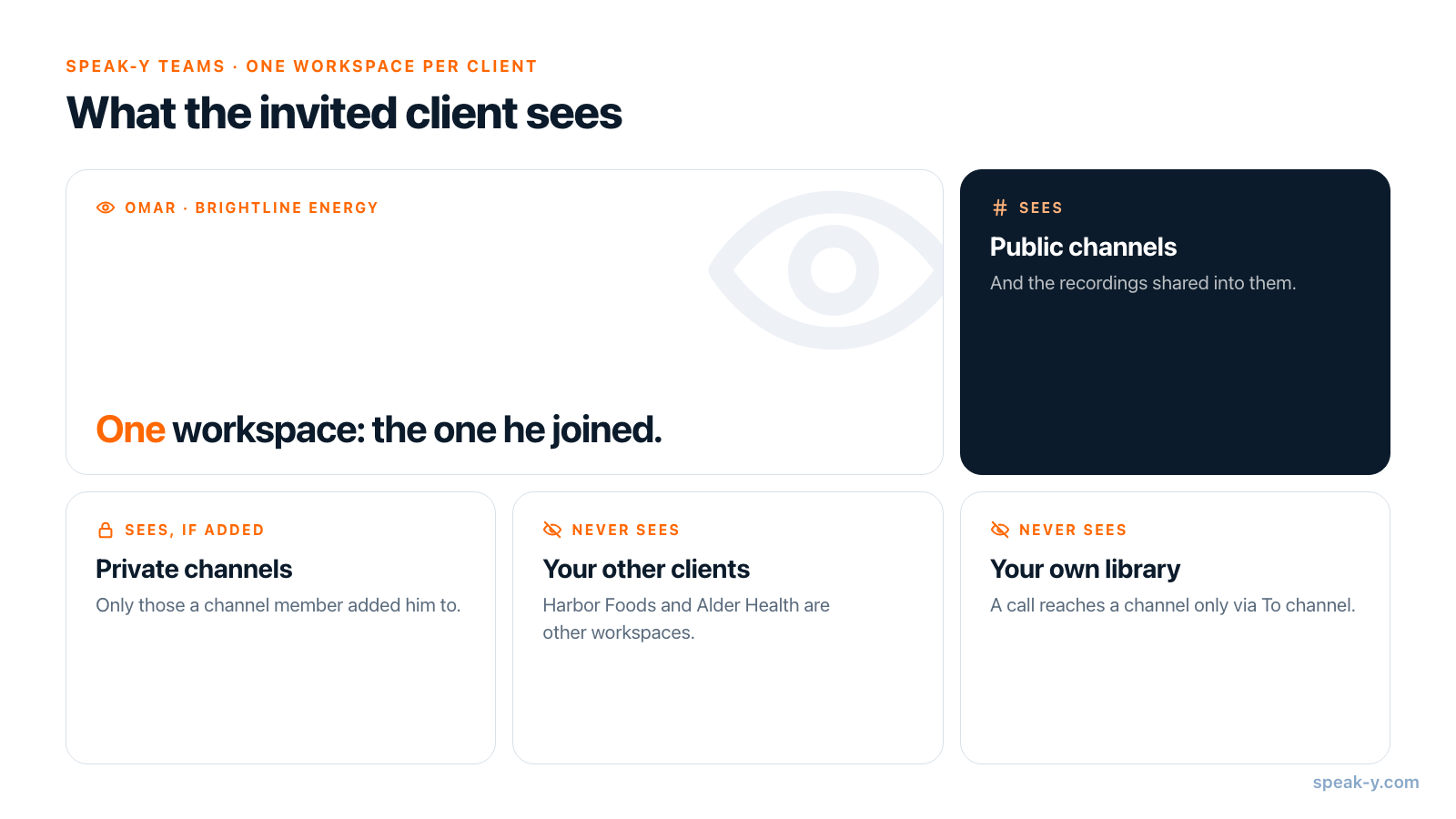
From then on he sees exactly one workspace:
- its public channels and the recordings shared into them;
- private channels only if a member of that channel added him;
- the workspace's member list, which now holds only Brightline people and you.
He does not see Harbor Foods or Alder Health, and he does not see your personal recordings: a call reaches a channel only when you press To channel on it. That is the real answer to "can my client see my other clients' calls" — not a setting, but the fact that they were never in the same workspace.
Does your AI assistant keep clients apart?
Only if you ask it to. The Speak-Y MCP server lets Claude, ChatGPT or Cursor read your recordings from the copy on your Mac, and it reads everything you can see: your own recordings plus those shared into every channel of every workspace you belong to. It filters by date and tag, not by workspace.
That is why step 4 above matters. With a tag per client, "summarise the open
action items from calls tagged brightline since October 1" reads only
Brightline calls. Without the tag in the request, an assistant asked about "the
rollout" can quote Alder Health into a Brightline draft. The habit is cheap:
tag before sharing, and name the tag in every request about a client.
What happens when the engagement ends?
When the Brightline project is over, remove the client's people from the workspace on the Members tab. Their access ends at once and the channel keys are rotated, so they cannot read anything shared later; whatever they already downloaded or copied stays with them, as with any shared document. What a removed teammate loses and keeps goes through it in detail.
The owner cannot leave their own workspace, so the workspace and its history stay with you, together with its Recovery Kit. And because the other clients live in workspaces of their own, ending one engagement does not rotate a single key in theirs.
Speak-Y Teams was built for exactly this kind of boundary: channel keys exist only on the devices of the people in that workspace. The full picture is on the Speak-Y Teams page.
FAQ
Should a consultant use one Speak-Y workspace for all clients or one per client?
One per client. Every member of a workspace sees its public channels and its member list, and the workspace owner's Recovery Kit covers all of its channels. A separate workspace per client gives each client its own channels, members and Recovery Kit, so people from one client never appear next to another client's calls.
Do I need a separate Speak-Y subscription for each client workspace?
No. Creating workspaces needs Pro or higher, or the trial, and one account can own several of them. As of October 19, 2026, Pro costs $10 a month. The client's people join by invitation on any plan, including Free, so inviting a client team does not add seats to your bill.
What does an invited client see in my Speak-Y app setup?
Only the workspace they were invited to: its public channels, the private channels someone added them to, and the recordings shared into those channels. They do not see your other workspaces, your personal recordings or private channels they are not in.
Should I make the client's lead an admin of the workspace?
Usually not. An admin can invite people, create public channels and remove regular members, so the list of who can read your calls stops being yours to keep. Invite client people as Member and keep the Admin role for a colleague from your own side, if you have one.
Can my AI assistant mix up calls from different clients?
It can if you let it. The Speak-Y MCP server reads every recording visible to you, across all your workspaces, and filters by tag and date rather than by workspace. Put a client tag on each call and name that tag in every request, and the assistant only reads that client's calls.