Removing a Teammate in Speak-Y: What They Lose and What They Keep
Removing a teammate from a Speak-Y workspace takes three clicks, and its effect is enforced by keys rather than by a setting. The moment you confirm, the server drops the person from the workspace and deletes their copies of the channel keys; your app then issues new key versions that only the remaining members receive. From that point, nothing new that the team shares can reach them.
What removal cannot do is reach into their Mac. Recordings their app had already downloaded stay with them, the same way a forwarded email stays in someone's inbox. This guide walks through the steps, then separates what the person loses at once from what they keep, and ends with a short offboarding checklist. The cryptography behind it is covered in how end-to-end encrypted team sharing works; here the focus is on what you see and what you should do.
How do you remove someone from a workspace?
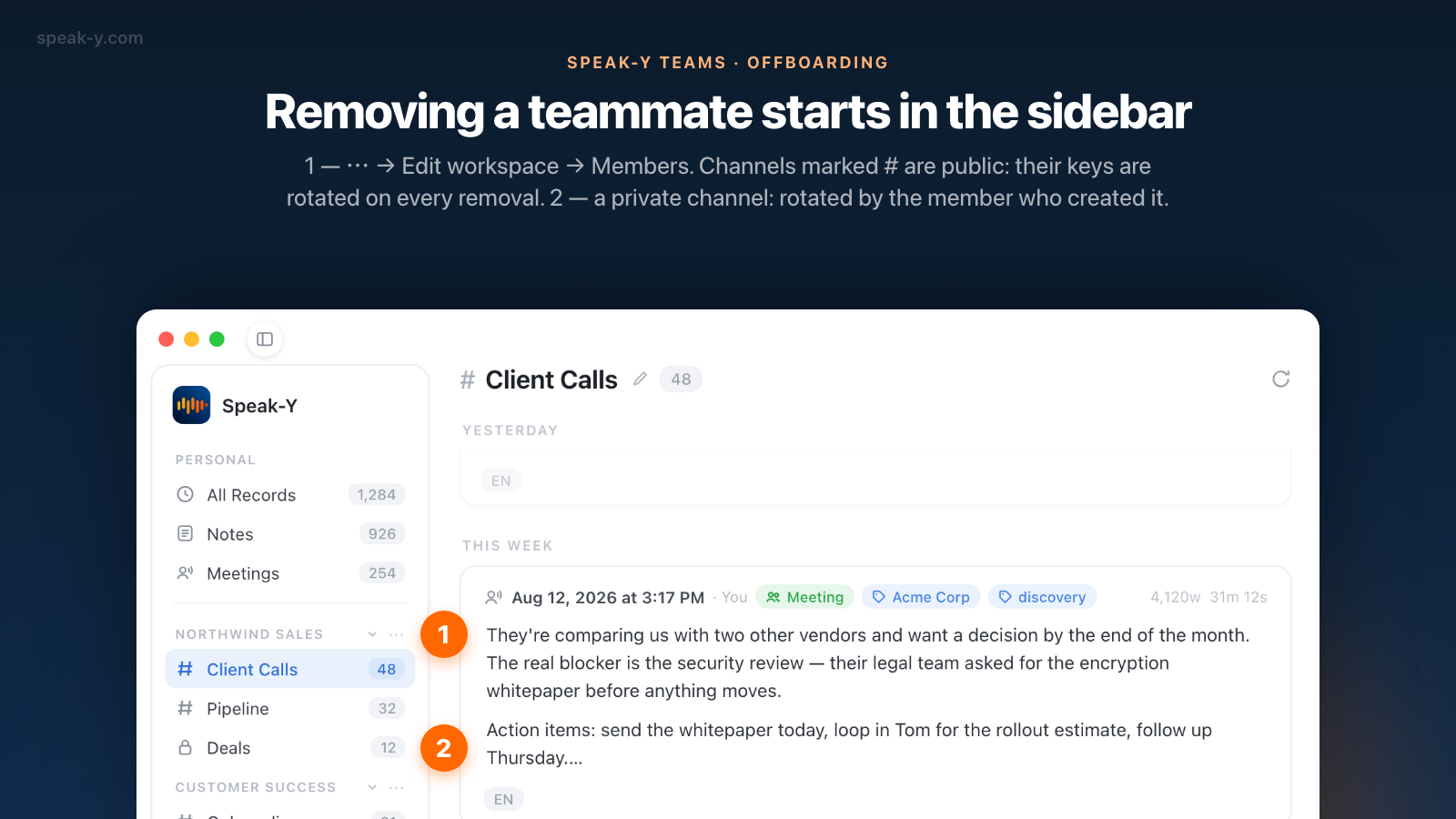
Team workspaces live in the sidebar of the Speak-Y macOS app, not in Settings.
- Click ⋯ next to the workspace name in the sidebar and choose Edit workspace.
- Open the Members tab. Each row shows the person and their role.
- Click the red remove icon (a person with a minus sign) at the end of their row.
- The app asks Remove this member? and explains that access is revoked immediately and the keys of the workspace, its public channels and the private channels you are in will be rotated. Click Remove member.
- Wait for the line Member removed, channel keys rotated under the member list.
Who can do this: the owner can remove anyone except themselves, and admins can remove regular members, but not other admins. Nobody can remove the owner. The app shows the remove icon in every row except your own and the owner's; the server checks the role again when you click, so the icon alone grants nothing.
What does the removed person lose right away?
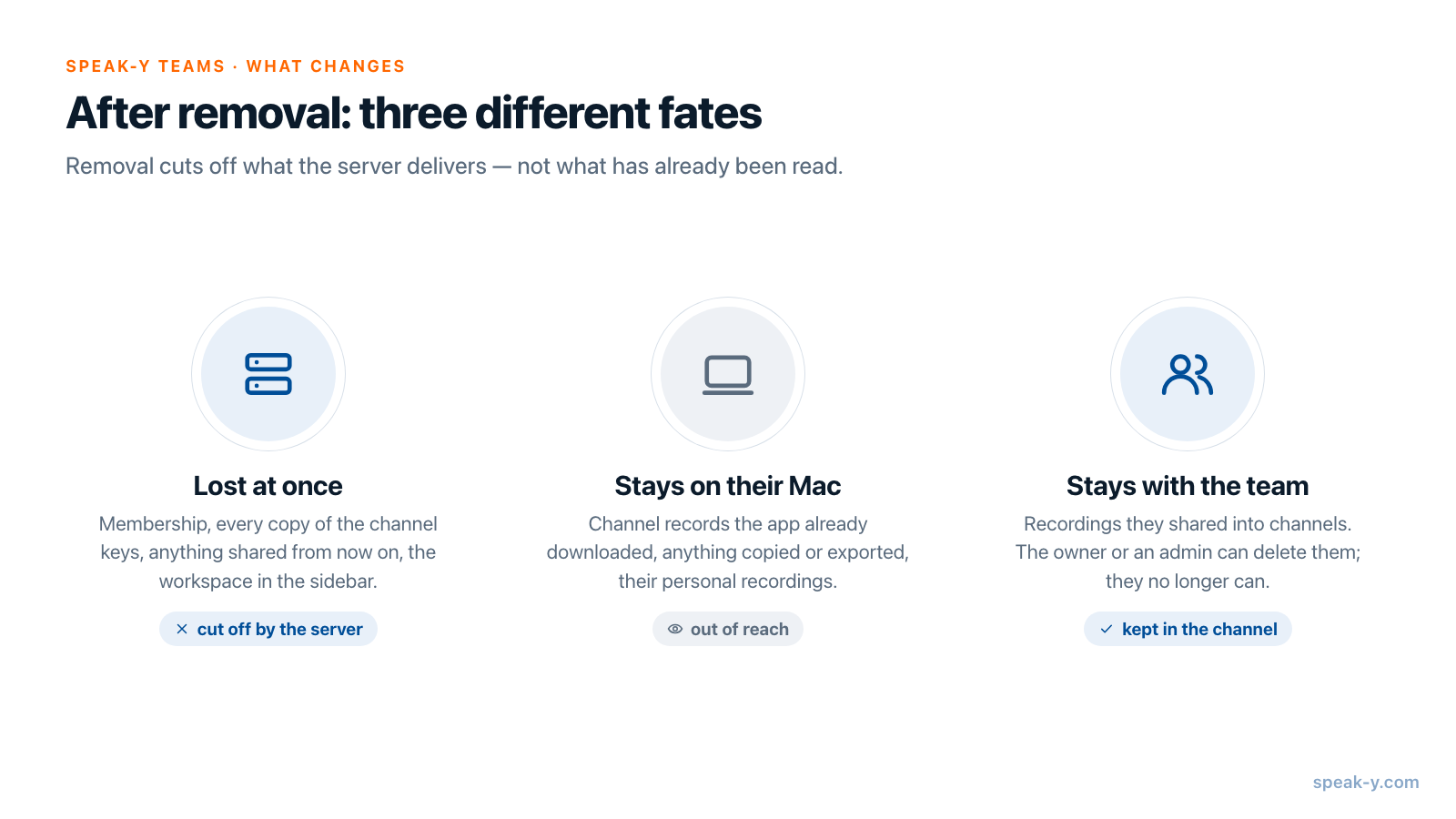
Everything that depends on the server handing them a key or a record:
- Membership and keys. The server deletes their membership and every sealed copy of a channel key it held for them. For them the workspace and its channels no longer exist: requests return nothing.
- Anything shared from now on. New recordings in the workspace's channels are encrypted with key versions sealed only for the people who stay.
- The workspace in their sidebar. It disappears the next time their app reloads the list of workspaces, for example at the next launch.
- Their old invite link. Invite links are single-use, and theirs was used when they joined. The workspace key it carried has been replaced as well.
- Control over their own posts. Recordings they shared into channels stay there, and they can no longer delete them.
If this was their only workspace and they are on the Free plan, that part of their sidebar goes back to the panel for joining a workspace with a code.
What do they keep?
Three things, and only one of them is a matter of trust:
- What their Mac already downloaded. The app keeps a local copy of the channel feeds it has loaded, decrypted, so the feed opens quickly. Removal does not wipe that copy. Whatever they could read before the removal, they can still read on that Mac — including through an AI assistant connected to Speak-Y's local MCP server.
- What they copied or exported. Text pasted into a document, a file exported, a transcript that went into their own Google Drive — all of it is outside Speak-Y's reach.
- Their personal recordings. A recording shared into a channel is a separate encrypted copy. Their own library, dictations and meetings are not touched by removal in any way.
This is not a Speak-Y quirk. No end-to-end encrypted system can take back plaintext that has already been on someone's screen; key rotation protects the future, not the past. The practical conclusion is simple: share into a channel only what everyone in that channel may keep.
What happens to what they shared?
Recordings the person shared into channels remain in those channels, so the team does not lose meeting history when someone leaves. Their name no longer resolves, because they are gone from the member list, so the posts show a short identifier instead.
If some of those posts should go, the workspace owner or an admin can delete them — provided they have access to the channel. In a private channel that means being a member of it: a role alone does not open a private channel in Speak-Y, because access is a question of holding the channel key.
Which keys are rotated, and why it matters
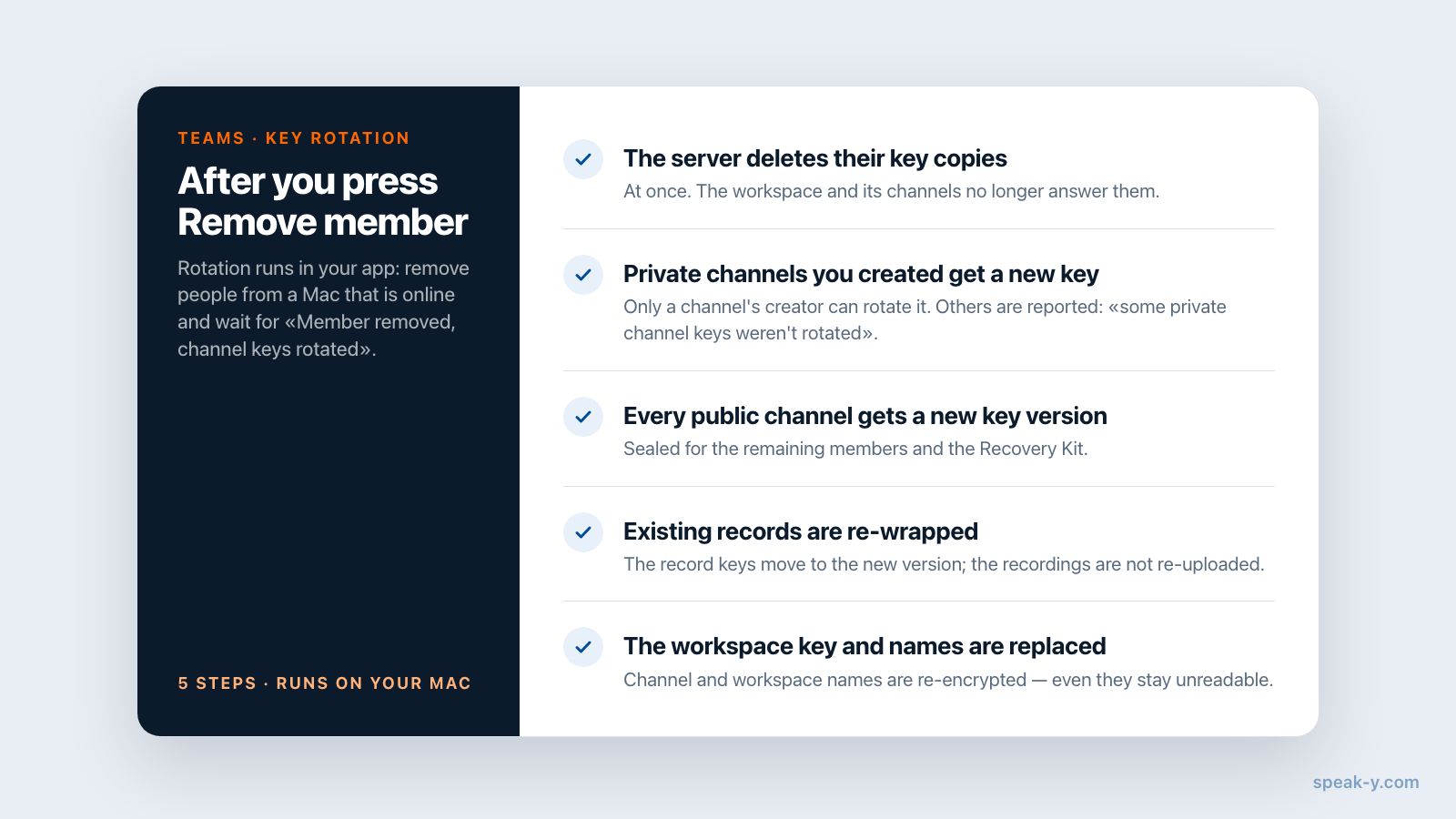
Rotation is what turns "removed from the list" into "cannot read anything new". Your app does it right after the server confirms the removal:
- The server deletes the person's sealed key copies.
- Private channels they were in get a new key version — but only those you created. The server lets only a channel's creator rotate its key.
- Your app issues a new version of every public channel key and seals it for the remaining members and the workspace Recovery Kit.
- Existing records are re-wrapped to the new key version; the recordings themselves are not re-uploaded.
- The workspace key is replaced, and channel and workspace names are re-encrypted, so the removed person cannot even read what the channels are called.
Two practical consequences. First, rotation runs in your app, so remove people from a Mac with a stable connection and wait for the confirmation line. Second, if the person was in a private channel created by someone else, the app says so: Member removed, but some private channel keys weren't rotated. The server no longer gives them the records of those channels, but the old key stays with them.
Removing someone from a single private channel, without removing them from the workspace, is done in that channel's members list. Only the channel's creator can do it, and the confirmation says that the channel key will be rotated and they will lose access to all records. When a member leaves a private channel on their own, the key is not rotated.
How other tools handle removal
Most team tools treat removal as an account setting. Checked on September 30, 2026:
- Slack. Deactivating a member removes them from all channels and signs them out on all devices; their messages and files stay in the workspace for history and search.
- Otter.ai. Admins can deactivate a member, which keeps their conversations, or delete them, which permanently deletes their conversations — including those shared to channels.
Both are clear, documented policies enforced by the server. The difference in Speak-Y is that the server never held readable content or keys in the first place, so removal has to be carried out with keys: the person's copies are deleted and the keys everyone else uses are replaced.
An offboarding checklist
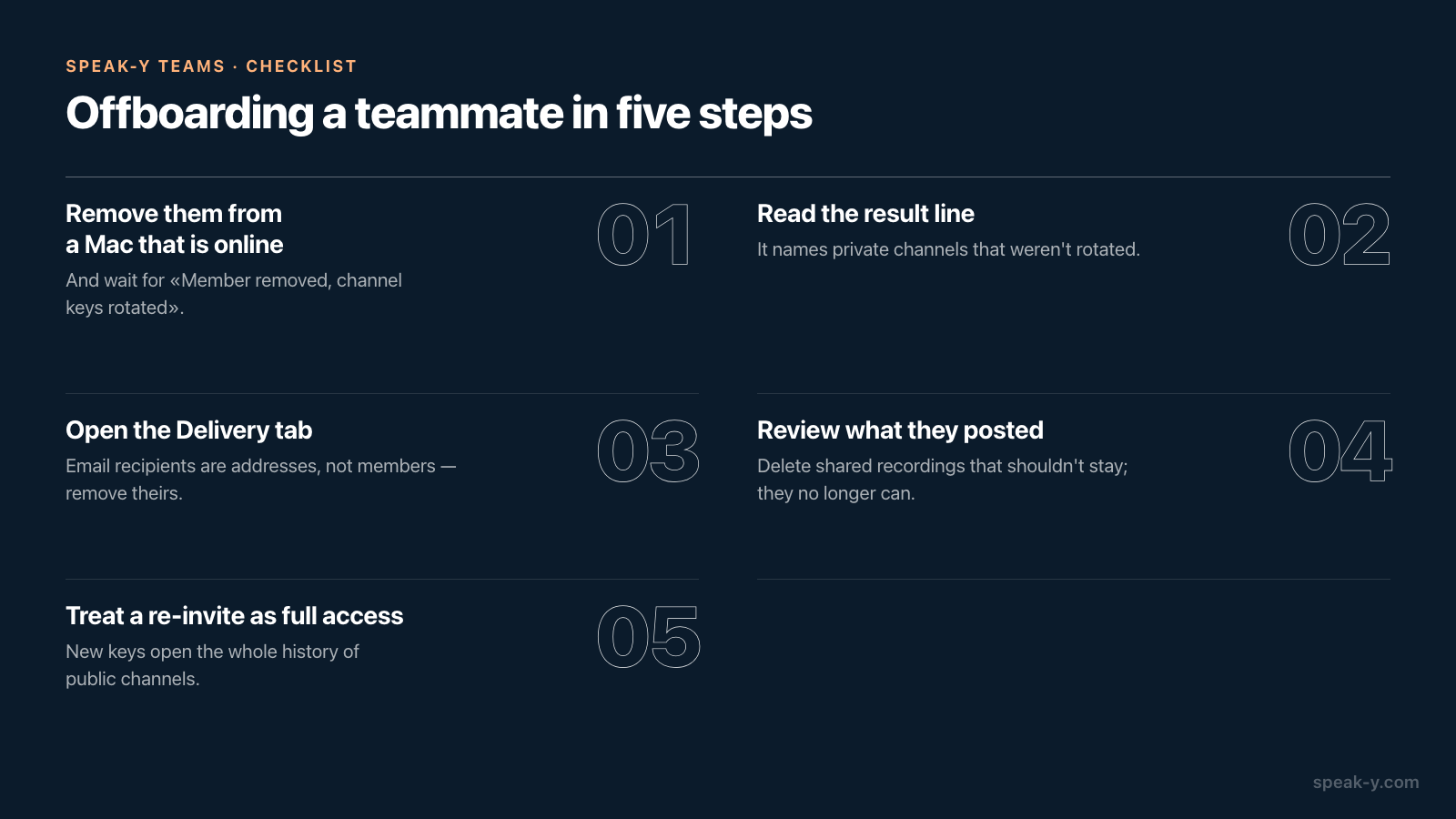
When someone leaves the team, five minutes cover it:
- Remove them from a Mac that is online, and wait for Member removed, channel keys rotated.
- Read the result line. If it mentions private channels that weren't rotated, you know which channels still depend on the server's refusal alone.
- Open the Delivery tab. Email recipients there are addresses, not members — remove theirs if meeting notifications went to them.
- Review what they posted. Delete shared recordings that should not stay with the team; they no longer can.
- Decide consciously about a re-invite. A new invitation gives them the current keys and the full history of public channels, including everything shared while they were away.
Team workspaces are available in the Speak-Y macOS app: creating one starts on the Pro plan, and teammates join free on any plan. The Speak-Y Teams page shows how shared channels work day to day, and the guide to turning meetings into a team knowledge base covers how to decide what goes into which channel in the first place.
FAQ
How do I remove someone from a Speak-Y team workspace?
In the macOS app, open ⋯ next to the workspace in the sidebar, choose Edit workspace and go to Members. Click the remove icon in the person's row and confirm with Remove member. The app then rotates the channel keys and shows Member removed, channel keys rotated.
Can a removed teammate still read the team's meeting notes?
Not new ones. The server deletes their copies of the channel keys at once, and new recordings are encrypted with key versions they never receive. Recordings their app had already downloaded to their Mac stay there, as with any file someone has already opened.
What happens to the recordings a removed member shared into a channel?
They stay in the channel for the rest of the team. The removed person can no longer delete them; the workspace owner or an admin with access to that channel can.
Who can remove members from a Speak-Y workspace?
The owner can remove anyone except themselves, and admins can remove regular members. Nobody can remove the owner. A single private channel is different: only the person who created that channel can remove someone from it.
If I invite a removed teammate back, what will they see?
A new invitation gives them the current keys, so they see the full history of the workspace's public channels, including what was shared while they were away. Private channels stay closed until a member of each channel adds them.