Cursor Meeting Context: Link Transcripts to Code over MCP
Cursor can read your meeting transcripts in the same session it reads your repository, once those transcripts are exposed through an MCP server. Speak-Y ships one inside the desktop app, so the setup is a click in Settings → Integrations and a restart of Cursor — no JSON, no API key.
The payoff is not "my notes are in my editor now." It is that two questions that normally live in different applications collapse into one. "What did we agree to change about the retry logic?" and "where is that code?" become a single prompt, and the agent answers both halves without you translating the first into a search query for the second.
This guide covers what Cursor actually gets, how to connect it, how to tell the connection came up, the prompts that make it worth the five minutes, and where this approach stops helping.
One thing to check before you start
Cursor's pricing page lists "MCPs, skills, and hooks" among the features of Pro ($20/month) and above; the free Hobby tier's list is limited to Composer access and a capped number of agent requests, and does not mention MCP (checked 12 August 2026). If you are on Hobby, verify MCP works for you before planning a workflow around it.
Speak-Y's side costs nothing regardless: the MCP server is included on every plan, including Free, with no separate integration fee.
What Cursor gets
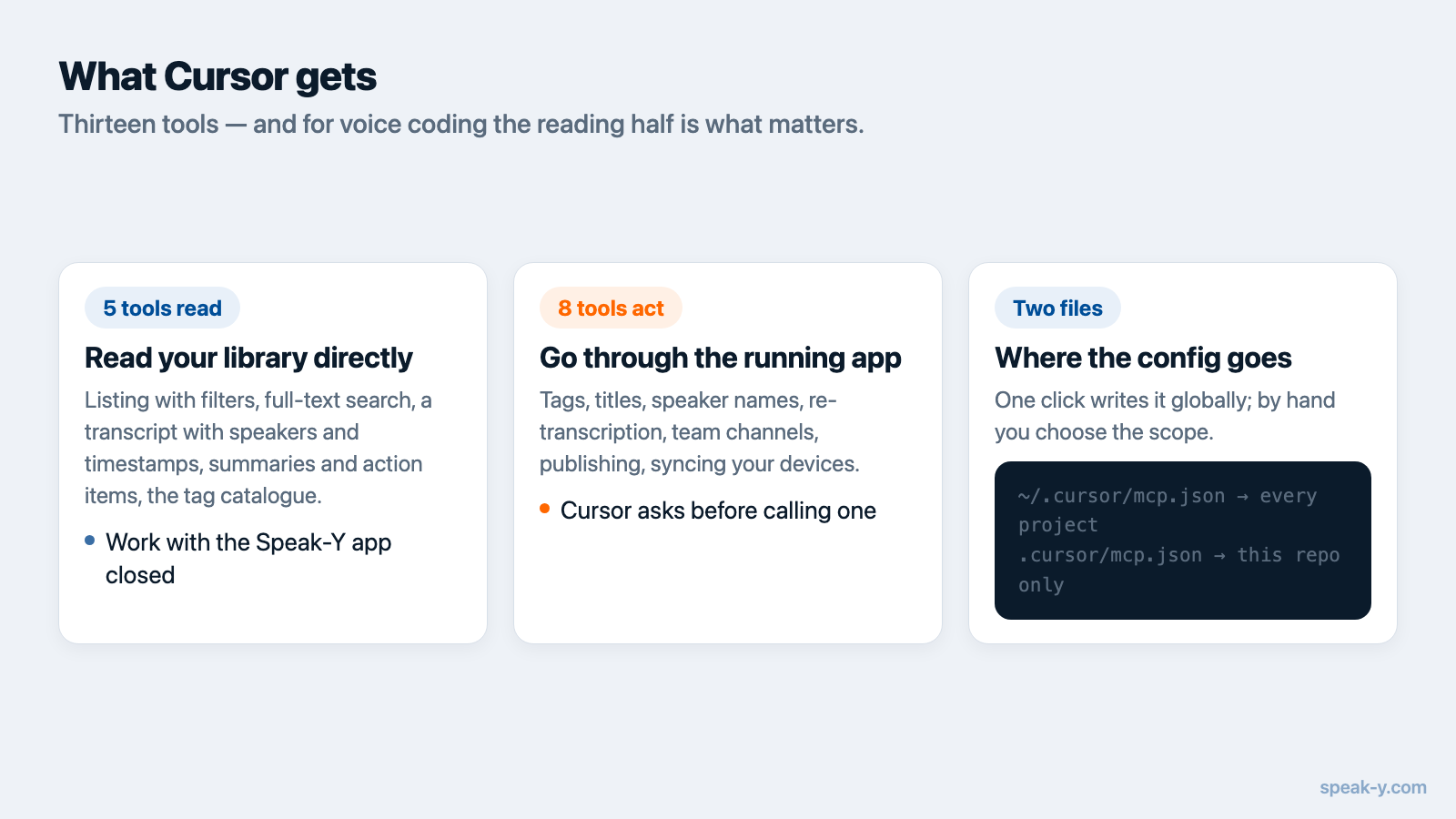
Thirteen tools, and the split between them is the part worth understanding, because it decides what needs to be running:
Five read your library directly — listing recordings with filters, full-text search, reading a transcript (plain, per-speaker, or the summary with action items), pulling the most recent recording, and listing your tags. These open the local database read-only and work whether or not the Speak-Y app is open.
Eight go through the running app — tags, a recording's title, speaker names, re-transcription, creating a team channel, publishing a recording into it, syncing from your other devices, and listing your team channels. The app does the work with the same code that sits behind the buttons in its own interface. Close it and these answer "launch Speak-Y" instead of failing oddly. Seven of the eight change something; listing channels only reads, but the channel data lives in the app, so it needs the app too.
For voice coding specifically, the reading half is what matters. The rest is housekeeping you can do from chat rather than switching windows.
Connect it
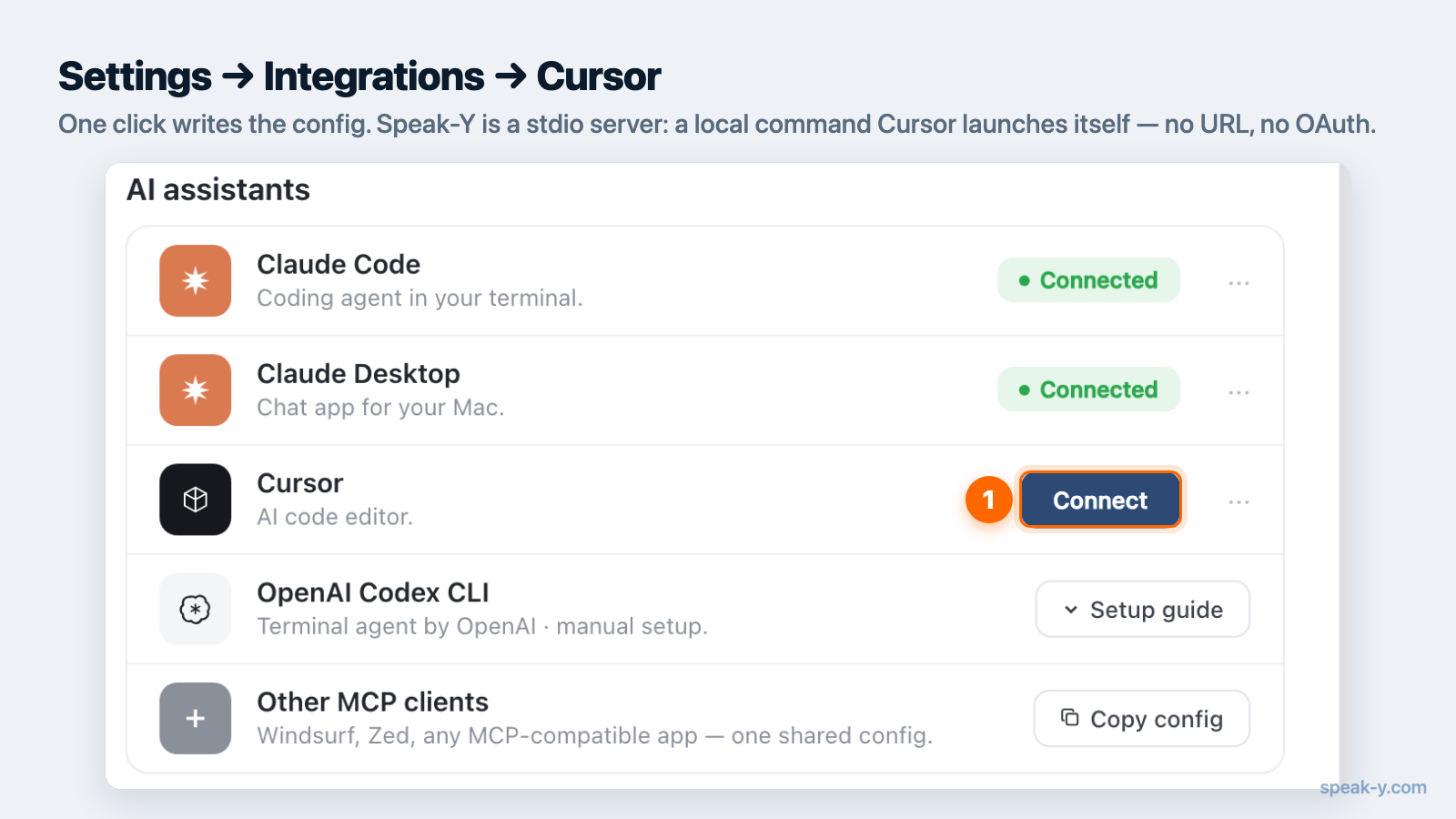
The one-click path. Open Speak-Y, go to Settings → Integrations, find
Cursor in the client list, and click Install. Speak-Y writes the entry into
~/.cursor/mcp.json — Cursor's global config, which applies across all your
projects. That is the right scope here: your meeting history is not
per-repository. Then restart Cursor.
The manual path, if you would rather see what is being added, or you want the server in one project only. Cursor reads MCP configuration from two files:
~/.cursor/mcp.json— global, available in every project..cursor/mcp.json— project-level, and version-controlled, so a repository can ship the same servers to everyone who clones it.
Speak-Y is a stdio server: a local command that Cursor launches itself, with no URL and no OAuth. The Settings → Integrations screen has the config snippet ready to copy, including a variant that pins the server to reading only.
Speak-Y also drops a Cursor rule at ~/.cursor/rules/speaky-organizer.mdc. It
is written with alwaysApply: false and a description, which in Cursor's rule
system means the agent pulls it in when the description matches what you are
doing — so it costs nothing in context while you are working on unrelated code.
Verify the connection
Open Customize in the sidebar. Installed MCP servers are listed there with a toggle each, and a disabled server does not load or appear in chat — that toggle is the first thing to check when tools have gone missing.
The real test is functional, though. Ask something only your recordings can answer:
Search my Speak-Y recordings for the most recent meeting and tell me what we decided.
If that comes back with an actual meeting, you are connected. If it comes back empty, the usual cause is an empty library rather than a broken server — the agent sees exactly what you see in the app, and nothing more.
Prompts worth the setup
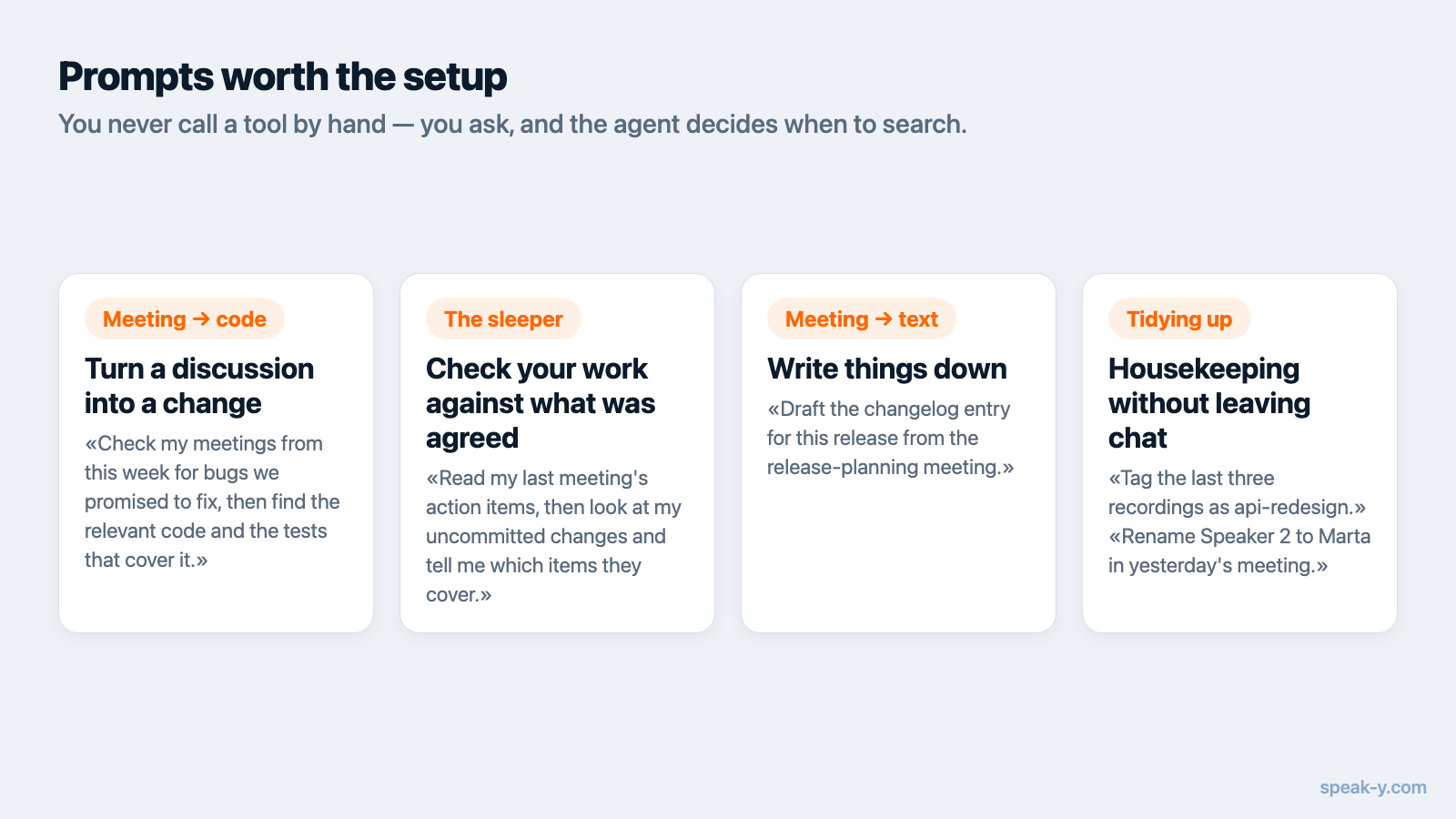
You do not call tools by hand. You ask, and the agent decides when to search. These are the patterns that earn their keep in a code editor specifically.
Turning a discussion into a change.
- Check my meetings from this week for bugs we promised to fix, then find the relevant code and tell me what each fix would touch.
- We argued about the caching strategy on Tuesday. Summarise the objections,
then read
cache.pyand tell me which ones the current code already answers. - Find where we discussed the API rate limits and turn the decision into a short spec I can put in the README.
Checking your work against what was actually agreed.
- Read my last meeting's action items, then look at my uncommitted changes and tell me which items they cover and which they don't.
- Before I open this PR: did we agree on this approach, or is this the version we rejected on the call?
That second one is the sleeper. The version rejected on a call is a specific, expensive mistake — it survives because the reasoning lived in a conversation nobody wrote down, and a week later the rejected design looks perfectly reasonable again.
Writing things down.
- Draft the changelog entry for this release from the release-planning meeting.
- Write commit messages for these changes that reference why we made them, using the meeting where it was decided.
Housekeeping without leaving chat.
- Tag the last three recordings as
api-redesign. - Rename Speaker 2 to Marta in yesterday's meeting.
Why the transcript beats the ticket
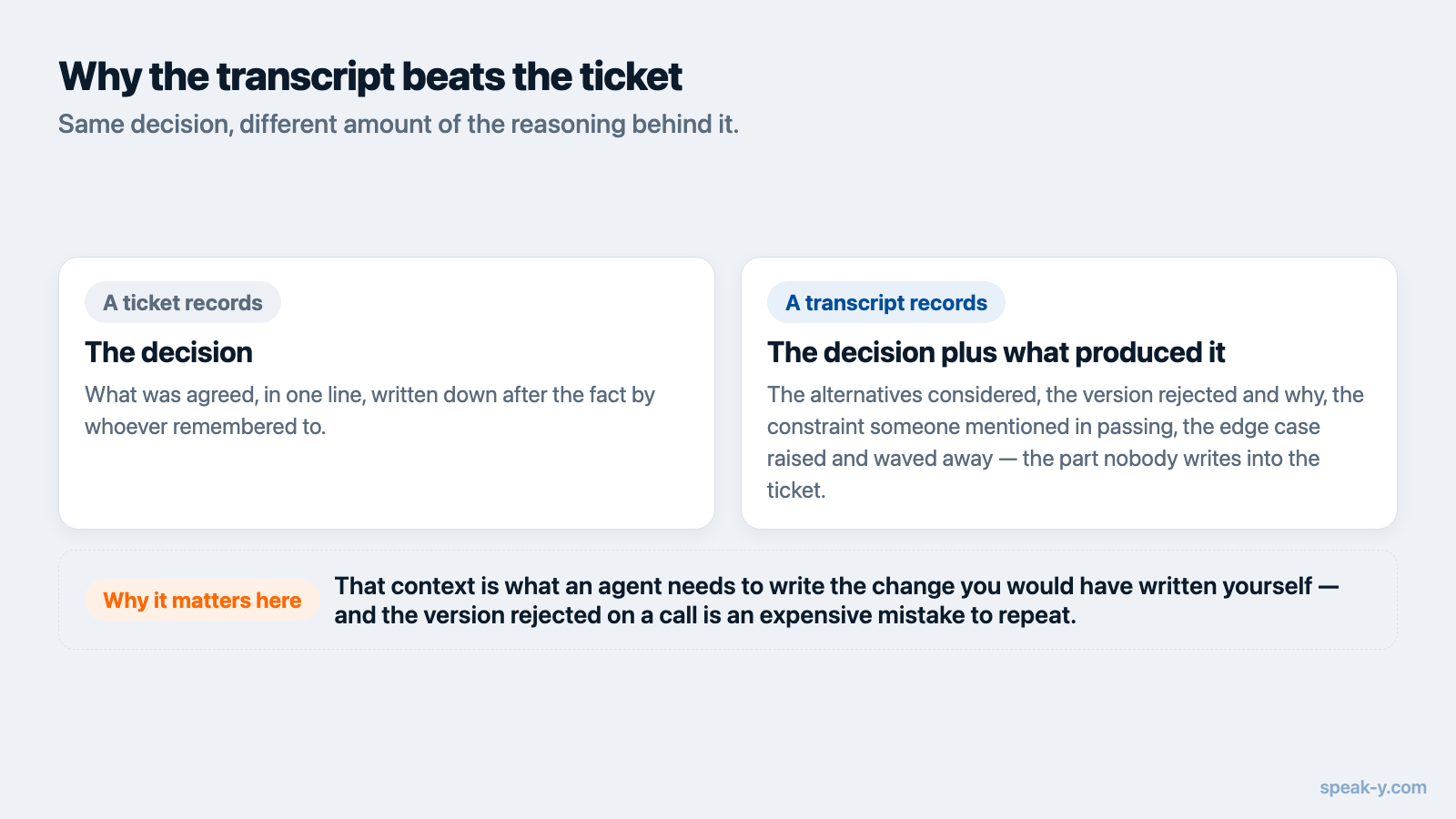
A ticket records the decision. The transcript records the decision plus the constraints that produced it — the objection someone raised and withdrew, the edge case that made the simple approach unworkable, the "let's do the ugly thing for now, we'll revisit in Q4."
That context is what an agent needs to write a change you would have written yourself, and it is exactly what gets stripped when someone compresses forty minutes into a three-line issue. Feeding the transcript in is not about saving the note-taking; it is about not throwing away the reasoning before the code gets written.
The same logic runs in the other direction, which is why dictating prompts tends to produce better instructions than typing them: people say the constraints out loud and type only the request.
What it will not do
- It cannot delete anything. No tool removes a recording, a channel or a workspace.
- Changes ask first. Cursor requires approval before running an MCP tool by default, and Speak-Y's changing tools are declared as data-changing so the prompt is accurate about what is about to happen. Publishing to a team channel is additionally flagged as destructive and open-world — it leaves your machine, and it cannot be recalled from chat.
- You can pin Cursor to reading. Add
--read-onlyto the server's arguments in Cursor's config and the seven changing tools are not published at all — the agent sees the six that change nothing and no others. The flag lives in that client's config, so "Cursor reads only, Claude Code may do more" is a thing you can actually express. - Nothing is uploaded for the integration to work, but what the agent reads travels to the model as chat context, like your code does. If a recording is sensitive enough that you would not paste it into a chat, do not ask about it.
When this is not worth it
If your meetings are status round-ups with no technical content, connecting them to a code editor adds noise. If your team already writes decisions into a design doc as they happen, the transcript is a slower path to the same information. And if you work alone on a project nobody discusses, there is nothing here that reading your own notes would not give you.
The setup pays off in one specific shape: several people, decisions made verbally and revisited, and a codebase where "why is it like this" is a question that comes up more than once a week.
Where this goes next
Everything above uses your own recordings. The obvious ceiling is that the agent sees only what you personally attended — and most of the reasoning behind a codebase happened in calls you were not on.
Meetings published into a team workspace extend the same access to what colleagues have deliberately shared, end-to-end encrypted, so a new engineer's "why is this built this way?" becomes a prompt instead of an interruption. The same server, the same tools, a wider library — the setup in this guide does not change. If you also use Claude, the per-client setup for Claude Desktop and Claude Code covers those, and the MCP documentation has the full reference for clients without a one-click installer.
FAQ
Can Cursor read my meeting notes?
Yes, if the notes are exposed through an MCP server. Speak-Y ships one inside the desktop app: after a one-click install from Settings → Integrations, Cursor's agent can search your recordings and read transcripts, summaries and action items in the same session it reads your repository.
Where does Cursor store its MCP configuration?
In two places. A global config at ~/.cursor/mcp.json applies to every project, and a project config at .cursor/mcp.json applies only to that repository and can be committed for the whole team. Speak-Y's one-click install writes the global one, because your meeting notes are not per-repository.
Do I need a paid Cursor plan to use MCP servers?
Cursor's pricing page lists "MCPs, skills, and hooks" under Pro and above; the free Hobby tier's feature list does not include them (checked 12 August 2026). Speak-Y charges nothing for its side either way — the MCP server is on every plan, including Free.
Does Cursor upload my transcripts somewhere?
The MCP server does not: it runs on your Mac and reads the local library. But whatever the agent actually reads becomes part of the conversation and is sent to the model with the rest of the chat, exactly like the code in your editor. That is a different thing from your meeting archive living in a vendor's cloud, and worth being clear about.
Can the agent change or delete my recordings?
Delete, no — no tool removes a recording. Change, only when you ask: tags, titles, speaker names, re-transcription and publishing to a team channel are separate tools flagged as data-changing, and Cursor asks for approval before running an MCP tool by default. You can also start the server with --read-only in Cursor's config, and the changing tools are not offered to it at all.