Connect Meeting Transcripts to Claude Desktop and Claude Code
Claude Desktop and Claude Code can both read your meeting transcripts directly — searching recordings, pulling summaries, listing action items — once the Speak-Y MCP server is connected. Setup is one click per client plus a restart, and the server is free on every plan, including Free.
The two applications are configured separately. They are different programs with different configuration files, so "I set it up in Claude Code" does not make it appear in Claude Desktop. Everything below is done once per client and then stays working.
This guide covers both, in order: what you need first, the click path for each client, how to verify the connection actually came up, prompts that prove it, and the handful of failures that show up in practice.
Before you start
Three prerequisites, all quick to check:
- The Speak-Y desktop app is installed and has been launched at least once. The MCP server ships inside the app; it is not a separate download.
- You have at least one recording. The assistant reads the same local library you see in the app. An empty library reads as "no results," which looks like a broken connection but is not one.
- The Claude client you want is installed. Claude Desktop and Claude Code are separate installs.
You do not need an API key, a cloud account, or a paid plan for any of this.
Claude Desktop
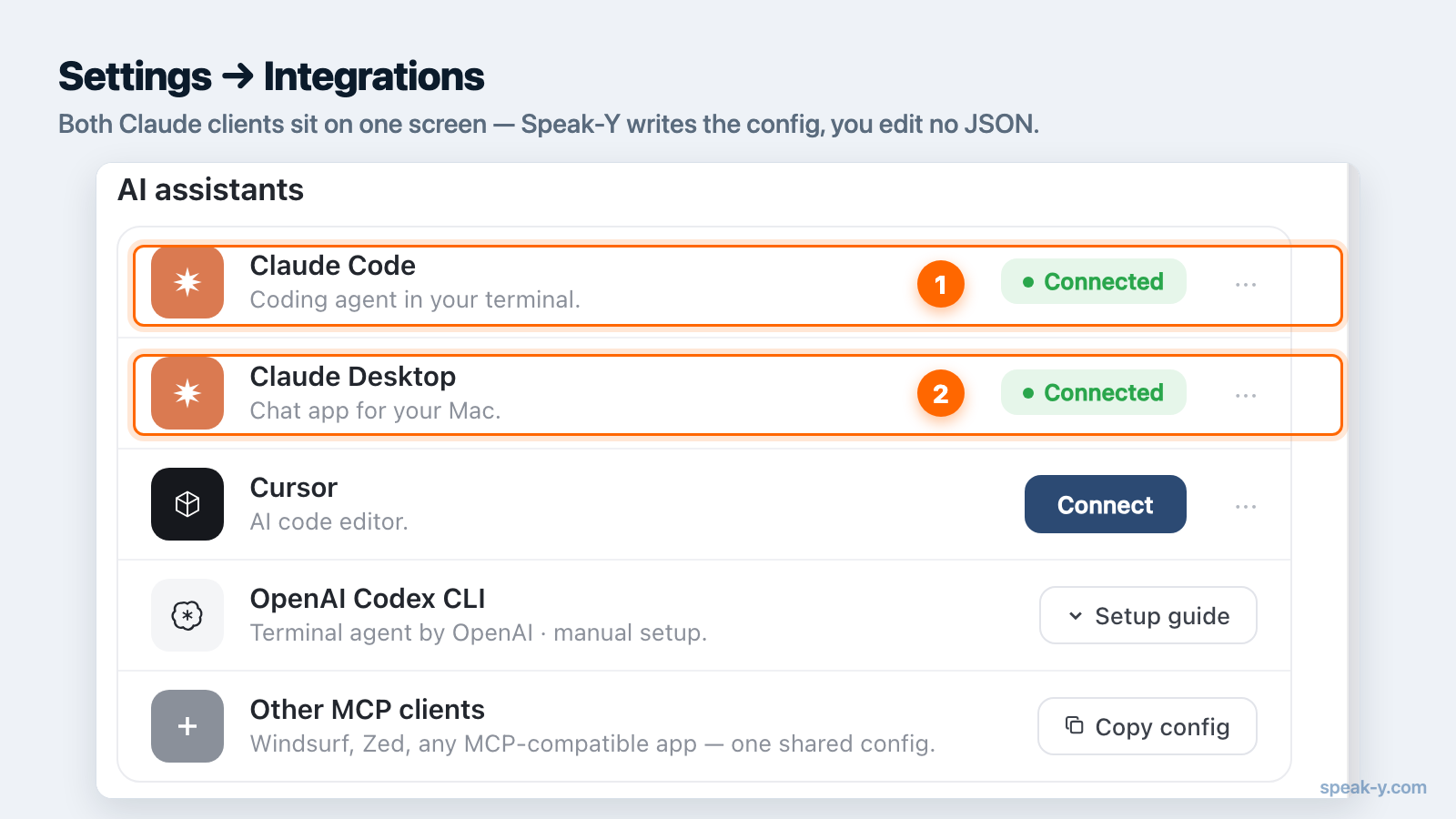
- Open Speak-Y and go to Settings → Integrations.
- Find Claude Desktop in the client list and click Install. Speak-Y writes the configuration itself — you do not edit any JSON.
- Quit and reopen Claude Desktop. A restart is required: Claude reads its MCP configuration at startup, so a running instance will not notice the change.
Claude Desktop also has its own route for installing MCP servers by hand —
Settings → Extensions, with a browsable directory and an advanced option
for loading a packaged .mcpb extension file (checked 10 August 2026). You do
not need it here. The Speak-Y installer exists precisely so that you skip the
packaging and path questions that manual installation raises.
Claude Code
Claude Code is a terminal application, and it gives you two equivalent paths.
From the app. In Settings → Integrations, click Install next to
Claude Code. This writes the server into ~/.claude.json.
From the terminal. The same screen offers the command to copy, if you
prefer to see what is being added or want it in a script. Claude Code's own
claude mcp add accepts a --scope (or -s) flag that decides where the
entry lands: local (default) applies to the current project only, user
applies across all your projects, and project writes to a shared .mcp.json
committed with the repository. For a personal recordings library, user scope
is usually what you want — your meeting notes are not per-repository.
Then reconnect. Either restart Claude Code, or run the /mcp command in a
running session to bring the panel up and connect the new server.
Verify the connection
Do not trust the install click alone — confirm the server is actually up.
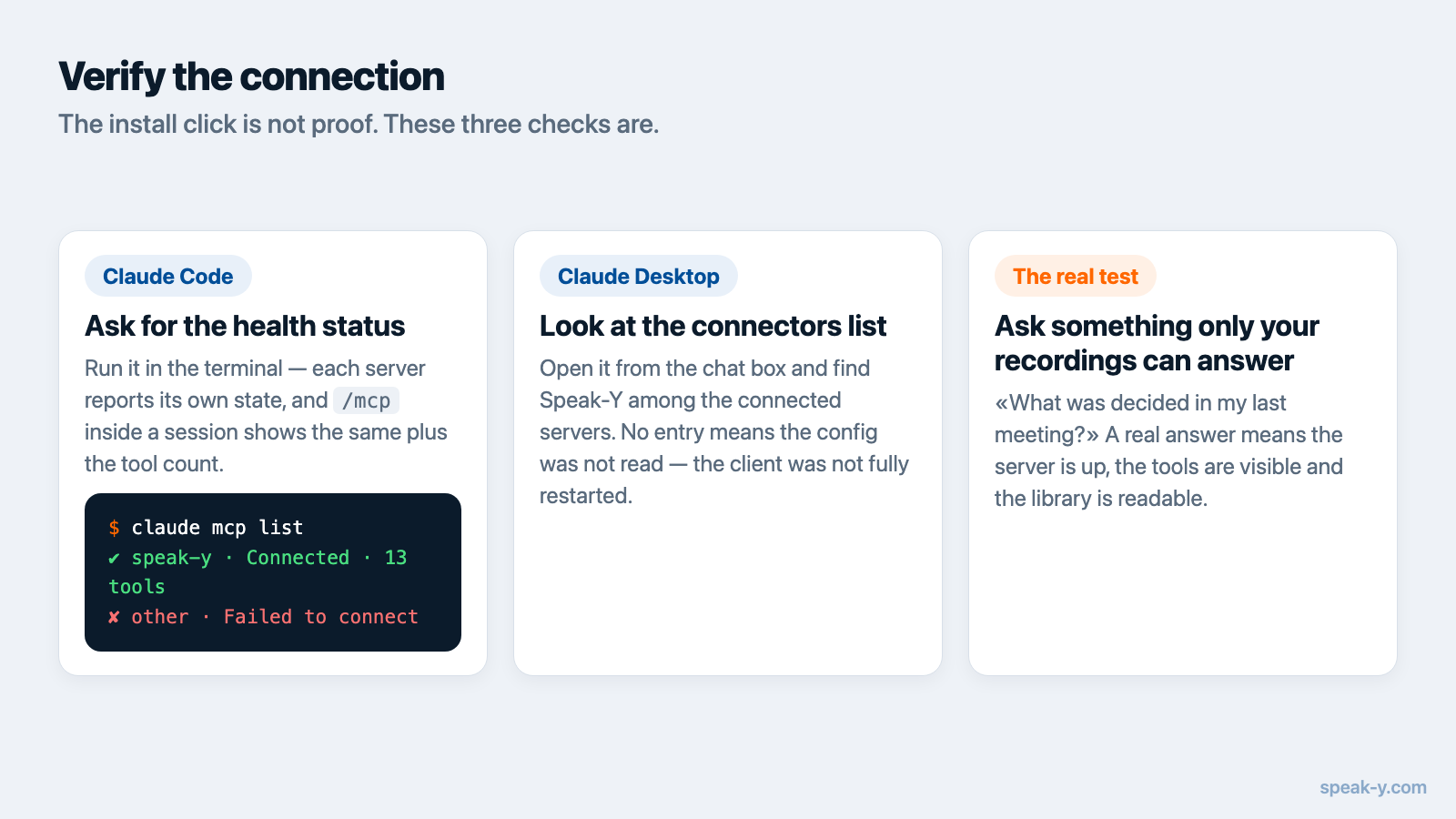
In Claude Code, run claude mcp list in the terminal. Each server gets a
health status next to it: ✔ Connected means it is working, and
✘ Failed to connect means it is not. The /mcp panel inside a session shows
the same state, plus the number of tools each server exposes.
In Claude Desktop, open the connectors list from the chat box and look for Speak-Y among the connected servers with its tools listed.
Either way, the real test is functional: ask a question only your recordings can answer.
First prompts
Once connected, you do not invoke tools manually — you ask, and Claude decides when to search. These work reliably as a first check:
- "Search my Speak-Y recordings for the most recent meeting and summarize what was decided."
- "List the action items from my last meeting and say who owns each one."
- "What did I dictate about the pricing change this week?"
- In Claude Code, working in a repository: "Check my meeting notes from this week for bugs we promised to fix, then find the relevant code."
That last one is the reason to bother with Claude Code specifically: the assistant has your transcripts and your source tree in the same session, so "what did we agree to fix" and "where is that code" become one question. There are more patterns in prompts for meeting notes over MCP.
Four things that go wrong
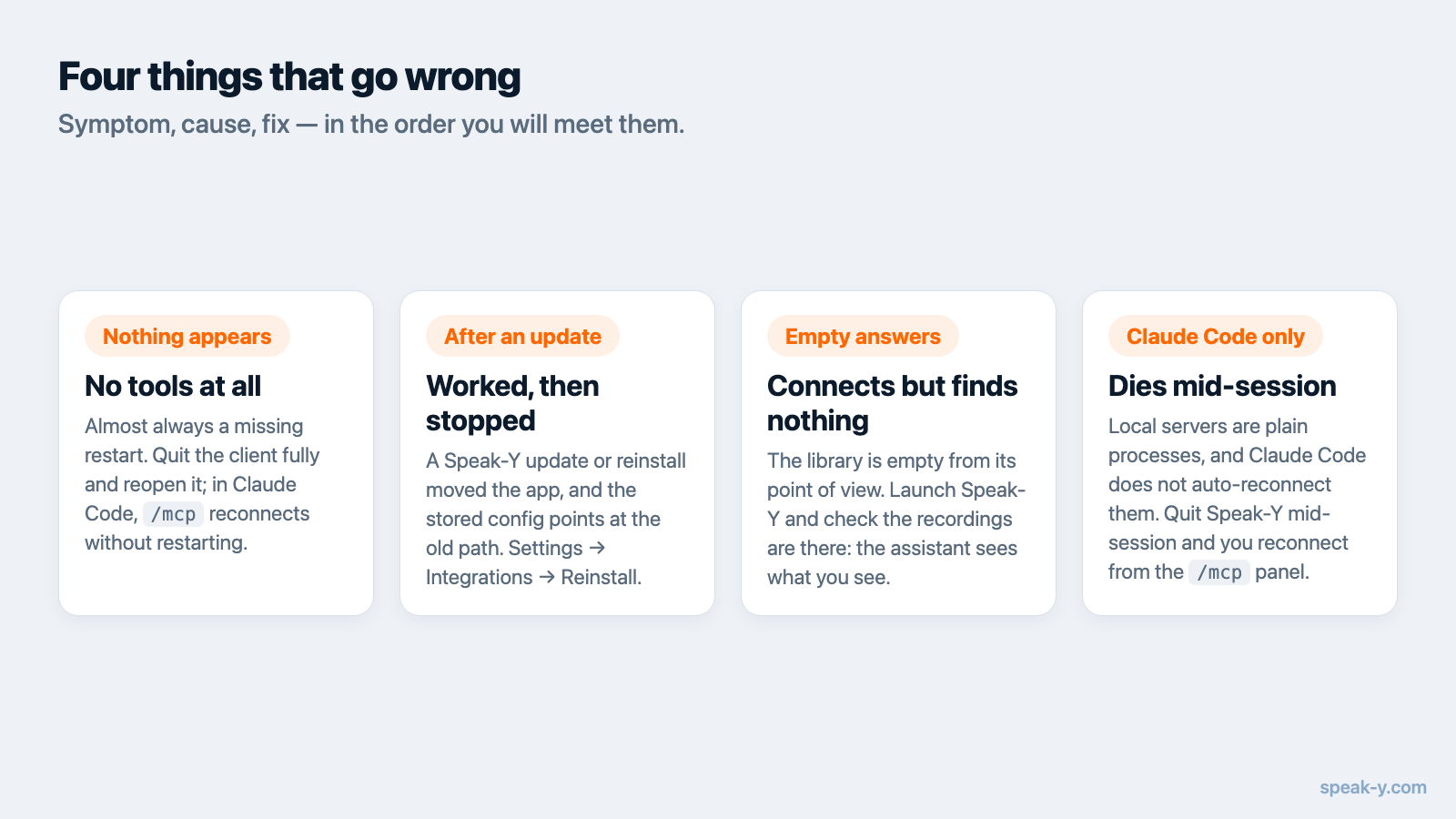
The tools do not appear at all. Almost always a missing restart. Quit the
client fully and reopen it; in Claude Code, run /mcp to reconnect without
restarting.
It worked, then stopped after a Speak-Y update or reinstall. The path to the app changed, and the stored configuration points at the old one. Open Settings → Integrations and click Reinstall to rewrite it.
Claude connects but finds nothing. The library is empty from its point of view. Launch Speak-Y, make sure recordings exist in the app itself, and try again — the assistant sees exactly what you see, and nothing more.
The connection dies mid-session in Claude Code. Local stdio servers are
plain processes, and Claude Code does not automatically reconnect them the way
it retries remote HTTP servers (per Claude Code's MCP documentation, checked
10 August 2026). If you quit Speak-Y during a session, reconnect from the
/mcp panel afterwards.
If none of those apply, the MCP documentation has the full per-client reference, including manual configuration for clients without a one-click installer.
What Claude can and cannot do here
Worth being precise about, because "give an AI access to my meetings" deserves a concrete answer rather than a reassuring one:
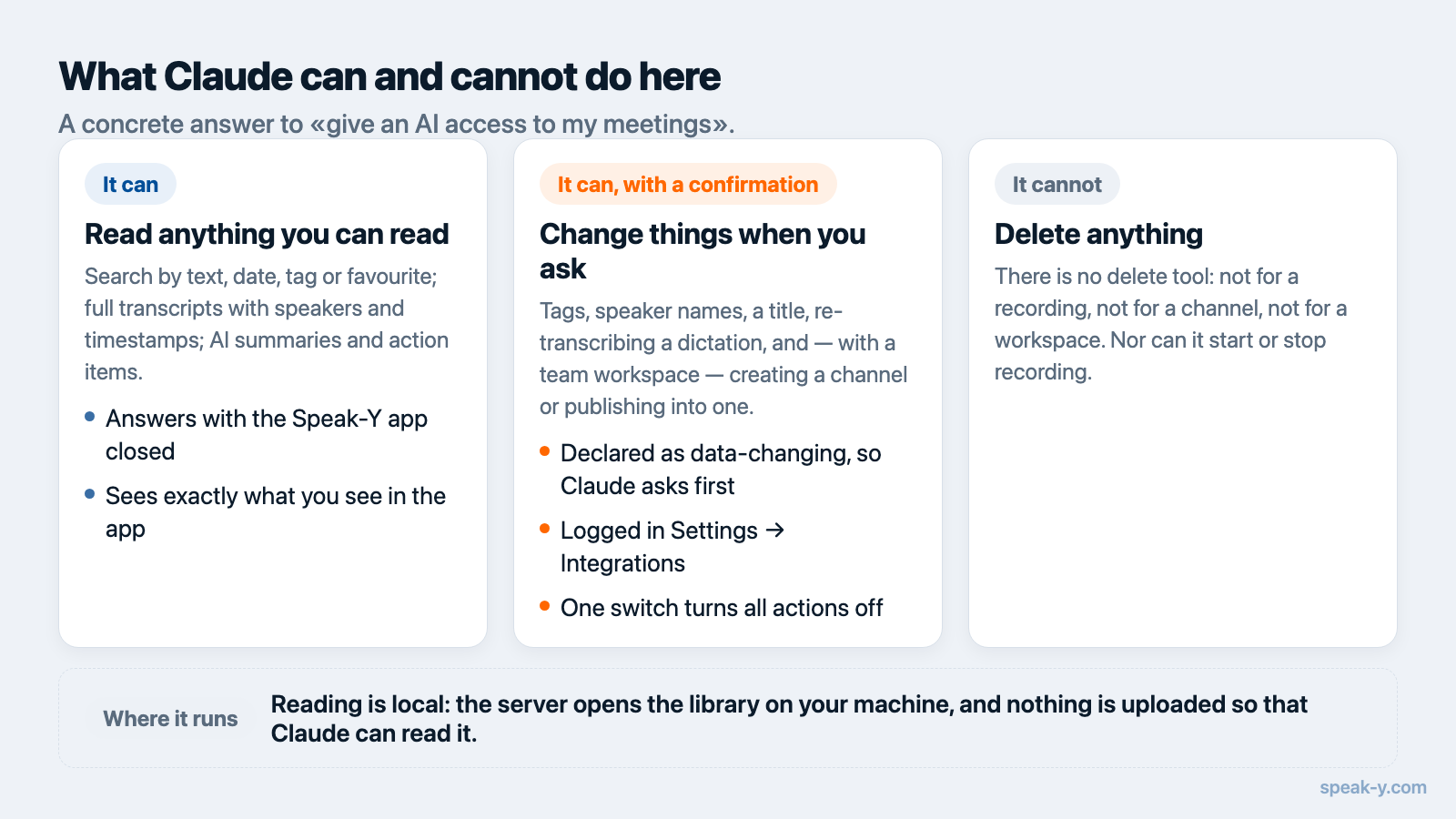
- It can search recordings by text, date, tag or favourite; read full transcripts, including per-speaker with timestamps; and pull AI summaries and action items.
- It can also change things, when you ask — tags, speaker names, a recording's title, re-transcribing a dictation, and, if you use a team workspace, creating a channel or publishing a recording into it. Those tools are declared to Claude as data-changing, so it asks for confirmation before calling one; everything it does lands in the log in Settings → Integrations, where a single switch turns actions off and leaves search and reading working.
- It cannot delete anything. No tool removes a recording, a channel or a workspace, and publishing to a channel cannot be taken back from the chat — that is done in the app.
- Nothing is uploaded for the integration to work. The server runs on your Mac and reads local files. What Claude reads does become part of your conversation and travels to the model with the rest of the chat — that is worth knowing, and it is a different thing from your archive living in a vendor's cloud.
The background on why this split matters is in what an MCP server actually is, and Speak-Y's data handling is set out in the privacy policy.
Where this goes next
Once your own recordings are answerable in Claude, the obvious gap is everyone else's. Meetings shared into a team workspace extend the same conversational access to what your colleagues have deliberately published, end-to-end encrypted, so a new hire's "why did we decide that?" stops being a question they have to interrupt someone to ask.
FAQ
Do I need a paid Speak-Y plan to connect Claude?
No. The built-in MCP server is available on every Speak-Y plan, including Free. There is no separate integration fee and no extra account to create.
Do Claude Desktop and Claude Code need to be set up separately?
Yes. They are two different applications with two different configuration files, so you install the server once per client. Speak-Y lists both in Settings → Integrations and writes each configuration for you.
Why does Claude say it cannot find any recordings?
The assistant reads the same local library you see in the Speak-Y app. If the app has never been launched or has no recordings yet, there is nothing to read. Launch Speak-Y, record something, then ask again.
Do my recordings get uploaded to Anthropic when I connect Claude?
The MCP server itself uploads nothing — it runs on your Mac and reads local files. But anything Claude actually reads becomes part of your conversation and is sent to the model like the rest of the chat, so the transcripts you ask about do leave the machine as chat context.
Can Claude delete or edit a transcript by mistake?
Delete, no — the server exposes no delete tool at all. Edit, only with your say-so: tags, speaker names, titles, re-transcribing a dictation and sharing to a team channel are separate tools, declared to Claude as data-changing, so it asks before calling one. Every action is logged in Settings → Integrations, where one switch turns actions off and leaves reading working.