Reply to Slack and Email by Voice: A 20-Message Morning on a Mac
Twenty unread messages at nine in the morning are mostly typing: a dozen short Slack answers, a few emails that need a greeting and a sign-off, and one colleague who writes in English when you think in another language. All three can be answered by voice in Speak-Y without leaving the app you are replying in.
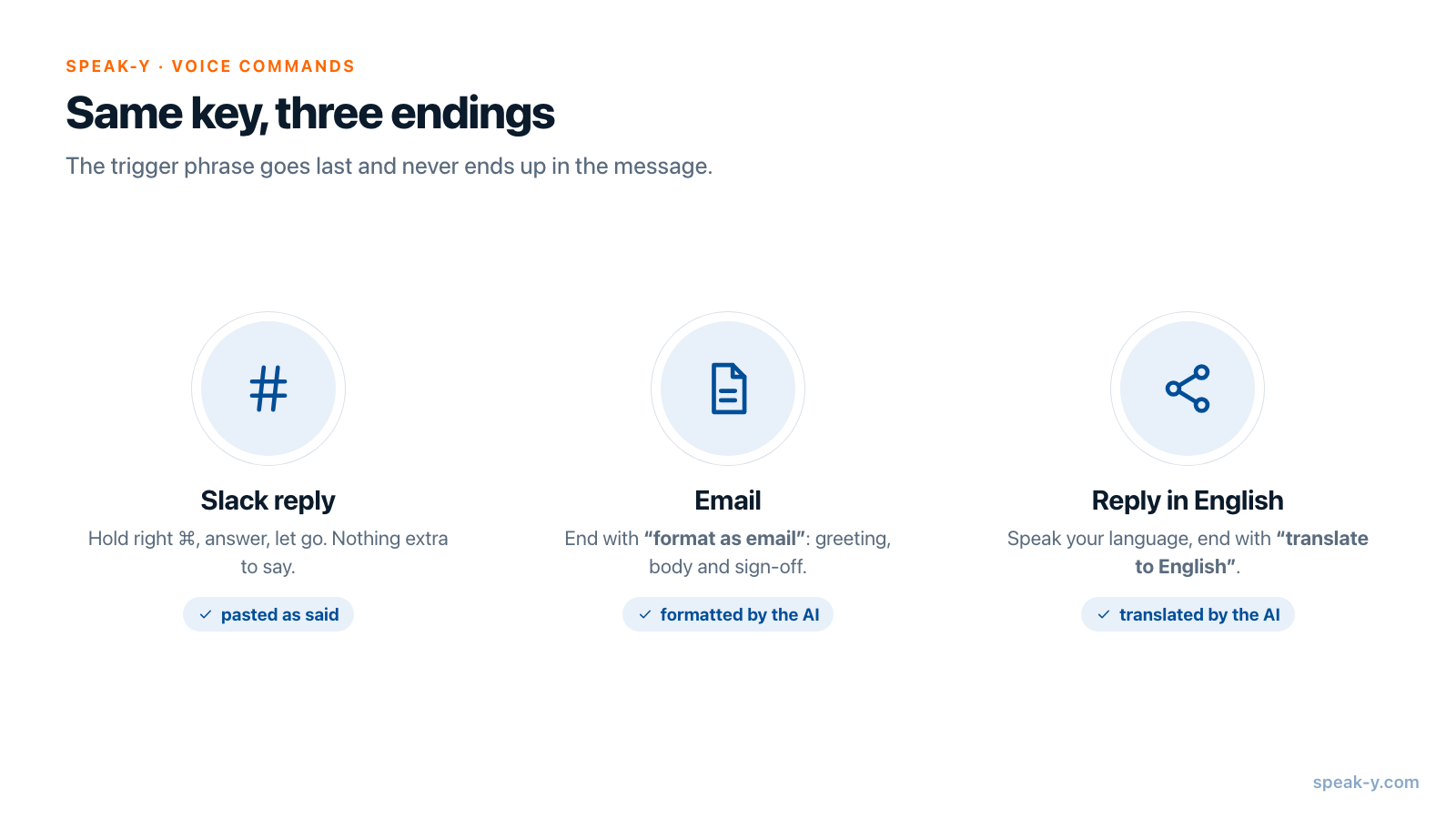
Put the cursor in the reply box, hold the right ⌘ key, say the answer, let go — the text is pasted where the cursor is. For an email, end the dictation with a trigger phrase such as "format as email", and Speak-Y's AI turns what you said into a formatted message before pasting it. For the English reply, end with "translate to English". The setup takes about five minutes and happens once.
This guide uses the Mac app. Labels are quoted as they appear in Speak-Y's interface, checked on 30 September 2026.
What do you set up once?
Three things, in this order.
- Check the hotkeys. Settings → General shows two. The Hold-to-talk hotkey (right ⌘ by default) records while you hold it. The Toggle hotkey (⌥ Space by default) starts on one press and stops on the next. Double-tapping the hold key also switches the current recording to hands-free.
- Make sure Command mode is on. Settings → Command mode has an Enable switch, and it is on by default. With it off, trigger phrases are dictated as ordinary words.
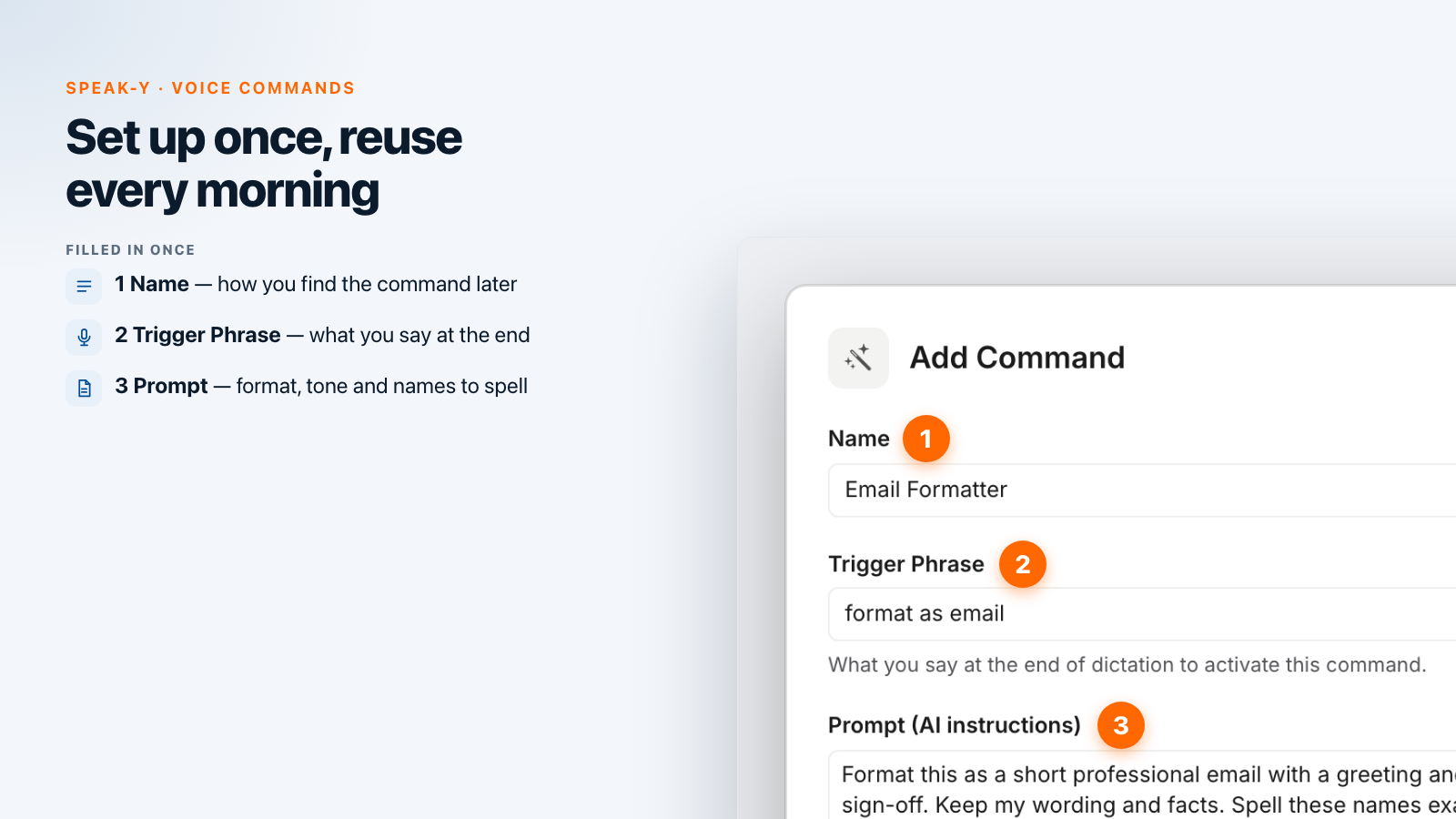
- Add two commands. In the same section, Configure voice commands opens the Voice Commands screen. Under Custom Commands, press Add Command, fill in Name, Trigger Phrase and Prompt (AI instructions), and press Save. Repeat for the second command.
| Name | Trigger Phrase | Prompt (AI instructions) |
|---|---|---|
| Email Formatter | format as email | Format this as a short professional email with a greeting and a sign-off. Keep my wording and facts. Spell these names exactly: Siobhan Kowalczyk, Tomás Nguyen, Northwind. |
| To English | translate to English | Translate this into natural, friendly English. Keep it short. Return only the translation. |
The trigger phrase is what you say at the end of a dictation — the hint under the field in Speak-Y says exactly that. Commands are saved to your account rather than to one Mac.
How do you reply in Slack by voice?
Click into the reply box of the thread, hold right ⌘, speak, release. The recording button at the bottom of the screen shows a waveform while you hold the key and "Processing…" after you let go; a moment later the whole reply is pasted into the box as if you had typed it. Nothing is sent: you read it and press Return yourself.
Two habits make this fast:
- Talk, do not dictate punctuation. Punctuation and capitalisation are added automatically, so there is no need to say "comma" or "full stop".
- Use the toggle key for anything long. Holding a key for forty seconds is tiring. Press ⌥ Space once, talk, press it again.
Speech is quick: a Stanford study (Ruan et al., 2016) measured 153 words per minute for speech input against 52 on a phone keyboard, so a 40-word Slack answer takes about fifteen seconds to say. The same key works in Mail, Gmail in a browser, Teams, Linear or a terminal, because Speak-Y pastes into whatever field has the cursor. The installation guide covers the Accessibility permission this needs.
How do you turn a spoken answer into an email?
Open the reply, click into the body, hold right ⌘ and talk the way you would explain it to someone across the desk. Finish with the trigger phrase:
tell Siobhan the renewal is fine at the new price, we only need the signed order form by Friday, and ask whether Tomás can join the kickoff on the fourteenth — format as email
When you release the key, Speak-Y recognises "format as email" as the Email Formatter command, sends the text before it to the AI together with your prompt, and pastes the result — greeting, body, sign-off — instead of the raw dictation. The trigger phrase itself does not end up in the email. If the phrase is not recognised, the dictation is pasted exactly as you said it, so the worst case is a plain reply you can still edit.
The trigger phrase is looked for near the end of the dictation, so say it last. While the command runs, the recording button shows "Processing with AI...", which takes a little longer than a plain dictation. From opening the email to pressing Send, a reply like the one above takes under a minute.
How do you keep colleagues' and clients' names right?
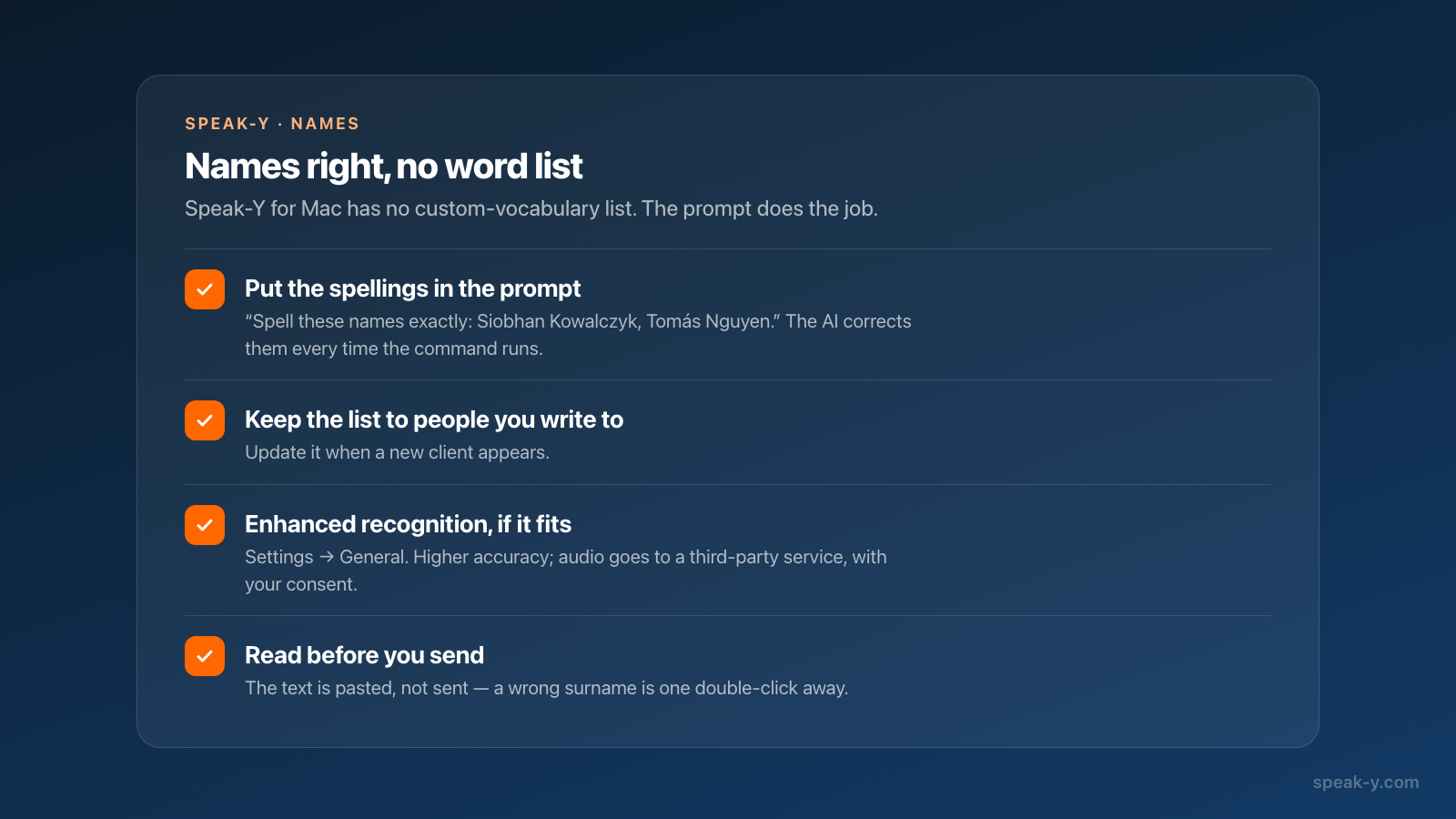
Names are where dictation goes wrong most often: "Siobhan" comes out as "Shivon", because a recogniser guesses unfamiliar words from sound — how speech-to-text works explains why.
Speak-Y for Mac has no separate custom-vocabulary list, so the dependable fix is the line already in the Email Formatter prompt: the correct spellings. The AI that formats the email reads that line and corrects near-misses to the spelling you gave, every time the command runs. Keep the list to the people you actually write to and update it when a new client appears.
For replies that go out without a command, two more options help. Enhanced recognition in Settings → General gives higher-accuracy transcription for supported languages; it sends your audio to a third-party speech service, asks for consent the first time, and turns off "Opt out of model training" in Privacy, so read the dialog before enabling it. And because the text is pasted, not sent, a wrong surname is one double-click away from fixed.
How do you answer in English when you think in another language?
Speak-Y recognises 67+ languages, and the language you dictate in does not have to be the language you send. Dictate the reply in your own language and end with "translate to English": the To English command returns the reply in English and pastes it into the box. If English words feel odd at the end of a sentence in your language, set the trigger phrase in your own language instead — it is just text in the command.
Two alternatives cover the cases the command does not:
- The free prompt. On the Voice Commands screen, under Built-in Commands, set one trigger phrase (the screen's own example is "free prompt") and save it. Everything you say after that phrase becomes the instruction: "…free prompt translate to English and keep it short". One phrase covers translation, shortening and tone.
- After the fact. If you dictated without a trigger, open that dictation in the Speak-Y window, press AI Process, pick Translate to EN and press Apply. The translation is saved as a new version of the record; Copy Text puts it on the clipboard.
What does the 20-message morning look like?
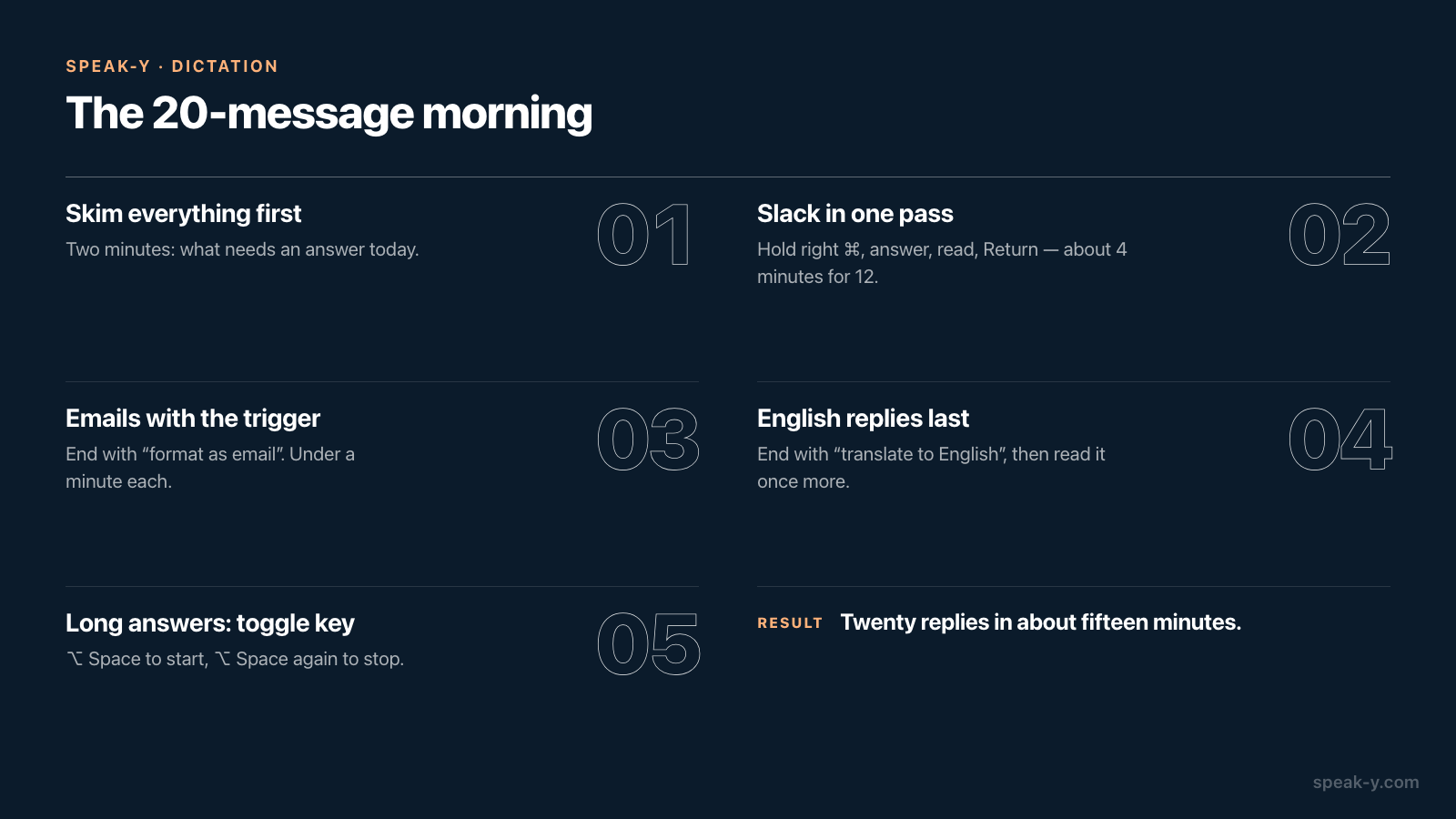
A realistic inbox: twelve Slack answers, six emails, two replies in English.
- Skim everything first. Two minutes to decide what needs an answer today.
- Slack in one pass. Click into each thread, hold right ⌘, answer, read, press Return. Twelve answers at fifteen to twenty seconds each is about four minutes.
- Emails with the trigger. Same gesture, ending with "format as email". Read the draft, fix anything the AI assumed, send. Budget under a minute each.
- English replies last. End with "translate to English" and read the result once more — tone survives translation less reliably than facts.
- Anything over a minute gets the toggle key. ⌥ Space to start, talk, ⌥ Space to stop.
That is twenty replies in roughly fifteen minutes of talking and reading, with the keyboard used only for Return and for the odd correction.
Which plans and platforms does this work on?
- Dictation into any app works on every plan. Free includes 2,000 words a week with no credit card. Twenty 40-word replies are about 800 words, so a daily routine like this outgrows Free within the week; Pro, Pro+ and Max have unlimited words (pricing).
- Voice commands are listed on the pricing page under Pro, Pro+ and Max.
- AI Process counts against the weekly AI requests: 50 on Free, 200 on Pro, unlimited on Pro+ and Max.
- Platforms. The Mac app runs on macOS 14.2 and later. Because commands are saved to your account, the Speak-Y iPhone app picks up the same ones. On Windows, dictation into Slack and email works the same way with Ctrl+Shift+Space (hold) and Ctrl+Shift+D (toggle) by default, but the Windows app does not apply trigger-phrase commands while dictating.
Once replies are voice-first, the next source of typing is the follow-up after a meeting — from client call to follow-up email walks through that routine. Speak-Y's free MCP server lets Claude or ChatGPT read your meeting transcripts on your machine, so the email can start from what was actually said — and the same hotkey carries over to dictating prompts to Claude Code and Cursor.
FAQ
Can I dictate replies straight into Slack with Speak-Y?
Yes. Click into the reply box, hold the right ⌘ key (the default hold-to-talk hotkey on Mac), speak and release. Speak-Y pastes the text where the cursor is, in Slack or any other app, and does not send it — you read the reply and press Return yourself.
How do I make Speak-Y turn dictation into a formatted email?
Create a custom voice command: Settings → Command mode → Configure voice commands → Add Command. Give it a name, a trigger phrase such as "format as email" and a prompt that describes the email you want. Say the trigger phrase at the end of a dictation, and Speak-Y pastes the formatted email instead of the raw text.
Does Speak-Y have a custom dictionary for colleagues' names?
The Mac app has no separate vocabulary list. The reliable place for spellings is the prompt of a voice command — for example "Spell these names exactly: Siobhan Kowalczyk, Tomás Nguyen" — so the AI corrects near-misses every time the command runs. Enhanced recognition in Settings → General raises accuracy further, and the pasted text can always be edited before you send it.
Can Speak-Y translate what I dictate into English?
Yes. Create a command with the trigger phrase "translate to English" and a prompt that asks for a translation, then dictate in your own language and end with that phrase. You can also use the built-in free prompt, or translate a finished dictation afterwards with AI Process → Translate to EN.