From Client Call to Follow-Up Email in Five Minutes with Speak-Y
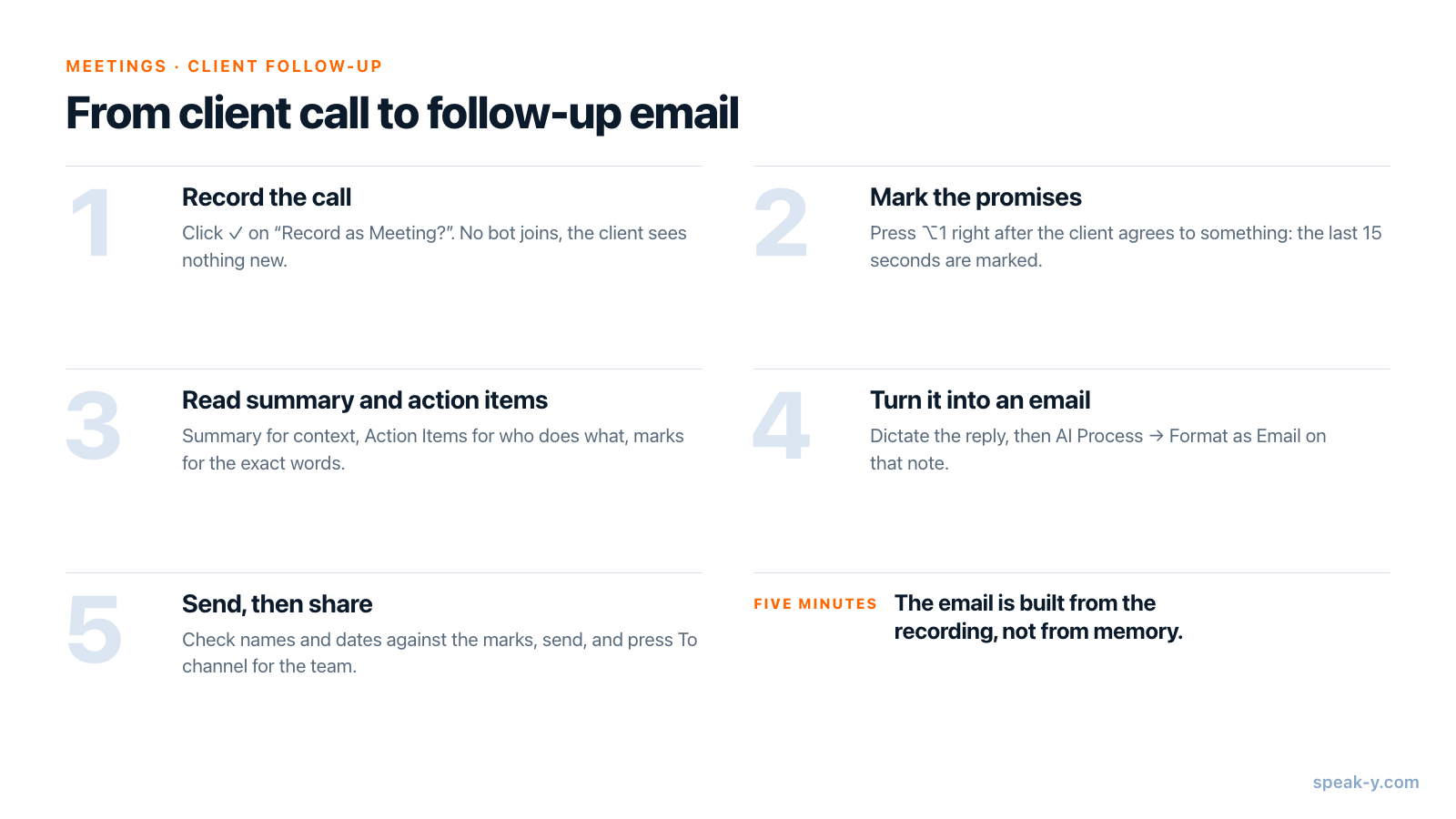
The quickest way from a client call to a follow-up email in Speak-Y takes five steps: record the call as a meeting, press ⌥1 whenever the client agrees to something, open the recording's Summary and Action Items when the call ends, turn them into an email with AI Process → Format as Email, and send it. If your team works in a Speak-Y workspace, one more click — To channel — gives colleagues the same agreements without copying them on the email.
The time goes into reading and checking, which is the part that deserves your attention. This guide covers the macOS app as of 30 September 2026 and follows one ordinary call: a 40-minute scoping call with Anna from Acme that ends with three promises and a deadline.
The routine at a glance
Speak-Y does the listening; you do two small things during the call and three after it. What makes it five minutes rather than thirty is that you never reconstruct the call from memory. Everything the email needs — who promised what, by when, in the client's own words — is already in the recording.
Before the call: one setting and one sentence
Speak-Y records calls when Meeting mode is on: Settings → Interface & Behavior → Meeting mode, with Off, Manual ("The app detects meetings and asks before recording") and Auto. New installs start on Auto. Nothing joins the call: Speak-Y captures your microphone and the audio your Mac is playing, so Zoom, Microsoft Teams, Google Meet and a browser call all work the same way, and no bot appears in the participant list.
Meeting recording is included on every plan. On Free, as of 30 September 2026, a meeting can run up to 30 minutes and you get 2 hours a month; Pro allows an hour per meeting and 10 hours a month. Format as Email in step 4 uses one of your plan's weekly AI requests.
The sentence is for the client: "I'm recording this so I don't miss anything in the follow-up." Because no bot appears, the platform will not announce the recording for you. Whether you also need consent depends on where you and the client are — is it legal to record meetings goes through the rules.
Step 1. Let Speak-Y record the call
When the call starts, Speak-Y notices it and asks Record as Meeting? above the recording button. Click the check mark. If you have hidden the recording button, the same question arrives as a Meeting Detected banner with a Start Recording button. With a calendar connected and Start recording automatically turned on, a call your calendar confirms starts recording on its own, with no prompt at all.
Step 2. Mark the promises as they are said
This is the step that makes the email fast later. Whenever the client agrees to something — a date, a scope, a next step — press ⌥1. Speak-Y marks the last 15 seconds of the call: the button above the recording button briefly reads Last 15s marked and counts your marks. You do not stop listening and you do not write anything down; the mark is pinned to the transcript at that moment.
A few details worth knowing:
- The mark panel shows above the recording button when the meeting starts and hides after a few seconds; hover over the recording button to bring it back. The hotkey works either way.
- The mark covers what was just said, so press it right after the sentence, not before it.
- The default mark is called Mark the moment. In Settings → Notes you can add your own types, such as "Promise" or "Risk", each with its own colour and hotkey.
- The mark buttons next to the recording button are hidden while you share your screen, so the client never sees them.
In the example call, three marks end up in the recording: Anna asking for the proposal by Friday, the agreed scope of the pilot, and the date of the next call.
Step 3. Read the summary and action items
When the call ends, Speak-Y separates the speakers and writes the AI summary and action items (the Meeting summary setting, on by default). Open the recording from Meetings. The tabs at the top are By Speakers, Summary, Action Items and Plain.
- Summary gives you the context for the first paragraph of the email: what the call was about and what was decided.
- Action Items is a checklist of who does what — the backbone of any follow-up email.
- Your marks sit in the transcript. On the By Speakers tab a strip of filters starts with All notes and its count, with arrows that jump from one mark to the next. Read the marked moments in the client's own words: this is where "Friday" and "end of next week" stop being the same thing.
The email will only be as accurate as what you take from this screen.
Step 4. Turn it into an email
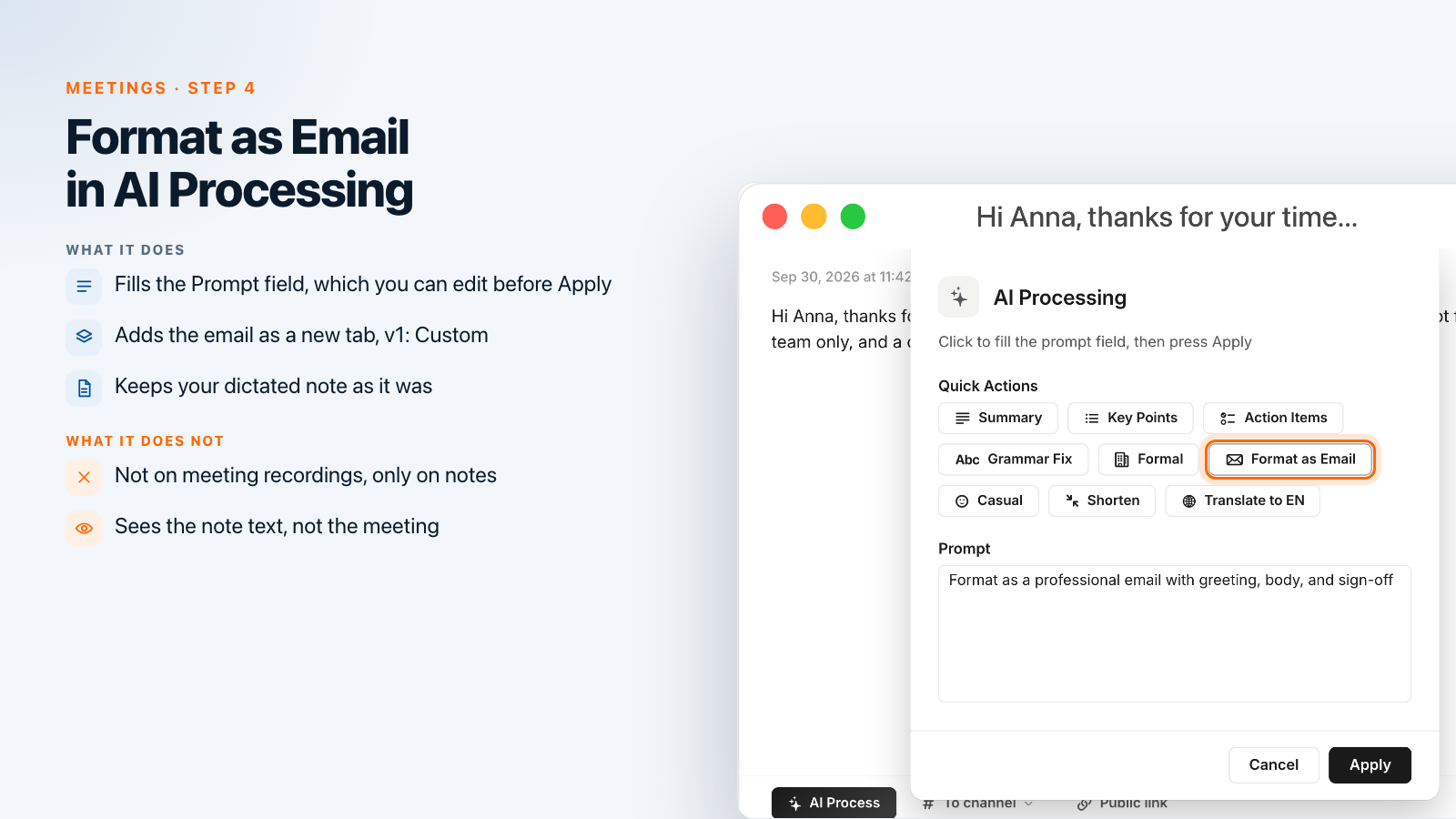
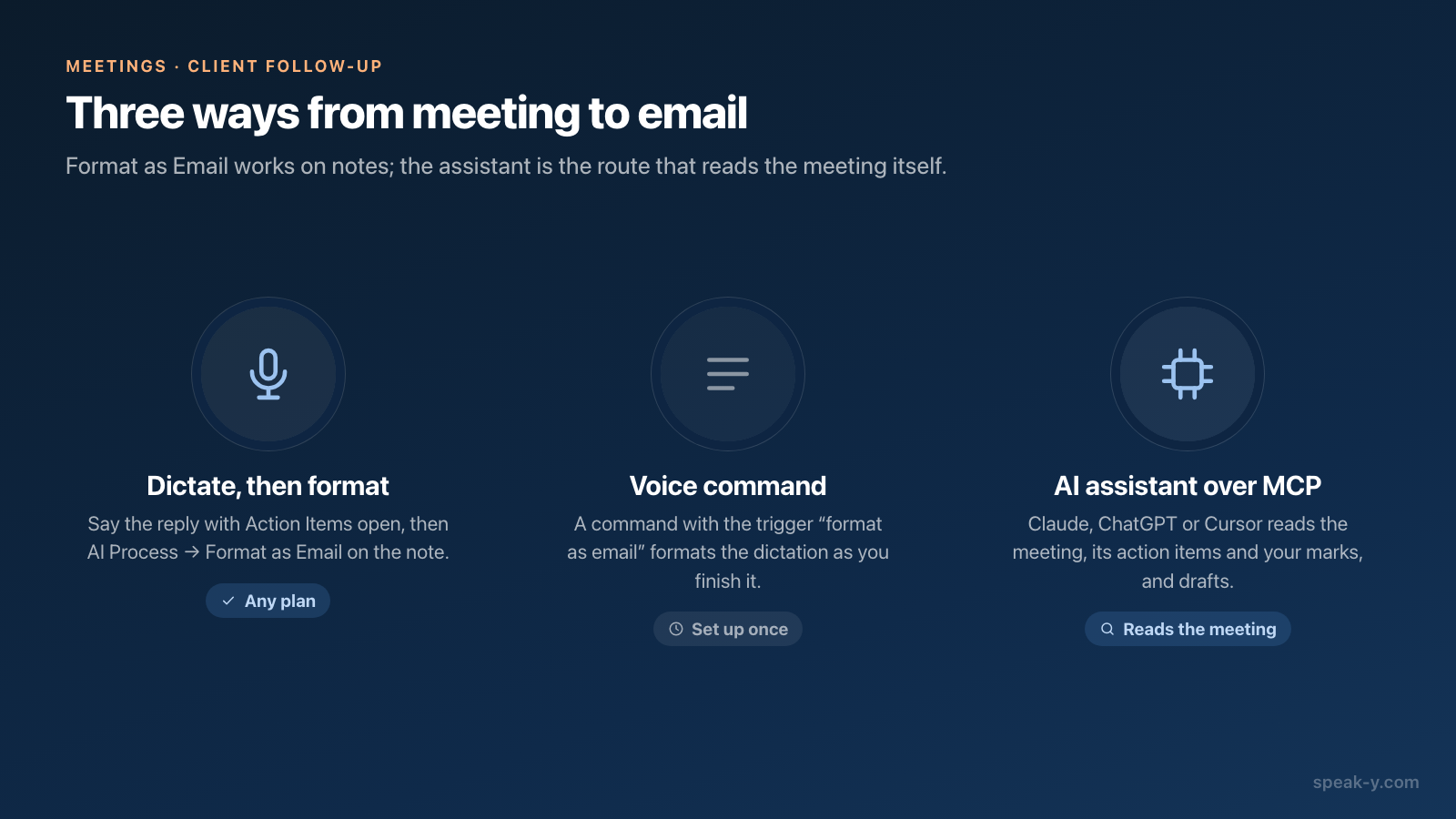
Format as Email is one of the quick actions in AI Process — and AI Process works on notes, the text you dictate, not on meeting recordings. A meeting already has its AI output in Summary and Action Items. So the route is: say the email, then let the AI format it.
- Open a new email in your mail app, put the cursor in the body and hold Right ⌘. With the Action Items tab in front of you, say the reply in your own words: thank Anna, list the three agreements, propose the next call. It does not have to be tidy. Let go of the key — the text lands in the draft and is also saved under Notes in Speak-Y.
- Open that note in Speak-Y and press AI Process under the text.
- In the AI Processing window, click Format as Email under Quick Actions. It fills the Prompt field with "Format as a professional email with greeting, body, and sign-off". You can edit the prompt before applying it — for example, add "Keep it under 150 words and end with a question about the next call." Press Apply.
- The email appears as a new tab next to Original, called v1: Custom, with the prompt shown above the text. Your dictation stays untouched. Fix anything you want right in the text, then choose ⋯ → Copy Text and paste it over the rough draft.
The AI sees only the note, not the meeting. Anything you did not say will not be in the email, which is why you dictate with the action items open.
Once this becomes a weekly habit, turn it into a voice command: Settings → Command mode → Add Command, with the trigger phrase "format as email" and your email prompt. Say the phrase at the end of the dictation, and the formatted email lands in the draft directly — steps 2 to 4 disappear.
Or let your AI assistant draft it from the meeting
If Claude, ChatGPT or Cursor is connected to Speak-Y through the MCP server, the assistant can read the meeting itself: the transcript, the summary, the action items and the moments you marked. Ask it directly: "Draft a follow-up email to Anna from my last call. Use the action items and the moments I marked, and keep it under 150 words." Reading happens locally, from the library on your Mac. The assistant drafts; you still review and send. Prompts to ask AI about your meetings has more requests of this kind.
Step 5. Send it, then tell the team
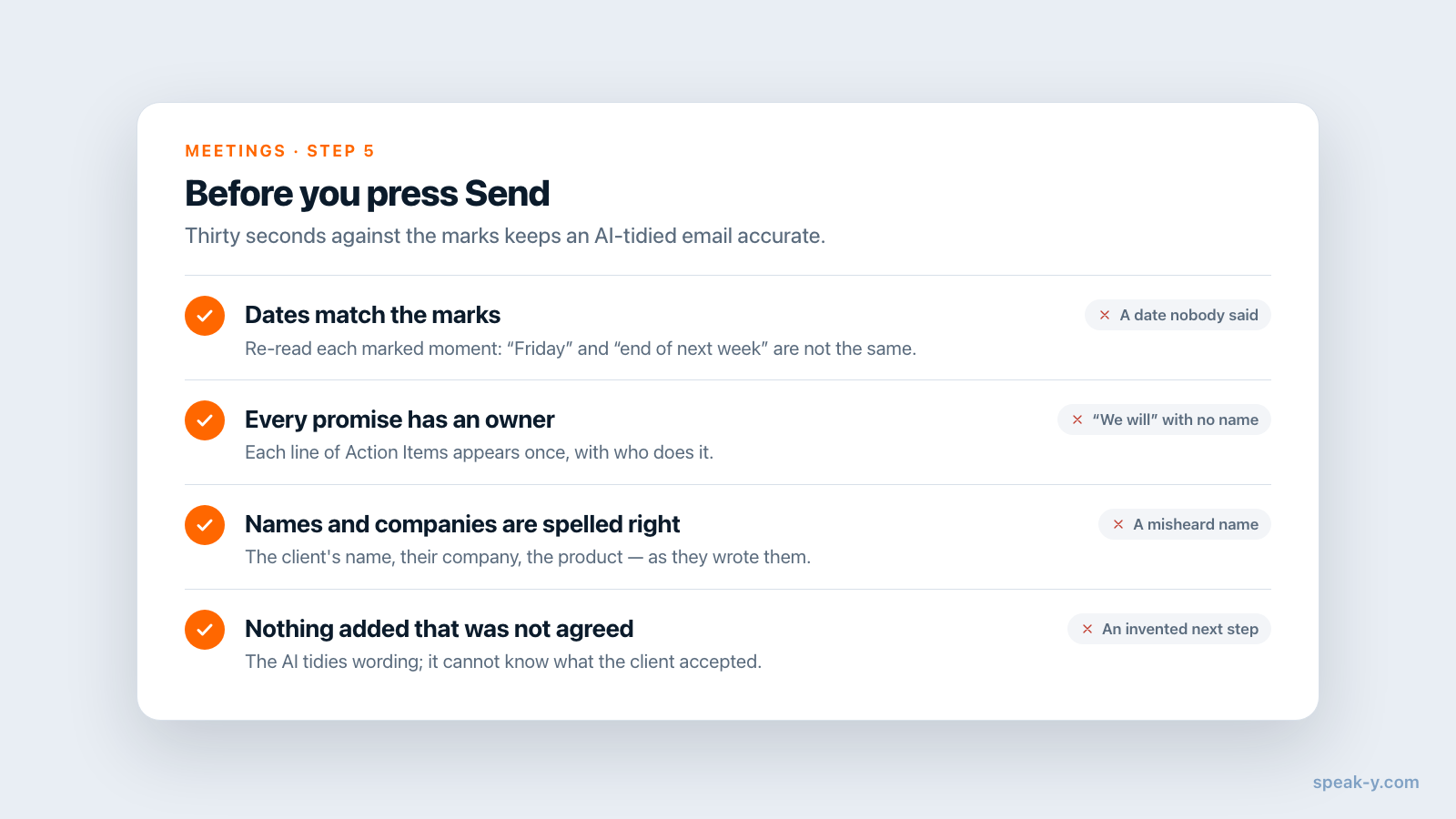
Paste the email into your mail app and read it once against the marks before you send. AI tidies wording; it does not know which date the client actually said. Check the names, the dates, and that every promise in the email is one somebody actually made.
Then, if your team uses a Speak-Y workspace, press To channel in the action bar under the transcript and pick the client's channel — say, Northwind Sales / Client Calls. Teammates get the transcript with speaker names, the summary and the action items, end-to-end encrypted. The audio stays on your Mac, and your meeting notes stay private unless you choose to show them. The email goes to the client; the channel is for the colleague who has to deliver the pilot next week and should not need to ask you what was agreed. Sharing a meeting to a team channel covers exactly what travels and how to take it back.
Where the five minutes go
Recording and marking cost nothing during the call. Reading the summary, action items and marks takes one to two minutes, dictating the reply under a minute, formatting a few seconds, and the final check another minute. Sharing to the channel is one click — and the start of a channel where every client call lives next to the others. The Teams page has the overview of workspaces, channels and encryption.
FAQ
How do I write a follow-up email after a client call with Speak-Y?
Record the call as a meeting and press ⌥1 whenever the client agrees to something. After the call, open the recording's Summary and Action Items tabs, dictate a rough reply, open that note, press AI Process, choose Format as Email and Apply. Copy the result into your mail app, check names and dates, and send.
Can I use Format as Email directly on a meeting recording?
No. AI Process, where Format as Email lives, is available on dictated notes, not on meeting recordings; a meeting gets its own Summary and Action Items instead. Either dictate the reply and format that note, or ask an AI assistant connected over MCP to draft the email from the meeting itself.
What does Mark the moment do during a call?
Pressing ⌥1, or the Mark the moment button above the recording button, marks the last 15 seconds of the meeting. The mark is pinned to the transcript at that point, and after the call you can jump from one mark to the next. The mark buttons are hidden while you share your screen.
Does the client see that I am recording the call?
Not from the meeting platform. Speak-Y records on your Mac and never joins the call, so nothing appears in the participant list. That is exactly why you should tell the client you are taking notes; whether you also need their consent depends on where you and they are.
How do my colleagues see what was agreed without being copied on the email?
Press To channel on the recording and pick a channel in your Speak-Y workspace. Teammates get the transcript, the summary and the action items, end-to-end encrypted. The audio is not shared, and your meeting notes stay private unless you choose to show them.