How to Share a Meeting Transcript to a Team Channel in Speak-Y
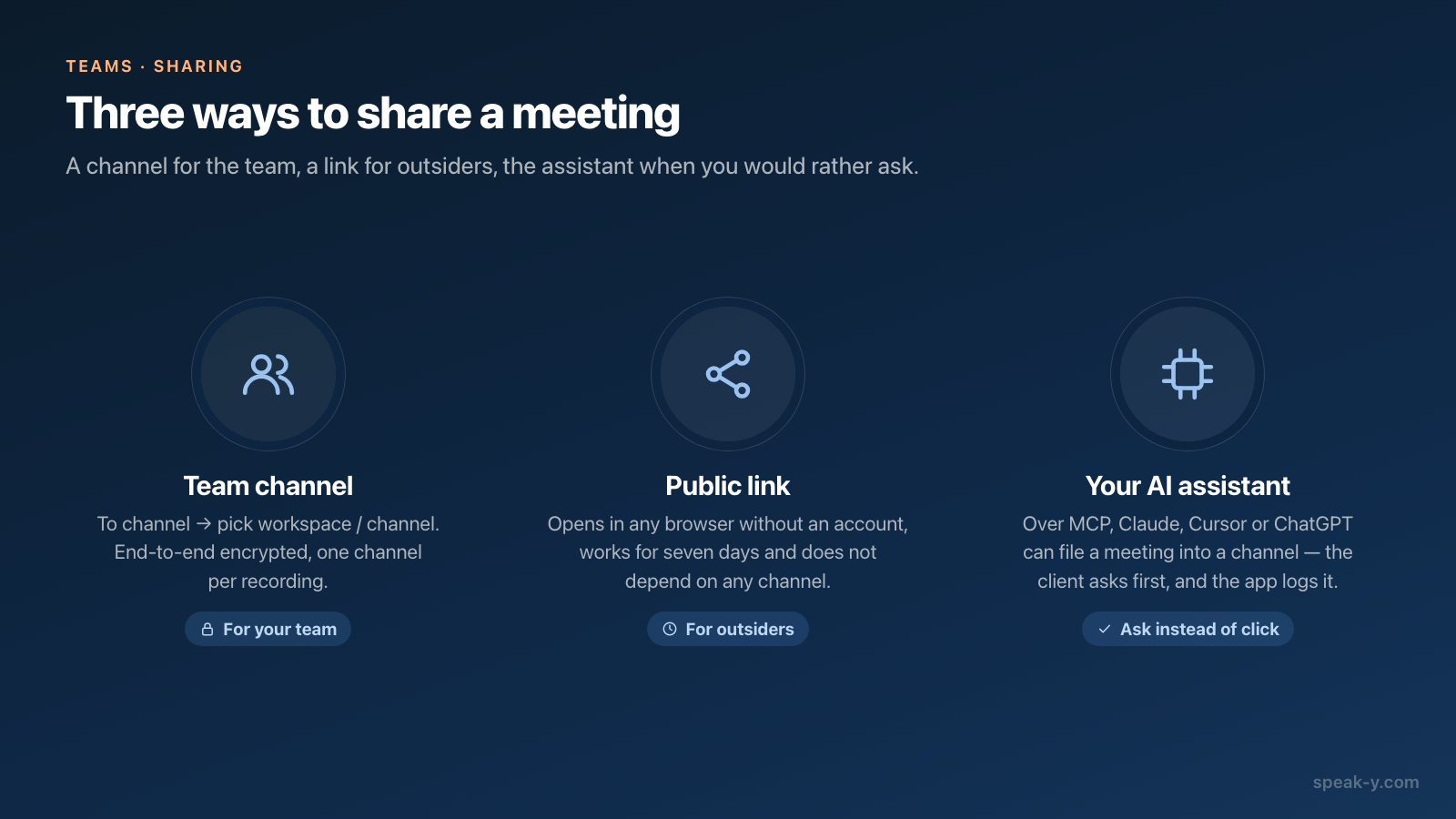
To share a meeting with your team in Speak-Y, open the recording, press To channel in the action bar under the transcript and pick a channel. The transcript, the AI summary and the action items appear in that channel's feed for everyone who can see the channel, end-to-end encrypted, so only their Macs can read it. The audio stays on yours.
That is the whole action. What is worth understanding before you click it is what the channel receives, what it does not, and what happens when you change your mind — because a shared meeting is read by other people, and "unshare" does not un-read it. This guide covers the macOS app as of 30 September 2026; if you do not have a workspace yet, set one up first.
Share a recording in one click
Open any recording from All Records or Meetings. Under the transcript sits a short action bar: To channel, Public link and a ⋯ menu that holds Download, Copy Text and the rest. To channel only appears once you belong to at least one workspace; its tooltip says what it does: "Share this record to a workspace channel (end-to-end encrypted)".
Press it and a menu lists every channel you can post to as workspace / channel, so "Northwind Sales / Client Calls" cannot be confused with a channel of the same name in another workspace. At the bottom sits New channel, which creates a channel and shares the recording into it in one go — useful when the first call with a new client arrives before anyone made the client's channel.
After sharing, the button stops saying "To channel" and shows the channel's name instead, and the status line confirms "Shared to # Client Calls". You can see at a glance, on any recording, where it lives.
What goes into the channel, and what stays on your Mac
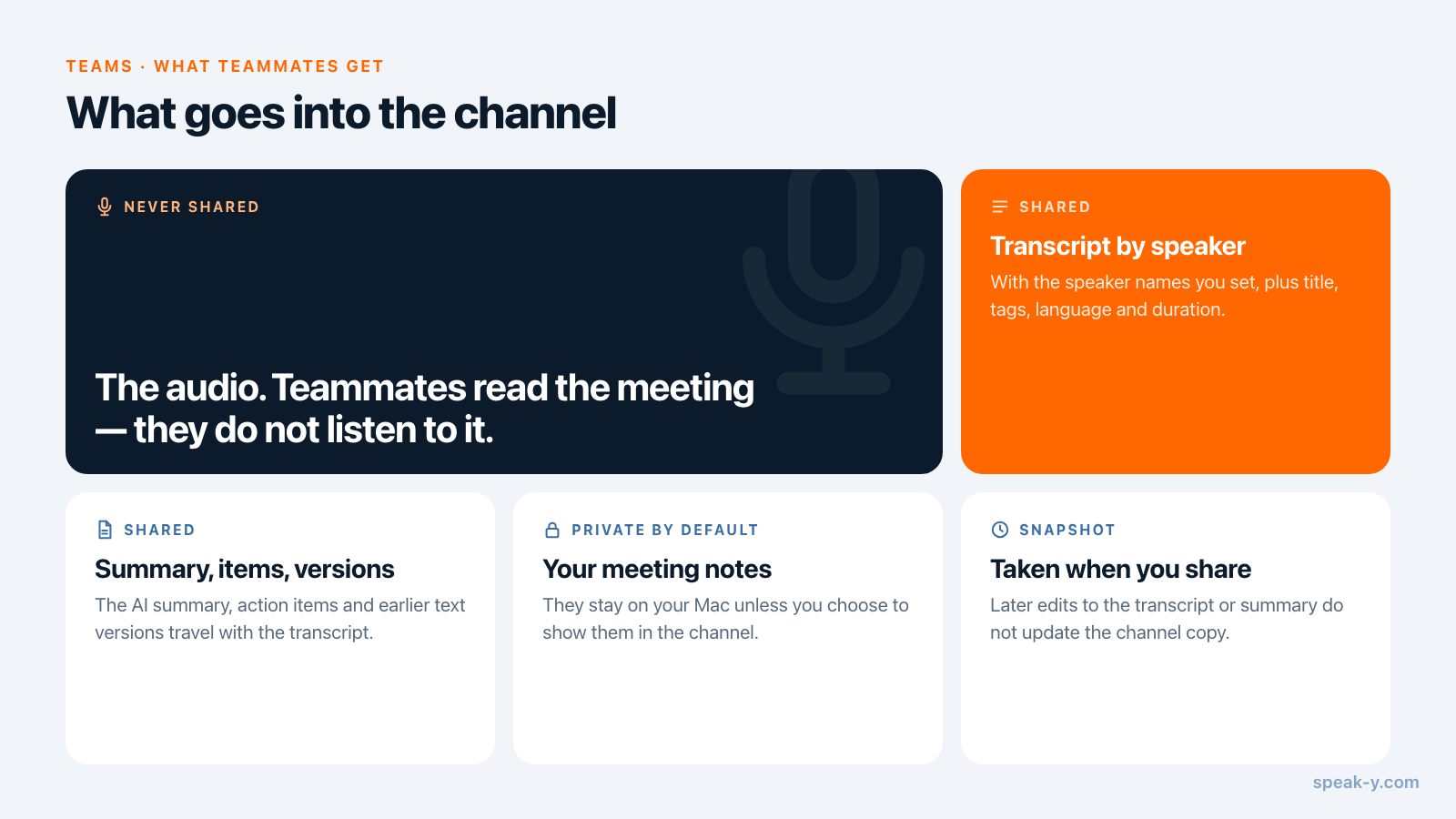
The channel receives a complete, readable record of the meeting, not a link back to your machine:
- the transcript, split by speaker, with the speaker names you set and timestamps;
- the AI summary and the action items;
- the title, tags and language, plus duration, word count and the app the meeting was recorded from;
- earlier versions of the text: the raw transcript before clean-up and any AI rewrites you saved, together with the instructions used for them.
Three things do not travel. The audio is never shared — teammates read the meeting, they do not listen to it. Your meeting notes stay private by default; once the recording is in a channel, a menu next to them, set to Private, offers "Show in # Client Calls — channel members will see them" to publish them deliberately. And everything else in your library is untouched: sharing one meeting does not open up the rest.
You cannot hand-pick fields — the transcript goes with its summary and its earlier versions, or not at all. If an old AI rewrite says something you would not post, delete that version before sharing. If a meeting contains a part that should not be read by the channel, the meeting belongs somewhere else, not in a trimmed copy.
One recording, one channel
A recording lives in exactly one channel at a time. Picking a different channel from To channel moves it: it leaves the first feed and appears in the second. This is deliberate — a meeting that exists in three channels is three places to correct later.
When two groups need the same call, put it in a channel both of them can see. If the second group is outside your workspace entirely, use a public link instead (below).
To take a meeting back, open To channel on the recording again and choose Remove from # Client Calls. It happens without a confirmation dialog, the recording stays in your own library, and the status line reports "Removed from # Client Calls". Use this route rather than the channel feed: removing a meeting from inside the feed also moves your own copy to Recently Deleted. What removal cannot do is reach into the memory of people who already read it.
What teammates see
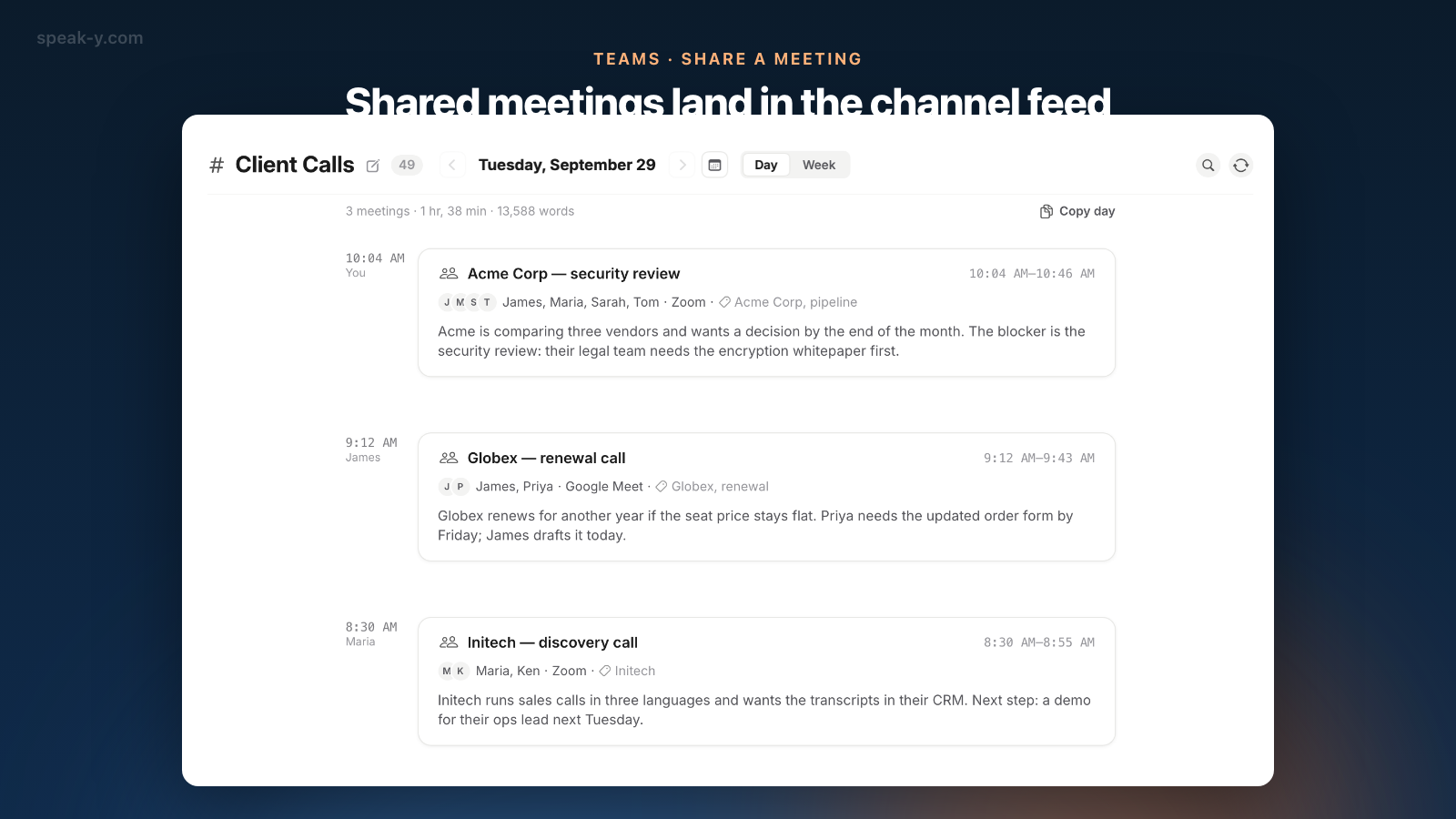
In the channel, each shared meeting is a card in the feed: title and time, speakers, tags and author, with the first lines of the AI summary. Opening it gives the full transcript and summary. Only members of that channel see it — for a public channel that is everyone in the workspace, for a private one only the people added to it; who sees what in team channels goes through the difference.
A new teammate who has joined but whose device has not yet received the channel's key sees "Waiting for the channel key" instead of the feed. That is the encryption doing its job, not an error: the key arrives from a member who already has it.
In the app, only the author can take a meeting out of a channel. Deleting it from the feed goes further than removing it, and the confirmation says so: the record is removed from the channel for everyone and deleted from your Mac — it goes to Recently Deleted, where you can still restore it.
Edits after sharing
The channel holds a snapshot taken when you shared. If you later fix a speaker name in the transcript or regenerate the summary, the channel copy does not update by itself. Notes you chose to show in the channel are the exception: changing them re-publishes the whole record as it is at that moment, including any other edits you made since.
The practical habit is short: tidy speaker names and the summary first, share second. If you have already shared and need the corrected version in the channel, remove the recording and share it again.
Sharing outside the channel
Two other doors are worth knowing, because they solve different problems.
Public link. Next to To channel, Public link copies a link to this one recording. It works for seven days, opens in any browser without an account and does not depend on any channel — the right tool for a client or a candidate, not for your team.
Your AI assistant. With the Speak-Y MCP server connected, Claude, Cursor or ChatGPT can file a meeting into a channel for you — "share yesterday's Acme call to Client Calls". Sharing is marked as a data-changing action, so the assistant's client asks you to confirm before it happens unless you have given it standing permission, and the action is logged in the app.
A good first share
The first recording in a channel sets what people expect to find there. Pick a meeting most of the channel attended, check the speaker names and the summary, then share it. Once a few meetings accumulate, the channel stops being a feed and becomes something you search — turning meetings into a team knowledge base is about that second stage, and the Teams page has the overview of workspaces, channels and encryption.
FAQ
How do I share a meeting to a team channel in Speak-Y?
Open the recording and press To channel in the action bar at the bottom of the transcript, then pick a channel from the list, shown as workspace / channel, or choose New channel to create one and share into it at once. The button then shows the channel's name.
What exactly do teammates see when I share a meeting?
The transcript with speaker names and timestamps, the AI summary, the action items, the title, tags, language and basic metadata such as duration. Earlier versions of the text travel too, including the raw transcript and any AI rewrites. The audio is not shared, and your private meeting notes stay private unless you choose to show them in the channel.
If I edit the transcript after sharing, does the channel copy update?
Not by itself. The channel holds a snapshot of the recording at the moment you shared it. Changing notes you chose to show in the channel re-publishes the whole record as it is at that moment, other edits included. Otherwise, to publish an edited transcript or summary, remove the recording from the channel and share it again.
Can a recording be in two channels at once?
No. A recording lives in one channel at a time; choosing another channel from To channel moves it there. If two groups need the same meeting, put it in the channel both can see, or send the other group a public link.
How do I share a meeting with someone outside the team?
Use Public link on the recording instead of a channel. It copies a link that opens in any browser without an account, works for seven days and does not depend on any channel.