Team Meeting Channels: Who Sees What and How to Set Them Up
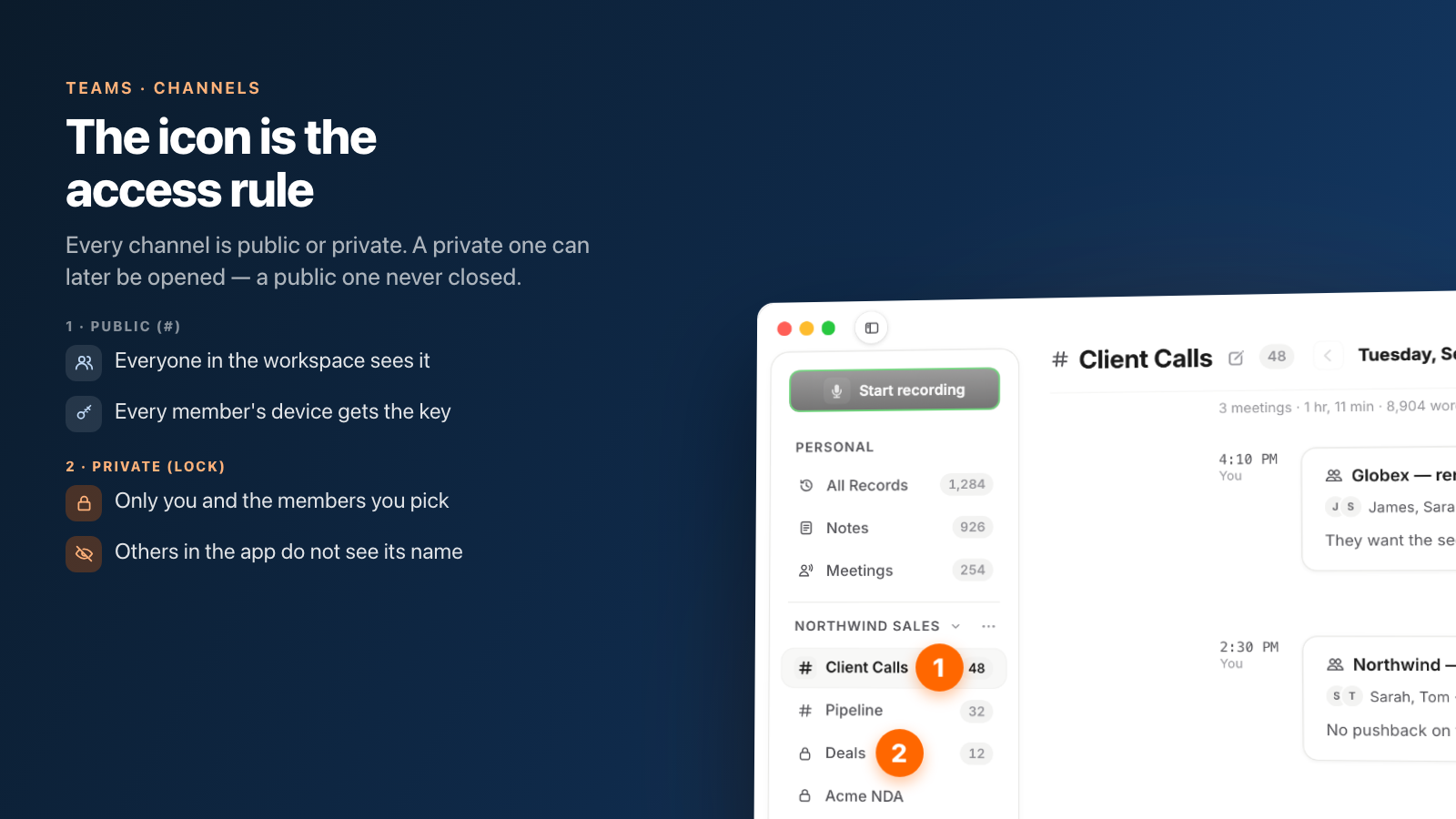
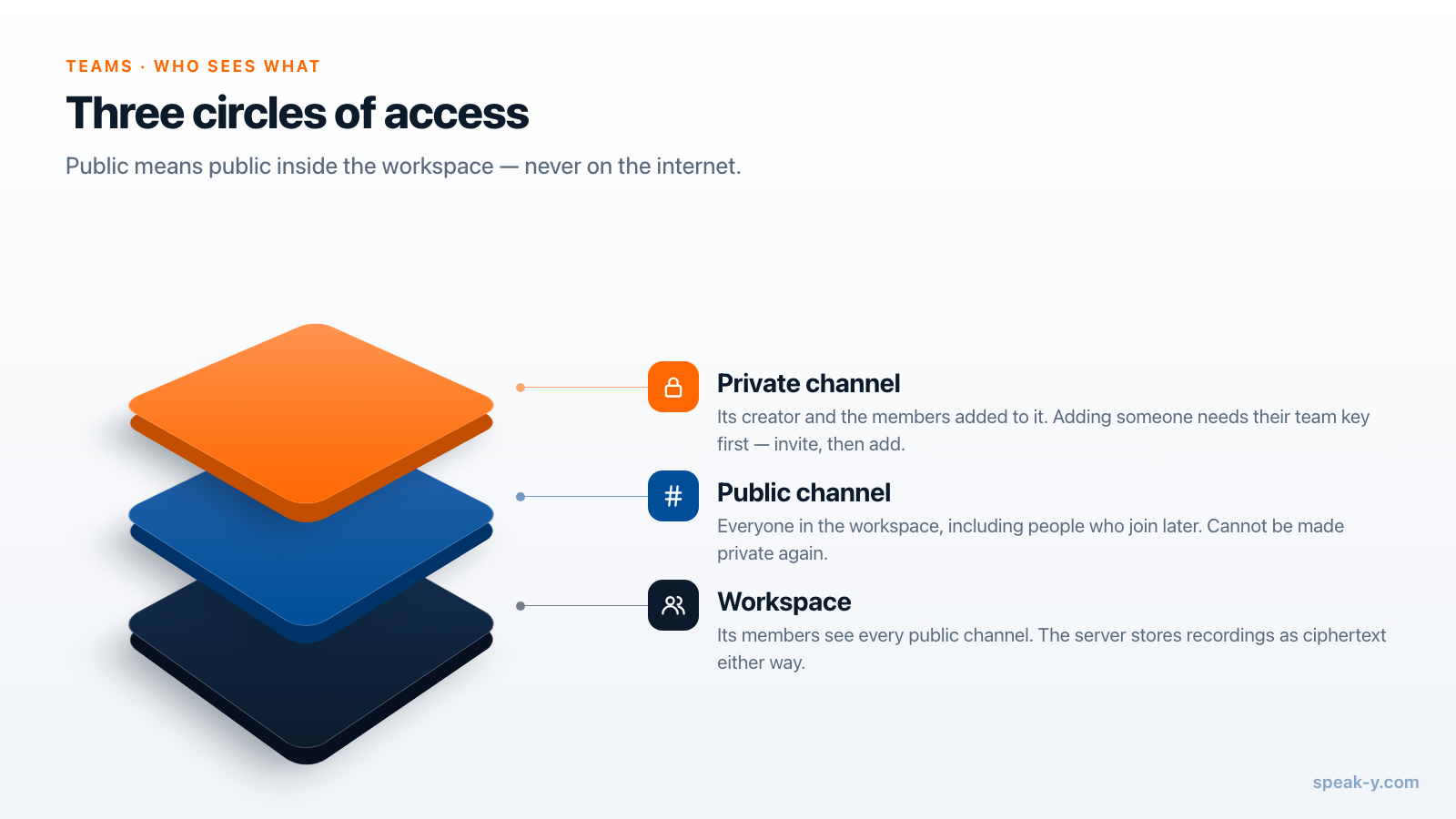
In a Speak-Y workspace every channel is either public or private, and that one choice decides who can read the meetings inside. A public channel, marked #, is seen by everyone in the workspace. A private channel, marked with a lock, is seen only by its creator and the people they add — in the app, the rest of the workspace, owner included, does not see its name, let alone its recordings.
The practical advice fits in three lines. Make channels public by default, so decisions are findable. Make a channel private only when you can name the people who must not read it. And decide before you share, because one direction cannot be reversed: a public channel can never become private.
This guide covers what each type means, who can change what, and the access mistakes teams make most often. It describes the macOS app as of 30 September 2026; if you have no workspace yet, start with setting up a team workspace.
Public and private, precisely
When you create a channel — New channel in the workspace's ⋯ menu — the sheet offers two types, with the app's own one-line definitions:
- Public — "Everyone in the workspace can see it (#)." Every member's device receives the channel key, including people who join the workspace later.
- Private — "Visible only to you and the members you pick. The workspace owner can restore access with the Recovery Kit." You choose the members under "Who can see this channel" while creating it, and any of them can add more later.
Both are end-to-end encrypted in the same way. "Public" means public inside the workspace, not on the internet: the server stores the channel's recordings as ciphertext and cannot read them either way. The difference is which of your colleagues' devices hold the key. There is one more copy for every channel, public or private: the workspace Recovery Kit, the file the owner saved when creating the workspace. It exists so that a member who resets their password can get their channels back, and it is the reason the Kit belongs wherever the team keeps its most sensitive secrets.
In the sidebar the icon tells you which is which: # for public, a lock for private.
Who can do what
Channels have a small set of actions, and each one is gated differently. Most are opened from Channel settings — right-click the channel in the sidebar — or the pencil in the channel's header.
| Action | Who can do it |
|---|---|
| Create a public channel | Workspace owner or an admin |
| Create a private channel | Any member |
| Rename a channel | Anyone who has the channel's key |
| Add people to a private channel | Anyone who has its key |
| Remove someone from a private channel | The channel's creator |
| Make a private channel public | The channel's creator |
| Make a public channel private | Nobody — not possible |
| Delete a channel | Owner or an admin, and only if it is empty |
| Leave a private channel | Any of its members except the creator |
Two rows deserve a sentence each. Renaming is tied to the key, not to a role, because the channel name is itself encrypted on your device — "the server never sees it". And deletion requires an empty channel: "Only an empty channel can be deleted. If it still holds recordings, delete them first." That is a guard against deleting a year of meetings by accident.
Designing channels people actually use
A channel is worth creating when someone will look for its meetings later. The structures that hold up are the ones built around retrieval:
- By client or account — "Acme", "Northwind". Sales and success calls are the meetings people search months later.
- By project or product area — for the engineering and planning meetings whose decisions outlive the sprint.
- By recurring forum — weekly planning, architecture review, incident reviews.
Channels that mirror the org chart ("Marketing", "Engineering") tend to become dumping grounds, because every meeting fits and nothing is findable. The deeper argument is in turning meetings into a team knowledge base.
Private channels are for a short, nameable list: leadership, a deal under NDA, hiring for a specific role, anything involving one person's performance. If you cannot say who must not read it, the channel should probably be public.
Access mistakes that are hard to undo
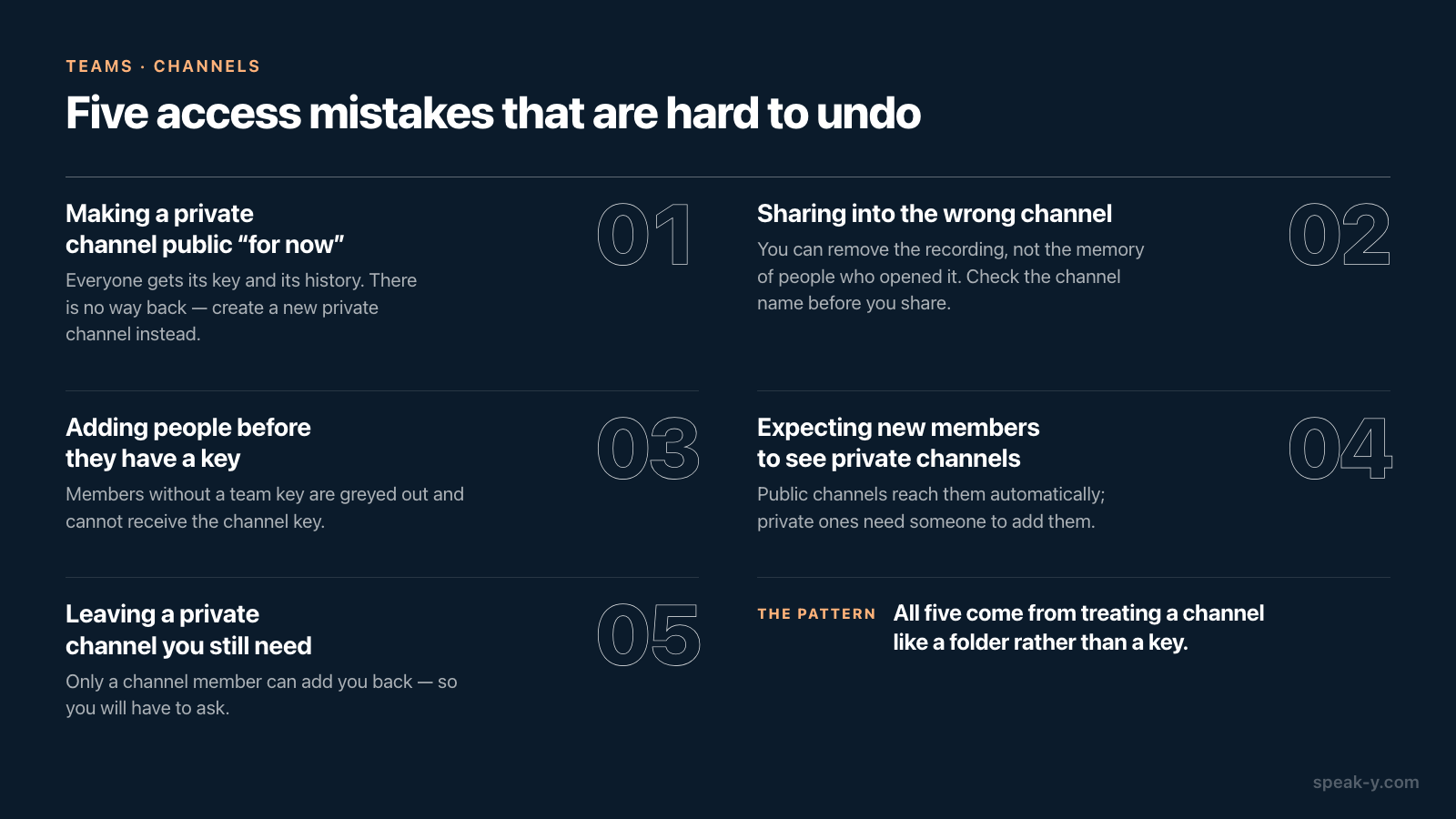
Most channel mistakes are cheap. These five are not, and all of them come from treating a channel like a folder rather than a key.
- Making a private channel public "for now". Everyone in the workspace gets its key, and "recordings already published here become readable to them". Speak-Y will not let you switch back — "A public channel can't be made private: everyone in the workspace already has its history." Create a new private channel instead.
- Sharing into the wrong channel. You can remove a recording from a channel at any time, but not from the memory of people who opened it. Check the channel name on the To channel menu — it is shown as workspace / channel for exactly this reason.
- Adding people to a private channel before they have a team key. Only workspace members appear in the list, and a member who has not set their encryption password yet is greyed out as "hasn't activated encryption yet" and cannot receive the key. Invite first, add second.
- Expecting a new member to see old private channels. They will not, until someone adds them. Public channels come to them automatically; private channels are a decision someone has to make.
- Leaving a private channel you still need. "Only a channel member will be able to add you back." That means asking.
When someone leaves
Removing a person from the workspace — owner or admin, on the workspace page — revokes their access immediately. For a private channel, the channel's creator can also remove them from its member list: "The channel key will be rotated and they will lose access to all records." Rotation protects what is shared from now on; what a person already read on their own device is outside any tool's reach, which is the honest limit of every encrypted system. The step-by-step view is in removing a teammate: what they lose and what they keep, and how end-to-end team sharing works explains why rotation works the way it does.
The short version
Default to public channels built around what people will search for. Make a channel private when you can name who must not read it, and add people after they have joined. Treat "make public" as permanent, because it is.
With channels in place, sharing a meeting is one click — see sharing a meeting to a team channel for exactly what teammates receive, and the Teams page for the overview.
FAQ
What is the difference between a public and a private channel in Speak-Y?
A public channel, marked #, is visible to everyone in the workspace, and every member's device gets its key. A private channel, marked with a lock, is visible only to its creator and the members they add; in the app, nobody else in the workspace sees its name or its recordings — not even the owner. The one exception is the workspace Recovery Kit, which can re-issue a private channel's key to a member who reset their password.
Can I make a public channel private later?
No. Everyone in the workspace already has a public channel's history, so Speak-Y does not let you turn it private. The way out is to create a new private channel and share the sensitive meetings there. The opposite direction works: the creator of a private channel can make it public, which hands its key to every member.
Who can create and delete channels in a Speak-Y workspace?
Any member can create a private channel; public channels are created by the workspace owner or an admin. A channel can be deleted only by the owner or an admin, and only when it is empty — recordings still in it have to be removed first.
How do I remove someone from a private channel?
The channel's creator opens Channel settings, clicks the minus next to the person in the members list and confirms Remove. The channel key is rotated and the removed member loses access to all records in that channel. Any other member can leave a private channel on their own.
Why does a new teammate see Waiting for the channel key?
Channel keys are handed from device to device, sealed so that the server can relay them but never open them. A member who joined after the channel was created receives its key when a member who already has it opens the workspace page. Until then the channel shows as waiting; nothing is wrong.