Voice Notes to a Structured Draft: Think Out Loud on Your Mac
The fastest way past a blank page is not to write the first draft at all, but to say it. In Speak-Y for Mac, press ⌥ Space once, talk through the idea in whatever order it comes, and press ⌥ Space again. The note is saved under Notes. Open it, press AI Process, ask for the structure you need — "turn this into an outline for a one-page proposal" — and press Apply. ⋯ → Copy Text puts the outline on the clipboard for your document.
Talking takes a couple of minutes, the AI a few seconds, and checking the result another minute or two: about five minutes from nothing to a draft with headings. This guide follows one example, a rambling voice note about a customer onboarding problem, and uses the labels of the Mac app as of 30 September 2026.
Why talk before you write?
Writing asks you to decide what you think and put it in order at the same time. Talking only asks for the first: you can start in the middle, correct yourself out loud and leave questions open, because the order is fixed afterwards.
Speed matters too. In a Stanford study (Ruan et al., 2016), speech input reached 153 words per minute, against 52 on a phone keyboard. Two minutes of talking gives you around 300 words of raw material, which is more than most people type before they get stuck. What comes out is messy — how speech-to-text works explains why names and rare words are the weak spot — and that is fine, because the next step is to reshape it.
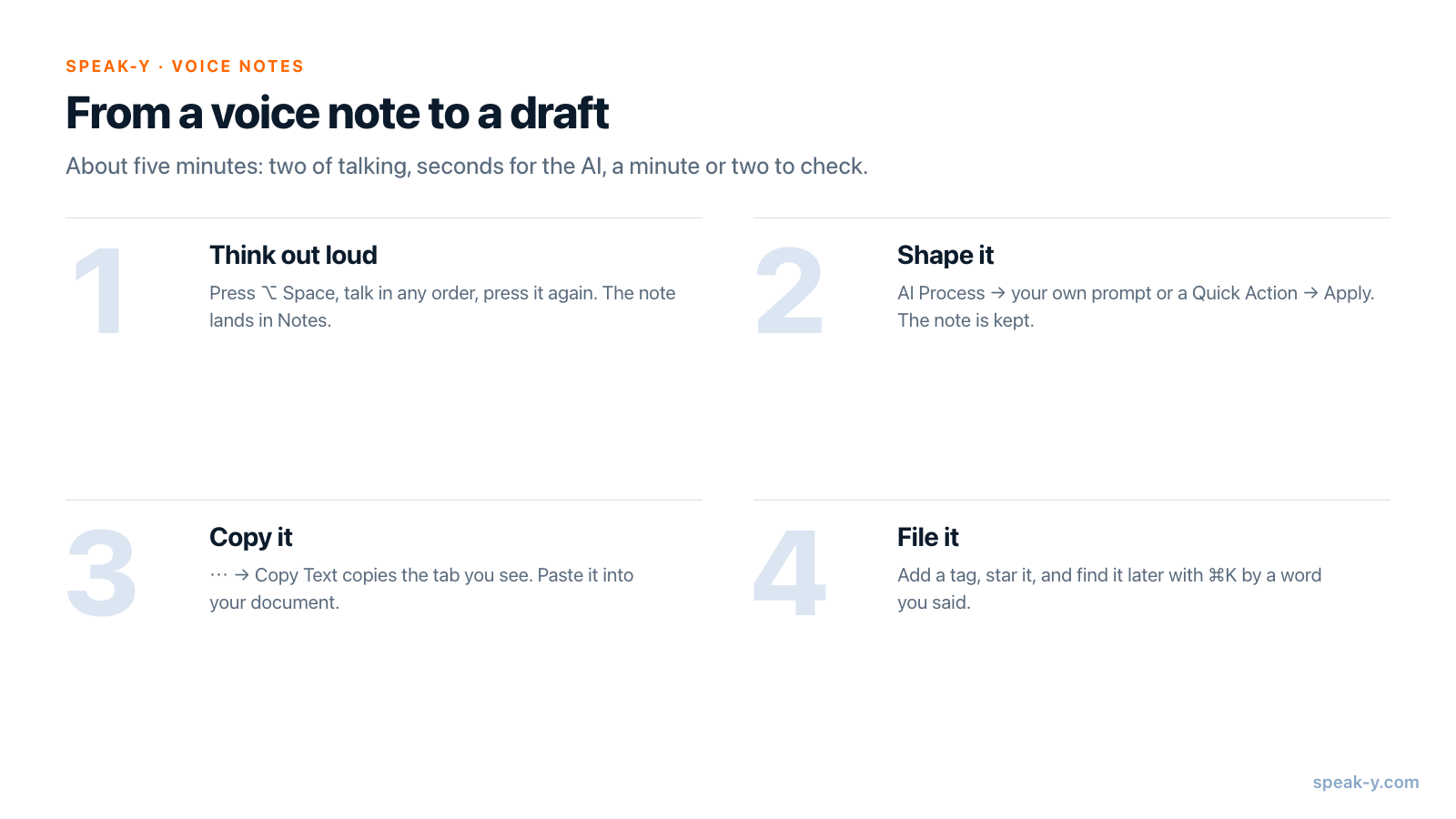
Step 1. Think out loud, hands-free
For anything longer than a sentence, use hands-free recording instead of holding a key. There are three ways to start it:
- The Toggle hotkey. ⌥ Space by default (Settings → General). Press once to start, press again to stop.
- A double tap of the hold key. Double-tapping Right ⌘ switches the recording to hands-free; press it again to stop.
- Start recording at the top of the sidebar in the Speak-Y window.
You do not need a text field. If the cursor is in one, Speak-Y pastes the text there as usual. If it is not, the recording button offers Copy to clipboard? with a Copy button — you can ignore it. Either way, every dictation is saved under Notes in the Speak-Y window.
A recording can run up to 30 minutes on the Free plan and 4 hours on paid plans. Five minutes before the limit, the recording button shows Session ends in with a countdown.
Three habits make the AI step work better:
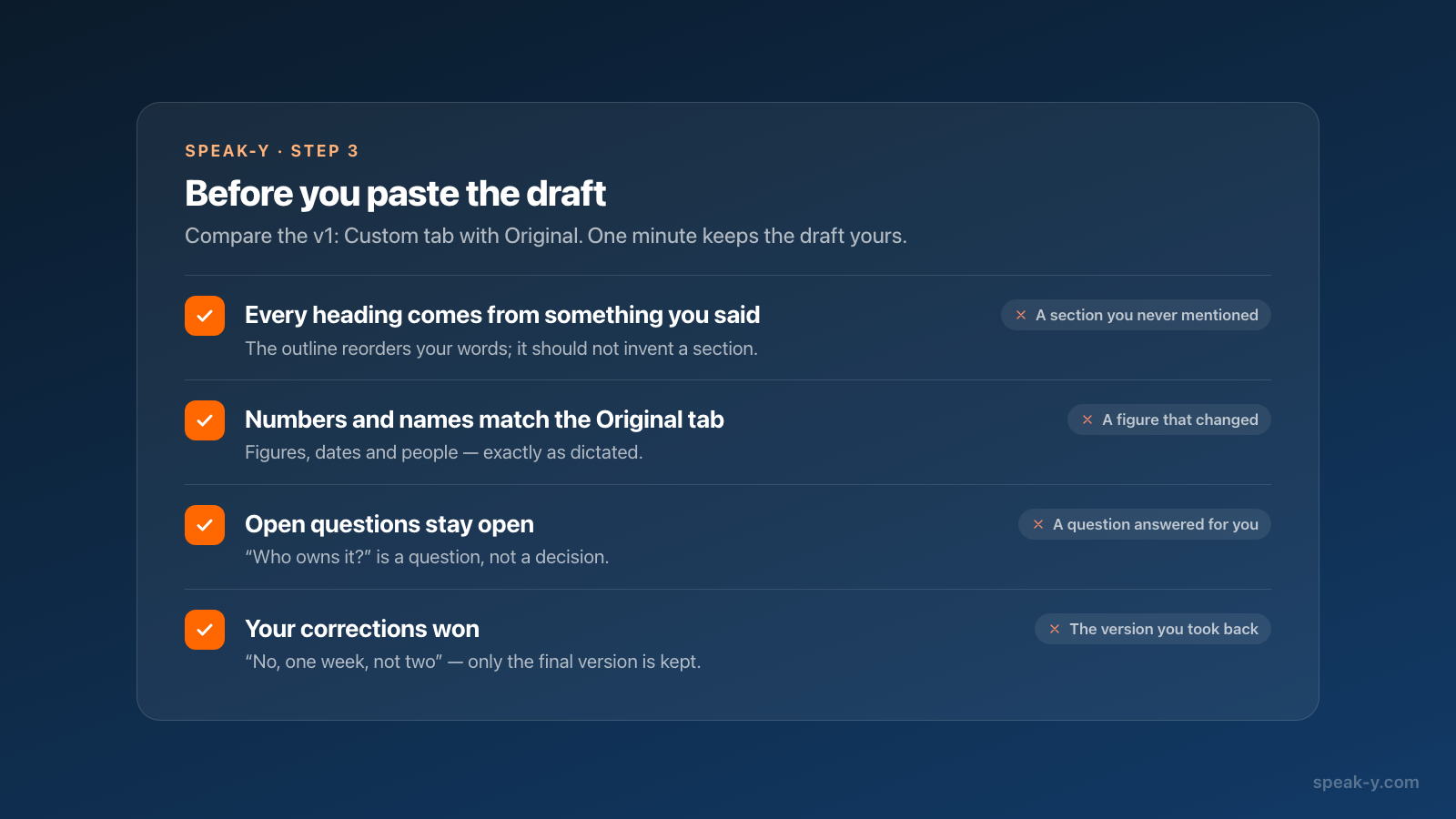
- Name the parts as you go. "The problem is…", "what I would do…", "open question…". These phrases become headings later.
- Say numbers and names clearly, once. The AI keeps what you said; it cannot fix a figure it never heard.
- Correct yourself out loud. "No, not two weeks, one week" is enough; the prompt will ask the AI to keep only the final version.
Step 2. Turn the ramble into an outline with AI Process
Open Notes in the sidebar, click the note, and press AI Process in the bar under the text. The AI Processing window has two parts:
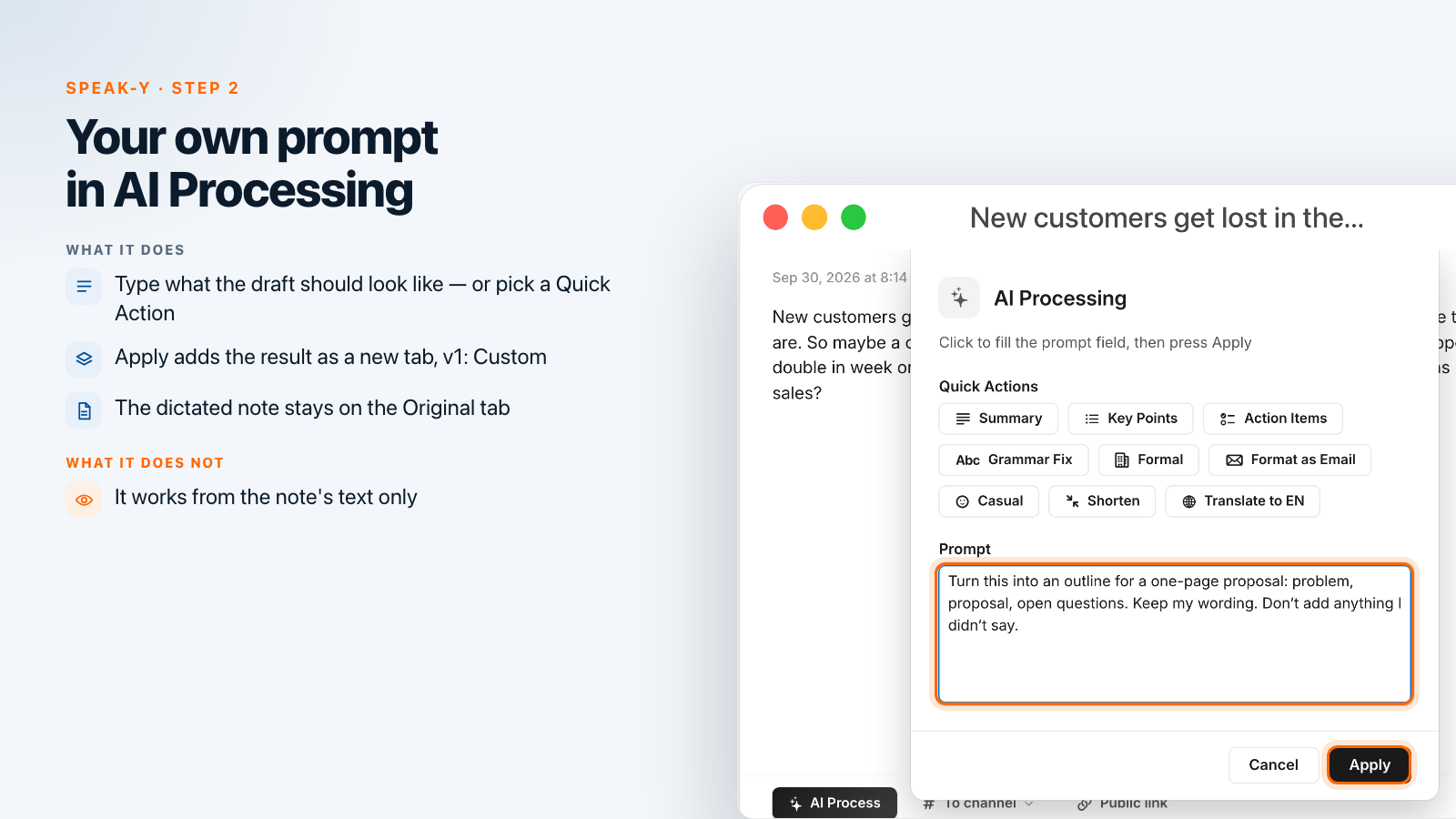
- Quick Actions — nine buttons that fill in a ready-made prompt: Summary, Key Points, Action Items, Grammar Fix, Formal, Format as Email, Casual, Shorten and Translate to EN.
- Prompt — a field where you write your own instruction, or edit the one a Quick Action filled in.
For a draft, your own prompt is usually the better choice, because only you know what the document should look like. The example in this guide uses:
Turn this into an outline for a one-page proposal: problem, proposal, open questions. Keep my wording. Don't add anything I didn't say.
Press Apply. A new tab, v1: Custom, appears next to Original, with your prompt shown above the result. The original dictation is not changed, so you can run a second prompt — say, Key Points for a status update — and get v2: Custom alongside. Every tab can be edited in place; press Save when you are done.
Prompts worth keeping for this kind of work:
| You need | Prompt or Quick Action |
|---|---|
| A document skeleton | "Turn this into an outline with headings for …. Keep my wording." |
| A clean paragraph, same words | Grammar Fix — it removes filler words and keeps the meaning and tone |
| A list of what to do next | Action Items |
| The gist for someone else | Summary (3–5 sentences) or Key Points |
| A post or an email | Your own prompt with the audience and length, or Format as Email |
If you use the same prompt every week, turn it into a voice command with a trigger phrase, as described in replying to messages by voice; voice commands are available on Pro and higher plans.
Step 3. Copy the draft into your document
With the v1: Custom tab open, click ⋯ at the end of the bar and choose Copy Text. It copies the tab you are looking at, so the outline goes to the clipboard, not the raw dictation. Paste it into Google Docs, Notion, Pages, Word or an email with ⌘V and keep writing from there.
The AI works only from the text of the note, which is why the prompt says "don't add anything I didn't say" — and why a one-minute check is worth it.
Step 4. Keep notes findable: tags, favourites and ⌘K
Voice notes pile up quickly, so file each one as you finish with it. The Mac app has no folders for personal notes; it has three lighter tools instead:
- Tags. Open the note and click Tags. Pick an existing tag or type a new name in Search or create… and choose Create new tag. Speak-Y also adds the app you dictated in as a tag automatically.
- Favorites. Click the star in the note, or choose Add to favorites in the ⋯ menu. Starred notes are listed under Favorites in the sidebar.
- ⌘K. In the Speak-Y window, press ⌘K and type into Search everything…. It finds tags by name and notes by a word from the dictated text — so search for something you said, not a phrase from the AI version.
For a longer search, the magnifier above the list searches every day at once and can be narrowed with a Tag filter. When a note needs to reach colleagues, To channel under the text shares it to a team channel in a Speak-Y workspace.
Capture on iPhone, finish on the Mac
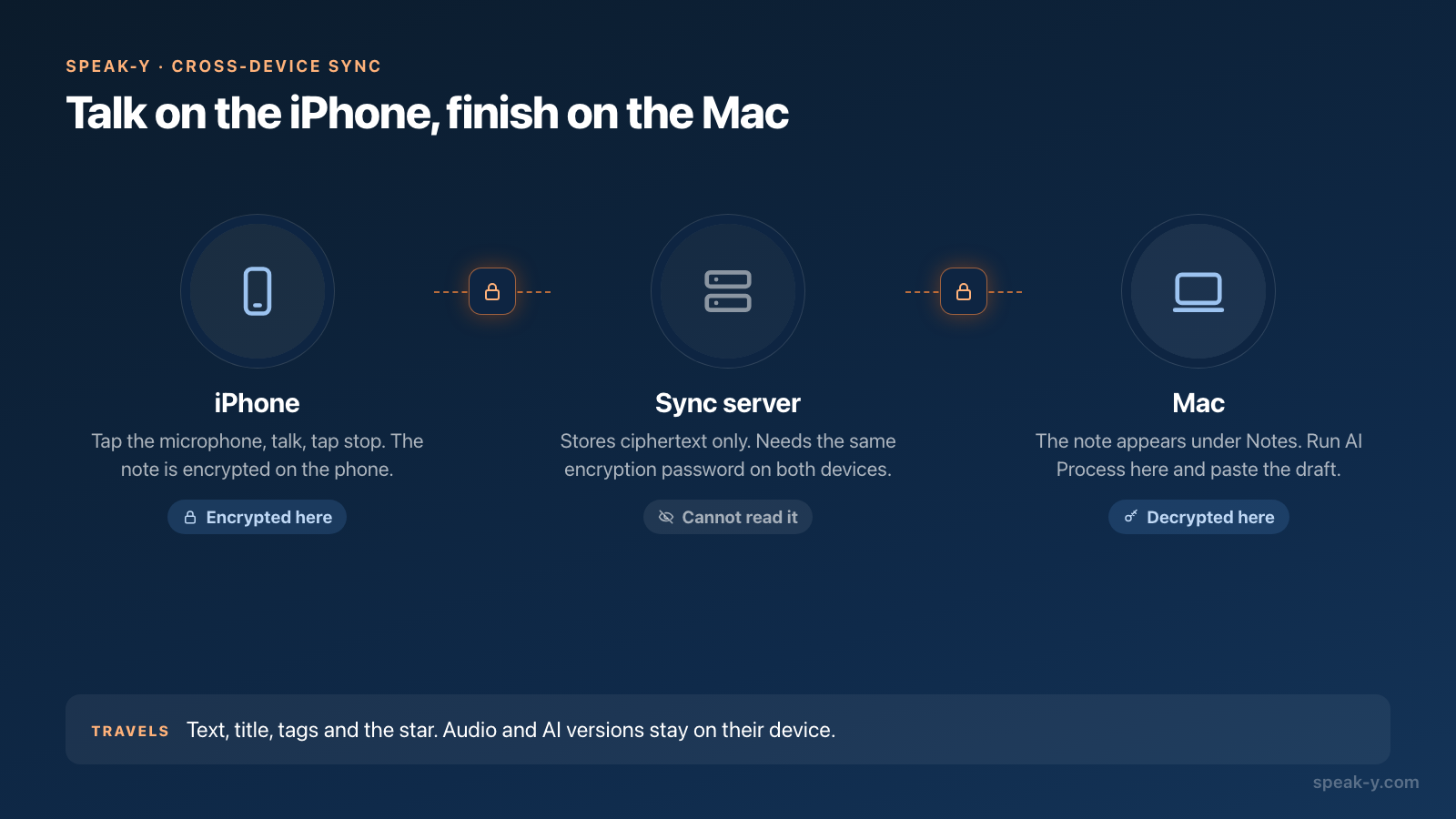
Ideas rarely arrive at the desk. The Speak-Y iPhone app records notes the same way: tap the microphone button, talk, and tap stop. You can swipe the recording panel down and keep talking while you do something else.
To get that note onto the Mac, turn on Cross-Device Sync on both devices: sign in, accept the data processing terms and create an encryption password on the first device (Settings → Sync on the Mac, Settings → Cross-Device Sync on the iPhone), then enter the same password on the second. Notes are encrypted on the device before they are uploaded, and the server stores only ciphertext.
What travels: the note's text, title, tags and favourite star. What does not: the audio and the AI versions. So the practical split is to talk on the iPhone and run AI Process on the Mac, where the draft will be pasted anyway. The iPhone app has its own AI button with a shorter list of prompts if you want a quick summary on the spot.
Which plans and platforms does this work on?
As of 30 September 2026 (pricing):
- Dictation works on every plan. Free includes 2,000 words a week on the Mac and 1,000 on the iPhone; Pro, Pro+ and Max are unlimited. A two-minute voice note is roughly 300 words.
- Recording length is up to 30 minutes per recording on Free and 4 hours on paid plans.
- AI Process uses one AI request per Apply: 50 a week on Free, 200 on Pro, unlimited on Pro+ and Max.
- Enhanced recognition (Settings → General) is available on Pro and higher. It gives higher accuracy for supported languages, sends your audio to a third-party speech service and asks for consent the first time.
- Platforms. The Mac app runs on macOS 14.2 and later; this guide describes it. The Windows app has the same AI Process button on notes. The iPhone app records notes and syncs them as described above.
Once your ideas live in Speak-Y, they can also feed an AI assistant: the free MCP server lets Claude or ChatGPT read your notes locally on the Mac, so you can ask it to merge three voice notes into one brief. For turning a spoken reply into an email after a call, see from client call to follow-up email.
FAQ
How do I dictate a long note on a Mac without holding a key?
In Speak-Y, press the Toggle hotkey (⌥ Space by default) once, talk, and press it again to stop. You can also double-tap the hold key (Right ⌘) or click Start recording at the top of the Speak-Y sidebar. No text field needs to be active: every dictation is saved under Notes.
How do I turn a dictated note into an outline?
Open the note under Notes, press AI Process, type what you want in the Prompt field — for example "Turn this into an outline for a one-page proposal. Keep my wording" — or pick a Quick Action such as Key Points, and press Apply. The result appears as a new tab, v1: Custom, and the original note stays as it was. ⋯ → Copy Text copies the tab you are looking at.
Can I organise Speak-Y notes into folders?
The Mac app has no folders for personal notes. Use tags instead: open a note, click Tags and type a name to create one. Star important notes to collect them under Favorites, and press ⌘K in the Speak-Y window to search everything by a word you said or a tag name.
Can I record a note on my iPhone and finish it on my Mac?
Yes, with Cross-Device Sync. Sign in on both devices and set up sync with the same encryption password: Settings → Sync on the Mac, Settings → Cross-Device Sync on the iPhone. The note's text and tags sync end-to-end encrypted and the note appears under Notes on the Mac. Audio and AI versions stay on the device where they were made.
How many times can I use AI Process?
Each Apply is one AI request. As of 30 September 2026, Free includes 50 AI requests a week, Pro 200, and Pro+ and Max are unlimited. Dictation itself is 2,000 words a week on Free for Mac and unlimited on paid plans.