Design Review Feedback That Stays Findable: One Channel, Three Marks
A design review produces more feedback than anyone writes down. Somebody says the total drops below the fold on a laptop, somebody asks whether the card can be saved without a second screen, somebody likes the empty-cart illustration but not for this release. An hour later the notes have three of those points, phrased by the person who took them, and nobody remembers which ones were blocking.
There is a shorter path. Record the review, press a hotkey each time a point is made — Must fix, Nice to have or Question — and share the recording to the project's channel. Each mark stays on the sentence it was pressed after, with the time and the reviewer's name. A week later the Must fix list is one filter click away, or one question to an AI assistant, and the designer checks it against the file.
This guide follows the Speak-Y macOS app as checked on 16 October 2026, for a product designer whose team already shares meetings in a workspace. If you do not have one yet, set it up first.
Why does feedback from a design review get lost?
Most of it is spoken. Comments in the design file work for asynchronous review — Figma, for example, pins a comment to a location or region on the canvas (Figma help: add comments to files, checked on 16 October 2026). But in a live review the reasoning is said out loud, and nobody types "Sam thinks the total must stay visible because laptop users miss it" into a comment while Sam is still talking.
Nielsen Norman Group's guide to design critiques asks for a designated note-taker and for the facilitator to send out notes and action items afterwards. That is the right process, and it fails in three predictable ways:
- Weight disappears. The notes list "total placement" and "empty-cart illustration" side by side, with no sign that one blocks the release.
- Names disappear. "Someone asked about saving the card" — so nobody follows up.
- Wording softens. A reviewer's exact sentence becomes the note-taker's summary of it.
A recording keeps all three; the marks make the right minutes findable.
Set up once: three note types and a project channel
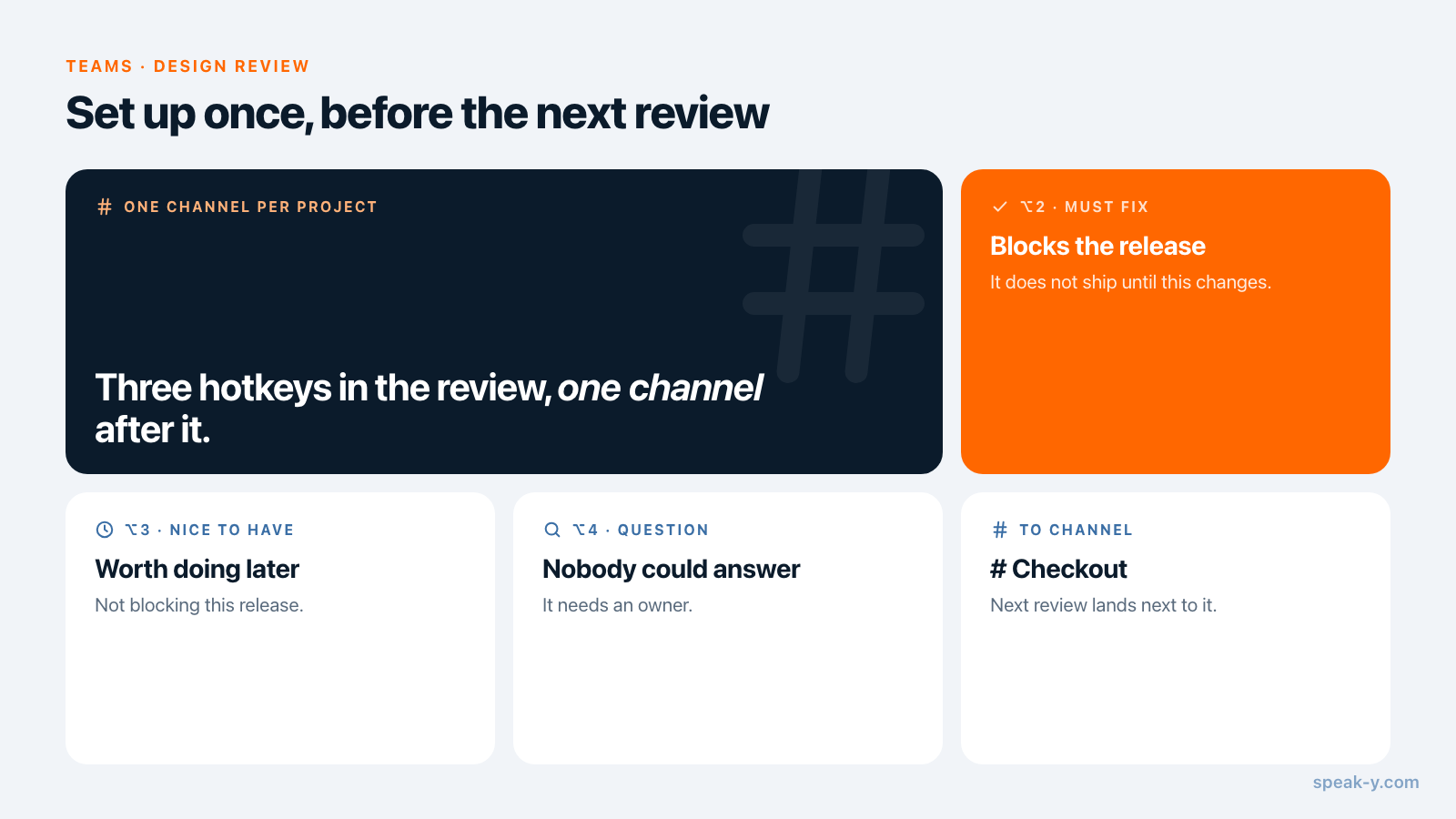
The marks. Speak-Y ships with one note type, Mark the moment on ⌥1.
Add three of your own in Settings → Notes: click Add note type, type
Must fix into Type name, click Save, then Set hotkey and press
⌥2. Repeat for Nice to have on ⌥3 and Question on ⌥4. Everyone on the
team who presents designs does this once, with the same names.
- Must fix — the design does not ship until this changes.
- Nice to have — worth doing, not blocking this release.
- Question — something nobody in the room could answer; it needs an owner.
The channel. One channel per project, not one for all reviews. In the workspace's ⋯ menu, choose New channel and name it after the project, such as Checkout. Engineers and product managers on that project join it; next month, a review of the same flow lands next to the last one. Keep reviews of unannounced work in a private channel — the trade-offs are in who sees what in meeting channels.
During the review: name the frame, then press the key
Start a meeting recording in Speak-Y when the review starts. No bot joins the call: Speak-Y records the microphone and the call's sound on your Mac, so it works the same on Zoom, Google Meet, Teams or in a meeting room. Tell everyone the review is recorded.
Speak-Y does not record the screen, so the transcript only knows what was said. Two habits make up for it:
- Name the frame before you discuss it. "Frame four, the payment step" costs two seconds and makes every point after it findable without the file open.
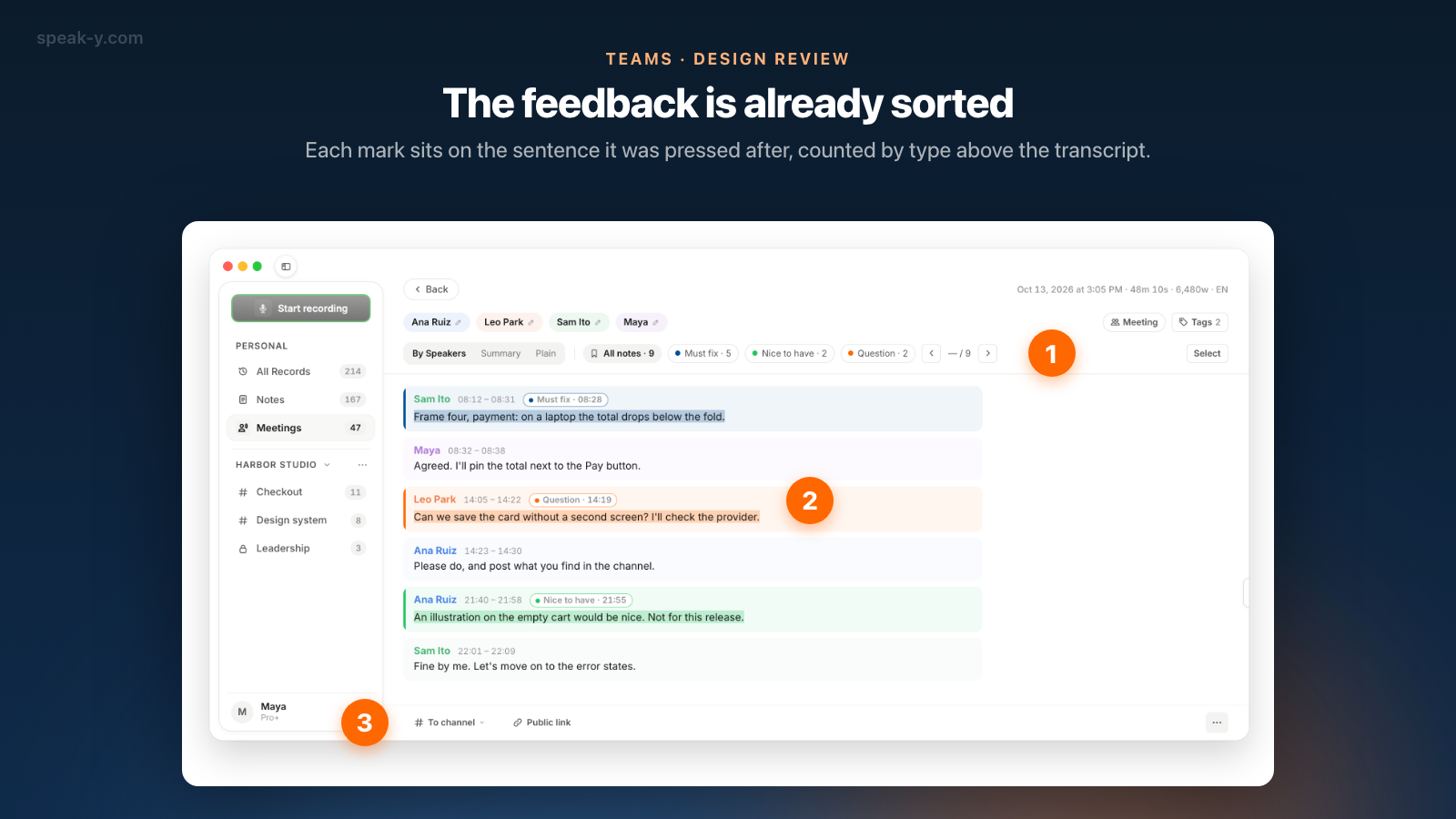
- Let the point be said in full, then press. A mark covers the last 15 seconds of the transcript before the key, so the sentence that explains why is inside it.
The designer presenting usually presses the keys. The hotkeys work from any app, so Figma stays in front, and the mark buttons next to the recording pill are invisible during screen sharing — the shared design is not interrupted. If the presenter is busy, a second person records and marks instead; just not both, because marks belong to the recording of whoever pressed them.
After the review: names, tags, share
Five minutes once the transcript is ready:
- Name the speakers. On By Speakers, click a Speaker 2 chip and type the name. "Sam Ito: the total must stay visible" is feedback; "Speaker 3" is not.
- Tag it. Click Tags and add
design-reviewand the file version, such ascheckout-v3. The version tag is how you and the assistant find this review next week, and how the next review is told apart from it. - Check the marks. The chips above the transcript count them: All notes · 9, Must fix · 5, Nice to have · 2, Question · 2. A point nobody marked can still be marked while replaying the recording: the bar under the player has a button for each note type.
- Share it. Press To channel under the transcript and pick the project channel. The transcript with names and timestamps, the AI summary and the action items go into the channel, end-to-end encrypted; the audio stays on your Mac.
- Show the marks. Marks are private by default. Click the Private chip above the transcript and choose Show in # Checkout — channel members will see them, so the engineers see the Must fix points too.
What exactly travels to the channel is in sharing a meeting to a team channel.
A week later: which Must fix items are closed?
Before the follow-up review, there are two ways back to the list.
In the app. Open the recording in the channel and click Must fix · 5. The arrows next to the chips step through the five marks one by one in the transcript, each on the reviewer's own sentence.
With an assistant. Connect Claude, ChatGPT or Cursor to the Speak-Y MCP server — one click on Connect in Settings → Integrations, free on every plan — and ask:
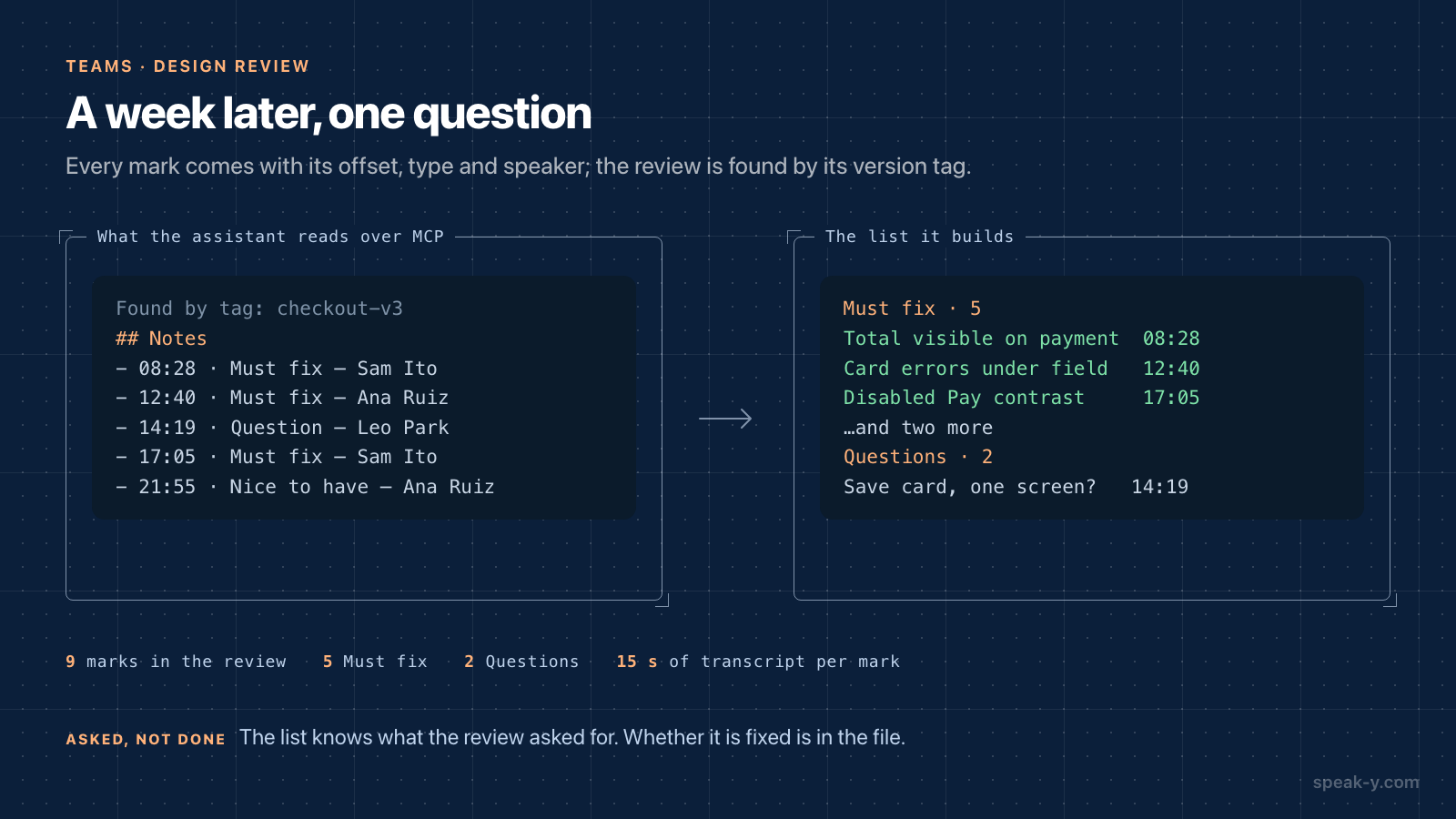
List the Must fix items from the checkout-v3 review, with who said each one and when.
The assistant finds the review by its tag and reads it. Alongside the transcript, Speak-Y hands it the marks as a list — each with its offset in the recording, its type, the speaker and the first words of the sentence — so the answer comes back as five Must fix items and two open questions, each with a name and a time. Paste it into your task tracker or the next review's agenda.
What the assistant cannot do is tick the boxes. It knows what was asked for in the review, not what changed in the file since. The designer opens the file and decides, item by item.
What the recording cannot hold
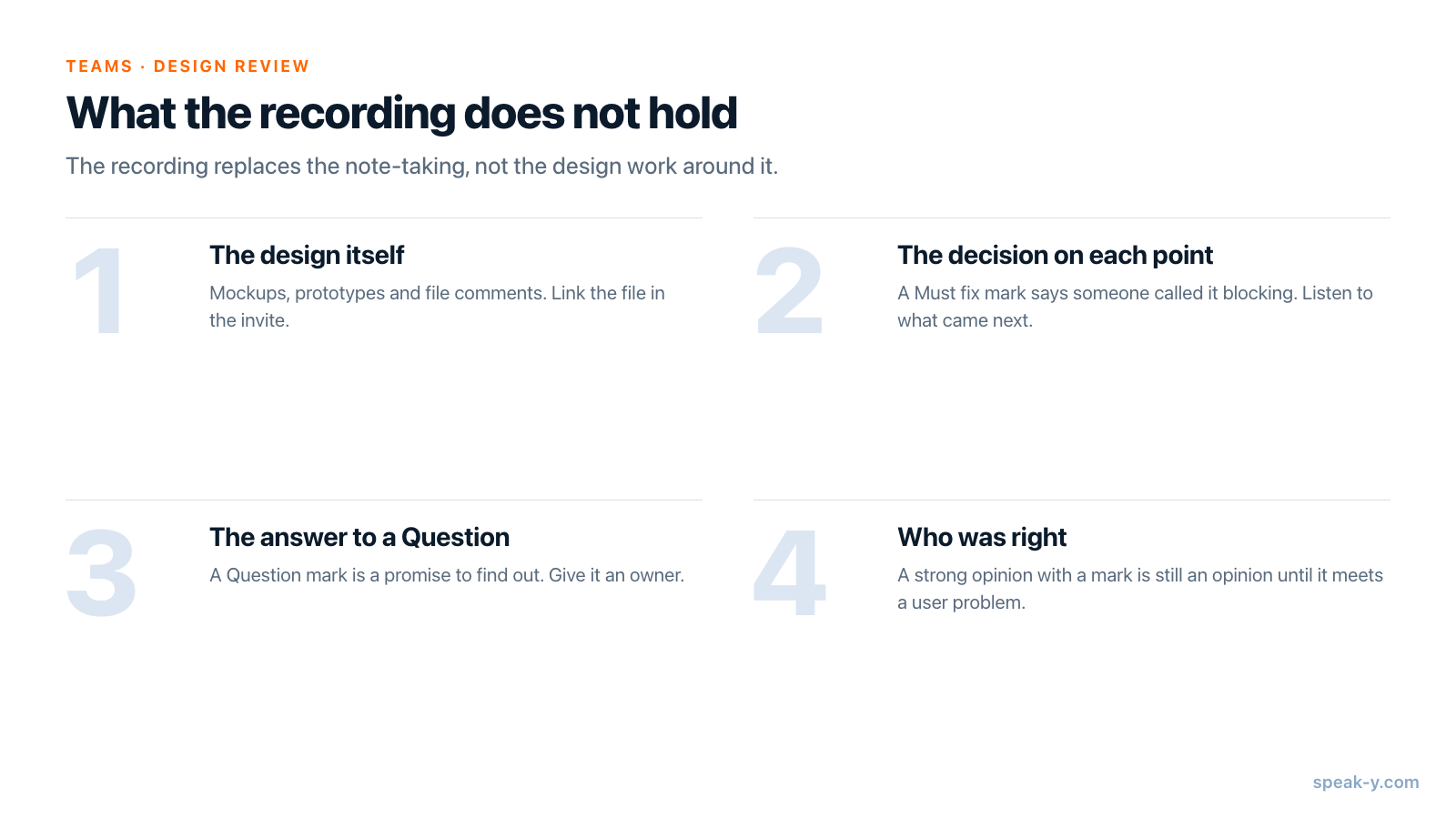
The recording replaces the note-taking, not the design work around it:
- The design itself. Mockups, prototypes and the comments in the file are not in the recording. Put the link to the file in the meeting invite, and say frame names out loud.
- The decision on each point. A Must fix mark records that someone said it was blocking. Whether the team agreed is in the next sentences — listen to them before you treat it as settled.
- The answer to a Question. A Question mark is a promise to find out. Give it an owner in the room, as Leo does with the payment provider in the screencast above.
- Taste. The marks capture what was said, not who was right. A strong opinion with a Must fix mark is still an opinion until it is tied to a user problem.
Limits and costs
- Length. Checked on speak-y.com on 16 October 2026: Free stops a meeting recording at 30 minutes, Pro ($10 a month) at 60, Pro+ ($15) and Max ($30) at four hours. Most reviews fit in Pro's hour.
- One recorder. Two people recording the same review make two half-lists of marks.
- Channels on Mac. Workspaces and channels are in the macOS app. Creating a workspace needs Pro or higher; teammates join free on any plan.
The short version
Three note types — Must fix, Nice to have, Question — on ⌥2, ⌥3 and ⌥4. During the review: name the frame, let the point be said, press the key. After it: names, a version tag, To channel, show the marks. A week later: Must fix · 5, or one question to the assistant, and the file open next to it. The Teams page covers workspaces and channels, and incident call to postmortem draft uses the same marks for a very different kind of meeting.
FAQ
How do I keep feedback from a design review from getting lost?
Record the review in Speak-Y and press a hotkey each time a point is made: Must fix, Nice to have or Question. After the review, name the speakers, tag the recording with the project and the file version, and share it to the project's channel. The marks stay on the sentences they were pressed after, so a week later the Must fix list is one filter click or one question to an AI assistant away.
Does Speak-Y record my screen or the Figma file during a design review?
No. Speak-Y records audio from the Mac that starts the recording: the microphone and the sound of the call app. Mockups, prototypes and comments in the design file are not in the recording. Say the frame's name out loud before you discuss it, and keep the link to the file in the meeting invite.
Can an AI assistant tell me which Must fix items are closed?
It can tell you what was asked for, not what was done. Over the Speak-Y MCP server an assistant such as Claude, ChatGPT or Cursor reads the review's marks with their type, time and speaker and turns them into a list. Whether each item is fixed is in the design file, so the designer checks the list against the file and decides.
Who should press the marks during a design review?
Usually the designer presenting, because the hotkeys work from any app while the design file stays in front, and the mark buttons are invisible during screen sharing. If the presenter is busy, a second person can record and mark instead. Marks belong to the recording of whoever pressed them, so one recorder per review keeps one list.
What does this setup cost?
The MCP server is free on every plan. Creating a team workspace needs Pro or higher, and teammates join free on any plan. Checked on speak-y.com on 16 October 2026: Free stops a meeting recording at 30 minutes, Pro ($10 a month) at 60, and Pro+ ($15) and Max ($30) at four hours.