Incident Call to Postmortem Draft: Mark the Timeline on the Bridge
The slowest part of a postmortem is not the analysis. It is the timeline: an hour of scrolling through the incident chat, the paging tool and everyone's memory to work out when the SEV-2 was declared, when the rollback started and who first said "connection pool". By then the wording has softened and the order of events is a reconstruction.
There is a shorter path. Record the incident bridge, have the scribe press a hotkey each time something belongs in the postmortem — Timeline, Cause or Action — and after the call ask an AI assistant to draft the postmortem from those marks. Each mark carries its time and the sentence it was pinned to, so the draft starts with a timeline instead of a blank page. What the recording cannot hold — graphs, logs, alert times — you still add yourself.
This guide follows the Speak-Y macOS app as checked on 15 October 2026, for an on-call engineer or SRE team that already shares meetings in a workspace. If you do not have one yet, set it up first.
Why is the timeline the hardest part of a postmortem?
Both widely used references put the timeline at the centre. Google's SRE book chapter on postmortem culture asks for postmortems to be blameless — focused on what the system allowed, not on who slipped. PagerDuty's public postmortem template (checked on 15 October 2026) has a Timeline section in UTC: when the contributing factor began, when the page went out, when the status page was updated, every significant action and when the incident ended.
The problem is when that timeline is written. Three things go wrong:
- Memory rounds the times. "Around half past" is fine for a story and useless for measuring time to mitigate.
- The order flattens. A rollback that was tried, abandoned and tried again becomes "we rolled back".
- The reasoning disappears. The chat shows the commands that were run, not the sentence that explained why.
A recording keeps all three; the marks make the right minutes findable.
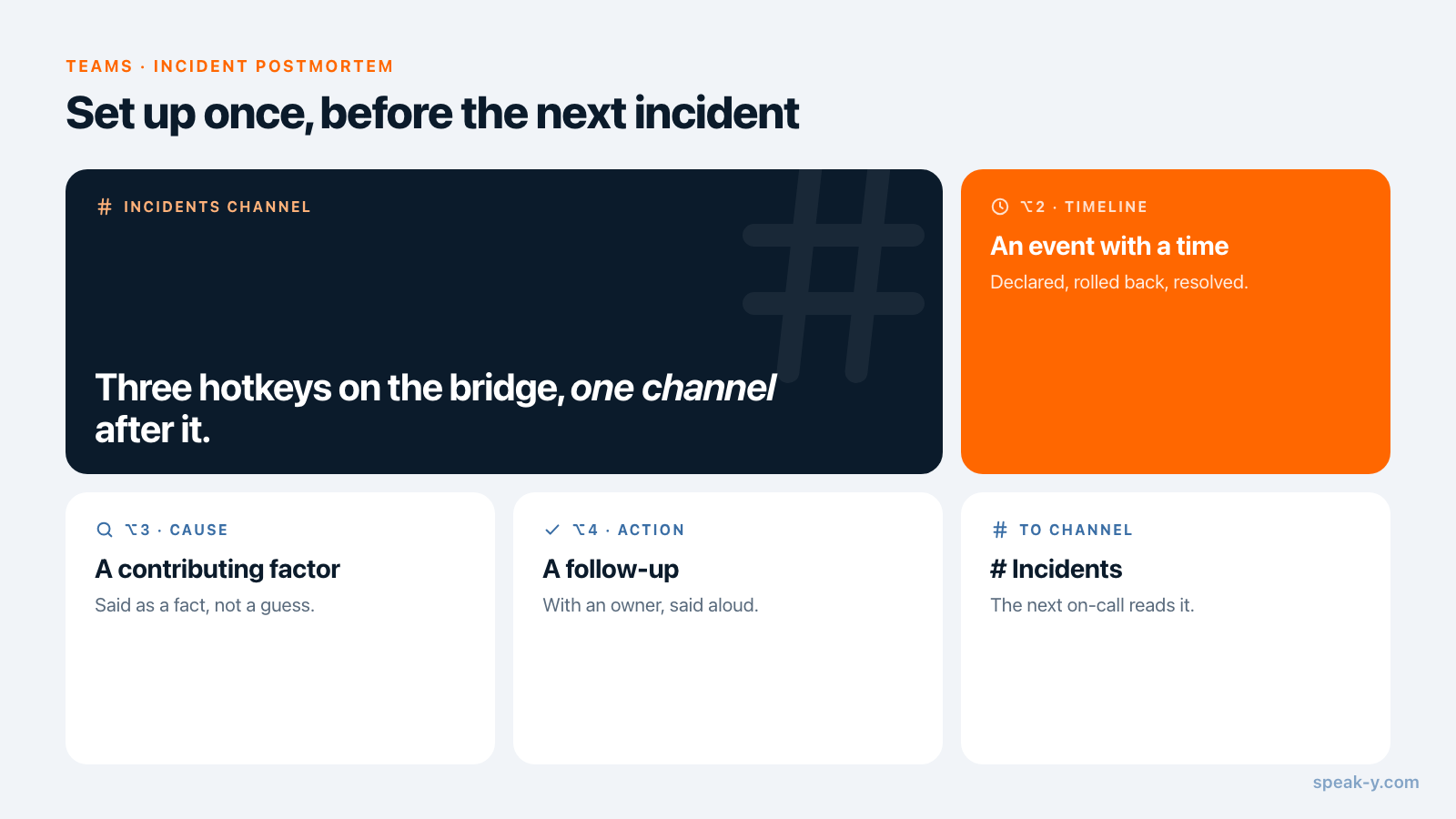
Set up once: three note types and an Incidents channel
The marks. Speak-Y ships with one note type, Mark the moment on ⌥1.
Add three of your own in Settings → Notes: click Add note type, type
Timeline into Type name, click Save, then Set hotkey and press
⌥2. Repeat for Cause on ⌥3 and Action on ⌥4. Everyone who might
record an incident does this once, with the same names.
- Timeline — an event with a time: declared, paged, rolled back, recovered, resolved.
- Cause — a contributing factor, said as a fact: "the pool caps at 20".
- Action — a follow-up with an owner: "Sam adds the alert by Friday".
The channel. In the workspace's ⋯ menu, choose New channel and name it Incidents. A public channel suits most engineering teams: the next on-call engineer reads past incidents without asking for access. Keep security incidents and anything involving customer data in a separate private channel; the trade-off is covered in who sees what in meeting channels.
On the bridge: say it, then press the key
When the bridge opens, the incident commander names a scribe, and the scribe starts a meeting recording in Speak-Y. No bot joins the call: Speak-Y records the microphone and the call's sound on the scribe's Mac, so it works the same on Zoom, Google Meet, Teams or a Slack huddle. Tell everyone the call is recorded; the rules differ by country and are covered in is it legal to record meetings.
The marks work best when the event is said as a full sentence first:
Declaring SEV-2. Checkout returns 502s on about a third of requests.
Then the scribe presses ⌥2. Speak-Y pins a Timeline mark to the last 15 seconds of the transcript, in the type's colour. Nothing is typed, and the call app can stay in front: the hotkeys work from any app. The mark buttons next to the recording pill do the same with a click, and they are invisible during screen sharing, so a shared dashboard is not interrupted.
Saying "rollback is done, error rate under one percent" out loud is also a status update the whole bridge hears — which is when someone says "not in eu-west it isn't".
After the call: names, tags, share
Five minutes once the transcript is ready:
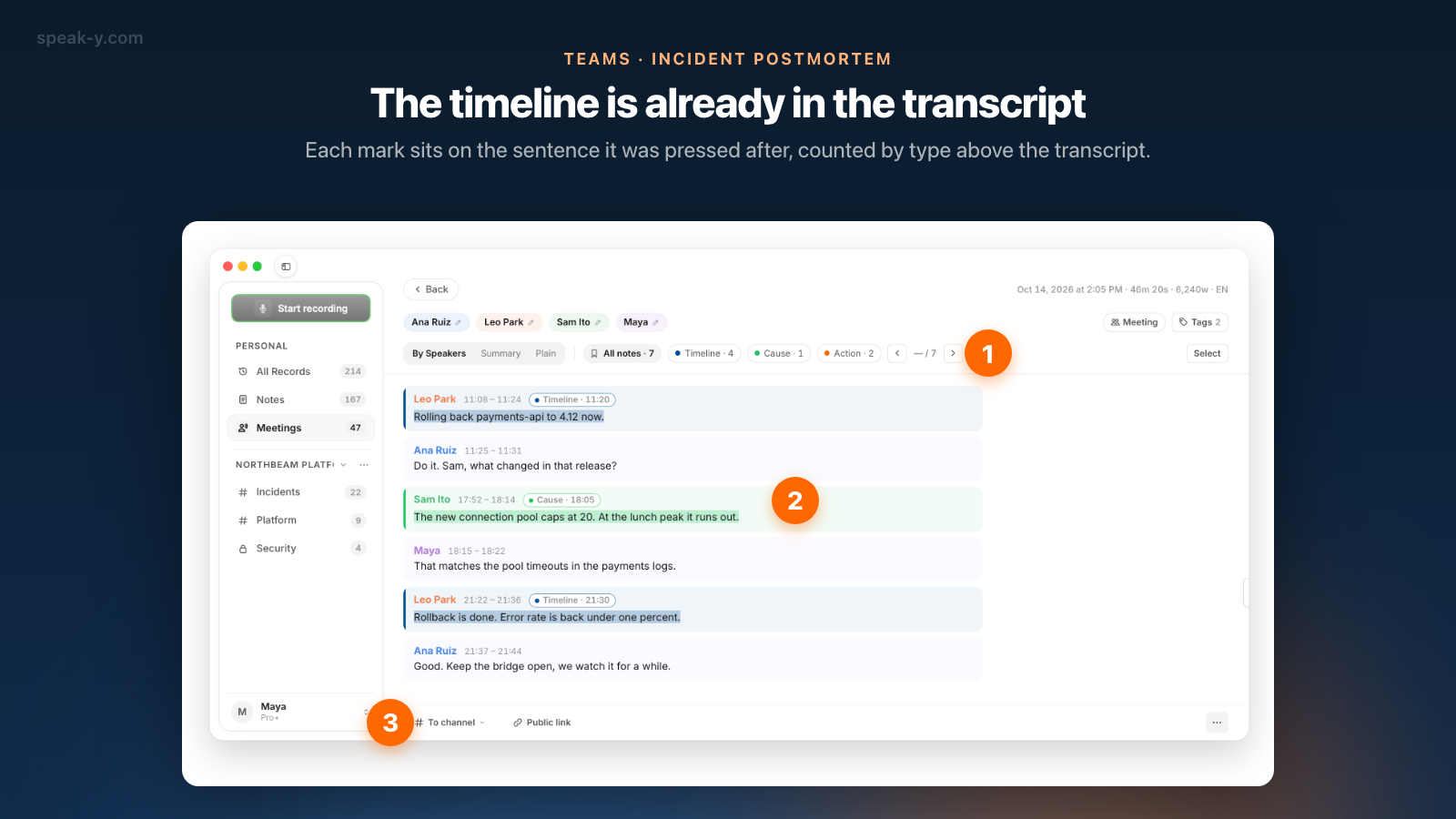
- Name the speakers. On By Speakers, click a Speaker 2 chip and type the name. A postmortem says "Leo started the rollback", not "Speaker 3".
- Tag it. Click Tags and add
incidentplus the incident's ID, such asinc-2041. The ID is how the assistant finds the right call. - Check the marks. The chips above the transcript count them: All notes · 7, Timeline · 4, Cause · 1, Action · 2. A moment nobody marked can still be marked while replaying the recording: the bar under the player has a button for each note type.
- Share it. Press To channel under the transcript and pick Incidents. The transcript with names and timestamps, the AI summary and the action items go into the channel, end-to-end encrypted; the audio stays on your Mac.
- Show the marks, if the team should see them. Marks are private by default. Click the Private chip above the transcript and choose Show in # Incidents — channel members will see them.
What exactly travels to the channel is in sharing a meeting to a team channel.
Drafting the postmortem with an AI assistant
Connect Claude, ChatGPT or Cursor to the Speak-Y MCP server — one click on Connect in Settings → Integrations, free on every plan — and ask:
Draft a postmortem for INC-2041 from my marks. Put the timeline in UTC, list causes and action items separately, and give each line the offset in the recording so I can check it.
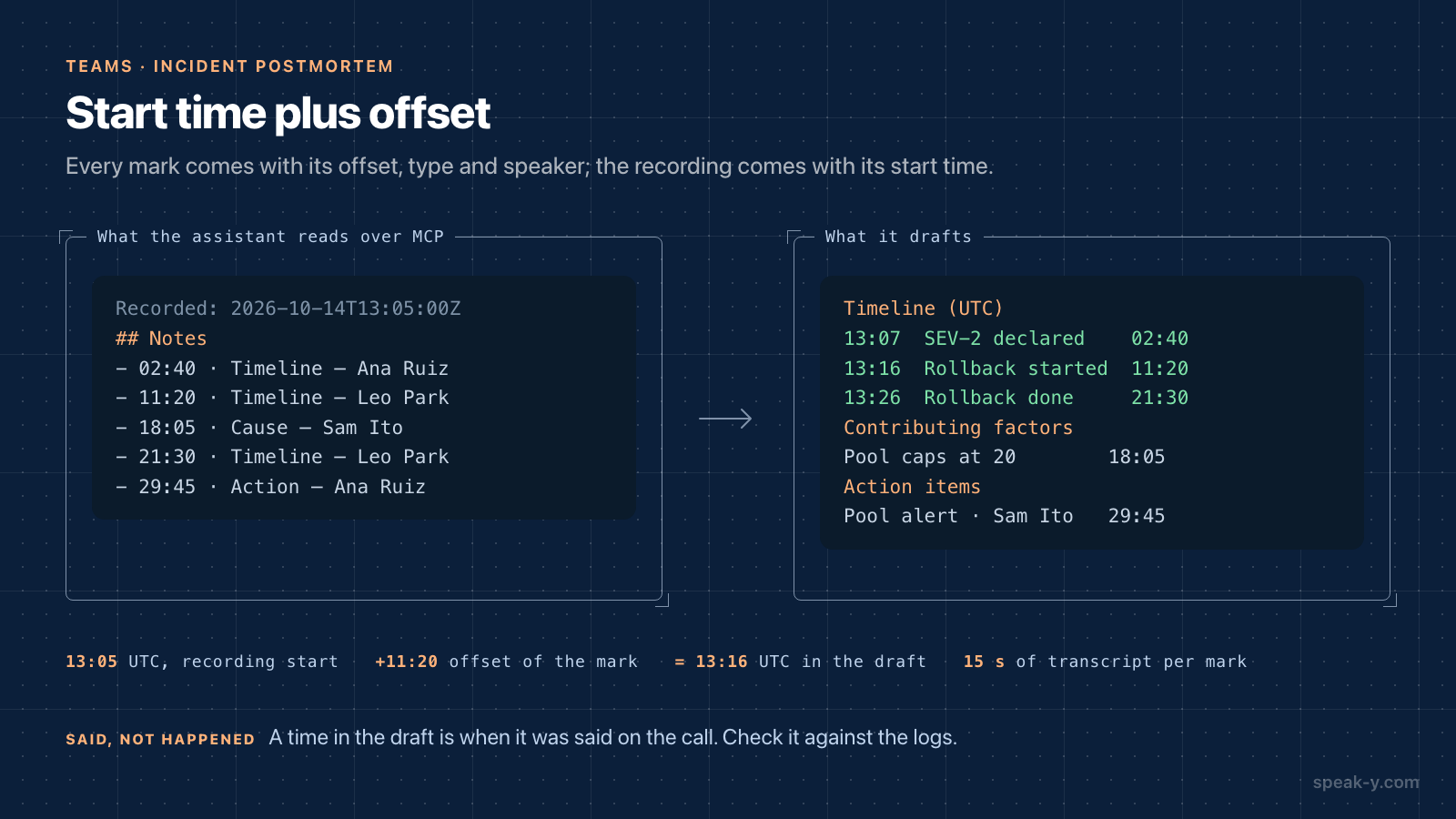
The assistant finds the recording by its tag and reads it. Alongside the transcript, Speak-Y hands it the marks as a list: each with its offset, type, speaker and the first words of the sentence it is pinned to, such as "18:05 · Cause — Sam Ito: the new connection pool caps at 20". The transcript also starts with the recording's start time, so the assistant can turn "11:20 into the call" into "13:16 UTC".
The draft comes back in the shape of your template: Timeline marks as the timeline, Cause marks as contributing factors, Action marks as follow-ups. The assistant reads the copy on your Mac, but its model runs in the cloud, so the text goes to that vendor — local vs cloud MCP explains what that means for a security incident.
What the draft cannot know
The draft is a starting point, and it is honest about one thing only: what was said on the call, and when. Before it becomes a postmortem:
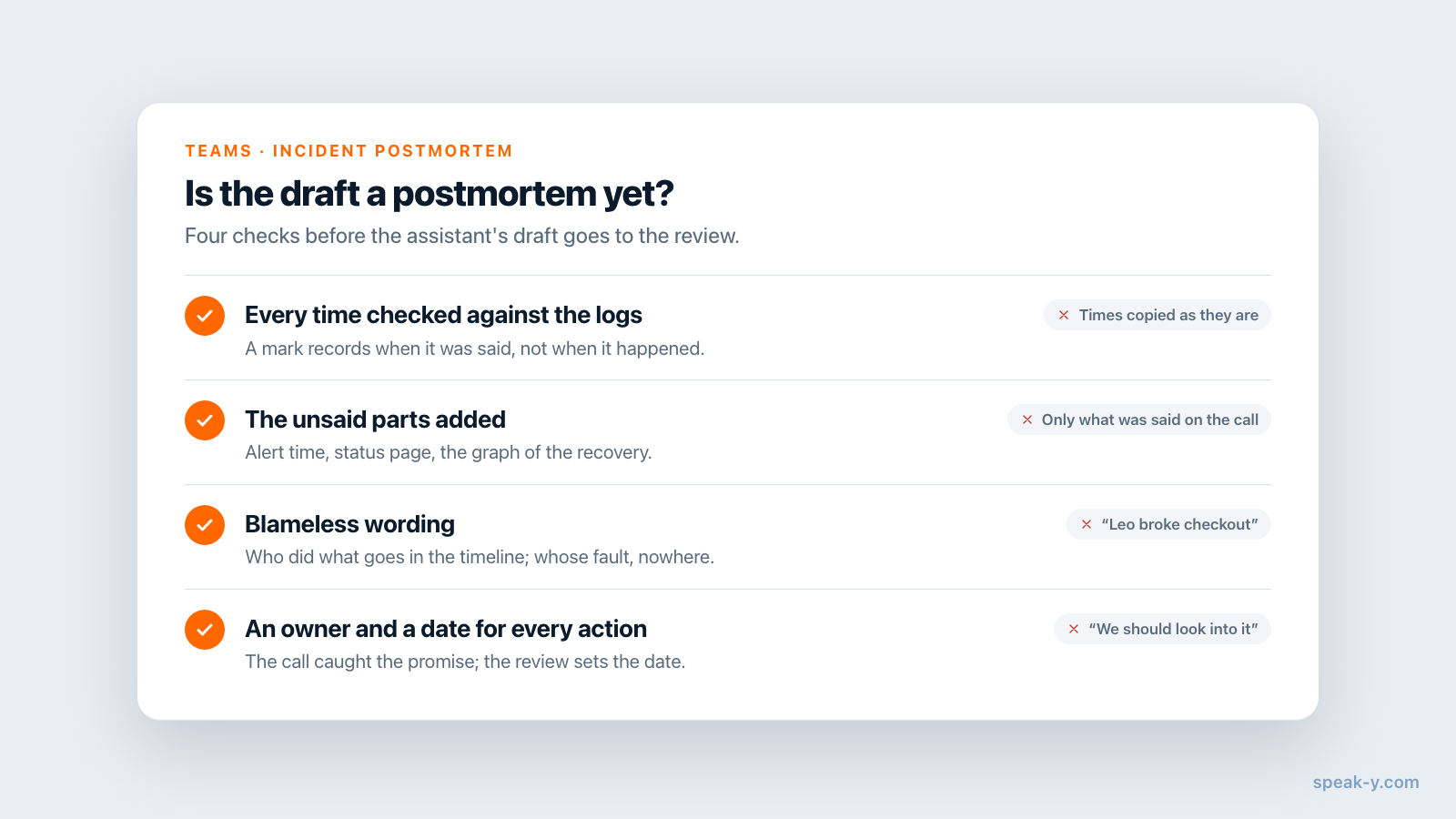
- Check every time against the logs. A Timeline mark records when someone said the rollback was done, which can be minutes after it finished.
- Add what was never said. When the alert fired, when the status page changed, the graph that showed recovery — they come from your paging tool, status page and dashboards.
- Keep it blameless. A transcript quotes people. "Leo deployed the change" belongs in the timeline; whose fault it was does not belong anywhere.
- Give every action an owner and a date. The Action marks catch what was promised on the call; agreeing who and by when is the review's job.
The recording replaces the archaeology, not the investigation.
Limits and costs
- Length. Checked on speak-y.com on 15 October 2026: Free stops a meeting recording at 30 minutes, Pro ($10 a month) at 60, Pro+ ($15) and Max ($30) at four hours. A long incident on Pro means a second recording.
- One recorder. Marks belong to the recording of the person who pressed them. Two people recording the same bridge make two half-timelines.
- Channels on Mac. Workspaces and channels are in the macOS app. Creating a workspace needs Pro or higher; teammates join free on any plan.
The short version
Three note types — Timeline, Cause, Action — on ⌥2, ⌥3 and ⌥4. On the bridge: the scribe records, says the event aloud and presses the key. After it: names, an incident tag, To channel → Incidents. Then one question to the assistant, and a draft to check against the logs. The Teams page covers workspaces and channels, and action items that actually get done is about the part after the postmortem: closing the follow-ups.
FAQ
How do I turn an incident call into a postmortem draft?
Record the incident bridge in Speak-Y and have one person press a hotkey each time something worth the timeline is said: Timeline for events, Cause for the cause, Action for follow-ups. After the call, share the recording to an Incidents channel and ask an AI assistant connected to the Speak-Y MCP server to draft the postmortem from those marks. The draft lists each mark with its time, speaker and the words said.
Can the assistant put the timeline in UTC?
Yes, with a check. Each mark carries its offset from the start of the recording, and the transcript the assistant reads starts with the recording's start time, so the assistant can add the two. The result is when something was said on the call, not when it happened in the system; compare every line with your logs and alert history before publishing.
Does Speak-Y record the screen, dashboards or logs during an incident?
No. Speak-Y records audio from the Mac of the person who starts the recording: the microphone and the sound of the call app. Graphs, log lines, the chat channel and the times from your paging tool are not in the recording; link or paste them into the postmortem yourself.
Who should press the marks during an incident call?
One person, usually the scribe the incident commander names at the start. Marks belong to the recording of whoever pressed them, so one recorder and one scribe on the same Mac gives one clean timeline. A missed moment can be marked afterwards while replaying the recording.
What does this setup cost?
The MCP server is free on every plan. Creating a team workspace needs Pro or higher, and teammates join free on any plan. Incident bridges run long: checked on speak-y.com on 15 October 2026, Free stops a meeting at 30 minutes, Pro ($10 a month) at 60, and Pro+ ($15) and Max ($30) at four hours.