Meeting Action Items That Get Done: A 15-Minute Friday Review
Action items rarely fail in the meeting. They fail on the way out: five meetings a week, five summaries, and by Friday nobody remembers which of the twenty lines were theirs. The fix is not a better summary but a fixed fifteen-minute slot to read all of them at once.
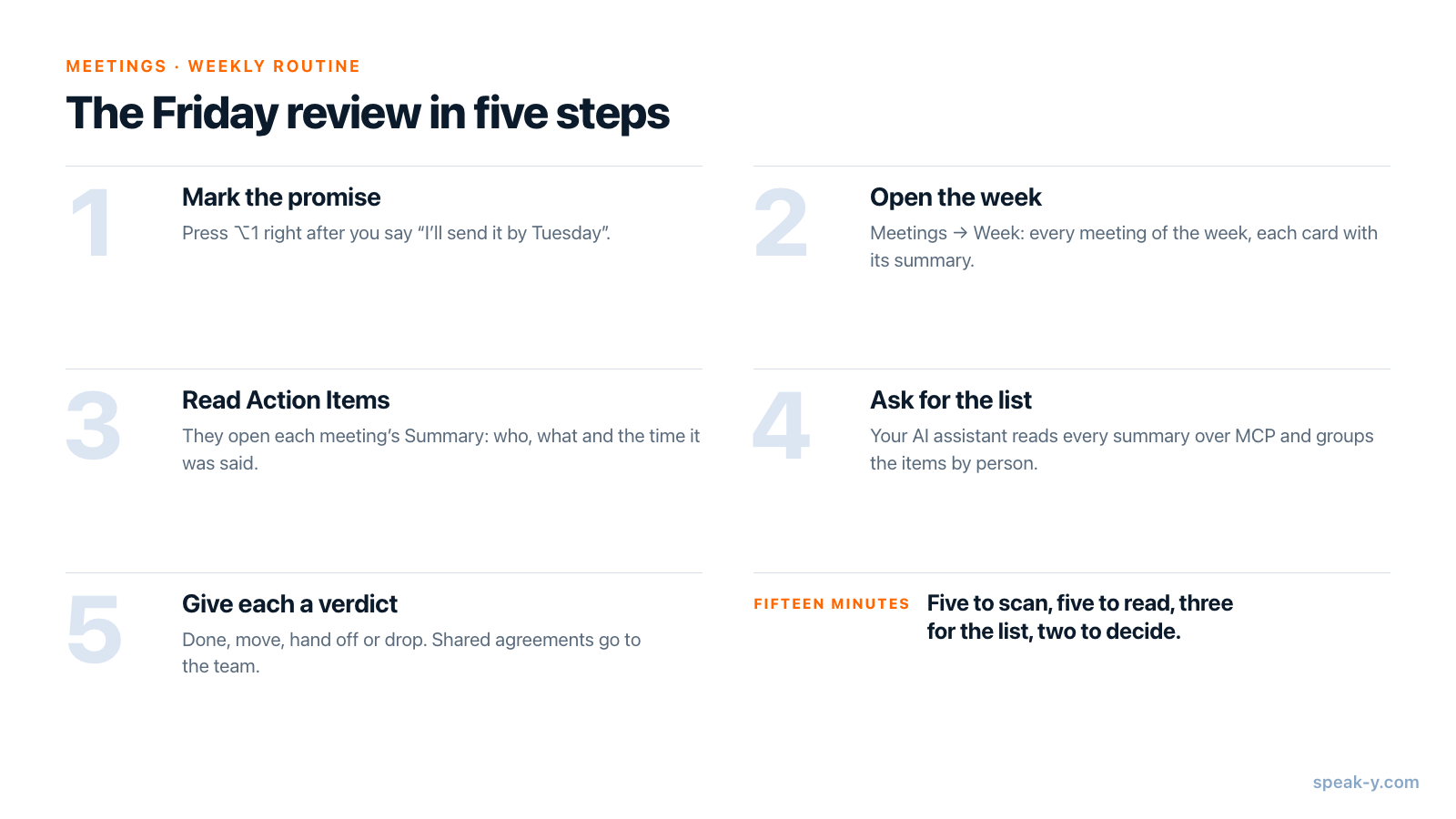
Here is the routine in Speak-Y. Record each meeting of the week, and whenever you promise something, press ⌥1 to mark the moment. On Friday, open Meetings, switch the feed to Week, and read the action items that open each meeting's Summary. Then ask your AI assistant "what did I promise this week, and to whom?" — it reads every summary through the Speak-Y MCP server — and give each item a verdict: done, move, hand off or drop. Agreements that concern the team go to its channel or into an email.
This guide follows the Speak-Y macOS app as of 1 October 2026 and an ordinary week: five meetings, about four hours of calls, and a Friday afternoon.
The routine at a glance
The remembering moves into the meetings themselves — one keystroke per promise — and Friday becomes reading and deciding.
Where action items come from
When a meeting ends, Speak-Y separates the speakers and writes an AI summary. The setting is Meeting summary in Settings → Interface & Behavior, right under Meeting mode; it is on by default, and turning it off leaves only the transcript and the speakers.
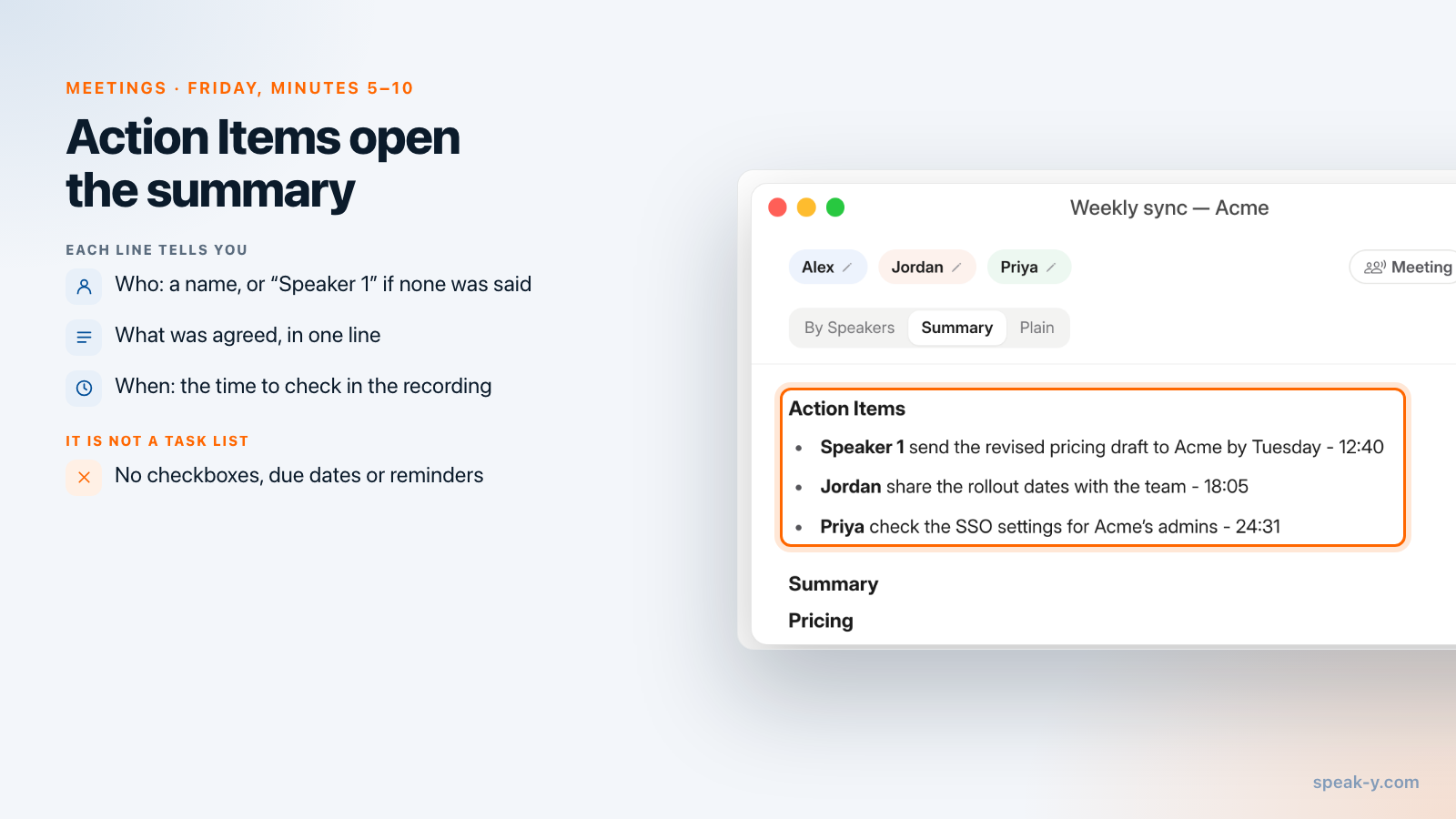
The first section of every summary is Action Items, written in the language of the meeting. Each line names a person, the task and the time in the recording where it was agreed: "Jordan share the rollout dates with the team - 18:05". Below come the summary itself and its themes.
Three things about these lines decide how you use them:
- The names come from the conversation. The summary is written right after the call. Where a name was said or can be inferred, it is used; otherwise the line says Speaker 1 or Speaker 2. Your own promises often get a number, because nobody says your name while you talk. Renaming a speaker later changes the transcript, not a summary that is already written.
- They are text, not tasks. No checkboxes, no due dates, no reminders, no editing. Speak-Y has no task list, which is exactly why the review on Friday exists.
- Very short recordings get none. Below about 150 words there is nothing to summarise.
Summaries and action items come with every recorded meeting on every plan, Free included, and do not count toward the weekly AI requests. What the plans limit is meeting time. As of 1 October 2026:
| Plan | Longest meeting | Meeting time per month |
|---|---|---|
| Free | 30 minutes | 2 hours |
| Pro | 60 minutes | 10 hours |
| Pro+ | 4 hours | 40 hours |
Four to five hours of meetings a week is 16–20 hours a month: more than Pro, well within Pro+.
During the week: press ⌥1 when you promise something
The AI writes action items from what it hears. It can miss a promise made in passing, or file yours under a speaker number. A mark is your own record. When you hear yourself say "I'll send it by Tuesday", press ⌥1: Speak-Y marks the last 15 seconds, and the button above the recording button reads Last 15s marked for a moment.
- Press right after the sentence: the mark looks back 15 seconds.
- A mark keeps its type and time, no text; the words are in the transcript.
- To tell promises from other marks, open Settings → Notes → Add note type and create a type called "Promise" with its own colour and hotkey.
- Missed one? After the call, right-click the reply → Add note.
Marks are in the macOS app. The Windows app records meetings with speakers and tags, but has no marks.
Friday, minutes 0–5: open the week
Click Meetings in the sidebar and switch Day to Week at the top of the feed. The header shows the dates, for example "September 28 – October 4", and one line above the recordings sums up the week — "5 meetings · 3 hr, 52 min · 27,410 words". Days follow under their own headings; Previous week at the bottom and the calendar button (Go to date) move through time. The week starts on the first weekday set in your Mac's calendar settings.
Each card shows the meeting's title, time, speakers and the first two lines of its summary. Since action items come first, those two lines are usually the first action items: scanning the week is scanning the promises.
To see one person's items, click the magnifier above the feed, type the name into Search transcriptions… and pick the chip Only September 28 – October 4. This search also matches titles and summaries, so it finds action items. The ⌘K search (Search everything…) does not: it looks only at transcript text and tag names.
Minutes 5–10: open each meeting's Summary
Click a card; the recording opens on By Speakers. Click Summary, and the action items are at the top. For each one, decide whether it is really a commitment. The time at the end of the line tells you where to look: find the reply at that time on By Speakers and click its time to play from there.
Your marks are faster still. On By Speakers the strip above the transcript starts with All notes and its count, and the arrows jump from one mark to the next, with the marked words highlighted. A marked promise that is missing from the action items is the one the review exists to catch.
To take the list with you, open Summary and choose ⋯ → Copy Text: the whole summary, action items first, lands on the clipboard as text.
Minutes 10–13: ask your assistant for the whole list
Merging five summaries into one list, grouped by person, is a job for an AI assistant. Connect Claude, ChatGPT, Cursor or another MCP client once in Settings → Integrations; connecting meeting notes to AI assistants walks through it. Then ask:
- "What did I promise this week, and to whom? Go through my meetings from 28 September to 2 October and list every action item with the meeting, date and time, grouped by person. I'm Alex; in the summaries I may appear as Speaker 1, so check the transcript."
- "List the moments I marked this week with the sentence around each one, and tell me which of them are not in any action items."
- "Find every action item that mentions Acme since 1 September."
The assistant does not guess. It lists your meetings between the two dates, then reads each one's summary with its action items, plus your marks with their times; its search covers titles, summaries and action items as well as transcripts. Reading happens locally, straight from the Speak-Y library on your Mac, and the MCP server is included on every plan. The assistant's model runs in the cloud, though, so what it reads goes to it. More requests of this kind are in prompts to ask AI about your meetings.
Minutes 13–15: done, move, hand off or drop
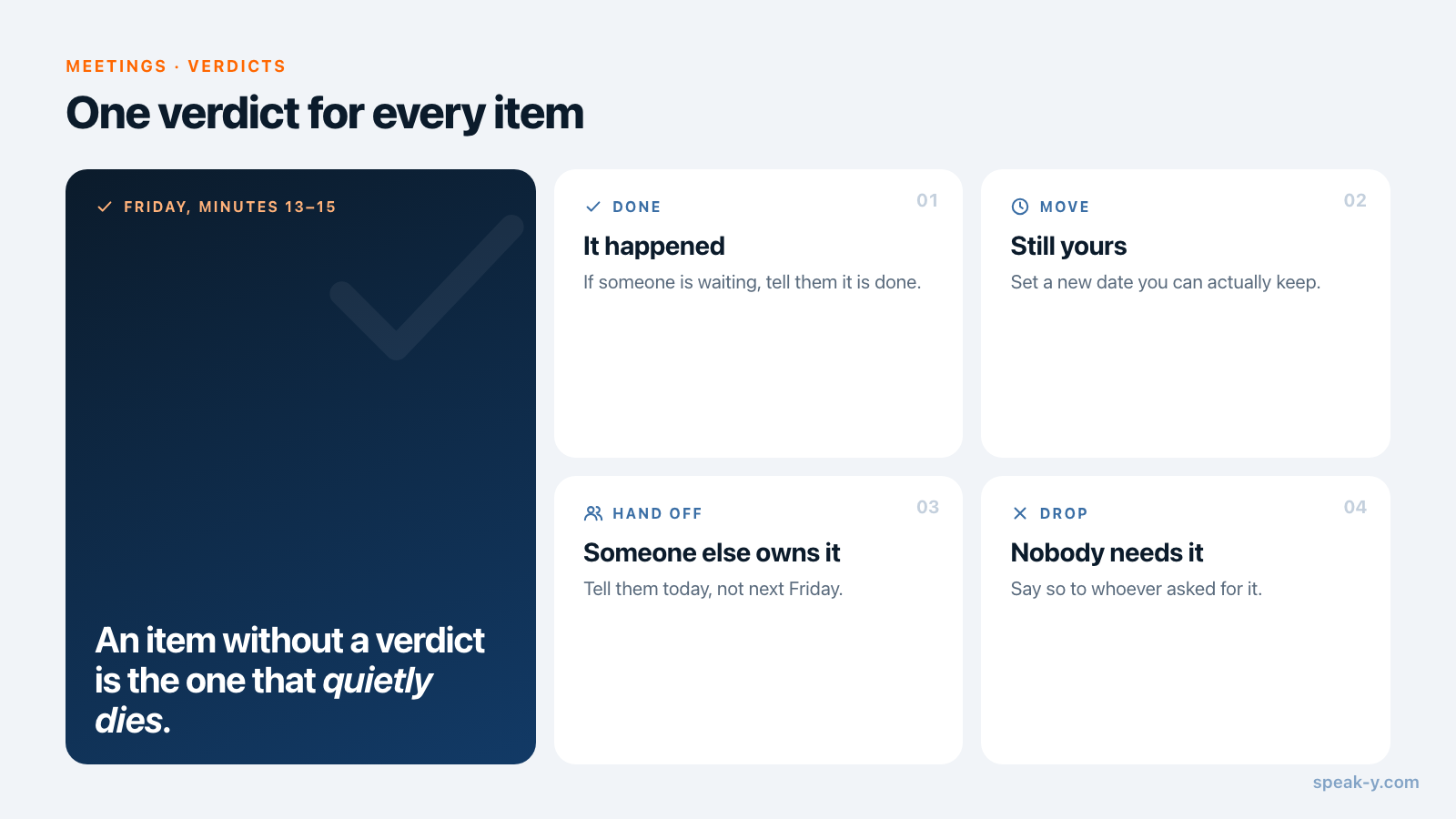
Now give every item on the list one verdict:
- Done — it happened; if someone is waiting, tell them.
- Move — still yours, with a new date you can keep.
- Hand off — someone else should own it; tell them today, not next week.
- Drop — nobody needs it any more; say so to whoever asked.
Keep the result wherever you track work — a notes app, a to-do list, the team's tracker. Speak-Y itself has no task list and no export to Jira, Linear or Asana. Two shortcuts help:
- Ask the assistant to put the list in a table with an empty "verdict" column, and fill it in yourself. Deciding is the part that should stay yours.
- If your assistant is also connected to your tracker's own MCP server, it can turn the "move" and "hand off" rows into issues. Ask it to show you the list first and create them only after you say yes: the tracker is readable by people who were not in the meeting.
Send the agreements where they are needed
Items that concern others — a date the team agreed, a decision somebody else acts on — should not live only in your Friday list.
- For the team: if you work in a Speak-Y workspace, open the meeting and press To channel. Teammates get the transcript with speaker names, the summary and the action items, end-to-end encrypted; the audio stays on your Mac. Weekly meeting notes nobody has to write turns this into a habit for recurring meetings.
- For a client or a partner: an email. Copy the summary with ⋯ → Copy Text, or ask your assistant to draft the message from the items marked "hand off". From client call to follow-up email covers that route step by step.
What to check before an item goes on your list
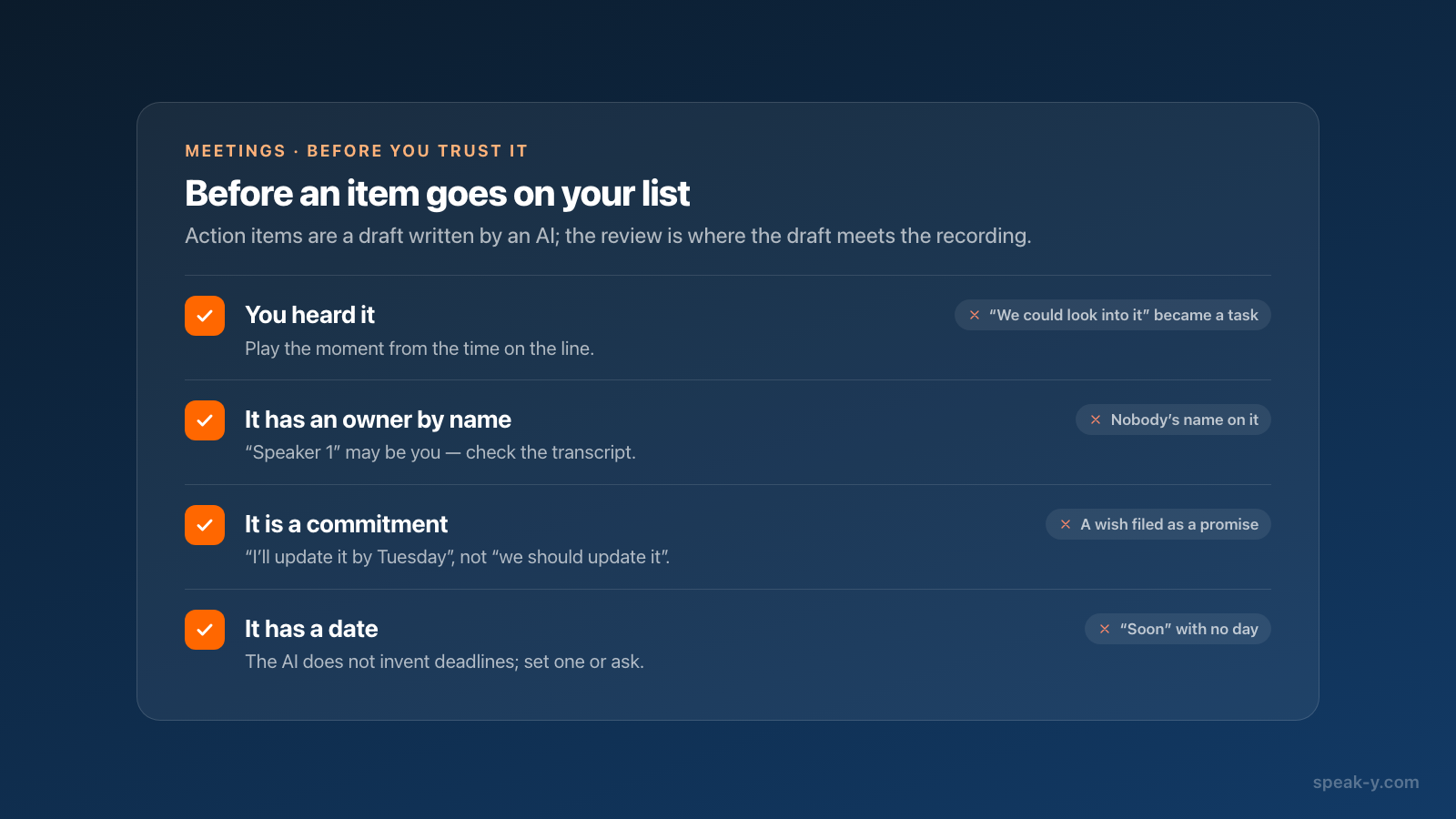
The action items are a draft written by an AI, and the review is where the draft meets the recording. Four checks catch most of what goes wrong:
- You heard it. Play the moment from the time on the line. A summary can turn "we could look into it" into a task.
- It has an owner by name. A line that says "Speaker 1" may well be yours: check the transcript before you assume it.
- It is a commitment, not a wish. "We should update the pricing page" is not the same as "I'll update it by Tuesday".
- It has a date. The AI does not invent deadlines; if nobody said one, set it yourself or ask.
Where the fifteen minutes go
Five minutes to scan the week, five to open the summaries and check the marks, three for the assistant's list, two for the verdicts. The recording keeps what was said, the summary drafts the list, and the fifteen minutes are where a line becomes a task. For recurring team meetings, Teams covers workspaces and channels, where the same summaries reach everyone who has to act on them.
FAQ
Where does Speak-Y put the action items of a meeting?
At the top of the meeting's Summary tab. After each meeting Speak-Y writes an AI summary whose first section is Action Items, one line per item: who, what, and the time in the recording where it was said. Because they come first, the first lines of the summary on each meeting card in the Meetings feed are usually action items too.
Can I tick off or edit action items in Speak-Y?
No. Action items are part of the AI summary, which is read-only text: there are no checkboxes, due dates or reminders, and Speak-Y has no task list. You can select or copy the text, and keep the status of each item wherever you track work.
Can an AI assistant list every action item from this week's meetings?
Yes, if Claude, ChatGPT, Cursor or another MCP client is connected to Speak-Y. The assistant can list your meetings between two dates and read the summary of each, including the action items and the moments you marked with their times. Reading happens locally on your Mac; check what it returns against the recordings.
Which Speak-Y plan includes AI summaries and action items?
Every plan, Free included: each recorded meeting gets its summary and action items, and they do not count toward the weekly AI requests. What differs is meeting time. As of 1 October 2026, Free records up to 30 minutes per meeting and 2 hours a month, Pro 60 minutes and 10 hours, Pro+ 4 hours and 40 hours.
Can Speak-Y send action items to Jira, Linear or Asana?
Not by itself: there is no built-in export to task trackers. If your AI assistant is connected both to Speak-Y and to your tracker's own MCP server, it can turn the list into issues. Ask it to show you the list first and create issues only after you confirm.