Weekly Meeting Notes Nobody Has to Write: A Speak-Y Team Routine
The weekly team meeting produces decisions every week and notes almost never. The person who would write them is usually running the meeting, and two weeks later "what did we agree about the release date?" gets whatever three people half-remember.
With Speak-Y the notes stop being anyone's job. One person records the call on their Mac, Speak-Y transcribes it by speaker and writes a summary and a list of action items, and one click puts all of it into the team's channel. Whoever missed the meeting reads the feed. Next week, anyone can search it or ask an AI assistant about it. The setup takes about ten minutes once; after that the weekly cost is two minutes right after the call.
This guide walks through the routine in the macOS app, checked on 30 September 2026, including two parts that surprise people: what the email to the team contains, and what an export to Confluence or Google Drive does to encryption.
What you set up once
A workspace and a channel for the meeting. If your team has no workspace yet, set one up first: creating it needs Pro, Pro+ or the trial, and colleagues join free on any plan. Then create a channel named after the meeting — "Weekly sync" — and make it Public, so everyone in the workspace can read it. If the meeting belongs to a smaller group, a private channel works the same way; who sees what in team channels covers the difference.
One recorder and one backup. Pick one person, usually the facilitator, and a stand-in for weeks they are away. Their plan needs the meeting hours: as of 30 September 2026, Pro includes 10 hours a month with up to 60 minutes per meeting, Pro+ 40 hours with up to four hours per meeting. Four one-hour syncs a month fit into Pro. Free gives 2 hours a month and stops a meeting at 30 minutes, so it is fine for trying the routine but not for running it.
A sentence at the start of the call. Speak-Y records on the recorder's Mac and no bot joins the meeting, so nobody sees a notetaker in the participant list. That makes announcing the recording your job — "this call is recorded for the team notes" is enough for most teams, and the rules on recording consent explain why it matters.
During the meeting: one person records
Meeting mode in Settings is on Auto by default: Speak-Y notices when Zoom, Microsoft Teams, Webex, FaceTime or another known call app starts a call and asks Record as Meeting? on the recording button, or shows a Meeting Detected banner with Start Recording if the button is hidden. Calls in a browser, such as Google Meet, are detected while your camera is on. With a calendar connected and Start recording automatically switched on, recording starts without asking when the calendar confirms a scheduled call is under way.
Speak-Y captures your microphone and the call's audio as two separate channels, which helps it tell speakers apart. Everyone else simply attends and installs nothing; recording meetings without a bot explains how that works.
Right after the call: two minutes of tidying
When the call ends, Speak-Y transcribes the meeting by speaker and writes the summary and action items on its own. Open the recording from Meetings and do three things before anyone else sees it:
- Name the speakers. Speaker chips sit above the transcript on the By Speakers tab. Click a chip, type the name and press Return. Names are part of what the channel receives, and "Speaker 2 will send the plan" helps nobody.
- Read the Summary tab. It is what most teammates will read instead of the transcript, so check that the decisions are there and are the ones you made.
- Check the Action Items tab. Make sure each item has the owner the meeting agreed on.
The order matters because the channel holds a snapshot taken when you share. Edits made afterwards do not reach it until you share the meeting again.
Share it to the team channel
Press To channel in the action bar under the transcript and pick Northwind Sales / Weekly sync. The status line confirms "Shared to # Weekly sync", and the button now shows the channel's name. That is the whole action; sharing a meeting to a team channel goes through what exactly travels and how to take it back.
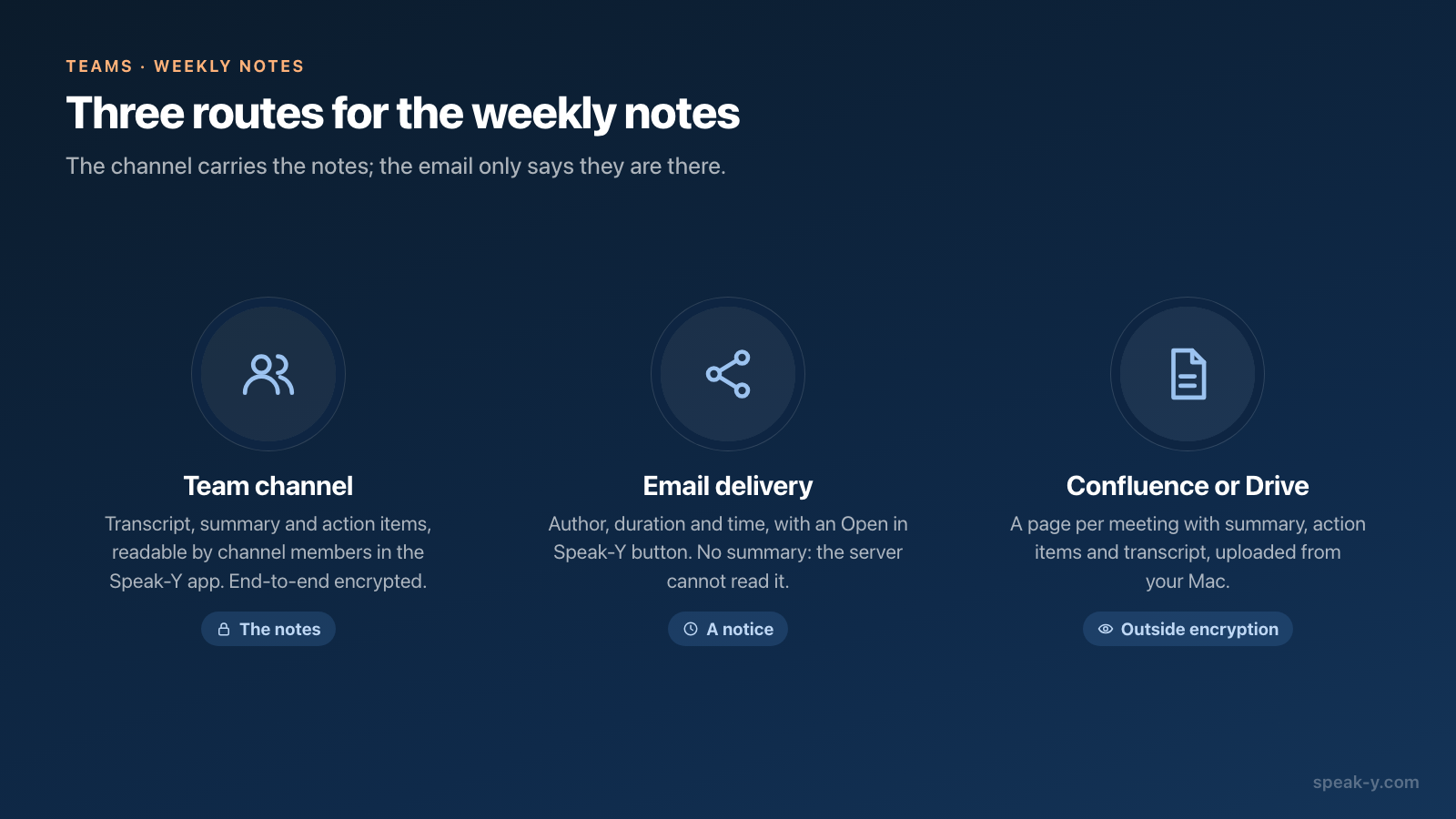
In the channel, the meeting appears as a card in the feed: title, time, speakers and the first lines of the summary. Opening it gives the transcript, the Summary and the Action Items, end-to-end encrypted so that only channel members' Macs can read them; the audio is never shared. Whoever missed the meeting is caught up in the time it takes to read one summary.
Tell people it is there: Email delivery
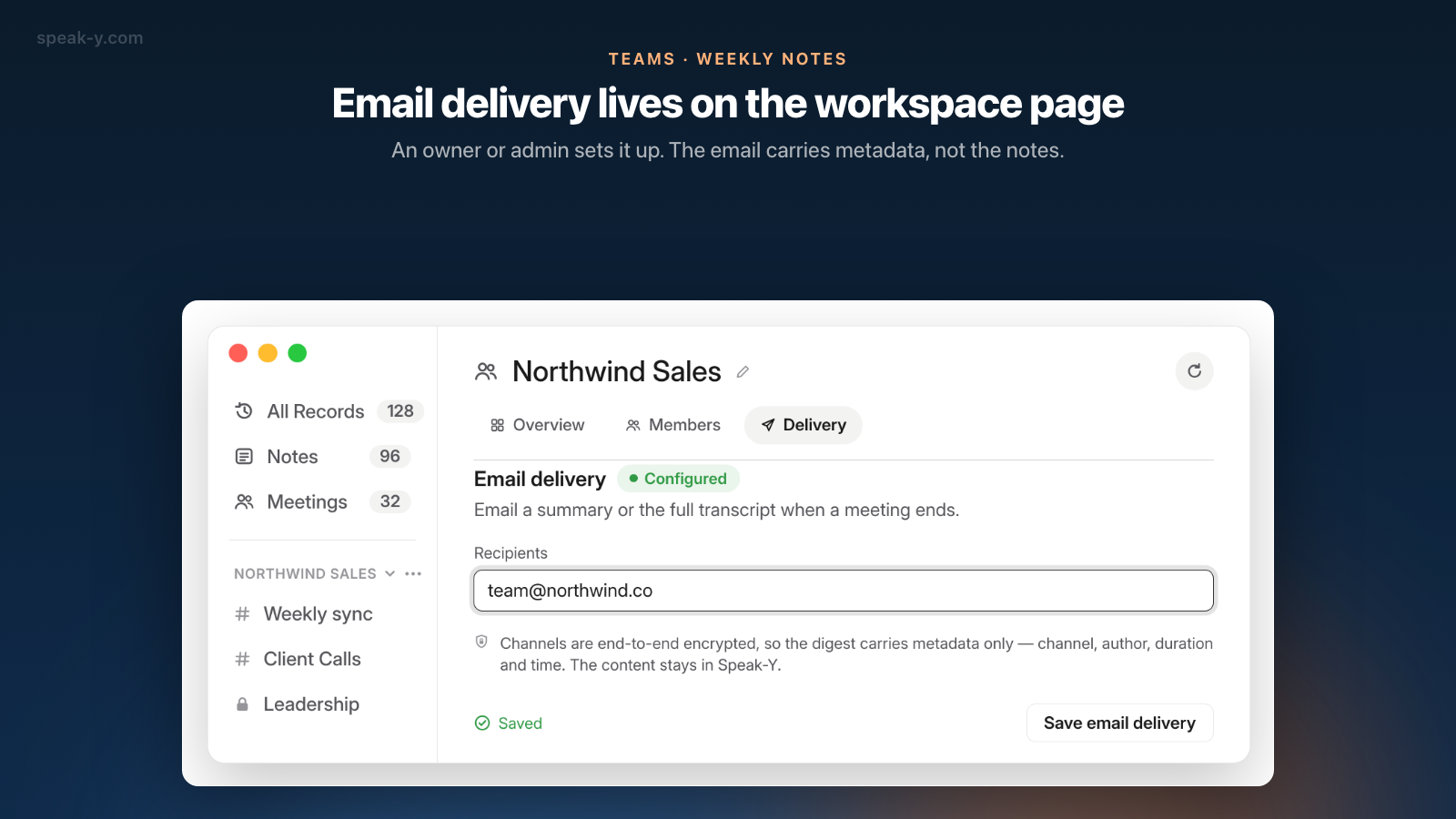
For people who will not open the feed on their own, a workspace owner or admin can send an email whenever something new is shared. Open the workspace page (⋯ → Edit workspace), go to the Delivery tab, type the addresses under Recipients in Email delivery, separated by commas, and press Save email delivery. Members see the same tab read-only, with the note "Only an owner or admin can change integrations."
Know what arrives before you promise it to the team. The email is titled "New meeting in Speak-Y" and lists the author, the duration and the time, with an Open in Speak-Y button that opens the recording in the app. It does not contain the summary. The section's description line mentions a summary or the full transcript, but the note under the recipients field is the accurate part: "Channels are end-to-end encrypted, so the digest carries metadata only". The server cannot read what it would have to send.
Two more details. The email covers every new recording in any channel of the workspace — the tab lists the channels under What gets delivered — so in a workspace with busy client channels the weekly sync will not be the only thing announced. Private channels are never announced at all. And the recipients do not need a Speak-Y account; those who have one get the email in their interface language. Next to it, Webhook sends the same event as a signed POST to your own URL, if you would rather post it into a chat.
Put a readable copy where your docs live
If your team's decisions already live in Confluence or Google Drive, the channel can feed them. In Settings → Integrations, the Storage group has a Connect menu with Google Drive, Notion, Obsidian, GitHub and Confluence. Connect Confluence asks for four things: an API token you create in your Atlassian account, the wiki address (company.atlassian.net), the email of that Atlassian account, and the space and parent page the records go under. Then open Channels on the new row and tick Weekly sync.
From then on each meeting in the channel becomes a Confluence page named by date and title — "2026-09-28 · Weekly product sync" — inside a page called "Weekly sync (Speak-Y)". The page carries the date, duration and author, then the summary, the action items and the transcript with speaker names and timestamps. Google Drive does the same as Google Docs in your own Drive.
This is a different kind of step from sharing, so decide it as a team:
- The copy is outside end-to-end encryption. Anyone who can read that Confluence space or Drive folder can read the meetings, and removing a meeting from the channel later does not delete the page.
- It runs from one Mac. The export is done by the Speak-Y app of the person who connected it, while the app is open. Give it to the recorder, whose Mac is on after every meeting anyway.
- It takes the whole channel. Meetings teammates shared go too; personal recordings never do. Only Confluence Cloud is supported.
A week later: find what was decided
The point of notes is the second week, when someone asks. Two ways to answer:
Search the channel. The magnifier in the channel's header filters the feed by transcript text and shows how many meetings match. Search for the words people said out loud — "pricing", "launch date".
Ask your AI assistant. With the Speak-Y MCP server connected, Claude, ChatGPT or Cursor can search your recordings by text, title, summary and action items, and that includes meetings teammates shared into channels you belong to, marked read-only. Questions that work well:
- "What did we decide about the onboarding redesign in the last three weekly syncs?"
- "Which action items from the 21 September weekly sync are Tom's, and did any come up again this week?"
Reading happens locally, from the copy of the channel already on your Mac. If a meeting shared an hour ago is missing, ask the assistant to sync first. More questions of this kind are in prompts to ask AI about your meetings.
The weekly routine in five steps
Once the channel exists, the routine fits on an index card:
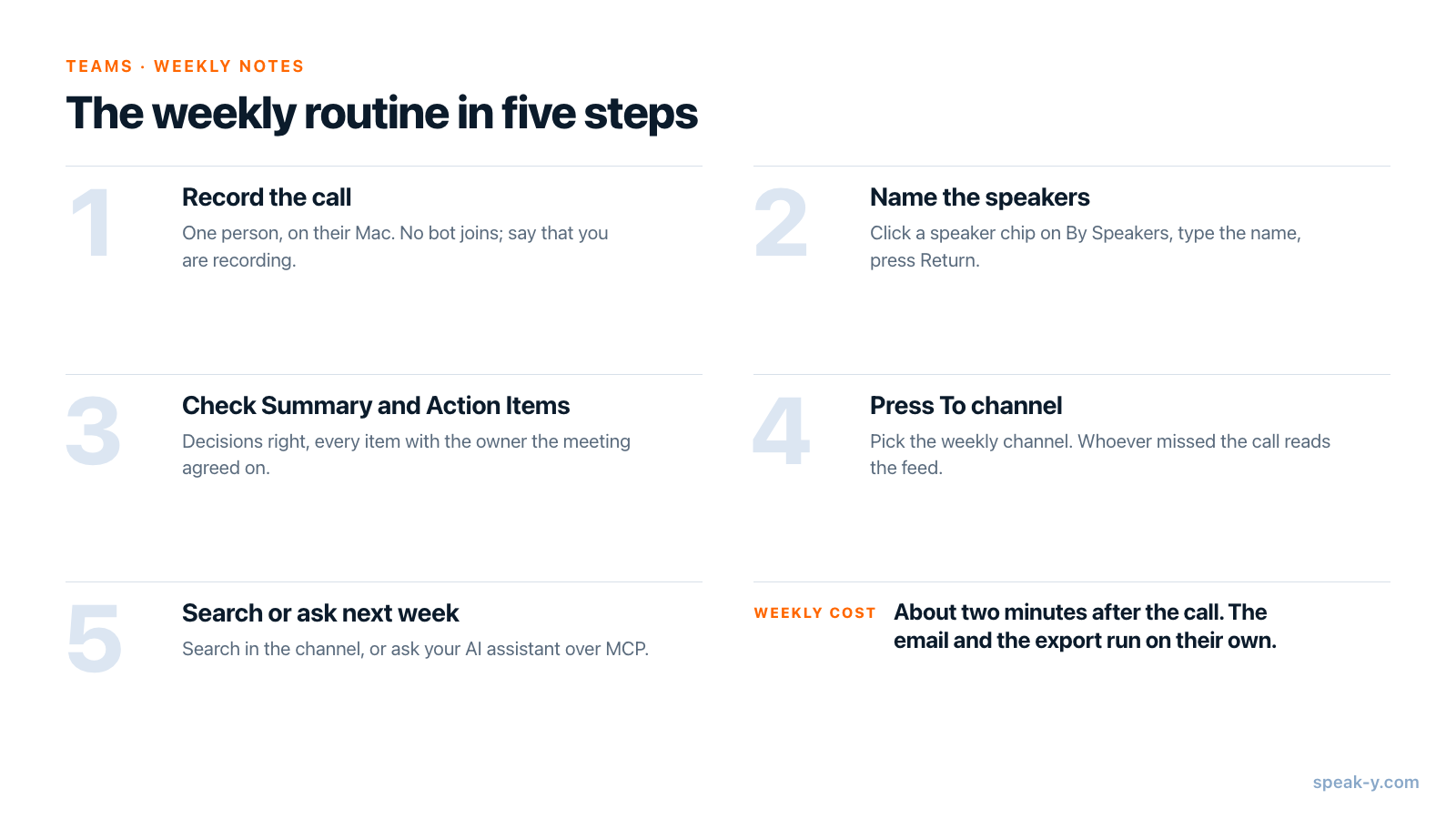
After a month the channel holds four meetings with decisions, owners and reasons. That second stage — a channel people query rather than scroll — is what turning meetings into a team knowledge base is about, and the Teams page has the overview of workspaces, channels and encryption.
FAQ
Does everyone in the weekly meeting need to run Speak-Y?
No. One person records the call on their Mac and shares it to the team channel. Teammates read it in the channel feed of the Speak-Y macOS app; they join the workspace free on any plan and never record anything themselves.
Which Speak-Y plan covers a weekly one-hour team meeting?
The person who records needs the meeting hours. As of 30 September 2026, Pro includes 10 meeting hours a month with up to 60 minutes per meeting, and Pro+ 40 hours with up to four hours per meeting. Free has 2 hours a month and stops a meeting at 30 minutes, which is too short for most weekly syncs.
Does Speak-Y email the meeting summary to the team?
No. Email delivery, set up by a workspace owner or admin on the workspace's Delivery tab, sends a notice that a new meeting was shared: author, duration and time, plus an Open in Speak-Y button. Channels are end-to-end encrypted, so the server has no summary or transcript to put into an email.
Can the weekly notes go to Confluence or Google Drive automatically?
Yes. The Storage group in Settings → Integrations connects Confluence Cloud, Google Drive, Notion, Obsidian or GitHub, and you pick which channels go there. Each meeting becomes a page or document with the summary, action items and transcript. The upload runs from your Mac while Speak-Y is open, and the copy is readable by anyone with access to that space.
How do I find what we decided a few weeks ago?
Open the channel and use the search in its header, which matches the transcript text. Or ask an AI assistant connected through the Speak-Y MCP server: its search also covers titles, summaries and action items, including meetings teammates shared into channels you belong to.