Donor Call Notes for Nonprofit Teams: Channels, Tags and Reports
A small nonprofit program team talks to two kinds of outsiders: funders, who ask how the grant is going and what the next report should say, and partners, who run the program with you on the ground. Both calls matter to the whole team, but not all of every call does. In Speak-Y you record each call on your Mac without a bot joining it and mark the moments that will end up in a report. Partner calls go into the program channel the staff shares, conversations about money go into a private channel with the two or three people who handle funding, and a grant tag pulls every relevant call together when the report is due.
This guide follows one team: Rosa directs an after-school literacy program at Riverbend Reading Project, a nonprofit of six staff working with three schools. A family foundation funds the program; Rosa has a quarterly check-in with its program officer and weekly calls with the school coordinators. Product details were checked against the Speak-Y macOS app, version 1.17.35, on 7 November 2026.
Why a donor call is worth keeping
Many funders now ask for less paperwork and more conversation. The Trust-Based Philanthropy Project lists "simplify and streamline paperwork" among its principles, and one of the funders it profiled, the General Service Foundation, replaced written interim and final reports with phone calls with its grantees, with staff logging notes from each call.
That shifts the record to the grantee's side of the call. When a program officer says "put the reading levels first" or "send a renewal letter by March 15", that sentence is the instruction for the next report or the next grant, and it usually survives only in the notes of whoever was on the call. A recording with a transcript by speaker turns it into something the whole team can read and quote.
Before the call: consent, note types and a grant tag
Ask before you record. Speak-Y records on your computer and never joins the call, so nobody announces the recording for you. Say it in the first minute: the call is recorded, the program team reads the transcript, and the audio stays with you. Recording laws differ: under California Penal Code § 632, recording a confidential communication needs the consent of all parties. Is it legal to record meetings covers the rules by country.
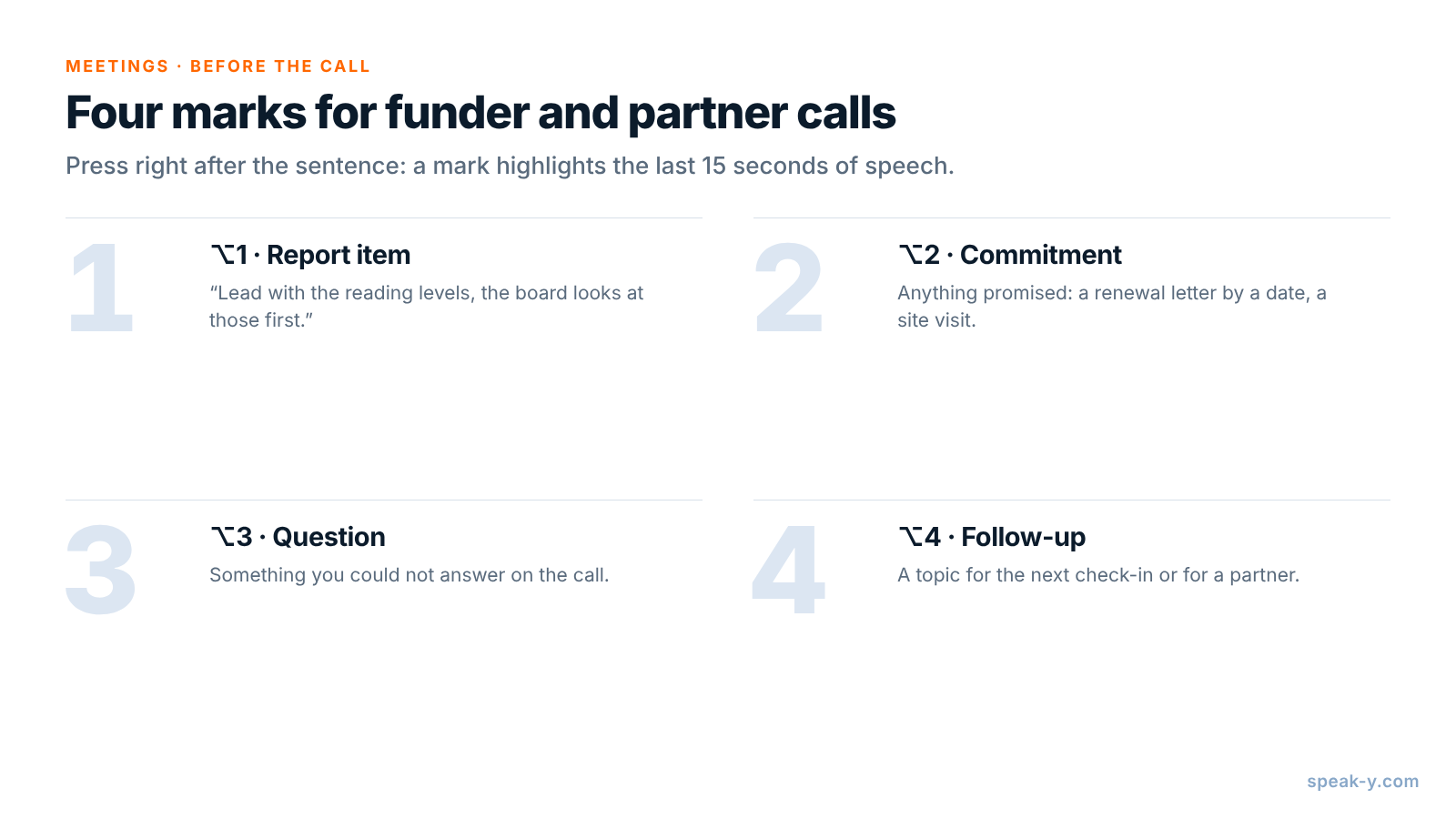
Then name your marks. Open Settings → Notes. Under Note types, rename the default Mark the moment and click Add note type for the rest; Set hotkey gives each its own combination. Four types cover funder and partner calls:
- ⌥1 Report item — what the funder wants to see: "Lead with the reading levels, the board looks at those first."
- ⌥2 Commitment — anything promised, by either side: a renewal letter by a date, a site visit, an introduction.
- ⌥3 Question — something you could not answer on the call.
- ⌥4 Follow-up — a topic for the next check-in or for a partner.
Each press pins a mark of that type to the transcript and highlights the words of the last 15 seconds, so you press right after the sentence, not before it.
Last, pick one tag per grant — Rosa uses hollis-2026 — and put it on
every call about that grant, with the funder and with partners.
On the call: one click, two keys
Zoom, Microsoft Teams, Webex and other call apps are recognised as soon as they are open: Speak-Y asks Record as Meeting? above the recording button and you click the check mark. A call in the browser, such as Google Meet, is recognised when your camera is on. If no question appears, start a recording with your Speak-Y hotkey in hands-free mode, point at the recording button and click the check mark on Record as Meeting?. For the question to appear, Settings → Interface & Behavior → Meeting mode must be Manual or Auto.
Then talk to the funder, not to the app. When the program officer says what the report should lead with, press ⌥1; when someone promises something, ⌥2. Speak-Y records voices, not the slides you share, so read key numbers aloud — "attendance held at 82 percent across the three schools" — and the number lands in the transcript next to your mark.
Check the length against your plan. As of 7 November 2026, the Free plan records meetings up to 30 minutes and 2 hours a month, Pro ($10 a month) up to 1 hour and 10 hours a month, and Pro+ ($15) up to 4 hours per meeting and 40 hours a month. Weekly partner calls on top of the funder calls are what push a program director towards Pro+.
After the call: a name, the tag and the right channel
Open the recording from Meetings. Speakers are numbered in the order they spoke; you are usually Speaker 1. If Speak-Y has already put a name on a speaker, check that it is right.
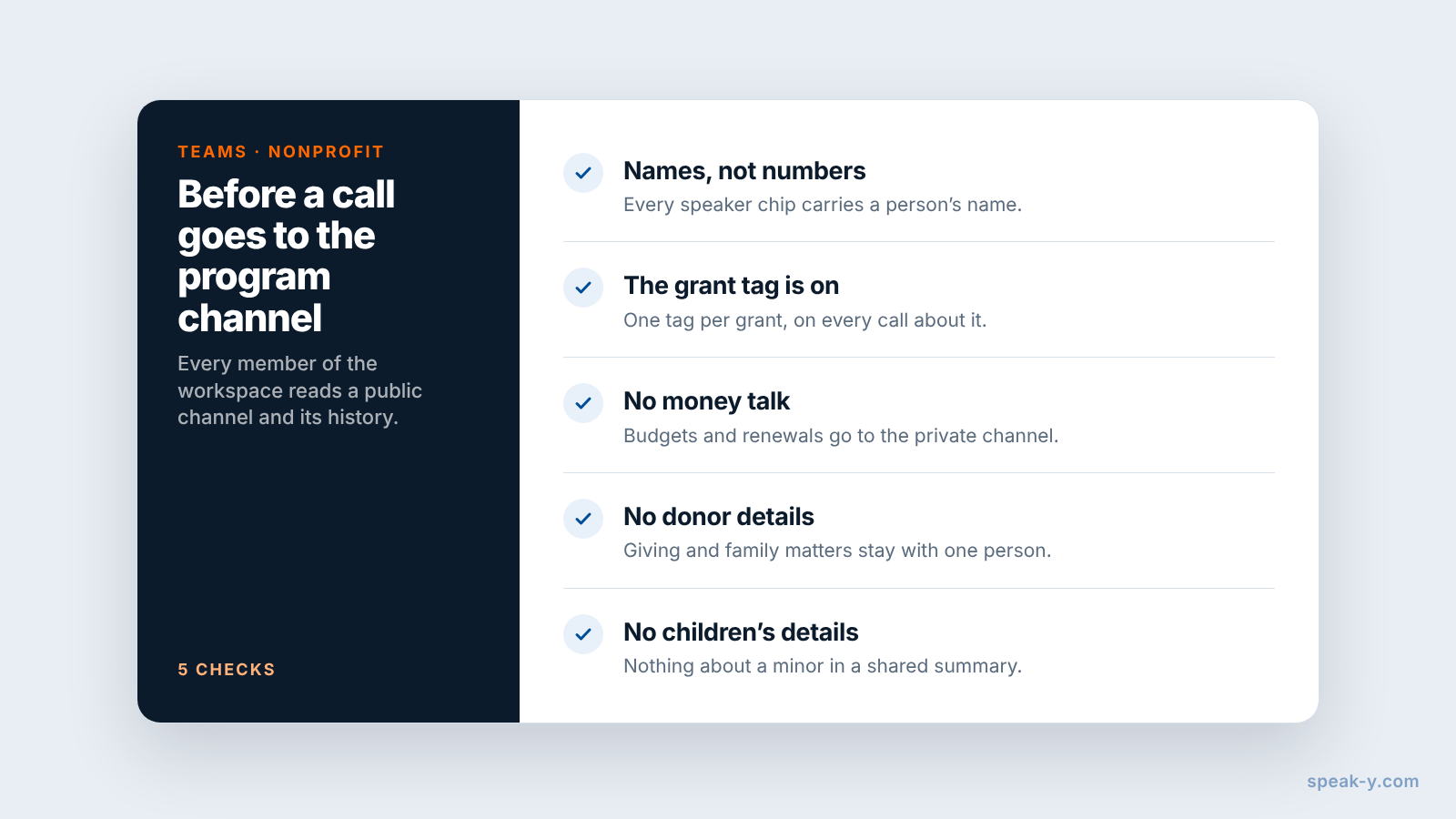
- Click each speaker chip, type the person's name and press Enter. Everything built from the transcript takes this label: the channel feed, copied quotes, what an AI assistant reads later.
- Click Tags and add the grant tag.
- Press To channel under the transcript and pick the channel.
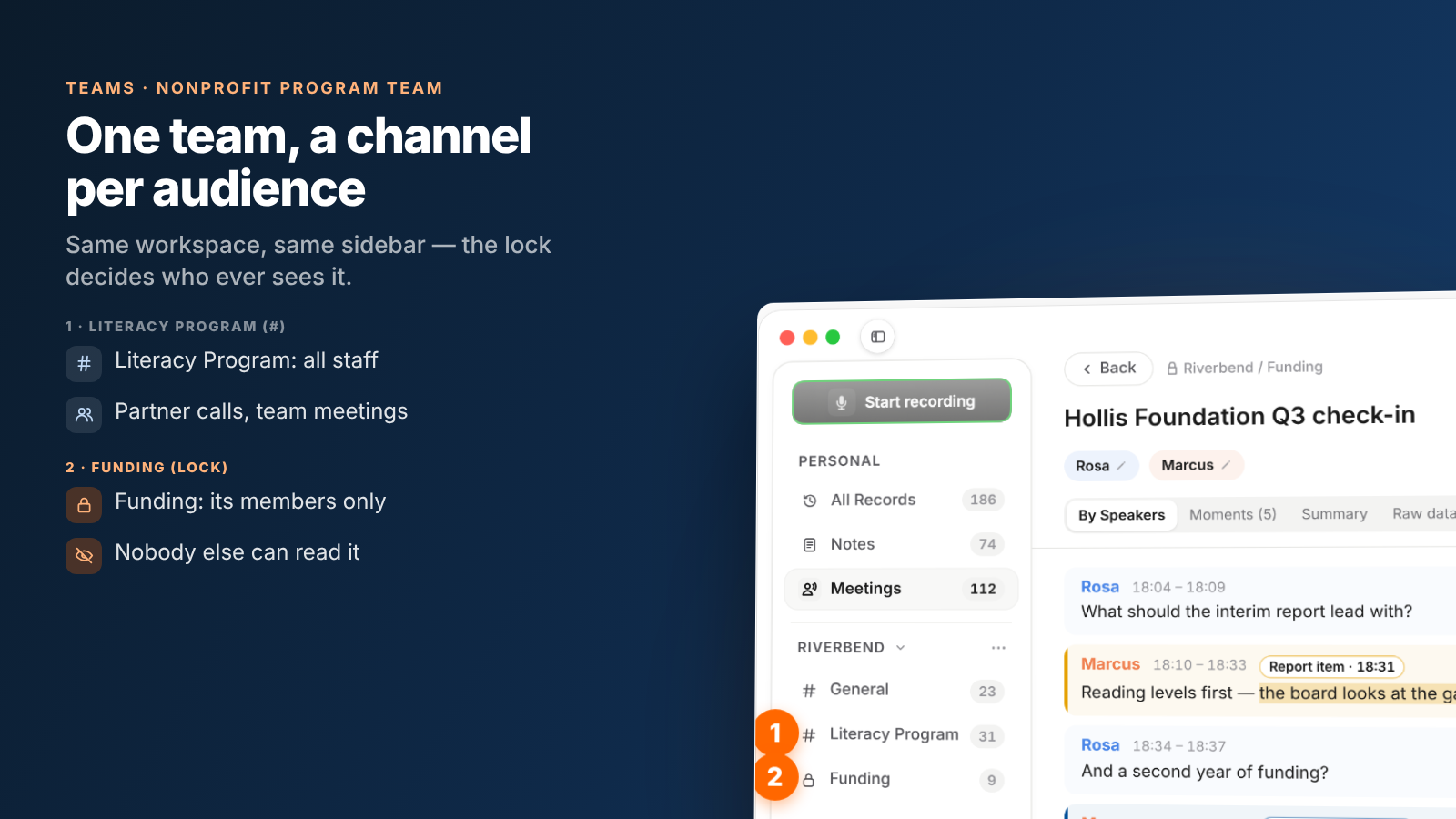
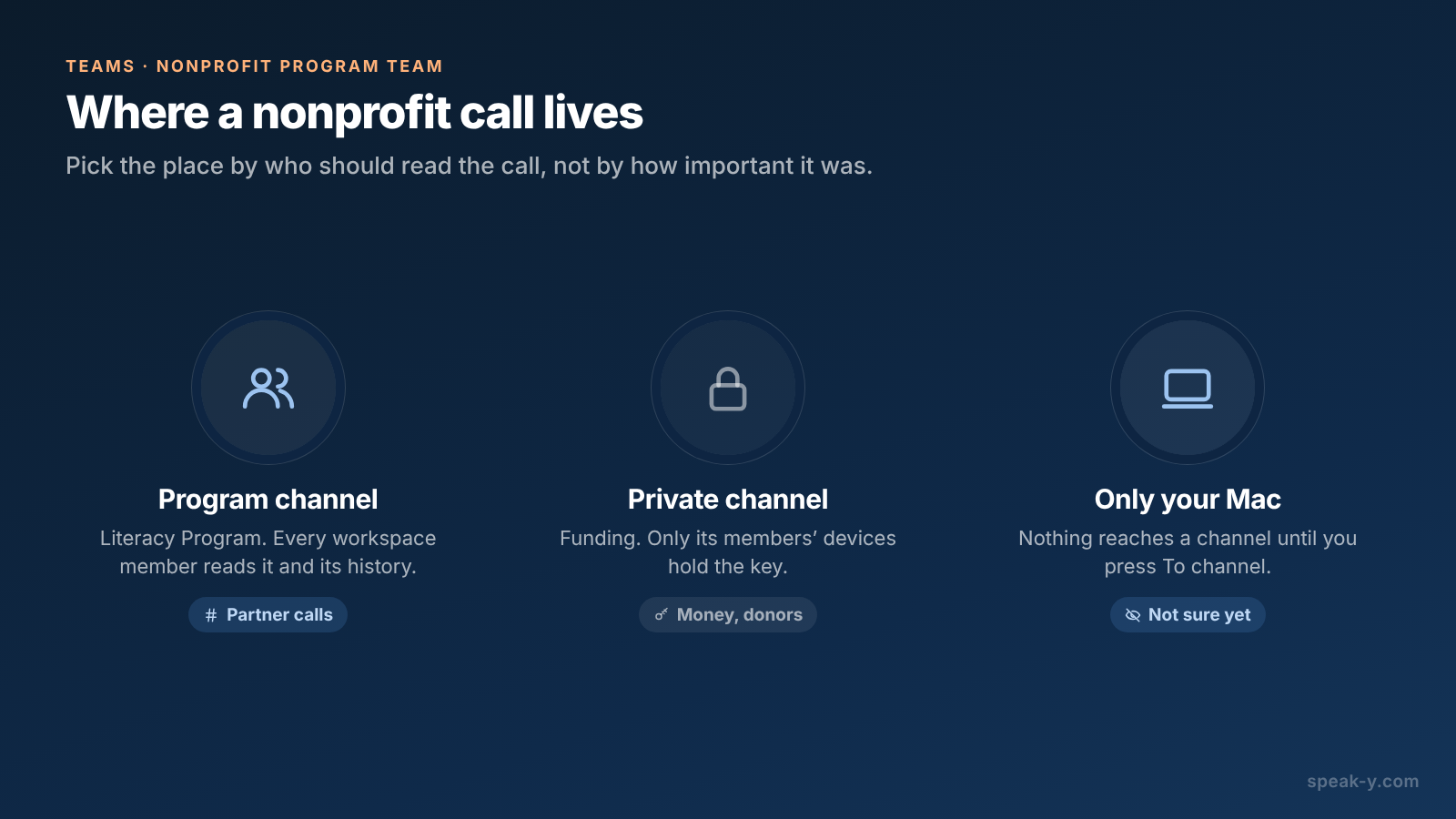
The Riverbend workspace has three channels: General, Literacy Program for partner calls and program meetings, and a private Funding channel with Rosa, the executive director and the development lead. Every member of a workspace sees every public channel and its history; a private channel shows up only for its members. Setting up a team workspace covers the first steps; creating a workspace needs Pro or higher, and the colleagues you invite join on any plan, including Free.
Channel members get the transcript with speaker names and the summary; the audio stays on your Mac. Your marks stay private on a shared recording until you switch them to show in that channel.
What not to put in the program channel
A program channel works because everyone on the team can read it. That is also why some calls belong elsewhere:
- Money and negotiation. Budget changes, renewal amounts, a funder's candid view of your organisation, salaries in a budget line — these go into the private Funding channel. Each channel is encrypted with its own key, held only by its members' devices; the server stores ciphertext.
- Individual donors. A call with a major donor about their giving, their family or their estate plans is personal data about that donor. Keep it in a private channel with the person who manages the relationship, or on your Mac.
- The people you serve. Partner calls drift into specifics: a child who is struggling, a family situation. Use first names sparingly, never put details about a minor into a summary that the whole team reads, and remember that renaming a speaker does not change what was said aloud.
Create a private channel yourself: in the workspace's ⋯ menu, choose New channel, switch the type to Private, tick the people under Who can see this channel and click Create channel. Only its creator can remove a member or change its type later, and a public channel can never be made private, because everyone already has its history. A recording reaches no channel until you press To channel, so a call you are unsure about can simply stay on your Mac.
Report time: everything about one grant
When the interim report is due, the grant tag does the gathering:
- The recordings list filters by tag:
hollis-2026gives you every call about the grant, and the Moments tab in each one shows only the marked lines, each badged with its type, such as Report item. - Search everything (⌘K) matches the text of every recording and the names of your tags, and shows each result with its date and the line around the match.
- An AI assistant connected through the Speak-Y MCP server reads your recordings and the ones shared into your channels, filtered by tag and date. "List every Report item and Commitment in calls tagged hollis-2026 since July, with dates and times" is the skeleton of the report and of the follow-up list. Play each moment before you quote the funder back to them.
Speak-Y does not replace the systems where the grant officially lives. The award letter, the budget, the deadlines and the gift records stay in your grant files and your donor CRM. If the grant is federal, its records rules apply to those files: under 2 CFR 200.334, recipients keep award records for three years from the date they submit the final financial report. What Speak-Y adds is the conversation behind them, by speaker and with times.
Leaving the team, deleting a call
Staff change, and nonprofits feel it more than most. When someone leaves, remove them from the workspace: the app rotates the channel keys, so new recordings never reach them, and the calls they shared stay in the channels for the rest of the team. What their app had already downloaded stays on their Mac, as with any file someone has already opened. When a call has to go — a partner asks you to, or it should never have been shared — delete it in the channel feed, which removes it from the channel for everyone, and delete your own copy in Meetings. Your copy waits in Recently Deleted for 30 days, so clear it there as well.
A quarterly funder call, a weekly partner call and a report twice a year: with one tag per grant and the money talk kept in its own channel, the next report starts from what the funder actually said. The Teams page explains workspaces, private channels and encryption in one place.
FAQ
Can a nonprofit record calls with funders without a bot joining?
Yes, on a Mac. Speak-Y records the call from your computer's audio and never joins Zoom, Microsoft Teams or Google Meet, so the program officer sees no extra participant. That also means nobody announces the recording for you: ask at the start of the call and say who will read the transcript.
How does a program team share donor and partner calls?
Create a Speak-Y workspace for the staff and a channel for the program. Open a recording, press To channel under the transcript and pick the channel. Every member gets the transcript by speaker and the summary, end-to-end encrypted; the audio stays on the Mac that recorded it.
Where should conversations about funding go?
Into a private channel with only the people who handle funding, for example the executive director and the development lead. A private channel has its own encryption key that only its members' devices hold, so the rest of the workspace cannot read it, and neither can the server.
How do I find everything said about one grant at report time?
Tag each call with the grant, for example hollis-2026, and mark report-worthy moments with a hotkey during the call. The recordings list filters by tag, Search everything (⌘K) matches transcript text and tag names, and an AI assistant connected through the Speak-Y MCP server can filter by tag and date.
Does Speak-Y replace a donor CRM or grant management software?
No. Gift records, pledges, deadlines and the grant agreement stay in your CRM and grant files. Speak-Y keeps what was said on the calls, by speaker and with times, so the person writing the report can quote the funder accurately instead of from memory.