ChatGPT Desktop and MCP: Connect Your Own Local Data
The ChatGPT desktop app can talk to an MCP server running on your own machine; ChatGPT in the browser cannot. That single distinction decides everything else on this page, and it is the part most guides get wrong, because it changed after the first wave of ChatGPT connectors shipped.
According to OpenAI's MCP documentation (checked 12 August 2026), the desktop app, the Codex CLI and the IDE extension all support two kinds of server: STDIO servers, which are local processes started by a command, and streamable HTTP servers, which live at an address. The three clients share one configuration file, so a server added once is available in all of them. ChatGPT on the web is a different story: it can use remote MCP-backed tools supplied by plugins, and a regular web conversation has no route to anything running on your laptop.
This guide covers the desktop route end to end — where the configuration lives, how to add a local server, what the approval modes actually control, and the limits worth knowing before you point an assistant at your own files.
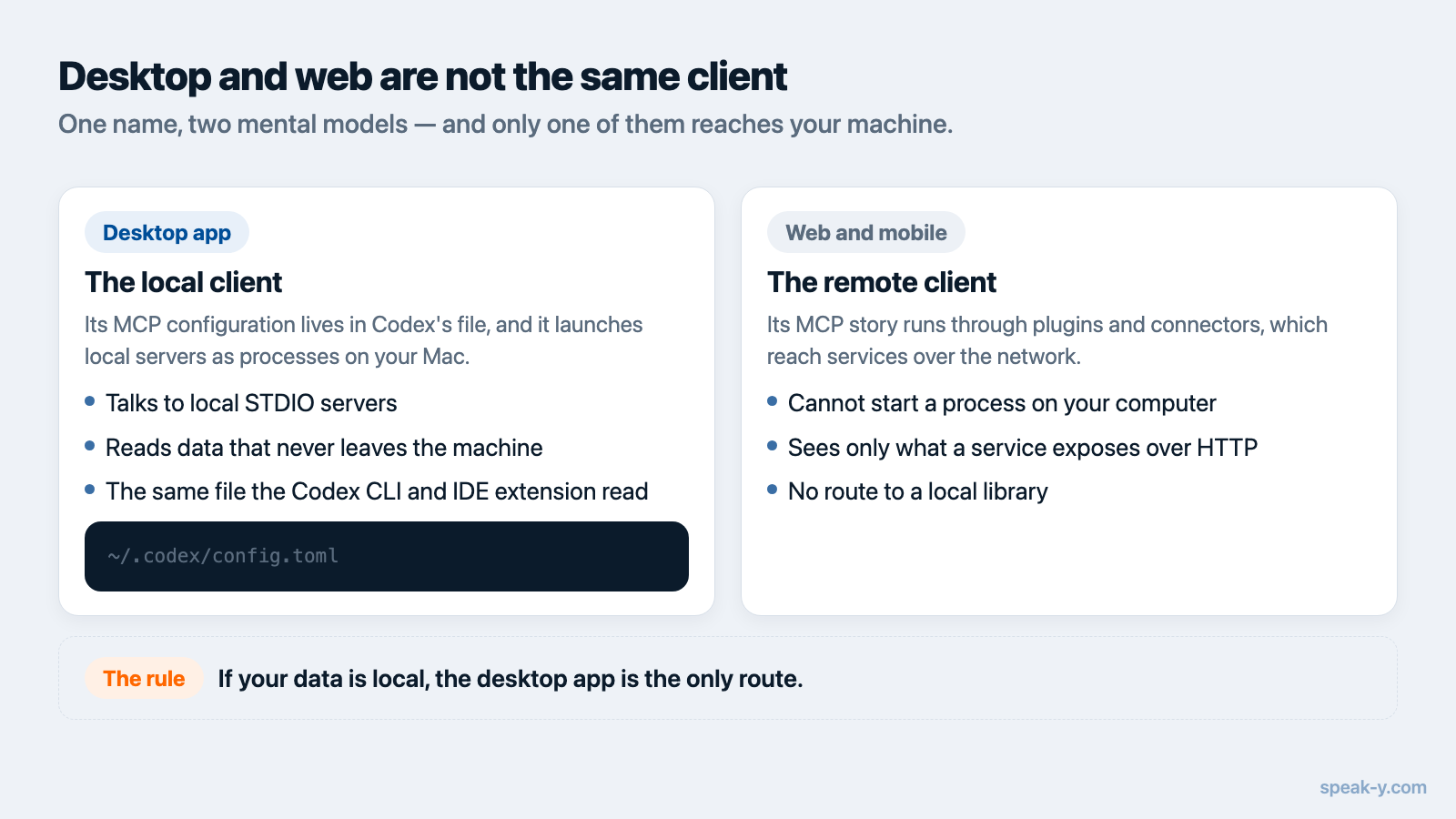
Desktop and web are not the same client
It helps to hold two separate mental models.
The desktop app is the local client. Its MCP configuration lives in
Codex's file, ~/.codex/config.toml, and it accepts local commands. This is
the route for anything that reads files, databases or app libraries on your
machine.
The web app is the remote client. Its MCP story runs through plugins and, for hands-on work with your own servers, through developer mode — a beta that OpenAI describes as full MCP client support for all tools, read and write. It is available on Pro, Plus, Business, Enterprise and Education accounts on the web, and you switch it on in ChatGPT's own Settings → Security and login. Developer mode speaks SSE and streaming HTTP. It has no notion of a local process, so a server on your laptop needs a public HTTPS endpoint before the web app can see it — which for a personal archive is usually the wrong trade.
If your data is local, use the desktop app. The rest of this guide does.
Add a local MCP server to the ChatGPT desktop app
Three equivalent paths; pick whichever you find least fiddly.
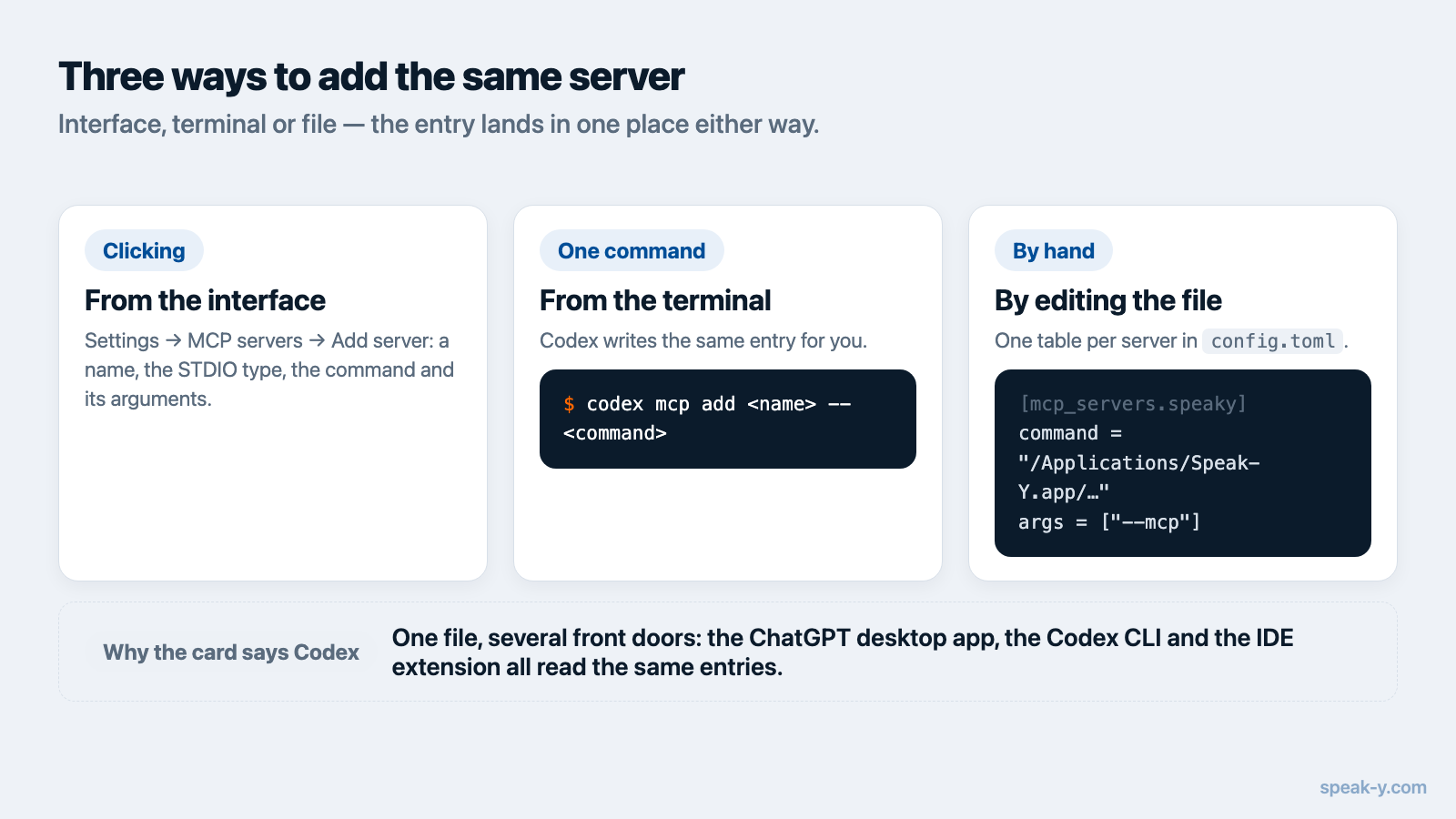
From the interface. Open Settings → MCP servers, choose Add server, give it a name, select STDIO, and enter the command that starts the server. Save it, then select Restart.
From the terminal. Codex adds the same entry:
codex mcp add <server-name> -- <command>
By editing the file. ~/.codex/config.toml takes one table per server:
[mcp_servers.context7]
command = "npx"
args = ["-y", "@upstash/context7-mcp"]
Whichever path you take, the entry lands in the same place, and the Codex CLI
and IDE extension pick it up too. To confirm the server actually came up, type
/mcp in the composer — connected servers are listed there. As with
Claude Desktop and Claude Code,
a restart is not optional: the client reads its MCP configuration at startup.
Connecting your meeting transcripts
Speak-Y ships an MCP server inside the macOS app, and it is free on every plan,
including Free. On the Speak-Y side, open Settings → Integrations. Claude
Desktop, Claude Code and Cursor get a one-click Install there because their
configuration is JSON and the app can safely merge into it. OpenAI's is not
JSON, so the entry named OpenAI Codex CLI offers a Setup guide and a
Copy values button instead — two lines to paste under
[mcp_servers.speaky] in ~/.codex/config.toml:
[mcp_servers.speaky]
command = "/Applications/Speak-Y.app/Contents/MacOS/Speak-Y"
args = ["--mcp"]
The card says Codex CLI rather than ChatGPT for a reason worth internalising: there is one file, and the desktop app reads it. Paste the values once and the transcripts are available in the ChatGPT desktop app, the Codex CLI and the IDE extension alike.
Then restart ChatGPT and ask it something only your recordings can answer — "search my Speak-Y recordings for last week's planning call and list what we decided" is a fair first test. More patterns are in 20 prompts for your meeting notes.
What ChatGPT can actually see
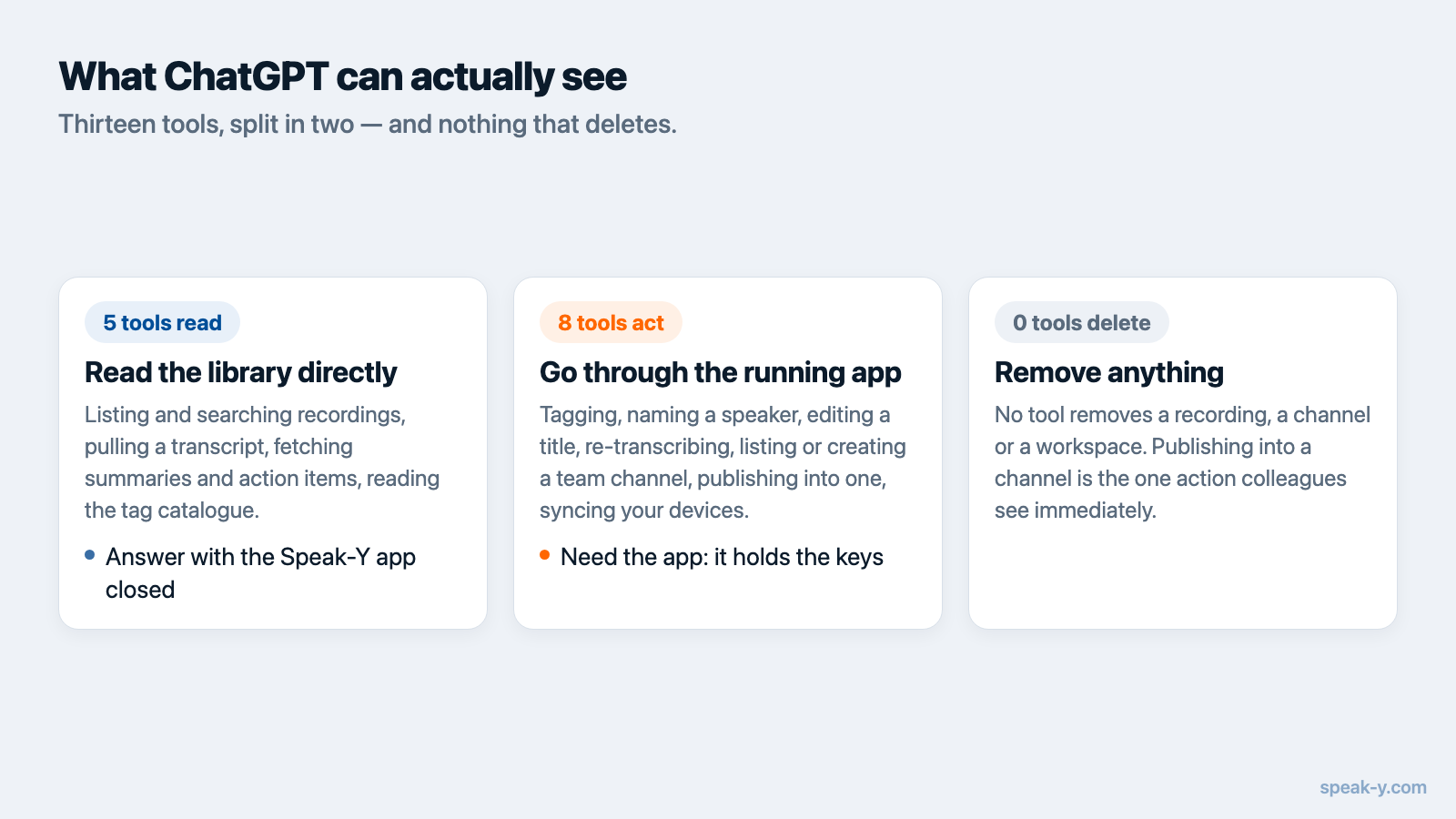
Precision matters more than reassurance here, so: thirteen tools, split in two.
Five read the library directly. Listing recordings, searching them, pulling a transcript, fetching the latest recording, listing tags. These work off the files on your machine and do not need the Speak-Y app to be running.
Eight go through the running app — tagging, renaming a speaker, editing a recording's title, re-transcribing a dictation, syncing, and listing, creating or publishing into a team channel. The app holds the database and the encryption keys, so nothing changes while it is closed.
Nothing deletes. There is no tool that removes a recording, a channel or a workspace. Publishing into a channel is the one action you cannot walk back from the chat window — that is done in the app.
Approval modes, and why tool annotations matter
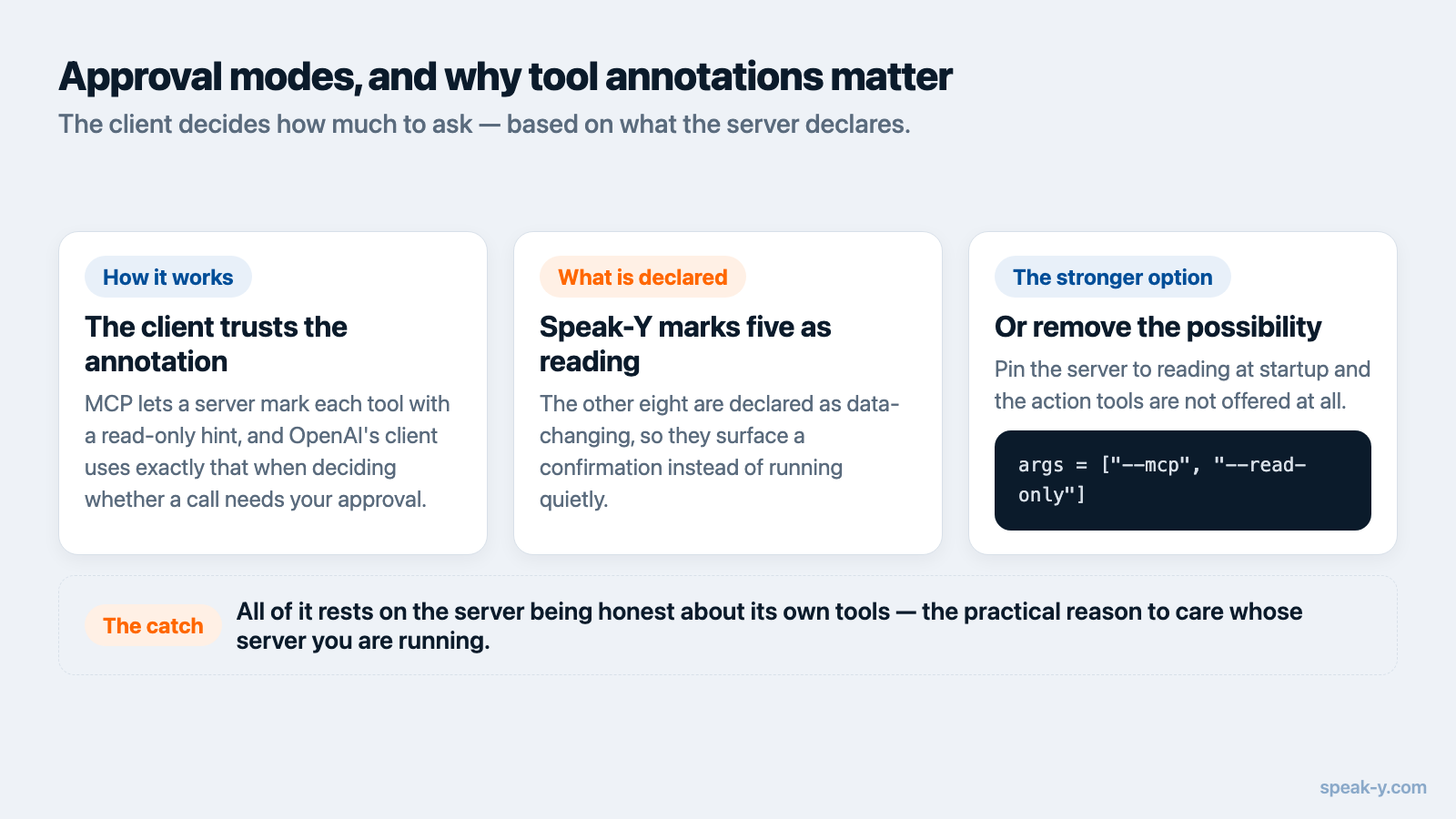
MCP lets a server annotate each tool with a readOnlyHint, and OpenAI's client
uses exactly that. The documented values for default_tools_approval_mode are
auto, prompt, writes and approve, and writes prompts for every tool
that is not marked read-only. Individual tools can be overridden.
This only works if the server is honest about its own tools. Speak-Y marks its
five reading tools as read-only and its actions as data-changing, so writes
produces the behaviour you would want: searches and transcripts flow without
interruption, while tagging or sharing stops and asks. Every action is recorded
in the log in Settings → Integrations, where a single switch turns actions
off and leaves reading working.
If you would rather remove the possibility altogether, start the server pinned
to reading: add --read-only to args, and the changing tools are never
published to that client at all.
args = ["--mcp", "--read-only"]
A server that mislabels a write as a read defeats all of this — which is the practical reason to care who wrote the MCP servers you install. OpenAI's own developer-mode documentation flags the same class of risk: prompt injection, model mistakes on write actions, and outright malicious servers.
What this setup cannot do
- The web and mobile apps stay out. A local STDIO server is reachable from the desktop client on that machine. Signing into ChatGPT on your phone does not extend it.
- Local means one machine. The library the assistant reads is the one on that Mac. Recordings from other devices arrive through sync, not through MCP.
- Speak-Y's server is macOS-only. It ships inside the macOS app; the Windows app does not expose one.
- Reading is local, but the conversation is not. No upload happens for the integration to work. What ChatGPT reads, however, becomes chat context and is sent to the model like anything else you type — a different proposition from your whole archive living in a vendor's cloud, and worth separating in your head. The distinction is unpacked in what an AI can see over local vs cloud MCP.
Where this goes next
A personal library answerable in ChatGPT solves half the problem: your own recall. The other half is everyone else's — decisions made in calls you were not on. Recordings published into a team workspace are end-to-end encrypted and searchable by the same assistant, which turns "why did we decide that?" from an interruption into a question you can just ask.
FAQ
Can ChatGPT connect to an MCP server running on my computer?
The desktop app can. OpenAI's MCP documentation lists STDIO servers — ones started by a command on your machine — alongside remote streamable HTTP servers for the desktop app, Codex CLI and the IDE extension. ChatGPT on the web cannot: it reaches only remote MCP-backed tools supplied by plugins.
Where does the ChatGPT desktop app store its MCP configuration?
In Codex's configuration file, ~/.codex/config.toml, under an [mcp_servers.<name>] table. The desktop app, Codex CLI and the IDE extension share that one file, so a server added in any of them shows up in the others.
Does ChatGPT ask before an MCP tool changes something?
That depends on the approval mode. The documented values for default_tools_approval_mode are auto, prompt, writes and approve; writes prompts for every tool not marked read-only, and individual tools can be overridden. Servers that annotate their tools honestly, as Speak-Y does, make that setting meaningful.
Do my recordings get uploaded to OpenAI when I connect ChatGPT?
Nothing is uploaded for the connection itself — the Speak-Y MCP server runs on your Mac and reads the local library. But whatever ChatGPT actually reads becomes part of the conversation and travels to the model with the rest of the chat, so the transcripts you ask about do leave the machine as chat context.
Why does the Speak-Y integrations screen list Codex CLI rather than ChatGPT?
Because they are the same configuration. Codex's file is TOML rather than JSON, so Speak-Y hands you the two values to paste instead of writing the file for you — and the ChatGPT desktop app reads that same file.