Customer Interviews to Quotes in One Evening with Speak-Y
The fastest way from ten customer interviews to a page of quotes for your product team takes one habit during each call and one evening at the end: record every interview as a meeting in Speak-Y and press ⌥1 whenever the customer says something worth quoting; after the call, spend a minute naming the customer and tagging the recording interview. In the evening, find every mention of a topic with ⌘K, ask your AI assistant which pains repeat across all recordings with the tag, and copy each quote with Copy reply as quote — it arrives as «text» — Maria, 12:41, with the name and the time attached.
This guide follows the macOS app as of 30 September 2026 and one ordinary research round: ten 45-minute calls with customers of a reporting tool, and a product team waiting for "what did people actually say".
The routine at a glance
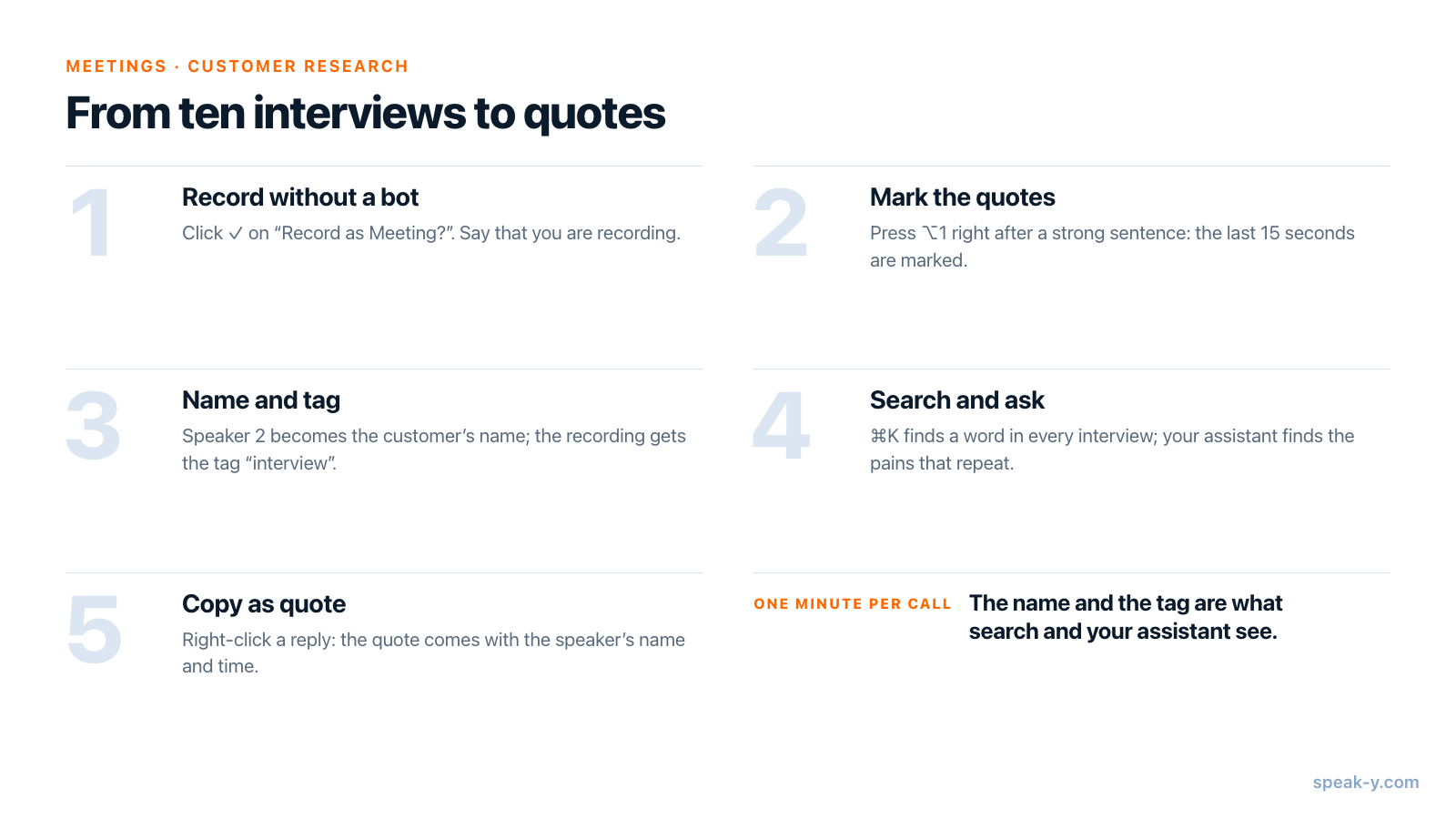
Most of the work in customer research is not the interviews but the evening after them, when you try to remember which customer said the sharp thing about spreadsheets. The routine below moves that work into the calls themselves: a keystroke when a quote happens, a name and a tag right after, so that the evening is searching, not reconstructing.
Before the first interview: plan, consent and one setting
Speak-Y records calls when Meeting mode is on (Settings → Interface & Behavior → Meeting mode: Off, Manual or Auto). Nothing joins the call: the app captures your microphone and the audio your Mac plays, so Zoom, Microsoft Teams, Google Meet and browser calls all work the same way. The Windows app records meetings too, and has speaker names and tags, but not the marks this guide relies on.
Check the plan against the length of your interviews. As of 30 September 2026:
| Plan | Longest meeting | Meeting time per month |
|---|---|---|
| Free | 30 minutes | 2 hours |
| Pro | 60 minutes | 10 hours |
| Pro+ | 4 hours | 40 hours |
Ten 45-minute interviews are 7.5 hours, which fits Pro; on Free the recording of each call would stop at the 30-minute mark. The MCP server used later in this guide is included on every plan.
Then decide what you tell the customer. Because no bot appears, the platform will not announce the recording for you. Say it in the first minute — "I'm recording so I can quote you accurately in our notes; the recording stays with our product team" — and put the same line in the invitation. Whether a sentence is enough or you need explicit consent depends on where you and the customer are; is it legal to record meetings goes through the rules by country.
One optional setting: the default mark is Mark the moment on ⌥1. If you want the marks to sort themselves, open Settings → Notes → Add note type and create types such as "Pain" and "Workaround", each with its own colour and hotkey.
During the interview: mark the quote, don't write it down
When the call starts, Speak-Y asks Record as Meeting? above the recording button; click the check mark. From then on, the only thing you do is listen. When the customer says something you will want to quote, press ⌥1. Speak-Y marks the last 15 seconds — the button reads Last 15s marked for a moment — and the words of that window are highlighted in the transcript later.
- Press right after the sentence, not before it: the mark looks back.
- A mark is a pointer to a moment, not a note. It holds its type and time, no text, so there is nothing to type during the call.
- Missed one? After the call, hover a reply and click +, or right-click it → Add note, to put a mark there.
- The mark buttons next to the recording button are hidden while you share your screen, so the customer never sees them.
Right after each call: one name and a tag
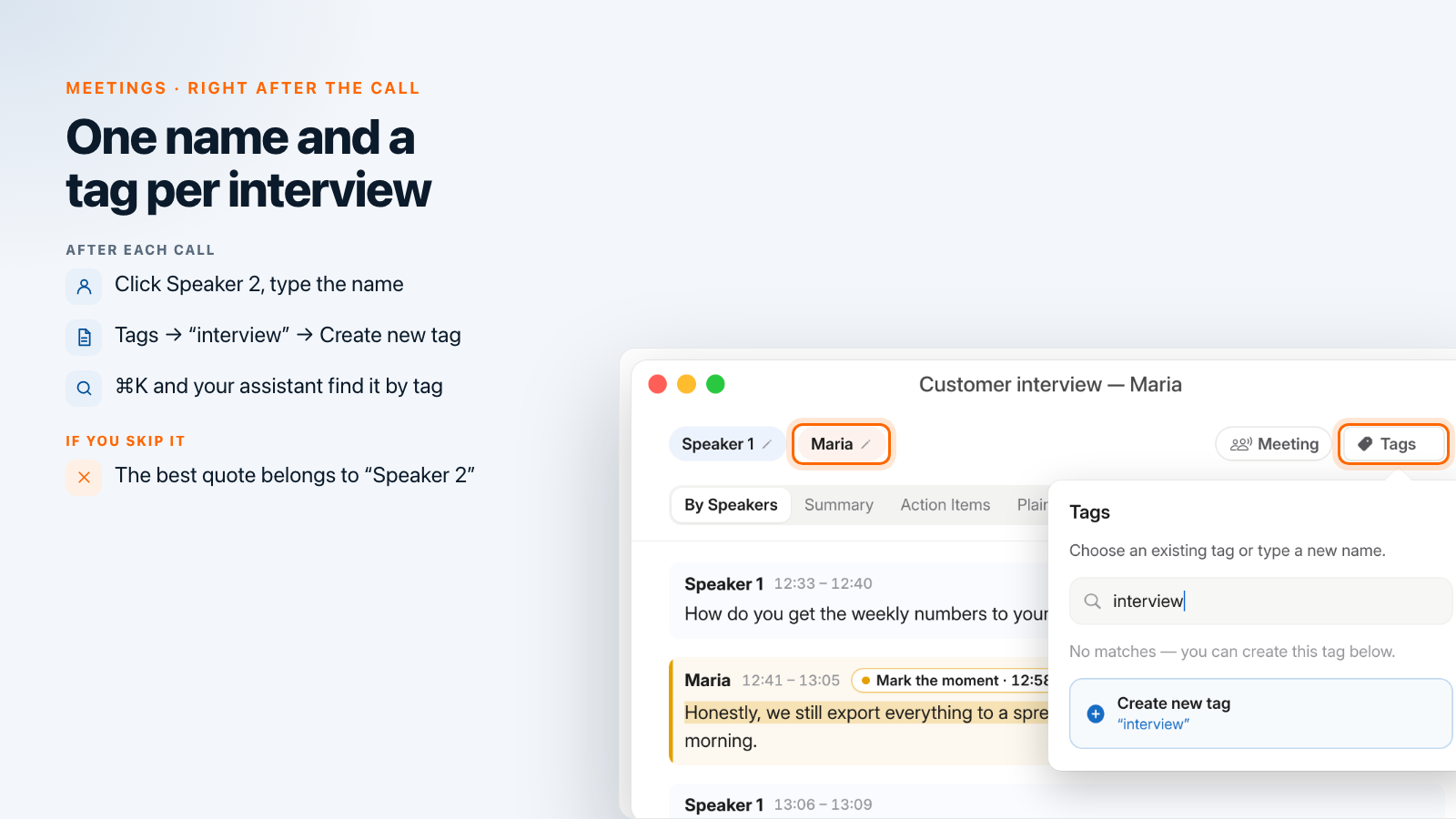
This minute is what makes the evening work, because it is what search and your assistant will see. Open the recording from Meetings. Speak-Y has already separated the speakers and numbers them in the order they first spoke — in an interview you usually open, so you are Speaker 1 and the customer Speaker 2.
- Name the customer. Click the Speaker 2 chip at the top of the recording, type the name and press Enter (or click the check mark). Every reply of that speaker now shows the name, and so does everything built from the transcript: copied quotes, the text export and what your assistant reads.
- Tag the interview. Click Tags in the same row. In Search or
create… type
interviewand click Create new tag. From the second interview on the tag is already in the list and takes one click. Add a second tag for the segment —smb,enterprise,churned— so that you can compare groups later.
With sync on, names and tags travel with the recording to your other devices.
In the evening: find every mention with ⌘K
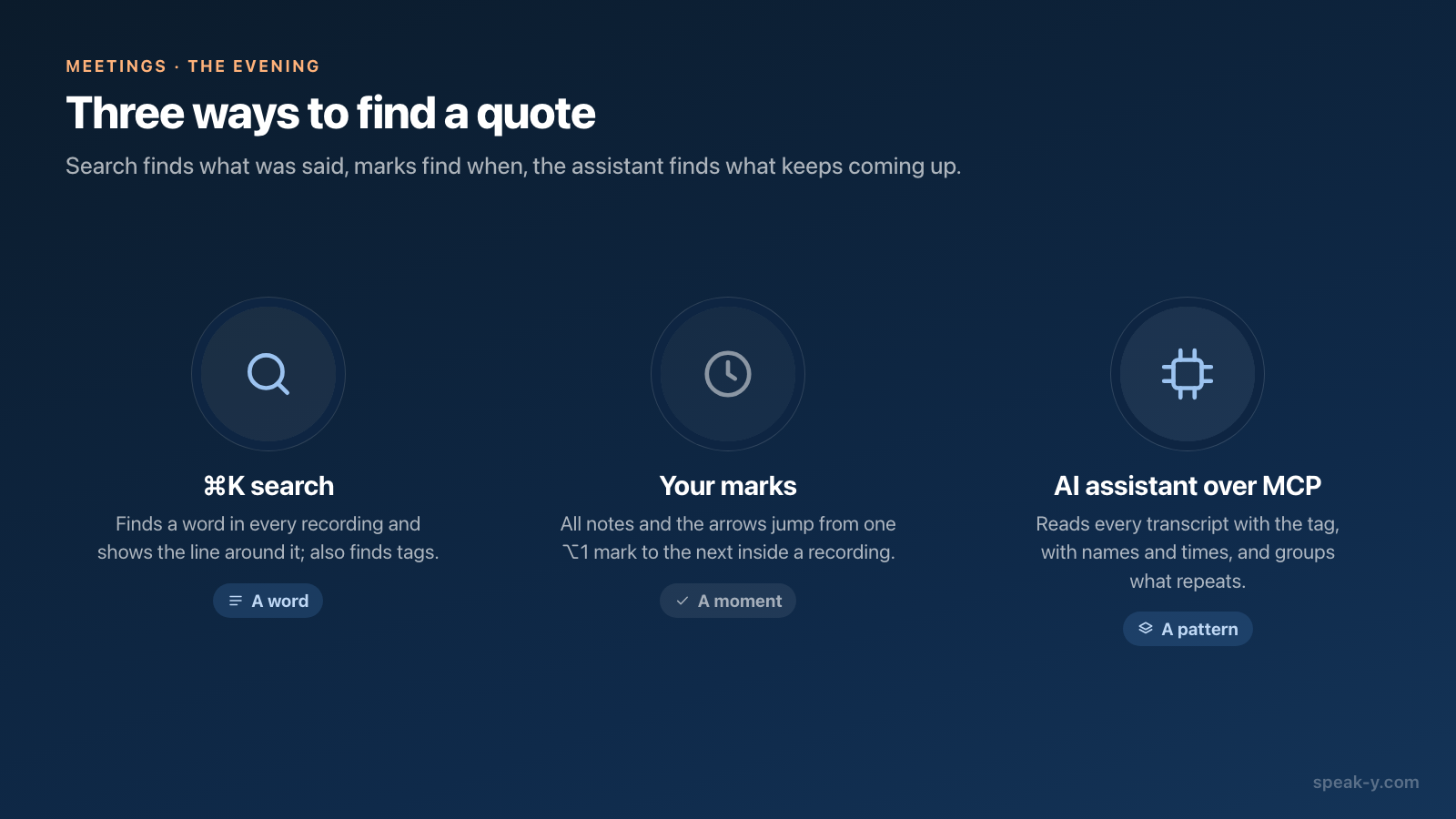
With ten interviews tagged, press ⌘K anywhere in the Speak-Y window. Search everything… matches the text of every recording and the names of your tags. Type a word your customers used — "spreadsheet", "export", "approval" — and each interview that contains it appears with its date and the line around the first match. Type the name of a tag instead, and it shows up under Tags: pick it, and you get the list of every recording with that tag.
Picking a result opens the recording; it does not jump to the matching line. Inside the recording, your marks do that: the strip above the transcript starts with All notes and its count, with arrows that move from one mark to the next.
If you want to see who said it before opening anything, use the magnifier at the top of the recordings list instead. Its Search transcriptions… field also matches titles and meeting summaries, has a Tag filter, and shows up to two matching replies for each meeting — with the speaker's name and time.
In the evening: ask your assistant across all interviews
Search finds words. The question a product team asks is different: what keeps coming up? That is a job for an AI assistant with access to all ten transcripts. Connect Claude, ChatGPT, Cursor or another MCP client once in Settings → Integrations — connecting meeting notes to AI assistants walks through it — and ask:
- "Which pains come up most in my recordings tagged interview? Group them, and give two quotes per pain with the customer's name and time."
- "Compare what
smbandenterpriseinterviews said about reporting." - "List every moment I marked in the interviews, with the sentence around it."
The assistant does not guess from titles. It lists the recordings with the tag, then reads each transcript by speaker: every block starts with the speaker's name and the time the reply begins, and a separate list shows your marks with their times. That is why the minute after each call matters — without a name, the best quote in the round belongs to "Speaker 2".
Reading happens locally, straight from the Speak-Y library on your Mac, and works even when the app is closed. The assistant's model, though, runs in the cloud, so the transcripts it reads go to it — keep that in mind for interviews under NDA. And the assistant chooses what to quote: check every quote it gives you in the app before it goes into a slide. Prompts to ask AI about your meetings has more requests of this kind.
Copy the quotes with names and times
Once you know which quote you want, open the recording and right-click the reply. Copy reply as quote puts the whole reply on the clipboard in this form:
«Honestly, we still export everything to a spreadsheet every Friday. It takes me most of the morning.» — Maria, 12:41
The time is where the reply starts, so anyone on the product team can go back to the moment. Three variations cover the rest:
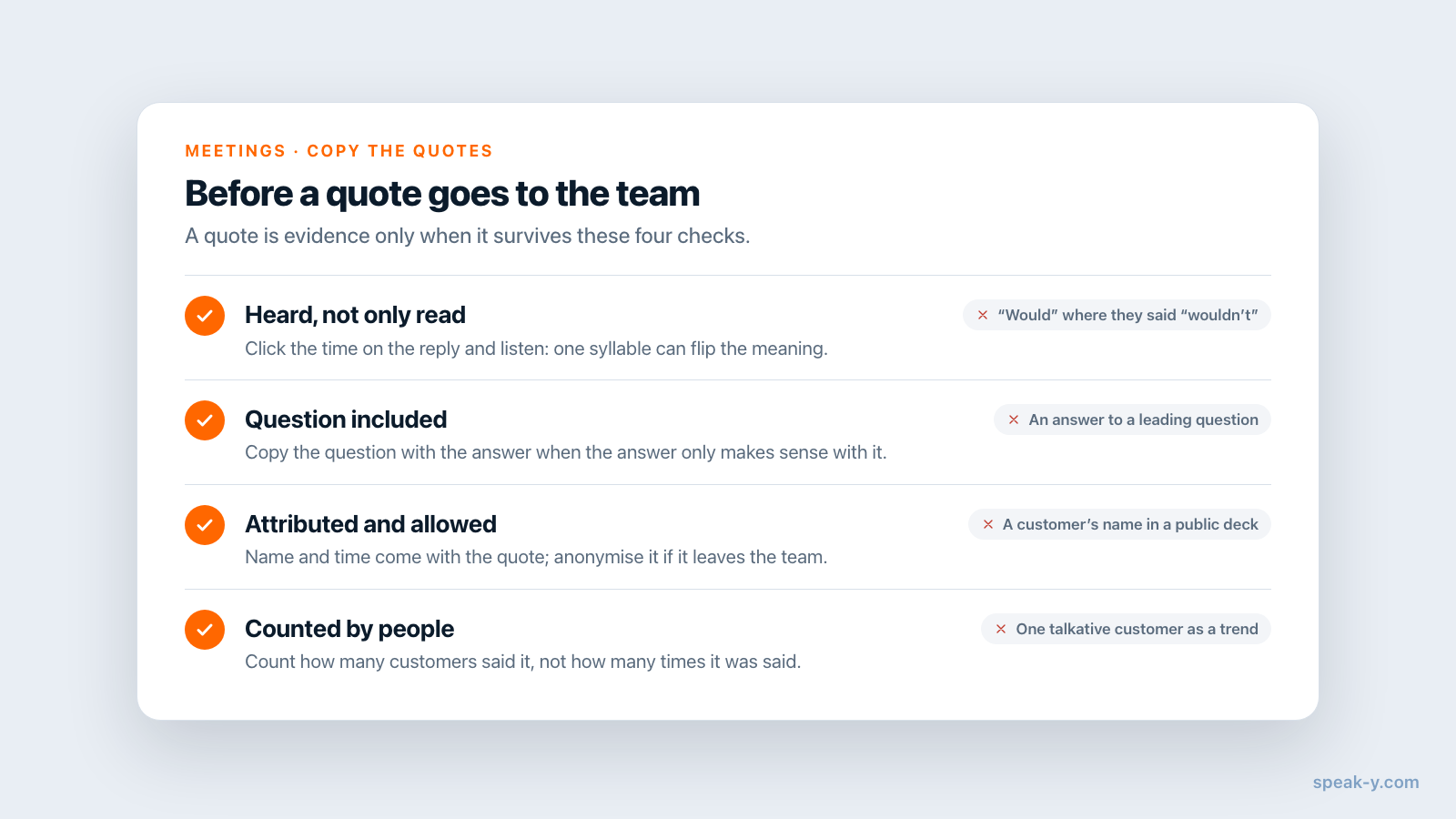
- Part of a reply: select the words, right-click → Copy as quote. The name and time come along the same way.
- A question and its answer: click Select above the transcript, pick the first and the last reply, and copy them as a dialogue.
- A whole interview: ⋯ → Download → TXT (with timestamps) gives one line per reply with the speaker's name and time.
Before a quote leaves your hands, click the time on the reply to play it from there. A transcript can mishear a product name, and "we would pay for that" and "we wouldn't pay for that" differ by one syllable.
Where the evening goes
Marking and naming cost nothing during the calls and a minute after each one. The evening is search, one or two questions to your assistant, and copying the quotes that survive the check — for ten interviews, a couple of hours rather than a weekend of re-listening. If your product team works in a Speak-Y workspace, press To channel on each interview instead of forwarding quotes: teammates get the transcript with names, the summary and action items, end-to-end encrypted, while the audio stays on your Mac. The Teams page covers workspaces and channels.
FAQ
How do I pull quotes from customer interviews with Speak-Y?
Record each interview as a meeting and press ⌥1 whenever the customer says something worth quoting. After the call, click the Speaker 2 chip and type the customer's name, then add a tag such as "interview" with the Tags button. When all interviews are in, find quotes with ⌘K or ask an AI assistant over MCP, and copy each one with right-click → Copy reply as quote.
Can I search all my customer interviews at once?
Yes. ⌘K opens Search everything…, which matches the text of every recording and the names of your tags, and shows each result with its date and the line around the match. The magnifier in the recordings list also matches titles and meeting summaries, filters by tag, and shows the matching replies of a meeting with the speaker's name and time.
Can an AI assistant find the pains that repeat across interviews?
Yes, if Claude, ChatGPT, Cursor or another MCP client is connected to Speak-Y. The assistant can list only the recordings with a given tag and read each transcript with speaker names, reply times and your marks, then group what customers said. Reading happens locally on your Mac; the assistant itself decides what to quote, so check each quote in the app.
Which Speak-Y plan do I need for customer interviews?
As of 30 September 2026, Free records meetings up to 30 minutes each and 2 hours a month, Pro up to 60 minutes each and 10 hours a month, and Pro+ up to 4 hours each and 40 hours a month. Ten 45-minute interviews need Pro. The MCP server is included on every plan.
Does the customer see that I am recording the interview?
Not from the meeting platform. Speak-Y records on your Mac and never joins the call, so no bot appears in the participant list. That is why you should say at the start that you are recording and why; whether you also need explicit consent depends on where you and the customer are.