Remote Interview to Transcript, Quotes and Subtitles with Speak-Y
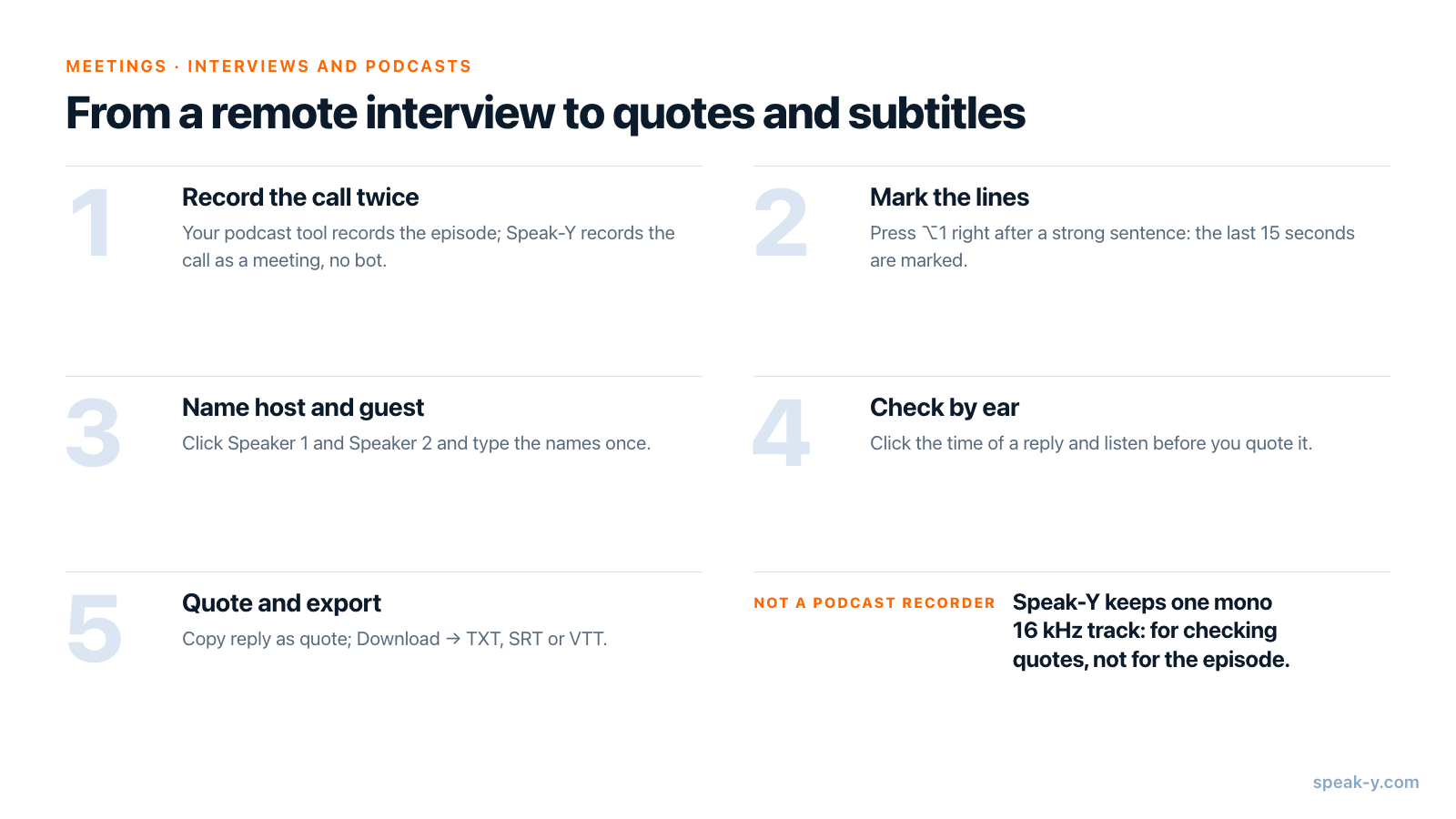
The shortest way from a remote interview to a publishable transcript is to treat the episode recording and the transcript as two different jobs. Record the episode the way you always do, and let Speak-Y record the same call on your Mac as a meeting — no bot joins — while you press ⌥1 after every line you may quote. After the call, name the host and the guest, click the time of each quote to hear it, and copy it with Copy reply as quote: it arrives with the guest's name and the minute it was said. The full transcript comes out as TXT, the subtitles as SRT or VTT.
This guide follows the macOS app as of 1 October 2026 and one ordinary job: an hour-long interview with a guest over Zoom, Google Meet or a browser-based studio, a quote for the article and subtitles for the video cut.
The workflow at a glance
The slow part of publishing an interview is everything after the conversation: finding the line you remember, checking that the guest really said it that way, and getting the times right for the video. The routine moves most of that into one keystroke during the call and a few minutes after it.
Before the interview: what Speak-Y records, and what it does not
Speak-Y records calls when Meeting mode is on (Settings → Interface & Behavior → Meeting mode: Off, Manual or Auto). It captures your microphone and the audio your Mac plays, so Zoom, Microsoft Teams, Google Meet and studios in the browser all work the same way, and nothing appears in the guest's participant list — see recording meetings without bots.
That recording is for the transcript, not for the episode. Speak-Y keeps the call audio on your Mac as one mono track at 16 kHz, with both voices mixed together: enough for speech recognition and for checking a quote, not enough to edit or publish. Record the episode itself in your podcast tool or with the call app's own recording.
Check the plan against the length of the conversation. As of 1 October 2026:
| Plan | Longest meeting | Meeting time per month |
|---|---|---|
| Free | 30 minutes | 2 hours |
| Pro | 60 minutes | 10 hours |
| Pro+ | 4 hours | 40 hours |
The recording stops at the plan's limit, and an hour of interview plus the small talk before it runs past 60 minutes — a weekly show is a Pro+ job.
Because no bot joins, the platform will not announce the recording for you. Ask the guest on the call and in the invitation, and agree whether they see quotes before publication; is it legal to record meetings covers the consent rules by country. Optionally, open Settings → Notes → Add note type and create a "Pull quote" type with its own colour and hotkey; the default mark is Mark the moment on ⌥1.
During the interview: mark the lines you will quote
When the call starts, Speak-Y asks Record as Meeting? above the recording button; click the check mark. When the guest says something you will want in the article or the episode description, press ⌥1. Speak-Y marks the last 15 seconds — the button reads Last 15s marked for a moment — and those words are highlighted in the transcript later.
- Press right after the sentence: the mark looks back, not forward.
- A mark holds its type and time, no text, so there is nothing to type.
- Missed one? After the call, hover a reply and click +, or right-click it → Add note.
- The mark buttons are hidden while you share your screen.
After the call: name the host and the guest
Open the recording from Meetings. Speak-Y has separated the voices and numbers them in the order they first spoke; as the host you usually open, so you are Speaker 1 and the guest Speaker 2. Click each chip at the top of the recording, type the name and press Enter. Every reply now shows it, and so do copied quotes, the TXT and subtitle exports, and what an AI assistant reads.
Check every quote by ear
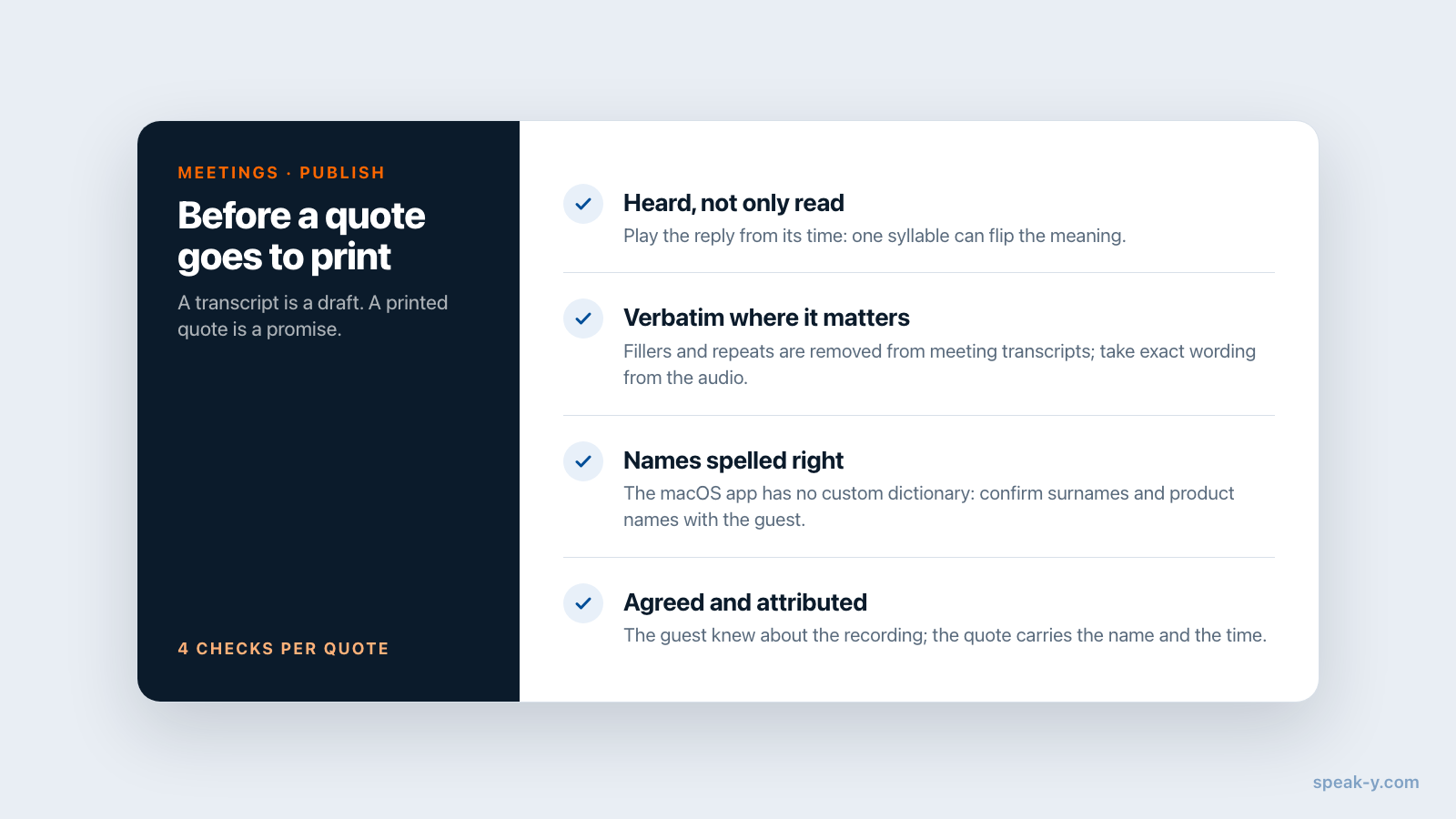
A transcript is a draft of what was said; a quote in print is a promise that it was said that way.
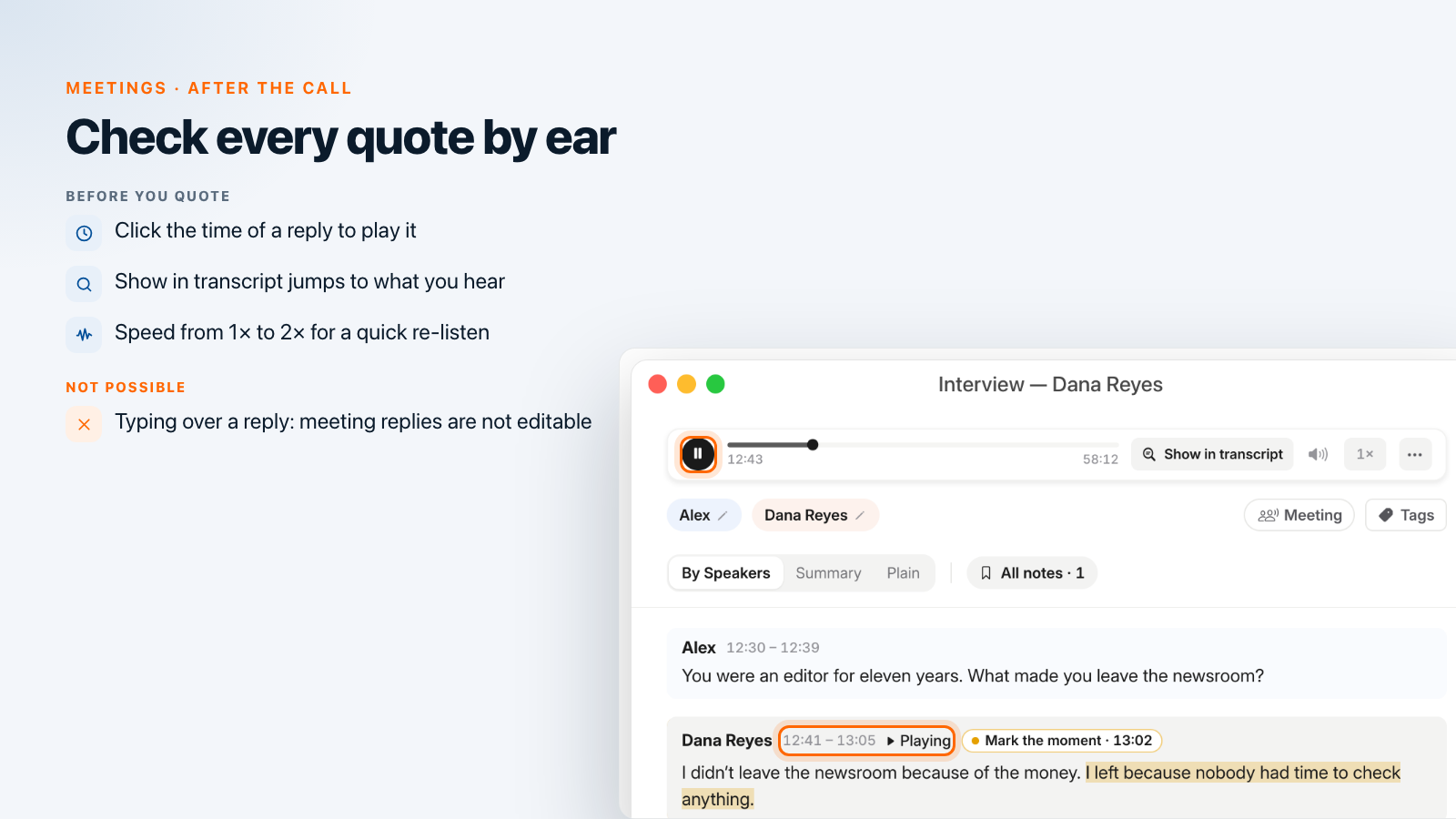
- Click the time of the reply (for example 12:41 – 13:05) to play from there. The reply turns grey and shows Playing; the player at the top has a speed menu (1× to 2×) and Show in transcript, which jumps to the reply you are hearing.
- Long answers are split into fragments of about a minute, each with its own time, so a click starts close to the line you need.
- The text is lightly cleaned. Fillers such as "um" and "you know" and accidental repeats are removed from meeting transcripts. If your outlet quotes verbatim, take the exact wording from the audio.
- Names and terms are the weak spot. The macOS app has no custom dictionary, so check a surname or a product name with the guest.
The replies of a meeting cannot be edited in place. If the recording came out in the wrong language or garbled, open … → Re-transcribe, pick the Language and start it: Speak-Y sends the kept audio again and adds a new version with its own speaker breakdown, keeping the current one. With Enhanced recognition on, the sheet also asks How many participants — set 2. A single misheard word is quicker to fix in the quote or the exported file, once you have heard the moment. Speak-Y recognises 67+ languages; how speech-to-text works explains why names fail first.
Copy the quote and the full transcript
Right-click the reply and choose Copy reply as quote. The clipboard gets the whole reply in this form:
«I didn't leave the newsroom because of the money. I left because nobody had time to check anything.» — Dana Reyes, 12:41
The time is where the reply starts, so your editor can find the moment. Speak-Y wraps the text in « » guillemets; swap them for your house style.
- Part of a reply: select the words, right-click → Copy as quote.
- A question and its answer: click Select above the transcript, pick the first and the last reply, and copy them as a dialogue.
- The whole interview: … → Download → TXT (with timestamps) gives one block per reply with the name and time — a base for a Q&A article.
Export subtitles: SRT and VTT
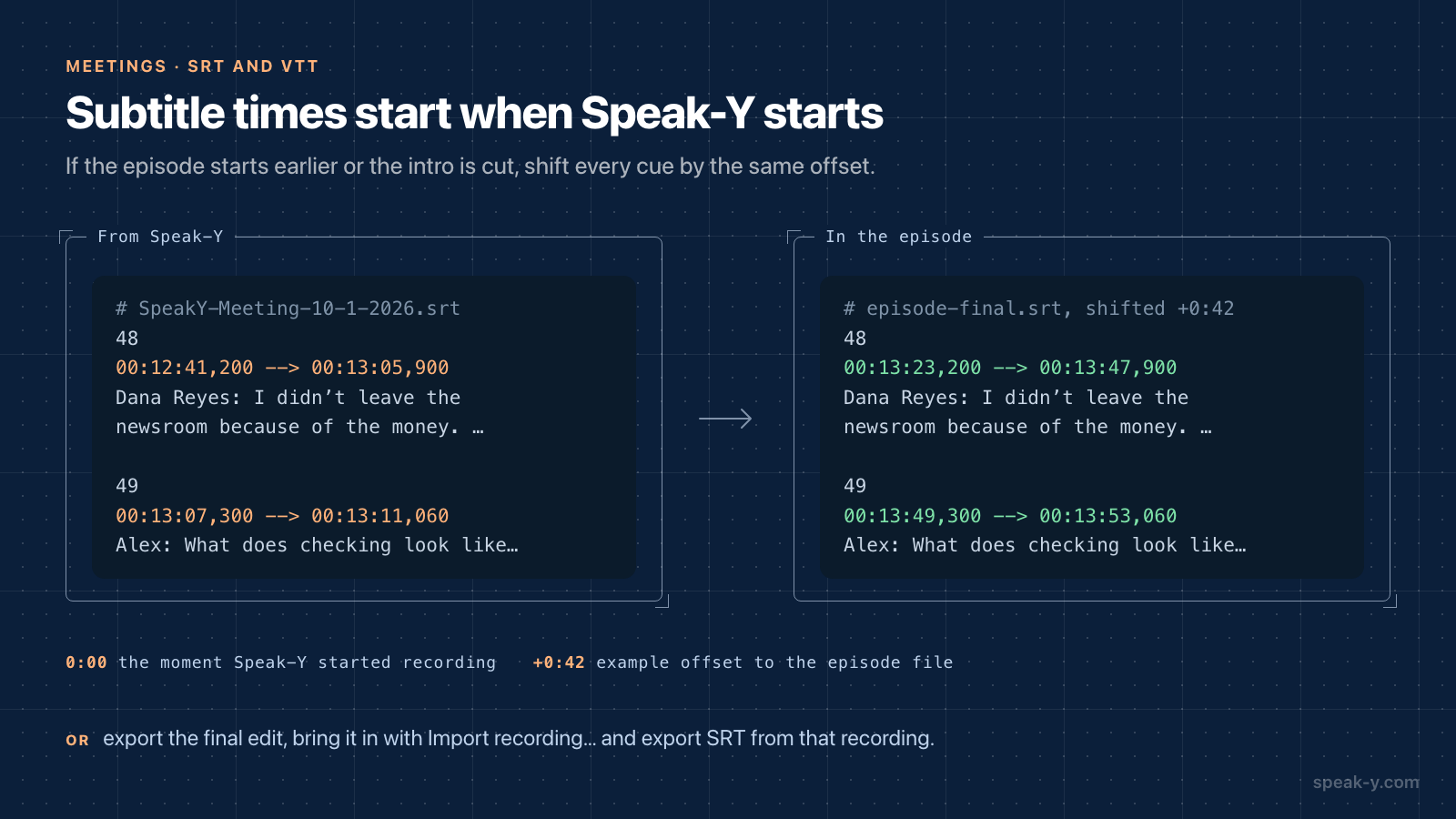
The same Download menu has SRT (subtitles) and VTT (web subtitles). Both hold the same cues, one per reply, each starting with the speaker's name:
48
00:12:41,200 --> 00:13:05,900
Dana Reyes: I didn't leave the newsroom because of the money. I left because nobody had time to check anything.
Three things to know before you upload them:
- The clock starts when Speak-Y started recording, not when your podcast tool did. If the episode starts at another moment or you cut the intro, shift the subtitles in your editor: if Speak-Y started 42 seconds after your recording tool, every cue moves 42 seconds later. Or export the final edit, bring it in with Import recording… at the top of the recordings list, name the speakers again and export SRT from that recording: the times then match the file you publish.
- Cues are long — a reply, or a fragment of up to about a minute. Fine for a transcript track; for captions on screen, split them in your editor.
- Names are in the text. Keep them, or remove them if captions should show only the words.
Optional: titles and show notes with your AI assistant
If Claude, ChatGPT, Cursor or another MCP client is connected to Speak-Y (Settings → Integrations; the MCP server is free on every plan), ask it:
- "Suggest five titles for my interview with Dana Reyes, under 60 characters each."
- "Write show notes with a timestamp for each topic, using the time the topic starts in the transcript."
The assistant reads the transcript locally from the Speak-Y library, with the speaker's name and start time on every reply and your marks in a separate list, so its timestamps come from the recording. They are Speak-Y's times, so shift them like the subtitles if needed. The model runs in the cloud and receives the transcript — think twice for an interview under embargo. Prompts to ask AI about your meetings has more requests like these.
What you have at the end
One interview gives you a transcript with the right name on every reply, the quotes you marked — each heard and copied with its time — a TXT for the article and SRT or VTT for the video. The episode audio stays in your recording tool. Running many interviews? Customer interviews to quotes shows how to tag them and search across all of them at once.
FAQ
How do I turn a remote interview into a transcript with speaker names?
Record the call in Speak-Y as a meeting: it captures your microphone and the sound your Mac plays, so no bot joins Zoom, Google Meet or the browser. After the call, click the Speaker 1 and Speaker 2 chips and type the host's and the guest's names; every reply, copied quote and export then carries them.
Can Speak-Y replace my podcast recording?
No. Speak-Y keeps the call audio on your Mac as one mono track at 16 kHz with both voices mixed together, which is enough to check a quote but not to publish an episode. Record the episode with your usual recording tool and use Speak-Y for the transcript, the quotes and the subtitles.
Can I export subtitles from an interview recorded in Speak-Y?
Yes. In the recording, open the … menu, then Download, and choose SRT (subtitles) or VTT (web subtitles). Each cue is one reply, a long answer is split into pieces of about a minute, and every cue starts with the speaker's name. Times count from the moment Speak-Y started recording, so shift them in your editor if the episode starts elsewhere.
Can I edit a mistake in a meeting transcript?
Not by typing: the replies of a meeting recording cannot be edited in Speak-Y. If the language was wrong or the text came out garbled, use … → Re-transcribe to make a new version from the kept audio; the old version stays. For a single misheard word, fix it in the quote or the exported file after listening to that moment.
Which Speak-Y plan do I need for an hour-long interview?
As of 1 October 2026, Free records meetings up to 30 minutes, Pro up to 60 minutes and Pro+ up to 4 hours, with 2, 10 and 40 hours of meeting time a month. An hour of conversation plus the small talk before it goes past 60 minutes, so plan on Pro+.