Lecture Notes for Students: Record Online Lectures with Speak-Y
A semester of online lectures is forty hours of video that nobody rewatches before an exam. The alternative takes one keystroke during each lecture and a minute after it: record the lecture as a meeting in Speak-Y, press ⌥1 when the lecturer says "this will be on the exam", and tag the recording with the course name. Before the exam, ⌘K and a term bring up every lecture that mentioned it with the line around the match, and your AI assistant explains the topic the way the lecturer did, with the lecture and time of each reference.
This guide follows the macOS app as of 1 October 2026 and one ordinary course: twelve 90-minute lectures in Zoom and a lecturer who announces exam topics in passing.
The routine at a glance
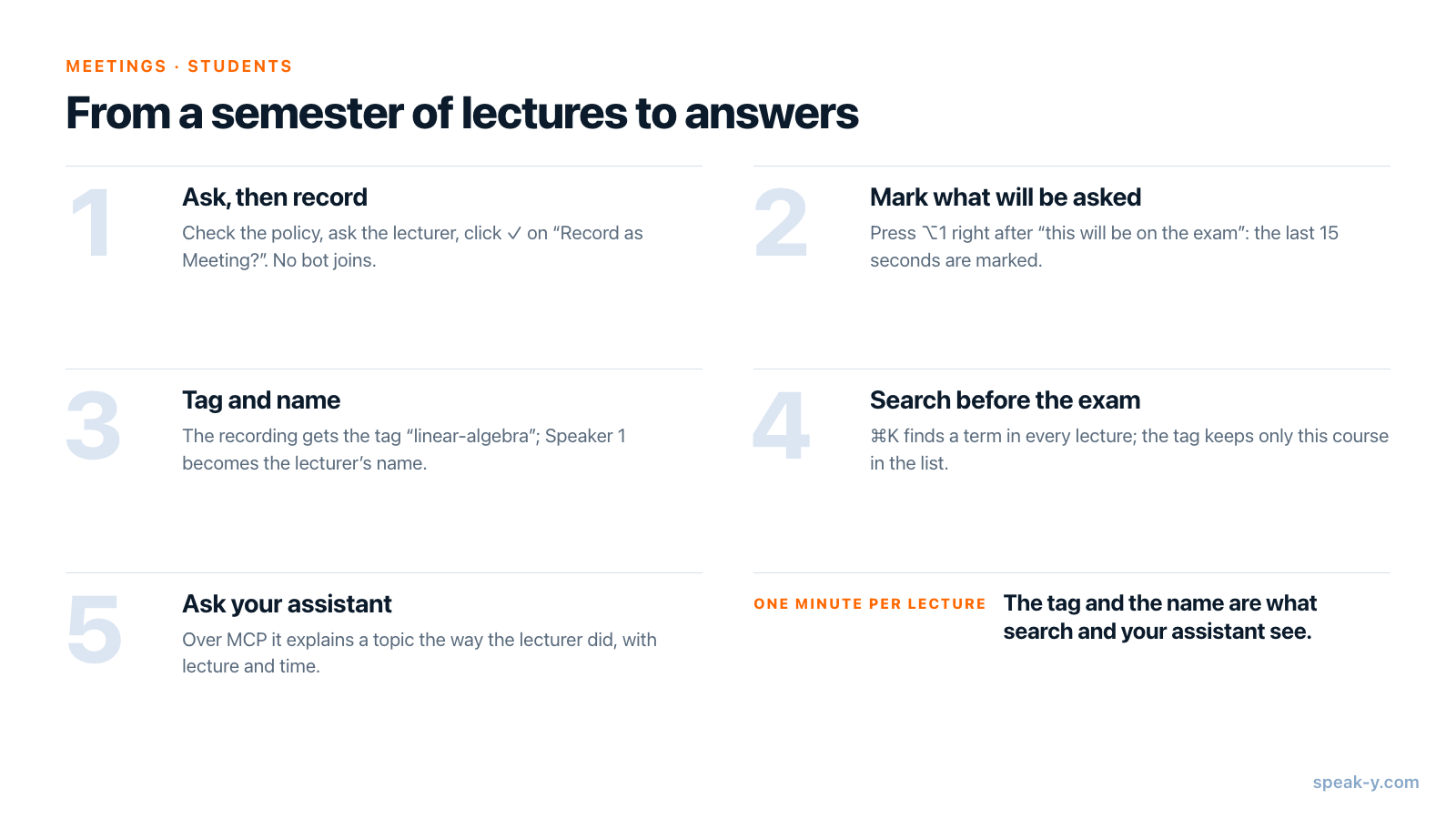
Nothing here asks you to type during the lecture. The work moves to three moments: a key when something matters, a tag and a name right after, search before the exam.
Before the first lecture: permission, plan and language
Ask before you record. Speak-Y records on your Mac, so no bot joins the call and the platform announces nothing for you. That makes it your job: check the university's recording policy and the platform's terms, and ask the lecturer in the first session — most say yes to a recording that stays on your laptop, some will ask you not to share it. Whether a sentence is enough or you need written consent depends on where you study; is it legal to record meetings goes through the rules by country.
Check the plan against the length of a lecture. Speak-Y stops the recording at the per-meeting limit of your plan, and a 90-minute lecture is longer than the limit of two plans. As of 1 October 2026:
| Plan | Longest meeting | Meeting time per month |
|---|---|---|
| Free | 30 minutes | 2 hours |
| Pro | 60 minutes | 10 hours |
| Pro+ | 4 hours | 40 hours |
| Max | 4 hours | 100 hours |
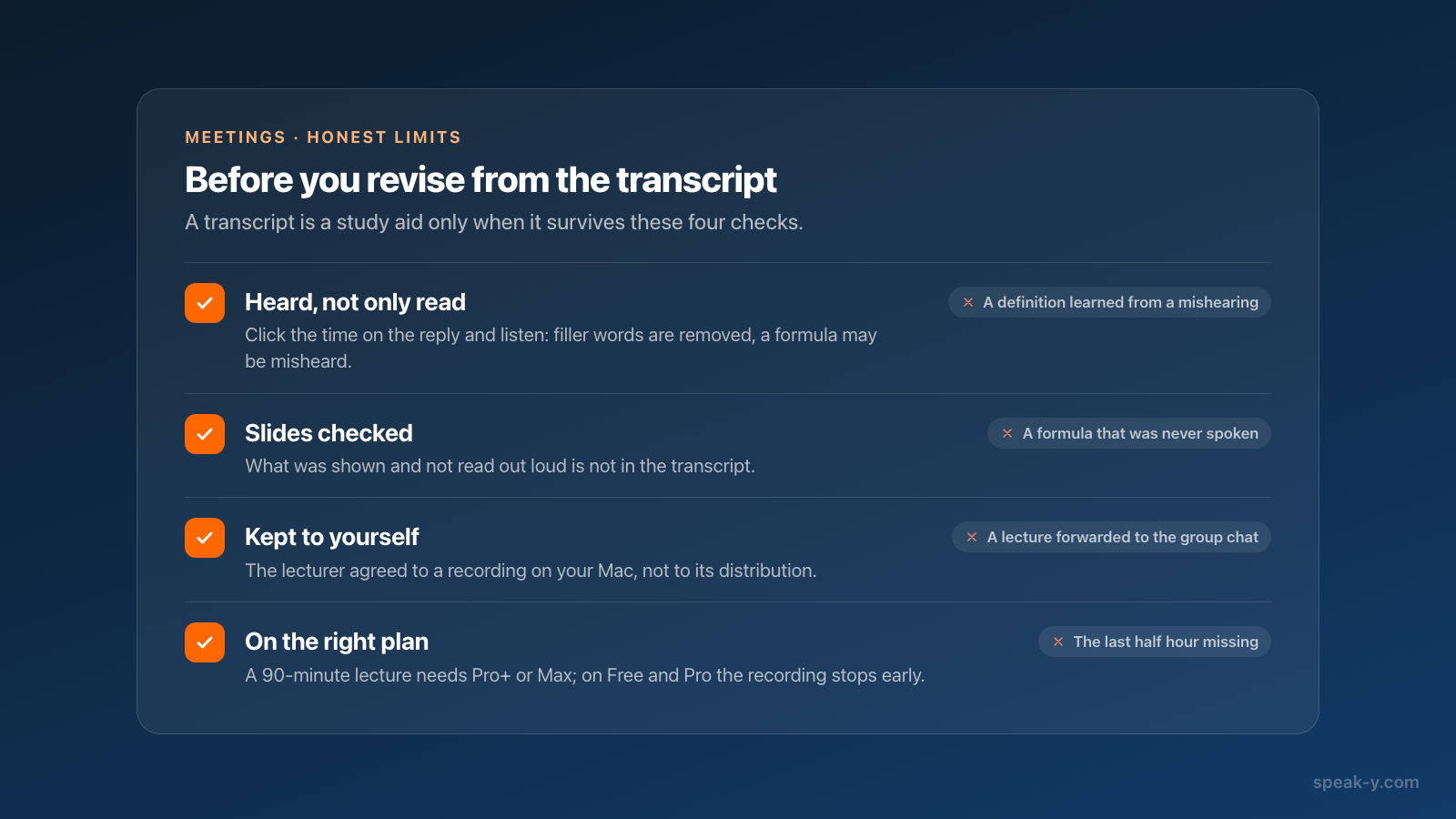
Eight 90-minute lectures a month are 12 hours. On Free the recording stops at the 30-minute mark; on Pro it stops at 60 minutes — the last half hour of every lecture is missing, and the 10 monthly hours run out after the sixth lecture. The plan for a lecture schedule is Pro+: 4 hours per meeting and 40 hours a month cover three such courses. Max adds monthly hours, not length. The MCP server used later in this guide is included on every plan.
Set the language of the lecture. Speak-Y recognises 68 languages. Pick the lecture's language under Settings → General → Dictation language, or Auto-detect if your courses mix languages. A lecture recognised in the wrong language shows Language mismatch detected with a Re-transcribe button; the last three versions are kept.
Turn on Meeting mode under Settings → Interface & Behavior: Manual asks before each recording, Auto starts when a call is detected. Optional: the default mark is Mark the moment on ⌥1; to sort marks, open Settings → Notes → Add note type and create "Exam" and "Didn't get it", each with its own colour and hotkey.
During the lecture: mark it, don't write it
When the lecture starts, Speak-Y asks Record as Meeting? above the recording button; click the check mark. From then on you listen. Speak-Y records your microphone and the audio your Mac plays as one track, so your own questions end up in the transcript next to the lecturer's answers — in Zoom, Microsoft Teams, Google Meet or a lecture platform in the browser alike.
- "This will be on the exam." Press ⌥1 right after the sentence. The button reads Last 15s marked for a moment, and that window of the transcript is highlighted later. The mark looks back, so press after, not before.
- Didn't follow the proof? Same key, or the "Didn't get it" type if you made one. A mark holds its type and time, no text — there is nothing to type. Missed one? After the lecture, right-click the reply → Add note.
- The platform recorded the lecture? If you can download the file, click Import recording… above the recordings list and choose it. An imported file is treated as a meeting: speakers are separated and a summary is written. The file stays on your Mac; only its audio track goes to the Speak-Y server for recognition.
Right after the lecture: a tag, a name and the summary
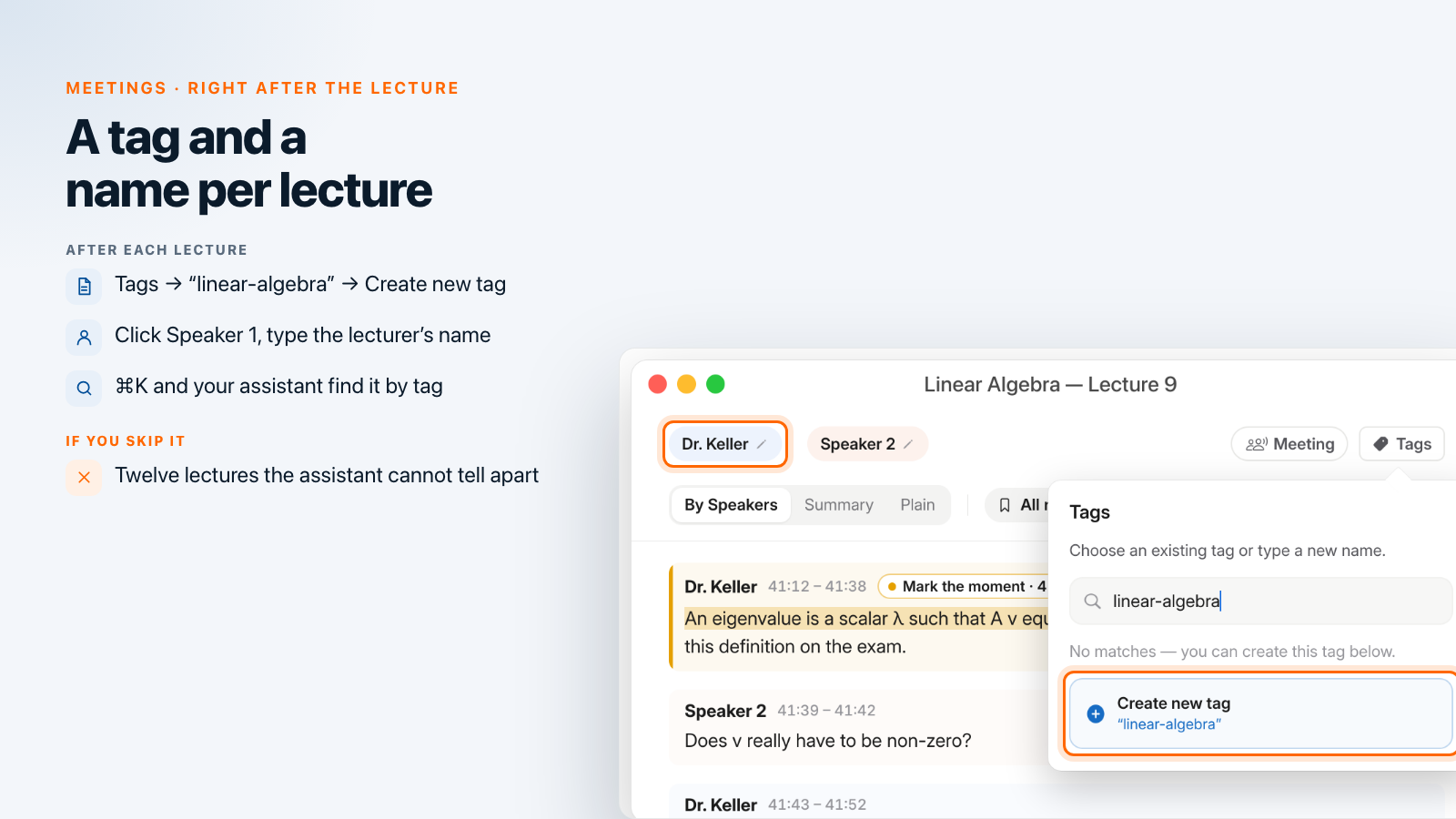
This minute is what search and your assistant will see. Open the recording from Meetings; the lecturer spoke first, so they are Speaker 1.
- Tag the course. Click Tags in the row above the transcript, type
linear-algebrainto Search or create… and click Create new tag. From the second lecture on, the tag is in the list and takes one click. - Name the lecturer. Click the Speaker 1 chip, type the name and press Enter. Every reply of that speaker now carries the name, and so does everything built from the transcript: copied quotes, the text export and what your assistant reads.
- Read the Summary tab. A lecture recording has three tabs: By Speakers, Summary and Plain. The summary is written right after the recording ends, for any recording longer than 150 words, on every plan, and does not count against your AI requests. Its first section is Action Items — for a lecture, "read chapter 4 before Thursday" with the time it was said — followed by five to seven topic sections, each point with its time. It keeps the speaker names it had at that moment: a summary written before you renamed Speaker 1 still says "Speaker 1", while the transcript is updated.
The transcript of a meeting cannot be edited by hand, and filler words and repetitions are removed from it. If you need a verbatim sentence — a definition, a formula read out loud — click the time on the reply to play it from there.
Your own notes, by voice, under the same tag
What the proof relied on, what to ask next week — say it right after the
lecture. Press ⌥ Space once, talk, press it again; the note is saved under
Notes. Give it the same linear-algebra tag and it shows up next to the
lectures in every search below. A rambling note becomes an outline with
AI Process — voice notes to a structured draft
shows how.
Before the exam: find every mention with ⌘K
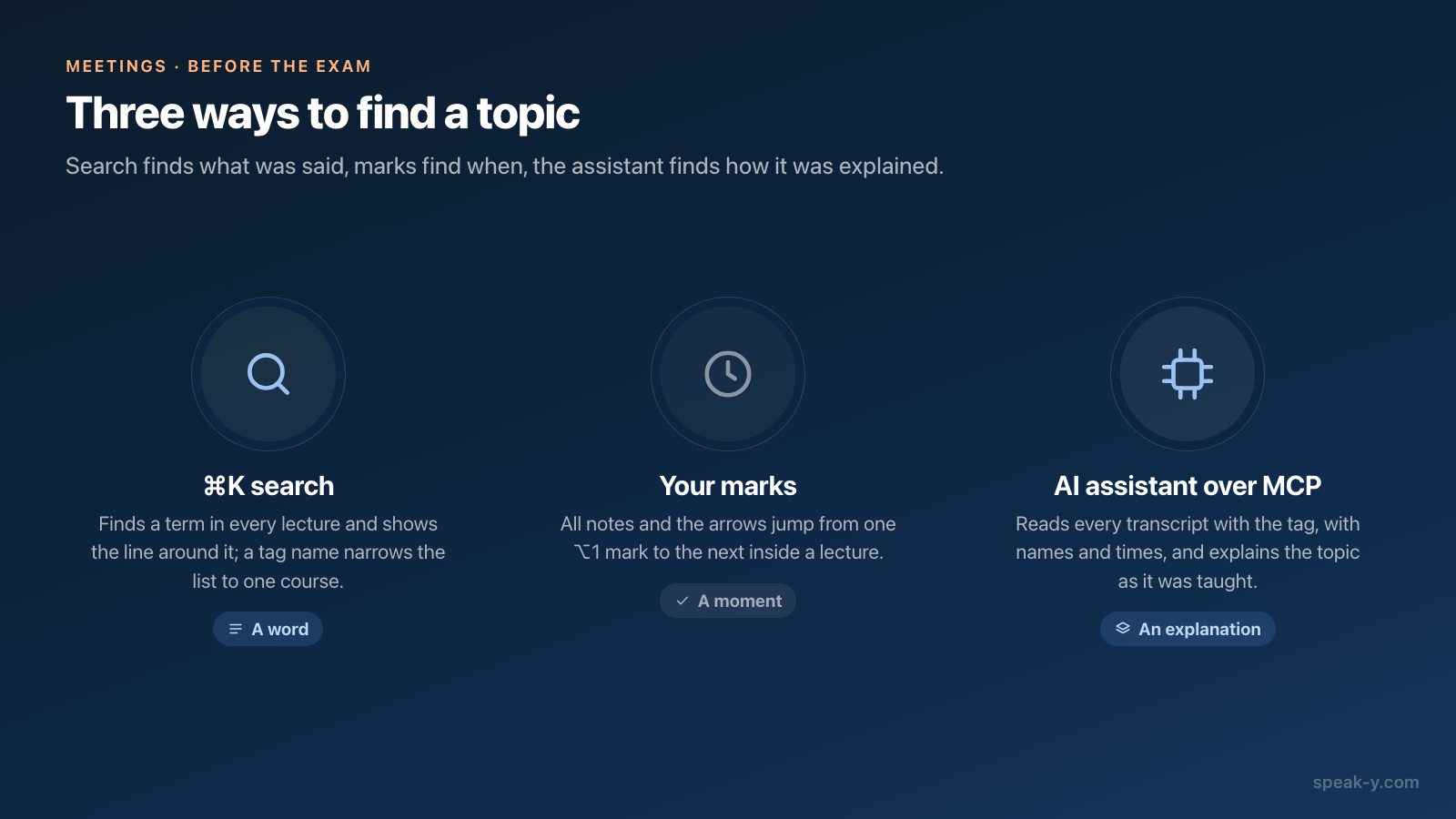
With twelve lectures tagged, press ⌘K anywhere in the Speak-Y window. Search everything… matches the text of every recording and the names of your tags. Type "eigenvalue", and each lecture that contains it appears with its date and the line around the first match. Type the tag name instead and pick it under Tags: the list keeps only that course — lectures and your voice notes together, day by day.
Picking a result opens the recording; it does not jump to the matching line. Inside the recording your marks do that: the strip above the transcript starts with All notes and its count, with a chip per type and arrows from one mark to the next — every "Exam" moment of a lecture in a minute.
To see who said it before opening anything, use the magnifier above the recordings list: Search transcriptions… also matches titles and summaries, has a Tag filter, and shows the matching replies of each lecture with the speaker's name and time.
Before the exam: ask your assistant across all lectures
Search finds words. The question before an exam is different: explain this the way it was taught. That is a job for an AI assistant with all twelve transcripts. Connect Claude, ChatGPT, Cursor or another MCP client once in Settings → Integrations — connecting meeting notes to AI assistants walks through it — and ask:
- "Explain eigenvalues the way the lecturer did in my recordings tagged linear-algebra, with the lecture and the time of each reference."
- "Make a list of self-check questions from every recording tagged linear-algebra, one per topic, with the lecture that covers it."
- "List every moment I marked in those recordings, with the sentence around it."
The assistant does not guess from titles. It lists the recordings with the tag, then reads each transcript by speaker: every block starts with the speaker's name and the time the reply begins, and a separate list shows your marks with their times. Without the tag, it cannot tell linear algebra from statistics.
Reading happens locally, straight from the Speak-Y library on your Mac, even when the app is closed. The assistant's model runs in the cloud, so the transcripts it reads go to it. And the assistant decides what to quote: check a definition against the lecture before it goes into your notes. Prompts to ask AI about your meetings has more requests of this kind.
What this routine does not do
- Not on Linux, where Speak-Y has no meeting recording; on Windows the app records meetings with speaker names and tags, but without marks.
- No document export: ⋯ → Download gives TXT (with timestamps), SRT or VTT, one line per reply with the name; marks are not exported.
- No slides: a formula shown and not read out loud is not in the transcript.
- No sharing: the lecturer agreed to your recording, not to its distribution.
Where the forty hours go
Marking costs nothing during the lecture and tagging a minute after it. Before the exam, the semester is a search, two or three questions to your assistant and a few minutes of listening to the moments you marked. Why a quiet room and a clear microphone make that search better — how speech-to-text works.
FAQ
How do I record an online lecture on a Mac without a bot joining the call?
Turn on Meeting mode in Speak-Y (Settings → Interface & Behavior). When the lecture starts in Zoom, Microsoft Teams or a browser, the app asks Record as Meeting? above the recording button; click the check mark. It records your microphone and the audio your Mac plays, so nothing joins the call and nobody sees a bot. Ask the lecturer or check your university's policy before you record.
Which Speak-Y plan do I need for a semester of 90-minute lectures?
As of 1 October 2026, Free records meetings up to 30 minutes each and 2 hours a month, Pro up to 60 minutes each and 10 hours a month, Pro+ up to 4 hours each and 40 hours a month, and Max up to 4 hours each and 100 hours a month. The recording stops at the per-meeting limit, so a 90-minute lecture needs Pro+ or Max. Eight 90-minute lectures a month are 12 hours — within Pro+.
Can I search all my lectures for a term before the exam?
Yes. In the Speak-Y window press ⌘K and type the term: Search everything… matches the text of every recording and the names of your tags, and shows each lecture that contains it with its date and the line around the match. The magnifier above the recordings list also matches titles and summaries, filters by tag, and shows the matching replies with the speaker's name and time.
Can an AI assistant explain a topic the way my lecturer did?
Yes, if Claude, ChatGPT, Cursor or another MCP client is connected to Speak-Y (Settings → Integrations). The assistant can list only the recordings with your course tag and read each transcript with the lecturer's name, the time of every reply and your marks, then explain the topic from those lectures with references to lecture and time. The MCP server is included on every plan; the assistant's model runs in the cloud, so the transcripts it reads go to it.
Does Speak-Y transcribe lectures in languages other than English?
Speak-Y recognises 68 languages; pick the lecture's language under Settings → General → Dictation language, or choose Auto-detect. If a lecture was recognised in the wrong language, the recording shows Language mismatch detected with a Re-transcribe button, and the new version replaces the old one while the last three versions are kept.