MCP Server Not Working? Diagnose by Symptom, Not by Client
The single most common cause of "my assistant does not see my data" is not a
broken server. It is a client that was never restarted after the configuration
changed. Most MCP clients read their config at startup and never again, so a
file you edited while the app was open is a file the app has not read. Quit it
completely — on macOS closing the window leaves the process running — and reopen
it. In Claude Code, run /mcp instead of restarting the terminal.
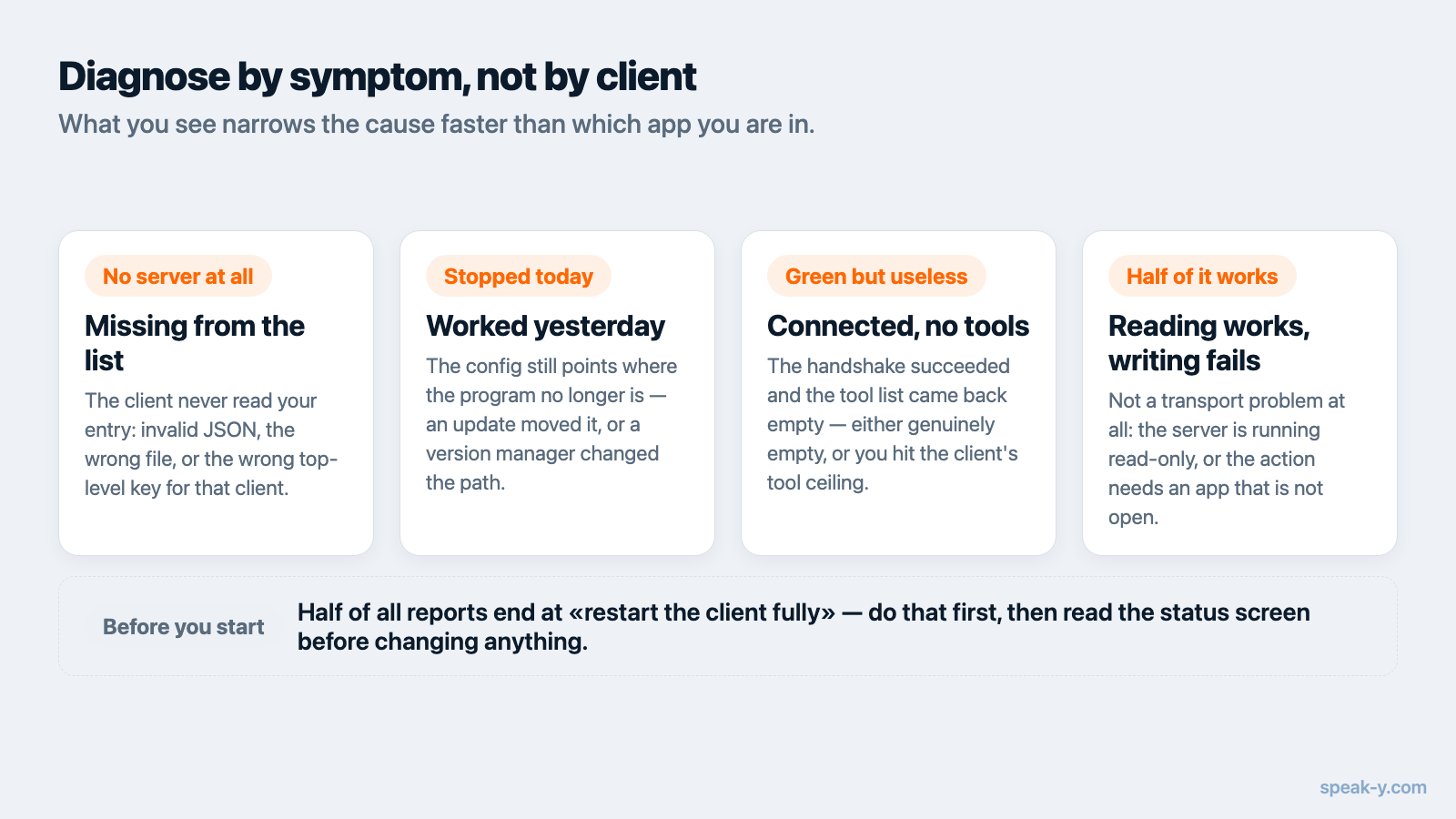
If that does not fix it, the useful next question is not "which client am I using" but "what exactly is happening". A missing server, a server that connects but exposes no tools, tools that return nothing, and tools that fail only when they try to change something are four different faults with four different fixes — and the fix barely depends on which app you run. Every detail here was checked against vendor documentation on 14 August 2026.
First, find the status screen
Before changing anything, look at what the client already knows. Every client has exactly one place that answers "did this server connect", and guessing from the chat window instead is how people spend an hour on a problem that screen names in a second.
| Client | Where to look | What a healthy server looks like |
|---|---|---|
| Claude Code | claude mcp list or the /mcp panel |
✔ Connected |
| Claude Desktop | plus icon in the chat input → Connectors | server listed with its tools |
| Cursor | Output panel (Cmd+Shift+U) → MCP Logs |
initialization, no connection errors |
| VS Code | MCP: List Servers in the Command Palette | server starts, Show Output log is clean |
| Zed | Settings → AI → MCP Servers | green dot, tooltip Server is active |
Claude Code is the most informative of these. claude mcp list prints a health
status next to every server — ✔ Connected, ! Needs authentication,
✘ Failed to connect, ⏸ Pending approval — and appends the failure detail to
that line; claude mcp get <name> shows the same on an Issue: row, including
the error text the server itself returned.
The server is missing from the list entirely
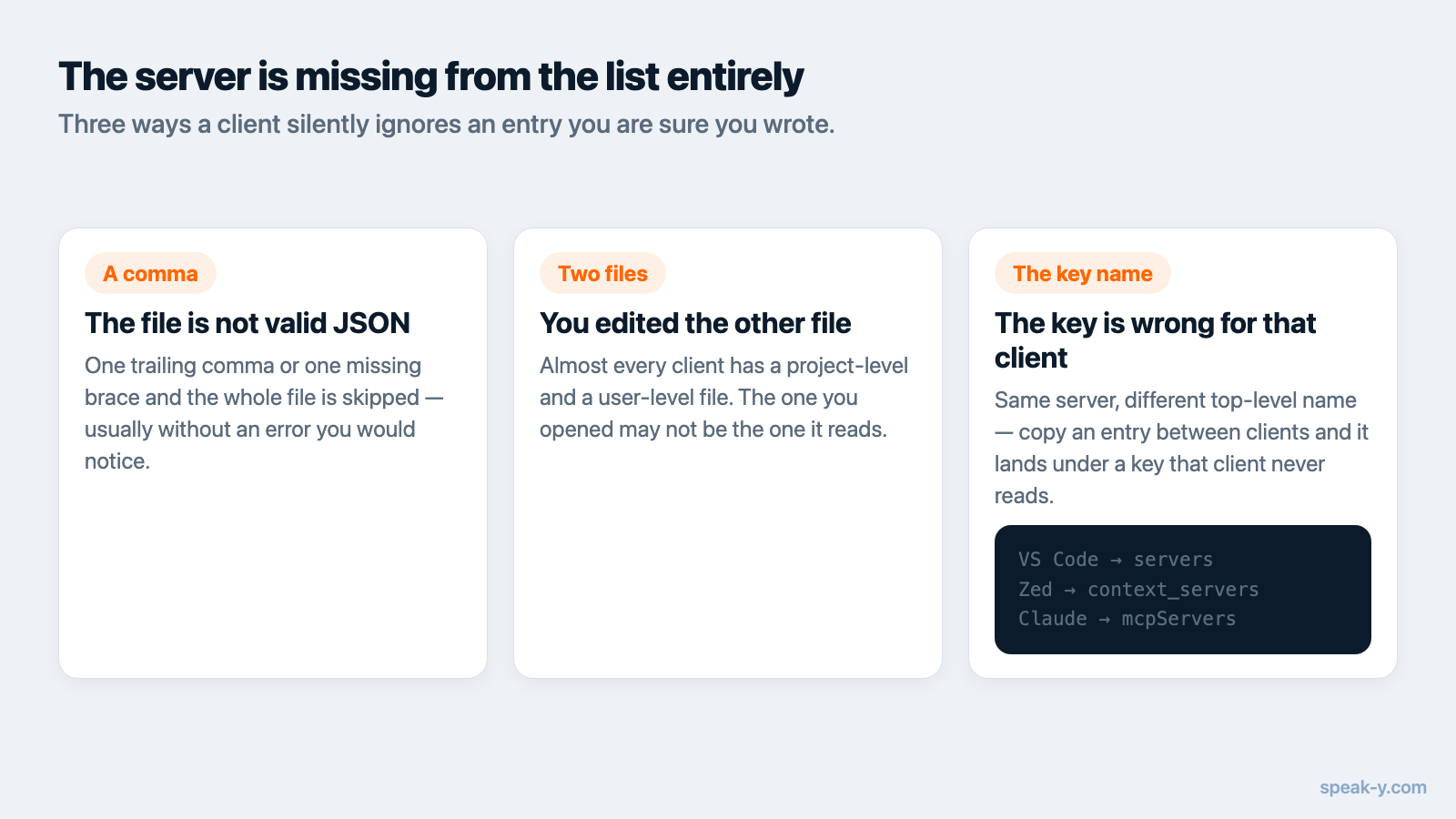
If the status screen does not show your server at all, the client is not reading the entry you wrote. Three causes account for nearly all of it.
The file parses as invalid JSON. One trailing comma or one missing brace and the client ignores the entire file — not just the broken entry — usually without saying so. Paste the file into any JSON validator before suspecting anything else.
You edited a different file than the one the client reads. Almost every
client has both a personal and a project-scoped config, and editing the wrong one
produces exactly this symptom. Cursor reads ~/.cursor/mcp.json globally and
.cursor/mcp.json inside a project; VS Code reads .vscode/mcp.json in a
workspace and a user-profile mcp.json opened with MCP: Open User
Configuration. Claude Code has three scopes — local and user in ~/.claude.json,
project in a .mcp.json at the repository root — and when a name is defined in
more than one, local wins over project, which wins over user. The whole entry
comes from the winning scope; fields are not merged.
The key name is wrong for that client. VS Code's top-level key is servers,
Zed's is context_servers, and everyone else uses mcpServers. A pasted
mcpServers block in VS Code is not an error the editor reports — it is simply a
key it does not read. This is covered client by client in
where the MCP config lives.
One case looks like a missing server but is not: in Claude Code a project-scoped
server sits at ⏸ Pending approval until you run claude interactively in that
folder and approve it, and approvals committed to the repository are ignored
until you trust the workspace.
It worked yesterday and stopped today
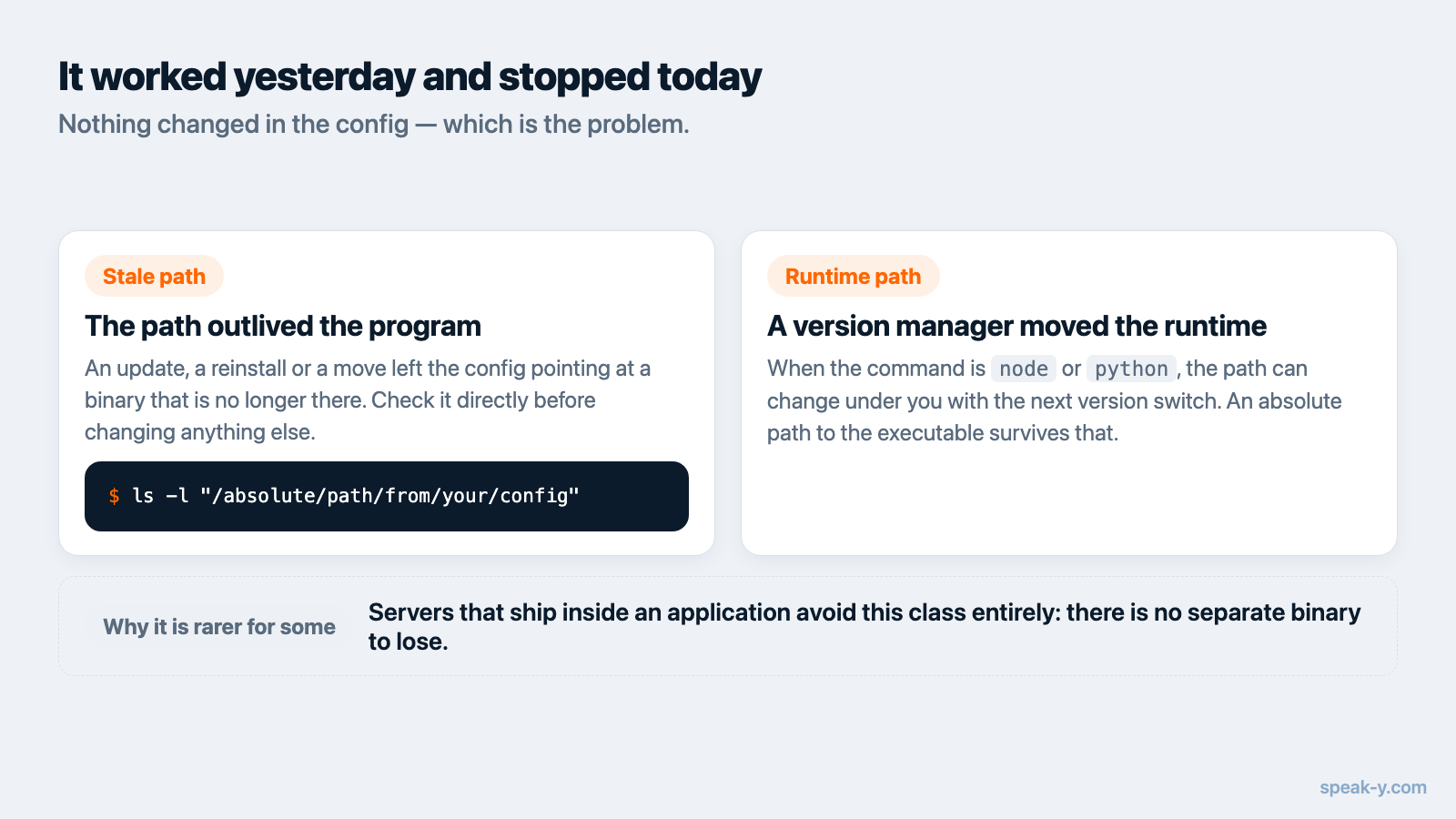
When nothing changed in the config and the server stopped connecting, the config
usually still holds an absolute path to a program that is no longer there.
Updating an app into a different folder, renaming it, or moving it out of
Applications all break the path while the JSON still looks correct, and nothing
in the client's error points at the move. Check the command value against
reality before anything else:
ls -l "/absolute/path/from/your/config"
The same class of failure hits servers launched through a version manager. If
command is node, npx, python or uv and your runtime comes from nvm,
pyenv or asdf, the path exists in your terminal and does not exist for the
client, because the client does not start a login shell. Replace the bare name
with the absolute path — which node gives it to you — or point command at the
binary directly.
The server connects but exposes no tools
A green status with an empty tool list means the handshake succeeded and
tools/list returned nothing useful. Two things produce this.
The first is a server genuinely reporting an empty tool set, which you can confirm outside the client with the MCP Inspector — the reference testing UI that connects to a stdio or Streamable HTTP server directly and lists what it publishes. If the Inspector sees tools and your client does not, the fault is in the client's configuration.
The second is a tool ceiling. VS Code caps a single chat request at 128 enabled tools and refuses the request when the total goes over, which a crowded machine reaches faster than you would expect; the Configure Tools button in the Chat view is where you switch servers off to get back under it. Cursor lets you disable individual servers from the Customize panel in the sidebar, and a disabled server does not load and does not appear in chat — worth checking first, because a toggle someone flipped last month looks identical to a server that failed.
Every answer is "nothing found"
Tools are listed, the assistant calls them, and the results are empty. The transport is fine here; the question is about data, not configuration. Check that the library the server reads is the one you have in mind — right account, right device, and content that has actually synced to this machine rather than living only on another one. Then check the tool's arguments in the client's log: an assistant that guessed a date range or a filter can produce an empty result from a perfectly healthy library.
Reading works, changing anything fails
If searches succeed but every attempt to rename, tag or update something fails, this is not a transport problem. Servers commonly split into tools that read and tools that change data, and the changing half often carries an extra requirement: a running application, an authenticated session, a permission the client has not been granted. Two client-side causes are worth ruling out first. Tools that change data are declared as such, so the client asks before running them — and a prompt you dismissed reads as a failure in the transcript. And a server started with a read-only flag does not publish those tools at all, which is a configuration choice rather than a fault.
"Is not valid JSON" and connections that close immediately
This one is a server bug rather than yours, worth recognising because the error
message is confusing. Over stdio the protocol requires that standard output carry
nothing but JSON-RPC messages, so a server that prints a version banner, a
"starting up" line or a coloured log to stdout corrupts the stream, and the
client fails with a parse error quoting the first characters of whatever was
printed — Unexpected token 'S', "Starting s"... is not valid JSON. The fix
belongs to the server author: log lines go to stderr, which the host captures
anyway.
Environment is the other startup trap. A stdio server inherits only a limited,
platform-dependent subset of environment variables — not your shell profile — and
its working directory may be undefined, effectively / on macOS. Pass what the
server needs through the env key in its config entry, and keep every path
absolute.
The order to check things in
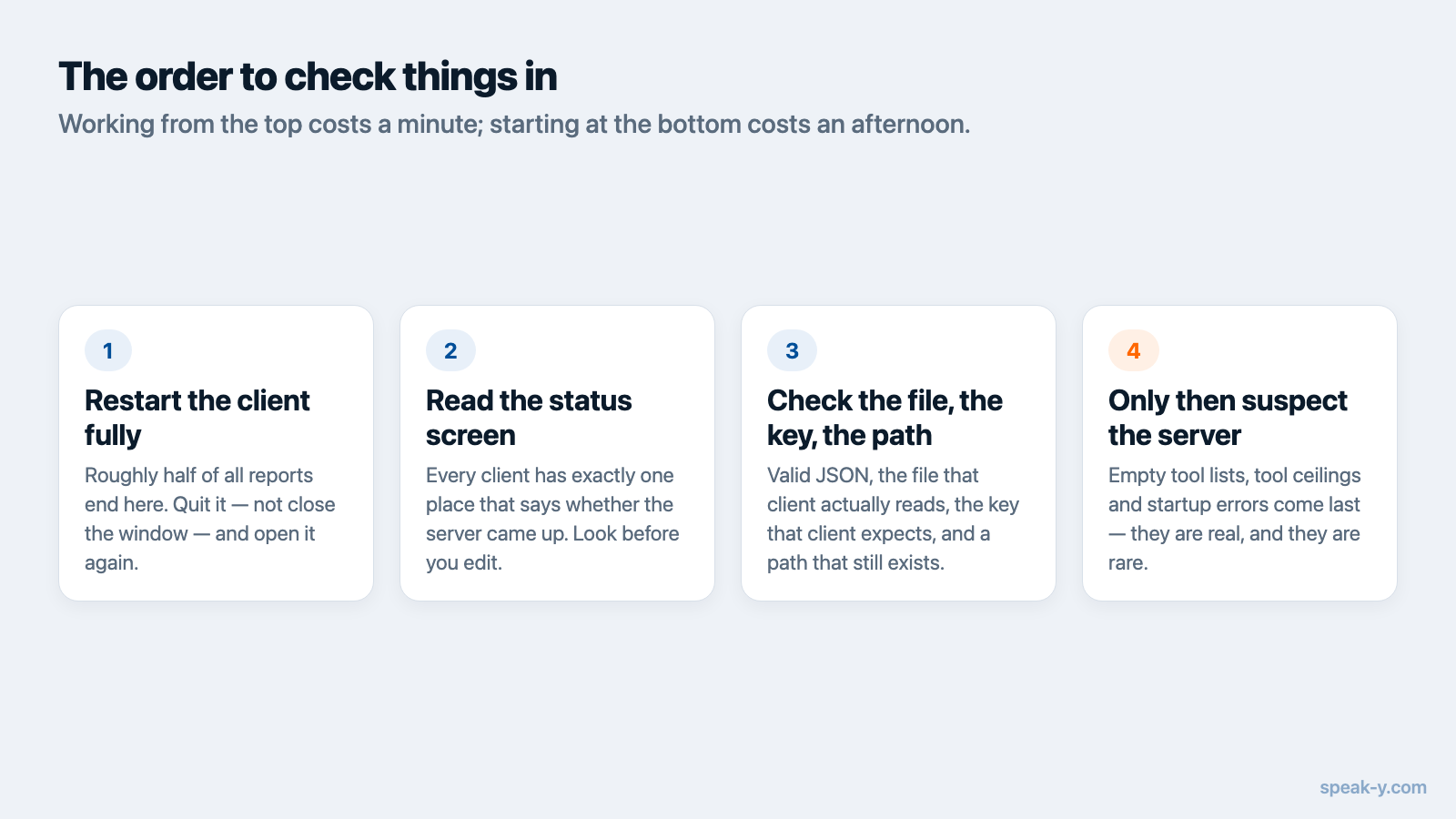
- Restart the client fully. Roughly half of all reports end here.
- Open the status screen for your client and read what it says.
- Validate the JSON, and confirm you edited the file that client reads.
- Verify the
commandpath exists, as an absolute path. - Check the server is not toggled off, and that the tool ceiling is not full.
- Check the data — right account, right device, synced.
- Only then read the logs.
Working from the top costs a minute. Starting at step seven is how a five-second problem becomes an afternoon.
How this looks in Speak-Y
Speak-Y ships its MCP server inside the macOS app, so several of the failures
above cannot happen to it: there is no npm package to install, no runtime to
resolve through nvm, and no token to expire. The one that can happen is the stale
path, and the app repairs it on its own. At launch it checks the Claude Code,
Claude Desktop and Cursor configs and rewrites the command value where it
points at an old location of the app — only for entries that are genuinely its
own, matched by the app's binary and the --mcp argument, so a different server
that happens to share a name is left alone. If it needs doing by hand,
Settings → Integrations shows Reinstall next to each detected client;
after that, restart the client, or run /mcp in Claude Code.
The split between reading and changing is the other symptom worth recognising.
Searching recordings and reading transcripts, summaries and action items works
straight off the library on this machine and needs nothing else running. The
tools that organise things — tags, titles, speaker names, re-transcription,
publishing into a team channel — go through the running app, so with
Speak-Y quit they fail while search keeps working. That asymmetry is a diagnostic
in itself: if reading works and changing does not, start the app rather than
editing any config. Adding --read-only to the server's arguments removes the
changing tools from the client's view entirely — intended behaviour, not a
malfunction. Empty results from a healthy server usually mean the recording is
still on another device: the server reads this disk and does not fetch the rest.
If you are setting up rather than repairing, the per-client walkthroughs are more useful than this page: Claude Desktop and Claude Code step by step, and VS Code, Zed and Devin Desktop for the editors whose config shape differs from everyone else's.
FAQ
Why does my AI assistant not see the MCP server I just added?
Most clients read MCP configuration only at startup, so a config written while the client was running has not been loaded yet. Fully quit and reopen the app — on macOS closing the window is not enough — and in Claude Code run /mcp instead of restarting the terminal.
How do I check whether an MCP server actually connected?
Every client has one place that answers this. Claude Code: claude mcp list, which prints ✔ Connected, ! Needs authentication or ✘ Failed to connect next to each server. Claude Desktop: the plus icon in the chat input, then Connectors. VS Code: MCP: List Servers from the Command Palette. Cursor: the Output panel with MCP Logs selected. Zed: Settings → AI → MCP Servers, where a green dot reads Server is active.
Where are the MCP logs in Claude Desktop?
In ~/Library/Logs/Claude on macOS and %APPDATA%\Claude\logs on Windows. Follow them live with tail -n 20 -F ~/Library/Logs/Claude/mcp*.log. The mcp.log file holds general connection events, and mcp-server-NAME.log holds what that specific server wrote to stderr.
The server works when I run it in the terminal but fails in the client. Why?
The client launches the process itself, not through your login shell. It does not inherit your full PATH, only a limited platform-dependent subset of environment variables, and its working directory may be undefined. Use an absolute path for command, absolute paths in arguments, and pass any required variables explicitly through the env key.
My assistant stopped seeing my recordings after an app update. What broke?
Almost always the absolute path in the MCP config, which points at where the app used to be. Reinstalling to a different folder, renaming the app or moving it out of Applications all break it while the config still looks correct. Re-run the client's one-click install so the path is rewritten.