MCP Setup in VS Code, Zed and Windsurf: Where the Config Lives
Three editors, three different answers to the same question. VS Code stores MCP
servers under a top-level key called servers, Zed calls the same thing
context_servers, and Windsurf — which has been named Devin Desktop since 2 June
2026 — uses mcpServers, the key most other clients use. Get the key wrong and
the client starts silently with no tools and no error.
The server itself does not change. A local MCP server is a program started over
stdio with a command and some arguments, and every one of these editors runs the
same binary the same way. What you are actually doing in each editor is
registering two values — command and args — inside that editor's own config
shape. This guide gives the exact file, the exact key and the exact verification
step for each, all checked against vendor documentation on 14 August 2026.
If the protocol itself is new to you, what an MCP server is covers the vocabulary first. If you use Claude or Cursor, those have their own walkthroughs and are usually a one-click install; this article is about the three that are not.
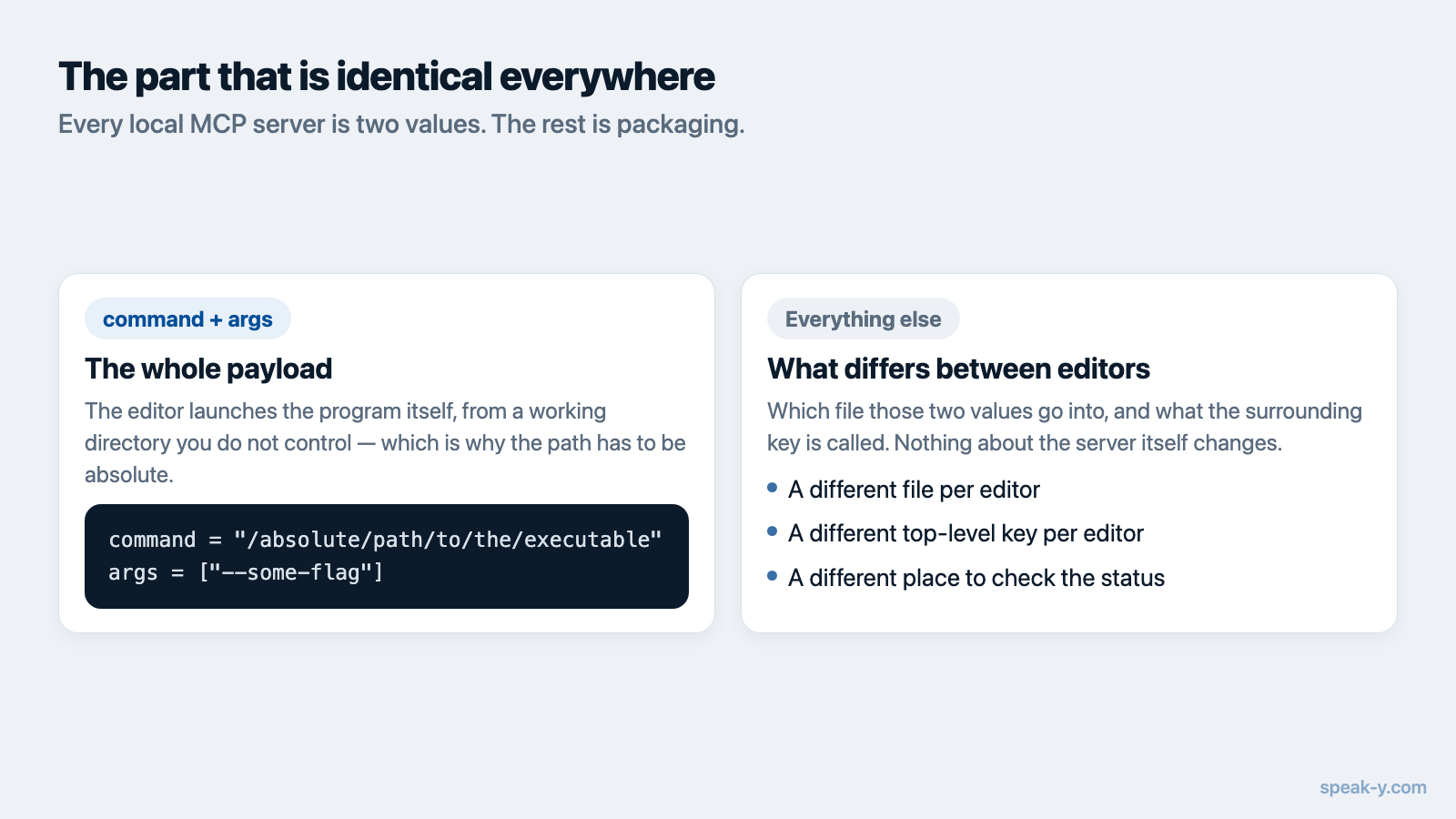
The part that is identical everywhere
Every local MCP server is described by the same two values:
command = "/absolute/path/to/the/executable"
args    = ["--some-flag"]
That is the whole payload. An absolute path matters more than it looks: the
editor launches the process itself, often without your login shell, so anything
that relies on PATH or a shell alias will work in your terminal and fail in the
client. Copy the full path.
Everything else in this guide is packaging — which file the two values go into, and what the surrounding key is called.
VS Code: the key is servers, not mcpServers
VS Code reads MCP configuration from a file named mcp.json in one of two
places:
- Workspace:
.vscode/mcp.json— travels with the repository, so it is the right place for servers your whole team should have. - User profile: an
mcp.jsonopened with the MCP: Open User Configuration command from the Command Palette — the right place for personal data sources.
The file's top level holds servers, plus optional inputs and sandbox
sections. A local server looks like this:
{
  "servers": {
    "my-server": {
      "type": "stdio",
      "command": "/absolute/path/to/the/executable",
      "args": ["--mcp"]
    }
  }
}
Two things surprise people migrating from another client. First, the key really
is servers — a pasted mcpServers block is not an error VS Code reports, it is
simply a key it does not read. Second, VS Code caps a single chat request at 128
enabled tools, so a machine with many servers registered may need some of them
toggled off before yours is reachable; the Configure Tools button in the Chat
view is where that happens.
There is also a portable form: for configuration shared with the Agent Host and
other Copilot tooling, VS Code documents a workspace .mcp.json or a user
~/.copilot/mcp-config.json, which the Agent Host reads natively.
To verify: run MCP: List Servers from the Command Palette, select your server, and use Show Output to read its log. A server that failed to start says so there, usually with the path it could not execute.
Zed: a different name for the same idea
Zed calls MCP servers context servers, and the settings key follows:
context_servers. Open the settings file with the zed: open settings file
action rather than hunting for the path, then add:
{
  "context_servers": {
    "my-server": {
      "command": "/absolute/path/to/the/executable",
      "args": ["--mcp"],
      "env": {}
    }
  }
}
Remote servers use url and optional headers in the same block, which makes
context_servers the single place both transports live. Zed also has a UI route:
Settings → AI → MCP Servers, then Add Server → Add Local Server, which
writes the same entry for you. Many popular servers are additionally packaged as
Zed extensions, installable from that screen — but a server that ships inside a
desktop app will not be in that list, and the manual entry above is the path.
To verify: open Settings → AI → MCP Servers and look at the indicator next to your server. A green dot with the tooltip Server is active means the handshake succeeded.
Windsurf is now Devin Desktop, and that changes where the file is
This is the part most guides on the web have not caught up with. Cognition
renamed Windsurf to Devin Desktop on 2 June 2026, shipped as an ordinary
over-the-air update — no reinstall, no migration wizard, and plans, extensions
and keybindings carried over unchanged. The old marketing domains now redirect to
devin.ai, and the documentation lives at docs.devin.ai.
For MCP, the practical consequence is that there are now two possible destinations, and which one is correct depends on the agent you are talking to:
| Agent | MCP config file | Top-level key |
|---|---|---|
| Cascade (legacy) | ~/.codeium/windsurf/mcp_config.json |
mcpServers |
| Devin Local (current) | ~/.config/devin/mcp_config.json |
mcpServers |
Cascade's documentation still describes the ~/.codeium/windsurf/ path — it
remained available through 1 July 2026 to let people migrate incrementally. Its
successor, Devin Local, is a Rust rewrite that Cognition describes as up to
30% more token efficient with support for subagents, and it is the default agent
for new tabs. Devin Local does not read the Cascade file; it uses the Devin CLI
configuration, where project-scoped servers go in .devin/mcp_config.json and
personal ones with API keys in the gitignored .devin/mcp_config.local.json.
If you added a server months ago and your agent stopped seeing it, this is the most likely reason: the file is fine, the agent reading it changed.
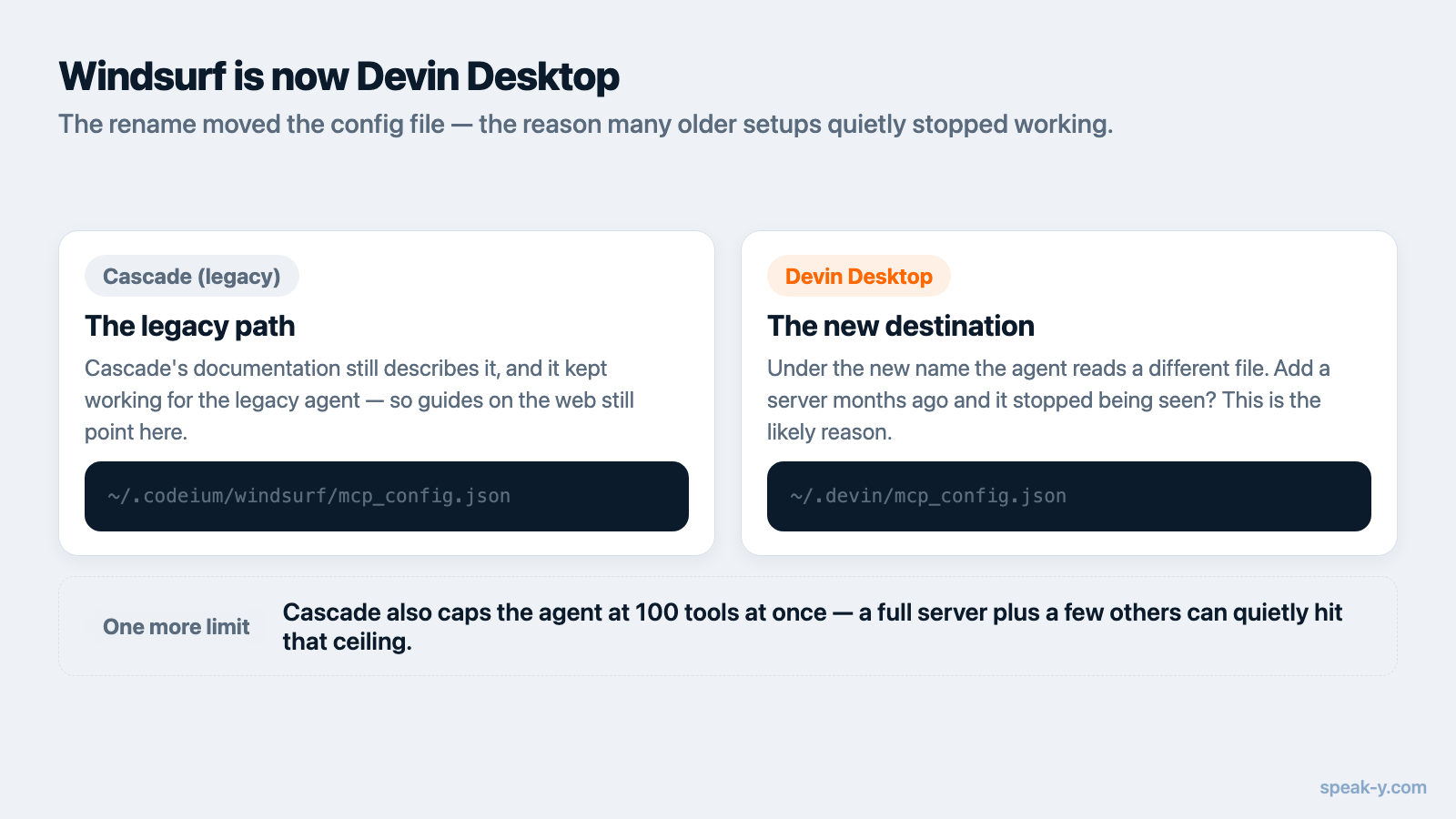
One more limit worth knowing: Cascade caps the agent at 100 total tools at any one time. As with VS Code, a crowded configuration can push your server's tools out of reach without anything looking broken.
To verify: click the MCPs icon in the top right of the Cascade panel to open the MCP settings page, where each server's tools are listed and can be toggled individually. A server with no tools listed did not start.
Side by side
| VS Code | Zed | Devin Desktop (Windsurf) | |
|---|---|---|---|
| File | .vscode/mcp.json or user mcp.json |
settings file (zed: open settings file) |
~/.codeium/windsurf/mcp_config.json (Cascade) or ~/.config/devin/mcp_config.json (Devin Local) |
| Key | servers |
context_servers |
mcpServers |
type: stdio needed |
Yes | No | No |
| UI route | MCP: Add Server | Settings → AI → MCP Servers | MCPs icon in Cascade panel |
| Tool ceiling | 128 per request | Not documented | 100 total (Cascade) |
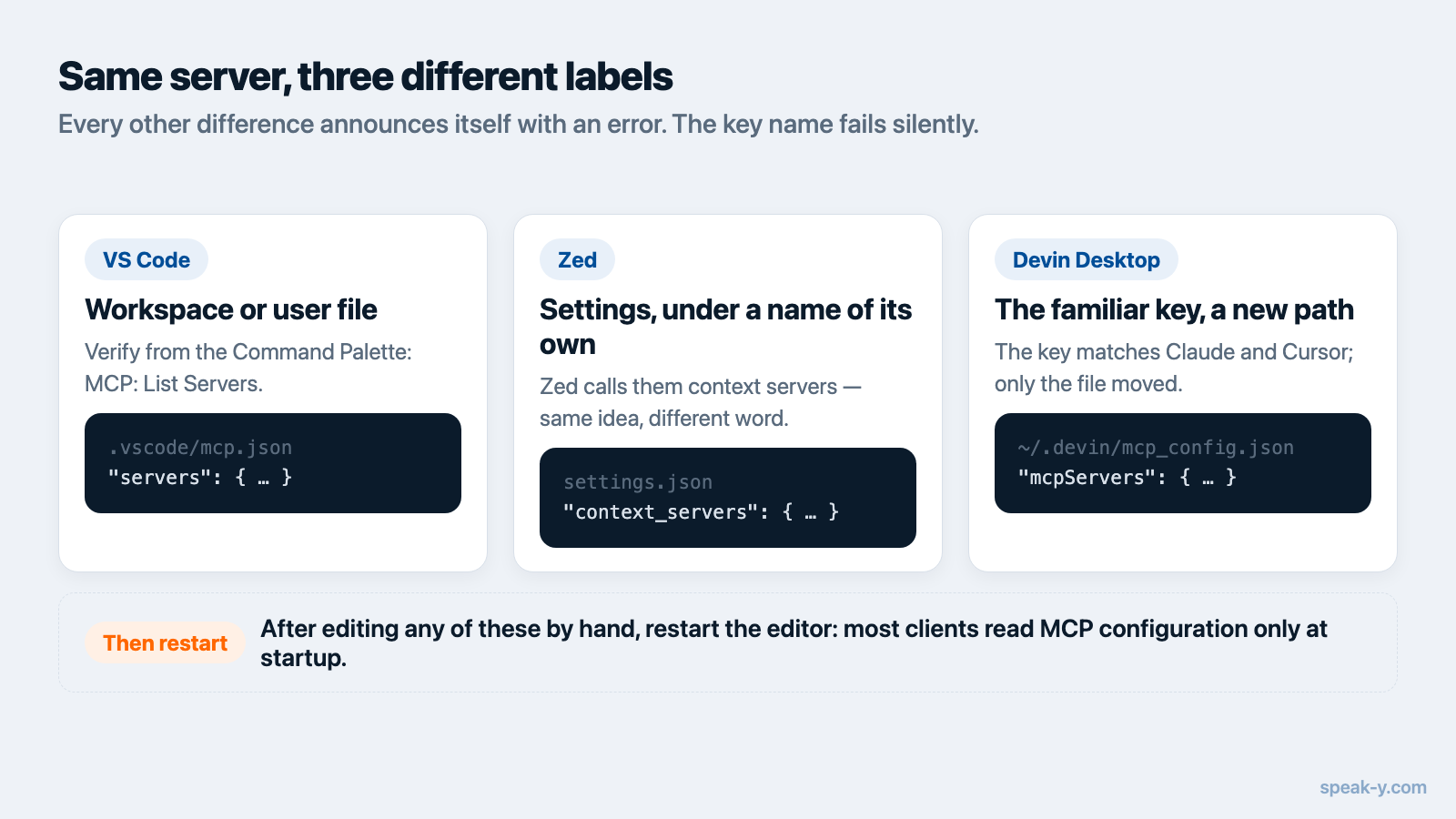
The one row to read twice is the key row. Every other difference announces itself with an error message; a wrong key does not.
What is different from Claude and Cursor
Claude Desktop, Claude Code and Cursor all use mcpServers and all keep the file
in a predictable place — claude_desktop_config.json in the app's support
folder, ~/.claude.json, and ~/.cursor/mcp.json respectively. That consistency
is why so many apps ship a one-click installer for those three and stop there.
The three editors in this guide each deviate on one axis: VS Code on the key name, Zed on both the key name and the vocabulary, Devin Desktop on the file location following the rebrand. None of it is hard, but none of it is guessable either — which is why copying JSON straight from a vendor's README so often produces a client that starts with no tools.
After editing any of these files by hand, restart the editor. Most clients read MCP configuration at startup, and a config that looks correct but was never re-read is the single most common cause of "the assistant does not see my data".
How this looks in Speak-Y
Speak-Y ships its MCP server inside the macOS app, so there is nothing to install from npm and no token to issue. From Settings → Integrations, Install next to a detected client writes the configuration for Claude Code, Claude Desktop and Cursor in each one's own format. VS Code, Zed and Devin Desktop are not on that list — for those you copy the same two values into the shapes above:
command = "/Applications/Speak-Y.app/Contents/MacOS/Speak-Y"
args    = ["--mcp"]
Adding --read-only as a second argument starts the server without any of the
tools that change data — useful when you want an editor's agent to search
transcripts but never touch tags, speaker names or
team channels. One-click installs deliberately do not add that flag:
read-only is a decision, so you make it explicitly.
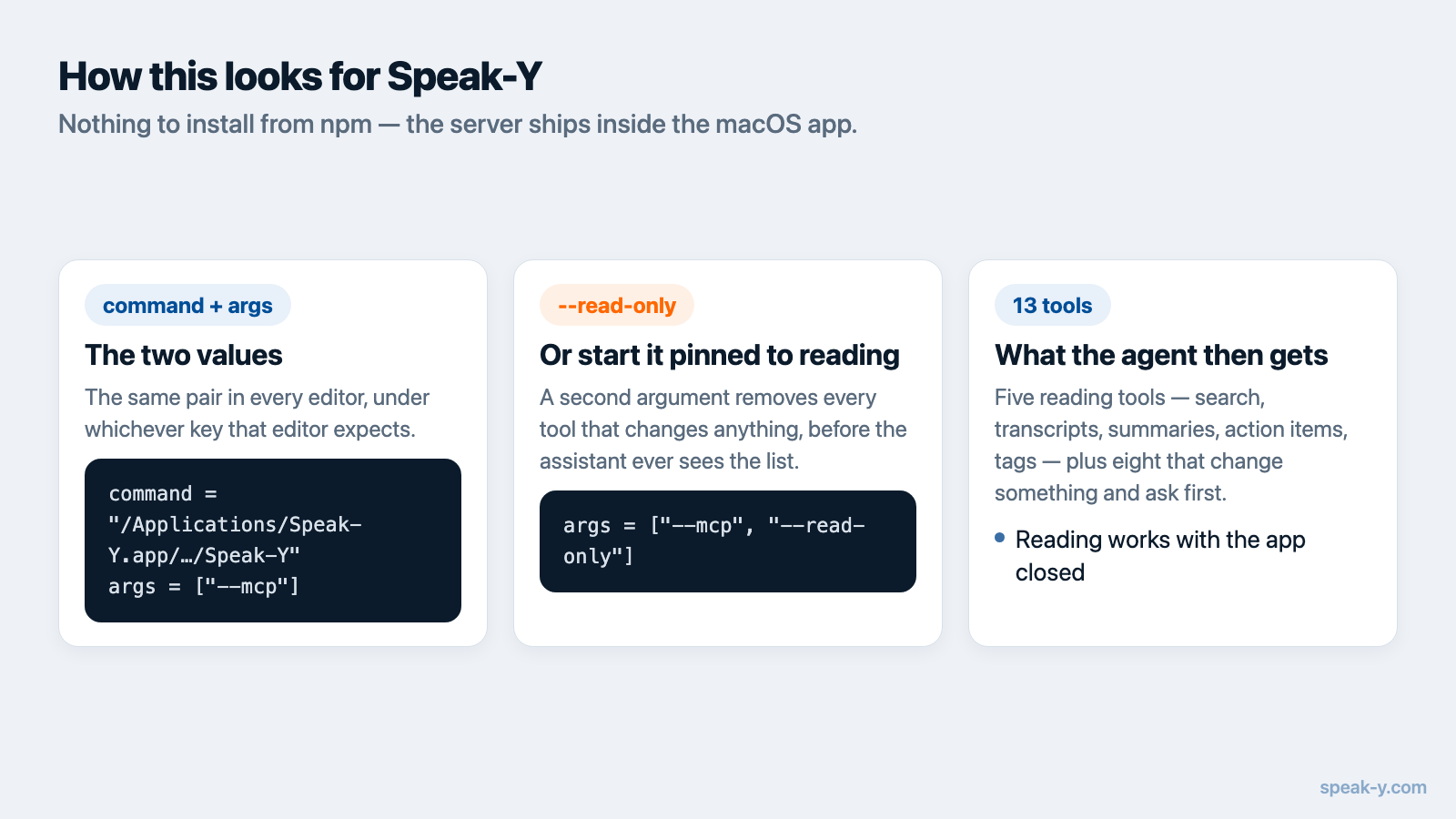
What the assistant then gets is thirteen tools: five that read — search across recordings, transcripts, summaries, action items, tags — and eight that change something, which are declared to the client as data-changing so it asks before calling them. Reading happens locally against the library on your machine; the changing commands go through the running app and are logged where you can read them afterwards. The server is free on every plan.
The reason this matters more in an editor than in a chat app is context. A coding agent that can read what was actually decided in Tuesday's call does not need you to retype the decision into a prompt — the same argument covered in Cursor and meeting context, which applies unchanged to VS Code and Zed once the config above is in place.
If your server is registered and the assistant still reports nothing, the cause is almost always one of four things: the editor was not restarted, the path is stale after an app update, the tool ceiling is full, or the key name is wrong for that client. Check them in that order before rewriting anything.
FAQ
Where is the MCP config file in VS Code?
VS Code keeps MCP servers in a file called mcp.json — either .vscode/mcp.json inside a workspace, or an mcp.json in your user profile, which you open with the MCP: Open User Configuration command. Unlike most clients, its top-level key is servers, not mcpServers.
What is the JSON key for MCP servers in Zed?
Zed uses context_servers in its settings file, not mcpServers. A local server entry takes command, args and env; a remote one takes url and headers. Open the file with the zed: open settings file action, or add the server through Settings → AI → MCP Servers.
Is Windsurf still called Windsurf?
No. Cognition renamed Windsurf to Devin Desktop on 2 June 2026, delivered as an over-the-air update that kept plans, extensions and settings intact. Cascade, the agent that read ~/.codeium/windsurf/mcp_config.json, remained available through 1 July 2026; its successor Devin Local reads the Devin CLI config files instead.
Do I need a different MCP server for each editor?
No. The same stdio server binary works in every client — what differs is the file you register it in and the name of the top-level key. You write the command and args once and paste the same two values into each editor's own config shape.
How do I check that an MCP server actually connected?
Each client has its own indicator: in VS Code run MCP: List Servers from the Command Palette and use Show Output for logs, in Zed open Settings → AI → MCP Servers and look for a green dot reading Server is active, and in Devin Desktop open the MCPs icon in the Cascade panel to see the server's tools listed.