Open-Source Community Calls: Record, Share and Find Decisions
An open-source community call is a meeting with an audience that mostly isn't there: contributors in other time zones, users who will read about it next week, and the maintainers who have to remember in March what was agreed in October. Speak-Y covers the three audiences with three tools. You record the call on your Mac without a bot joining it and press a key when a decision or an action item comes up. The recording goes into a channel the maintainers share, the community gets a public link that works for 7 days, and a release tag makes every decision findable later.
This guide follows one project: Ines maintains Ferrule, a small open-source command-line tool, with three other maintainers. Once a month they hold an hour-long community call about the next release. Product details were checked against the Speak-Y macOS app, version 1.17.32, on 27 October 2026.
Why community calls get lost
Most projects already agree that calls should leave a trace. The Kubernetes SIG guidelines ask every special interest group to keep up-to-date meeting notes and to record its meetings and make them publicly available on the Kubernetes Community YouTube playlist. Apache projects go further: decisions are made on the public mailing list, not in calls or chat — the long-standing rule is "if it didn't happen on the list, it didn't happen."
Smaller projects rarely have a person who uploads videos and writes minutes. The call happens, someone promises to post notes, and the notes are three bullet points written from memory. What Speak-Y changes is the cost of the trace: the transcript, the speakers and the marked moments exist the moment the call ends, and filing them takes a minute.
Before the call: a recording notice, note types and a release tag
Say that you record, in writing and out loud. Speak-Y records on your computer and never joins the call, so no bot announces it. Put a line in the calendar invite or the discussion thread that announces the call, and say it again in the first minute: the call is recorded, the maintainers keep the transcript, and a summary goes to the community. Recording laws differ: under California Penal Code § 632, recording a confidential communication needs the consent of all parties. Is it legal to record meetings covers the rules by country.
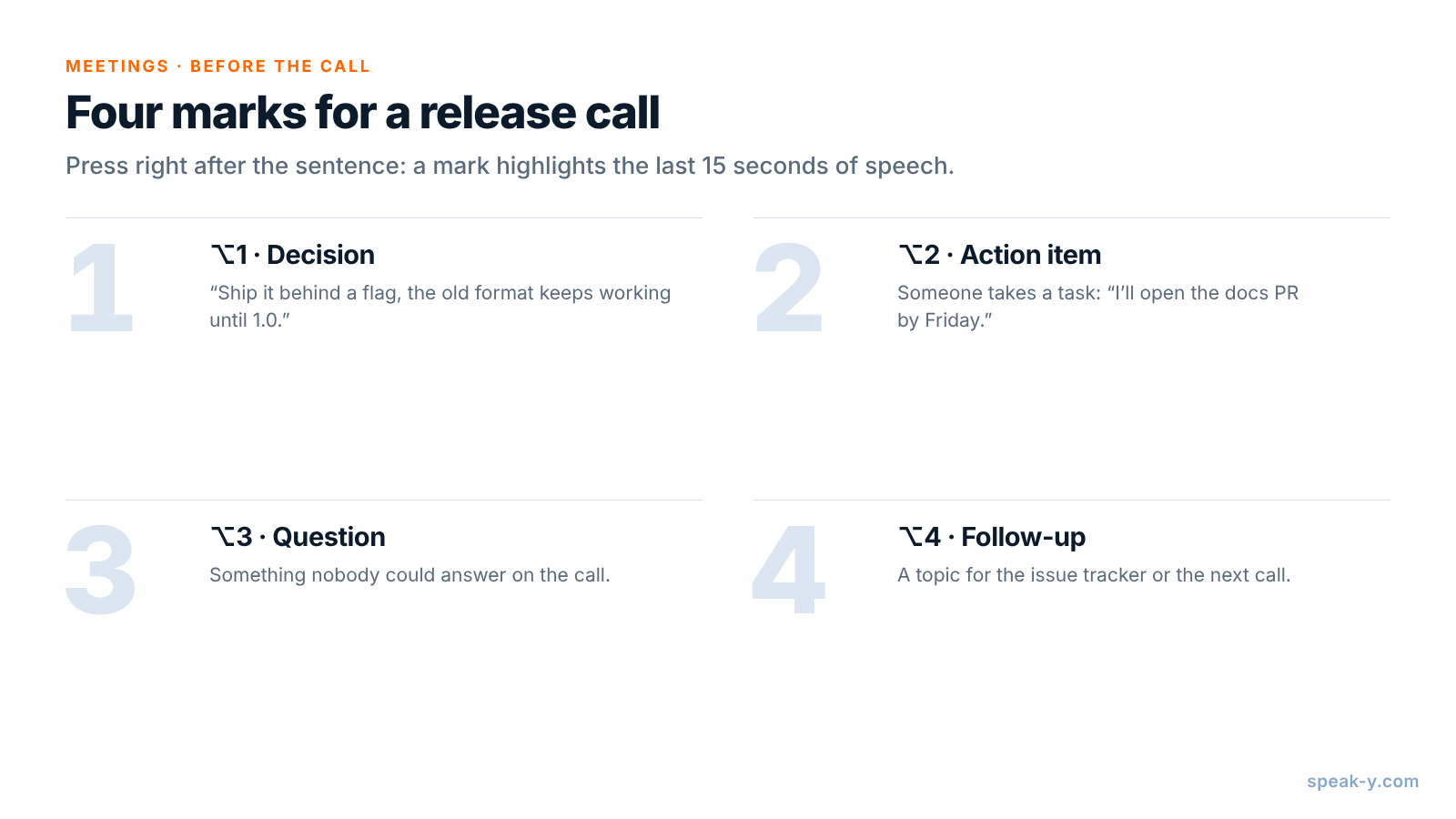
Then give your marks names. Open Settings → Notes. Under Note types, rename the default Mark the moment and click Add note type for the rest; Set hotkey gives each its own combination. Four types cover a release call:
- ⌥1 Decision — "Ship it behind a flag, the old format keeps working until 1.0."
- ⌥2 Action item — someone takes a task: "I'll open the docs PR by Friday."
- ⌥3 Question — something nobody could answer on the call.
- ⌥4 Follow-up — a topic for the issue tracker or the next call.
Each press pins a mark of that type to the transcript and highlights the words of the last 15 seconds, so you press right after the sentence, not before it.
Last, pick the release tag — Ines uses release-0.9 — and use the same
one on every call about that release.
On the call: no bot, one click
Zoom, Microsoft Teams, Webex and other call apps are recognised as soon as they are open: Speak-Y asks Record as Meeting? above the recording button and you click the check mark. A call in the browser, such as Jitsi Meet or Google Meet, or on Discord, is recognised when your camera is on. If no question appears, start a recording with your Speak-Y hotkey in hands-free mode, point at the recording button and click the check mark on Record as Meeting?. If you want Speak-Y to ask, set Settings → Interface & Behavior → Meeting mode to Manual or Auto.
From there, run the call and press the keys. Speak-Y records the voices, not the shared screen: when someone shows a pull request, read its number aloud — "so we merge 412 before the freeze" — and the number lands in the transcript next to your mark.
Check the length against your plan. As of 27 October 2026, the Free plan records meetings up to 30 minutes, Pro ($10 a month) up to 1 hour and 10 hours a month, and Pro+ ($15) up to 4 hours per meeting and 40 hours a month. An hour-long monthly call fits Pro; a call that tends to run over needs Pro+.
After the call: names, the tag and the maintainers' channel
Open the recording from Meetings. Speakers are numbered in the order they spoke; you are usually Speaker 1.
- Click each speaker chip, type the person's name or handle and press Enter. Everything built from the transcript takes this label: the channel feed, copied quotes, what an AI assistant reads later.
- Click Tags and add
release-0.9. - Press To channel under the transcript and pick the maintainers' channel.
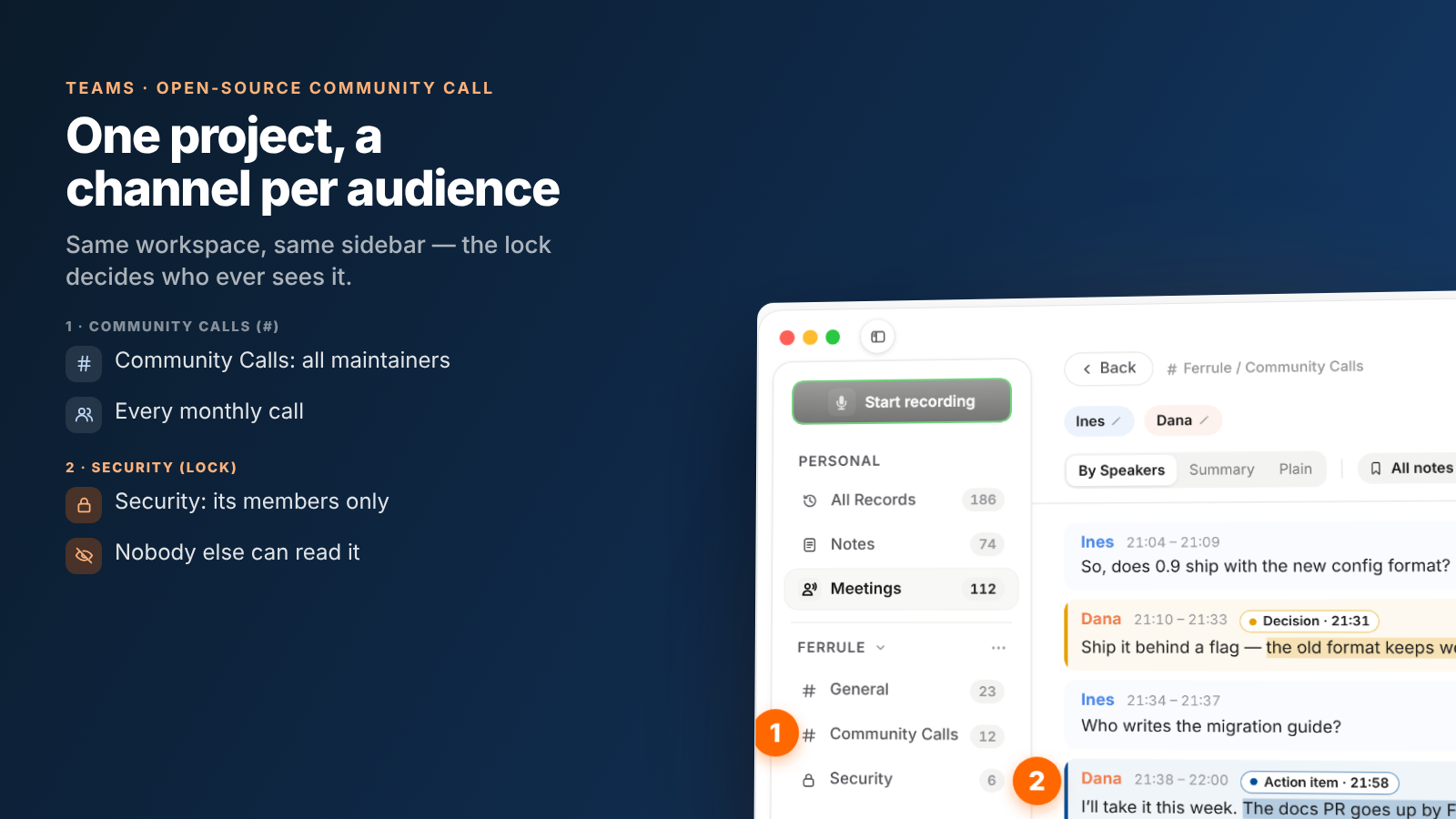
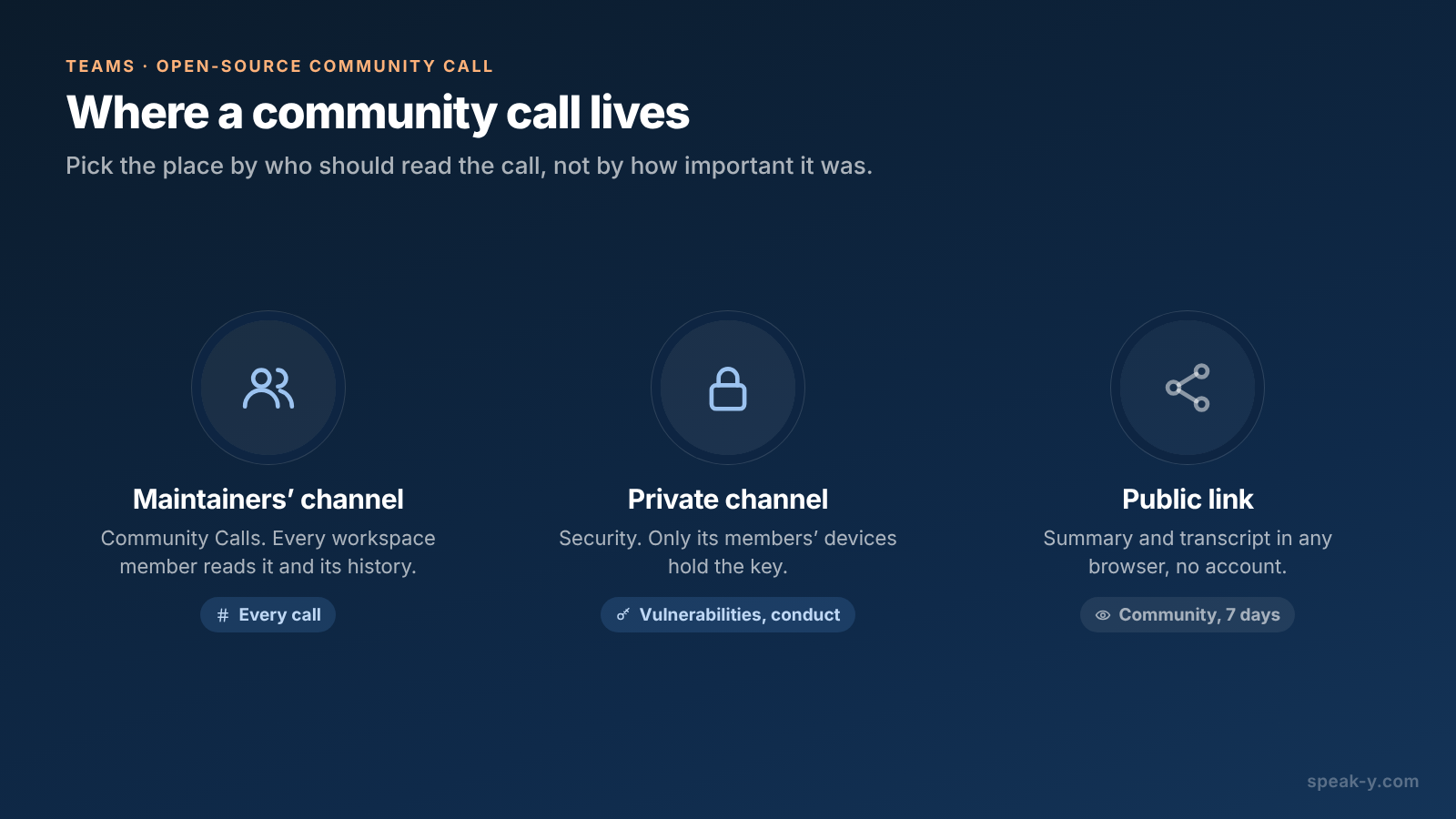
The Ferrule workspace has three channels: General, Community Calls for the monthly calls, and a private Security channel. A workspace is for the people who maintain the project, not for the whole community: every member sees every public channel and its history. Setting up a team workspace covers the first steps; creating a workspace needs Pro or higher, and the maintainers you invite join on any plan, including Free.
Channel members get the transcript with speaker names and the summary; the audio stays on your Mac. Your marks stay private on a shared recording until you switch them to show in that channel. Each channel is encrypted with its own key, held only by its members' devices; the server stores ciphertext.
What not to put in the community-call channel
A community call is semi-public by design, and sometimes the conversation turns to something that is not. Three cases deserve another place:
- A vulnerability. If a reporter or a maintainer describes an unfixed security issue, that recording goes into the private Security channel with only the people handling it, and never gets a public link. On GitHub, when private vulnerability reporting is enabled on a public repository, anyone can send a private report to its maintainers; the call is context for that thread, not a replacement for it.
- A conduct report. Conversations about a code of conduct complaint belong to the people who handle it. A private channel with them, or no channel at all, is the right place.
- Anything you are unsure about. A recording reaches no channel until you press To channel, so it can simply stay on your Mac.
Create a private channel yourself: in the workspace's ⋯ menu, choose New channel, switch the type to Private and tick the members. Only its creator can remove a member or change its type later, and a public channel can never be made private, because everyone already has its history.
Sharing the call with the community for a week
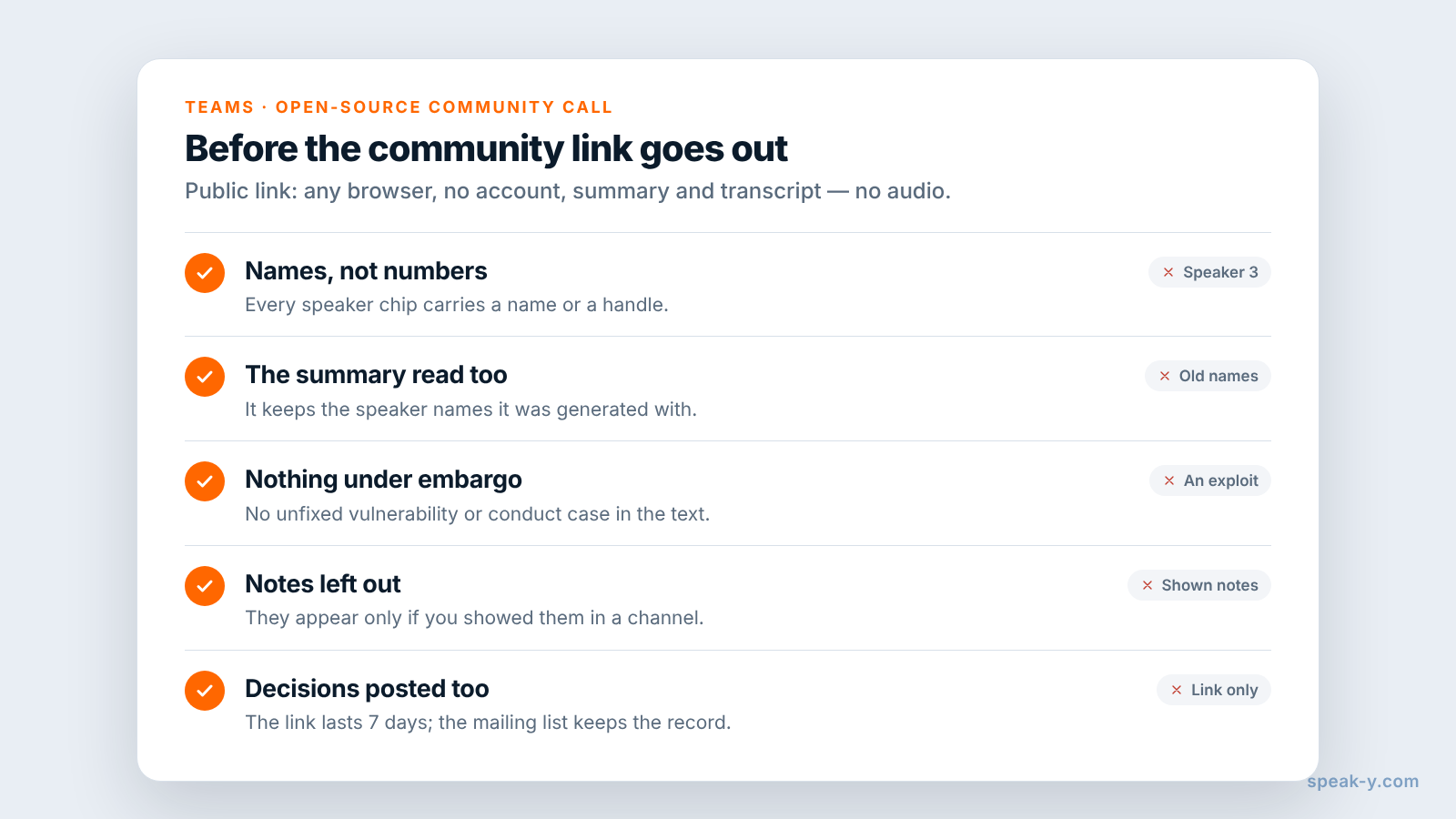
The community is not in your workspace, and should not be. Open the call from All Records — the link button is on your own copy, not on the copy in the channel feed — and click Public link under the transcript. The link is copied and works for 7 days in any browser, without an account. Readers see the summary and the transcript by speaker; the audio is not part of it.
Four details decide what the community reads:
- A link is a snapshot. Rename a speaker or edit the text after creating it, and the old link keeps the old version; click Public link again.
- The summary keeps the names it was generated with. Read it before you post the link, not only the transcript.
- Notes are left out unless you showed them in a channel first.
- There is no button to revoke one link. Deleting the recording revokes its live links.
Seven days is enough for "what did I miss on Tuesday", not for the project's history. Post the decisions where your project keeps its record — the mailing list, a GitHub Discussion, the release issue — and put the link next to them for the week. Sharing a meeting with a public link covers the rest.
Months later: finding what was decided for a release
When 0.9 ships and someone asks why the old config format still works, the answer is two clicks away:
- Search everything (⌘K) matches the text of every recording and the names of your tags, and shows each result with its date and the line around the match.
- The recordings list filters by tag:
release-0.9gives you every call about the release, and the Decision filter in each one shows only the marked moments. - An AI assistant connected through the Speak-Y MCP server reads your recordings and the ones shared into your channels, filtered by tag and date. "List every Decision in calls tagged release-0.9, with times" is a draft of the release notes' rationale — play each moment before you quote it.
Speak-Y does not replace the project's record: the mailing list, the issue tracker and the release notes stay where decisions become official. It keeps the conversation that led to them, by speaker and with times, for the people who maintain the project. The Teams page explains workspaces, private channels and encryption in one place.
FAQ
Can I record an open-source community call without adding a bot to it?
Yes, on a Mac. Speak-Y records the call from your computer's audio and never joins Zoom, Jitsi Meet, Google Meet or Discord, so attendees see no extra participant. That also means nobody announces the recording for you: say it in the invite and at the start of the call.
How do maintainers share a community call recording with each other?
Create a Speak-Y workspace for the maintainers and a channel such as Community Calls. Open the recording, press To channel under the transcript and pick the channel. Every member gets the transcript by speaker and the summary, end-to-end encrypted; the audio stays on your Mac.
How can people outside the workspace read the call?
Click Public link under the transcript of your own copy. The link is copied and works for 7 days in any browser without an account. It shows the summary and the transcript by speaker, not the audio, so it suits the week after the call, not a permanent archive.
How do I find what was decided for a release months later?
Tag each call with the release, for example release-0.9, and mark decisions with a hotkey during the call. Search everything (⌘K) matches transcript text and tag names, the recordings list filters by tag, and an AI assistant connected through the Speak-Y MCP server can filter by tag and date.
Where should a call about a security vulnerability go?
Not into the community-call channel and never into a public link. Use a private channel with only the people handling the report; its key is held by their devices alone. Many projects receive such reports through GitHub private vulnerability reporting, so the call adds to that thread rather than replacing it.