QBR Prep From the Account Channel: a Quarter of Calls, One Draft
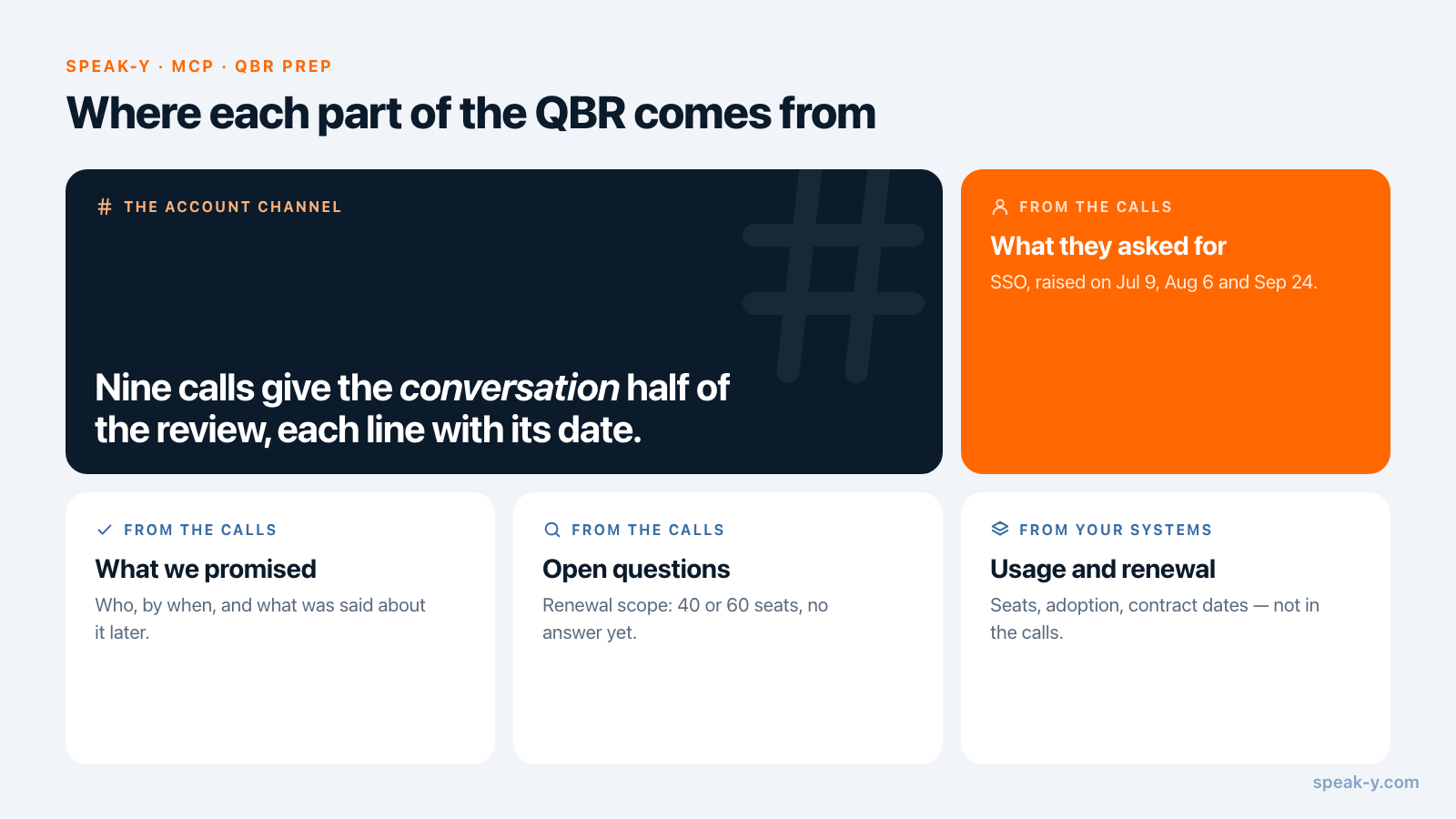
A quarterly business review needs two kinds of material: numbers and conversations. The numbers — usage, seats, tickets — come out of your analytics. The conversations are spread across a quarter of calls held by three people on your side. If those calls are recorded in Speak-Y, shared into one channel per account and tagged with the account's name, an AI assistant connected over MCP can read all of them and return a first draft of the conversation half: what the client asked for, what your team promised and what happened to it, and what is still open — each line with the date of the call. You check it, add the numbers and build the deck.
This guide follows one case: Maya, an account manager, preparing the Q3 review with Kestrel Freight. Between July 9 and September 24 the account had nine calls — check-ins, an escalation, a renewal conversation — recorded by Maya, by Leo from customer success and by a solutions engineer. Product details were checked against the Speak-Y macOS app and the vendors' public pages on October 19, 2026.
Why does QBR prep take a whole day?
Because the conversation half of a QBR is rebuilt from memory and scattered notes. The account manager remembers the last two calls well; the escalation in July was Leo's, and the promise a solutions engineer made in August lives in his notebook. Before the review someone scrolls through email, asks colleagues "did we ever send them that plan?" and still walks in without the client's own words for what they wanted.
A recorded call answers those questions — who said what and when — but nine calls of 30 to 60 minutes are not something you re-read on a Monday morning. The work splits cleanly: the assistant reads, sorts and dates; you decide what the client should hear.
What has to happen during the quarter?
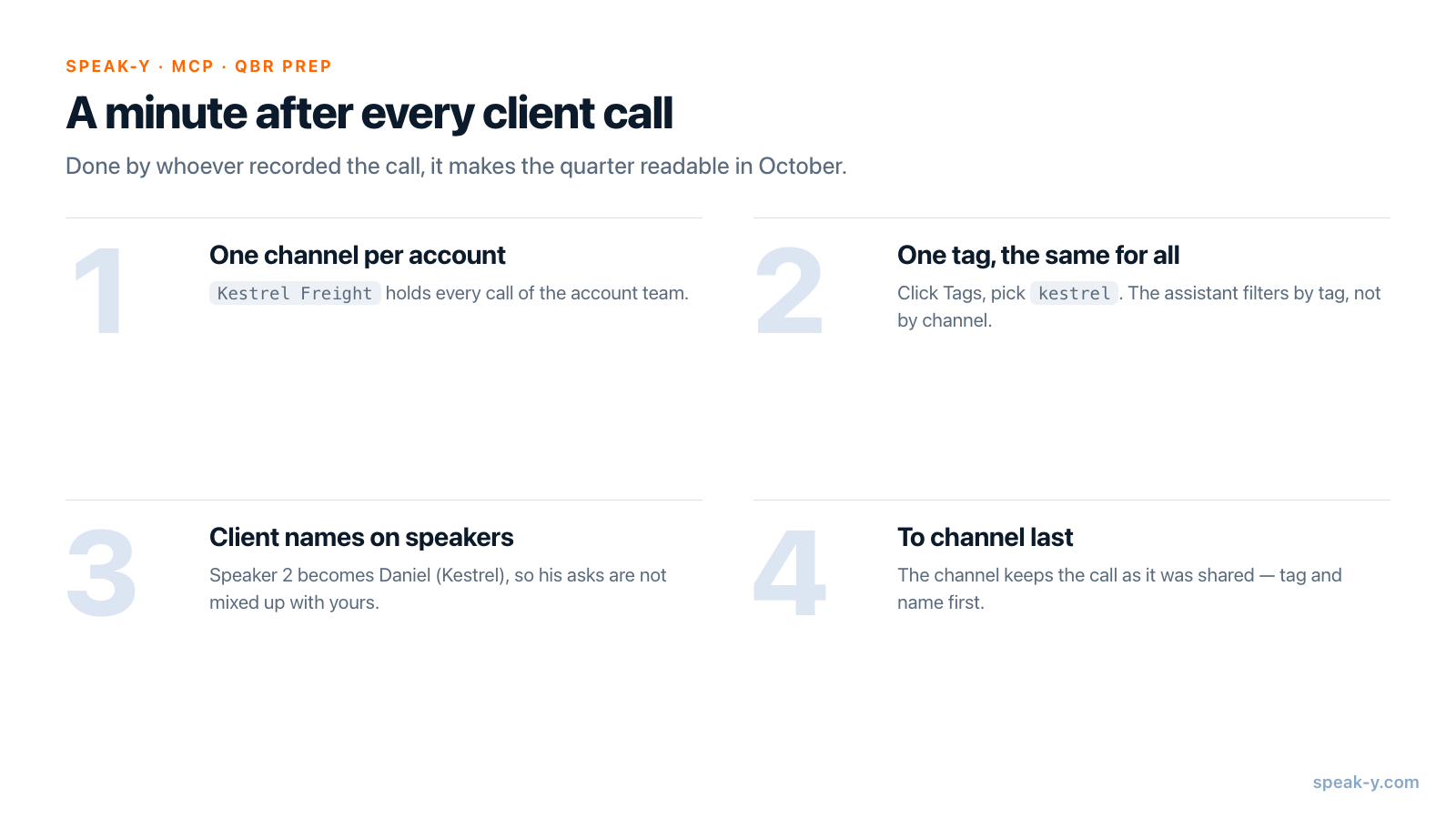
A minute after each client call, by whoever recorded it. Four habits make the quarter readable later:
- One channel per account. Open the workspace's ⋯ menu in the
sidebar, choose New channel and call it
Kestrel Freight. A private channel (lock) fits an account under NDA; add everyone on the account team when you create it. - One tag per account, the same for everyone. Click Tags in the
recording and pick
kestrel. The tag is how the assistant finds the account's calls: it filters by tag and date, not by channel. - The client's names on their speakers. Click the Speaker 2 chip and
type
Daniel (Kestrel). Without it, "we need SSO before the warehouse rollout" belongs to nobody. - To channel last. Press To channel and pick
Kestrel Freight. The transcript with names, the AI summary and the action items go into the channel, end-to-end encrypted; the audio stays on the recorder's Mac. The channel keeps the recording as it was when it was shared, so tag and name first.
The second habit is the one teams skip. A tag on a channel recording is put
there by its author before sharing: colleagues cannot add it, and the
channel's copy does not pick up a tag added afterwards. So a call Leo shares
without kestrel stays readable in the channel but invisible to a tag
filter. Agree on the tag when the channel is created. What else travels with
a shared call is in sharing a meeting to a team channel.
How do you ask for the quarter?
Connect Claude, ChatGPT, Cursor or another MCP client once: Connect on the Integrations page (account menu → Connect AI assistant), also reachable from Settings → Integrations. The Speak-Y MCP server is included in every plan, Free too, and reads recordings locally on your Mac — your own and the ones colleagues shared into channels you belong to.
Then ask for the conversation half, with the period and the tag:
QBR prep for Kestrel Freight: calls tagged kestrel,
July 1 to September 30, 2026. Read every call in that range.
List what they asked for, what we promised (who and by when)
and what happened to it, and open questions.
Put the call date after every line.
No usage numbers — they are not in these calls.
Three parts of that request do the work:
- The tag. Without it the assistant lists everything you can see — every account's calls and your own dictations — newest first.
- The period.
list_recordingsreturns the 20 newest recordings by default. With the quarter named, the assistant passesdate_from,date_toand the tag; for an account with more than 20 calls a quarter, also ask for alimitabove the count — the tool takes up to 100 per call. - "Who and by when". Action items in a Speak-Y summary carry an owner when someone said one out loud — "I'll send the rollout plan by Friday". The assistant can only report owners and dates that were spoken.
For a theme that cuts across calls, search_recordings matches transcript
text, titles, summaries and action items: ask "every time Kestrel mentioned
SSO this quarter" and the answer comes with dates.
What does the draft look like?
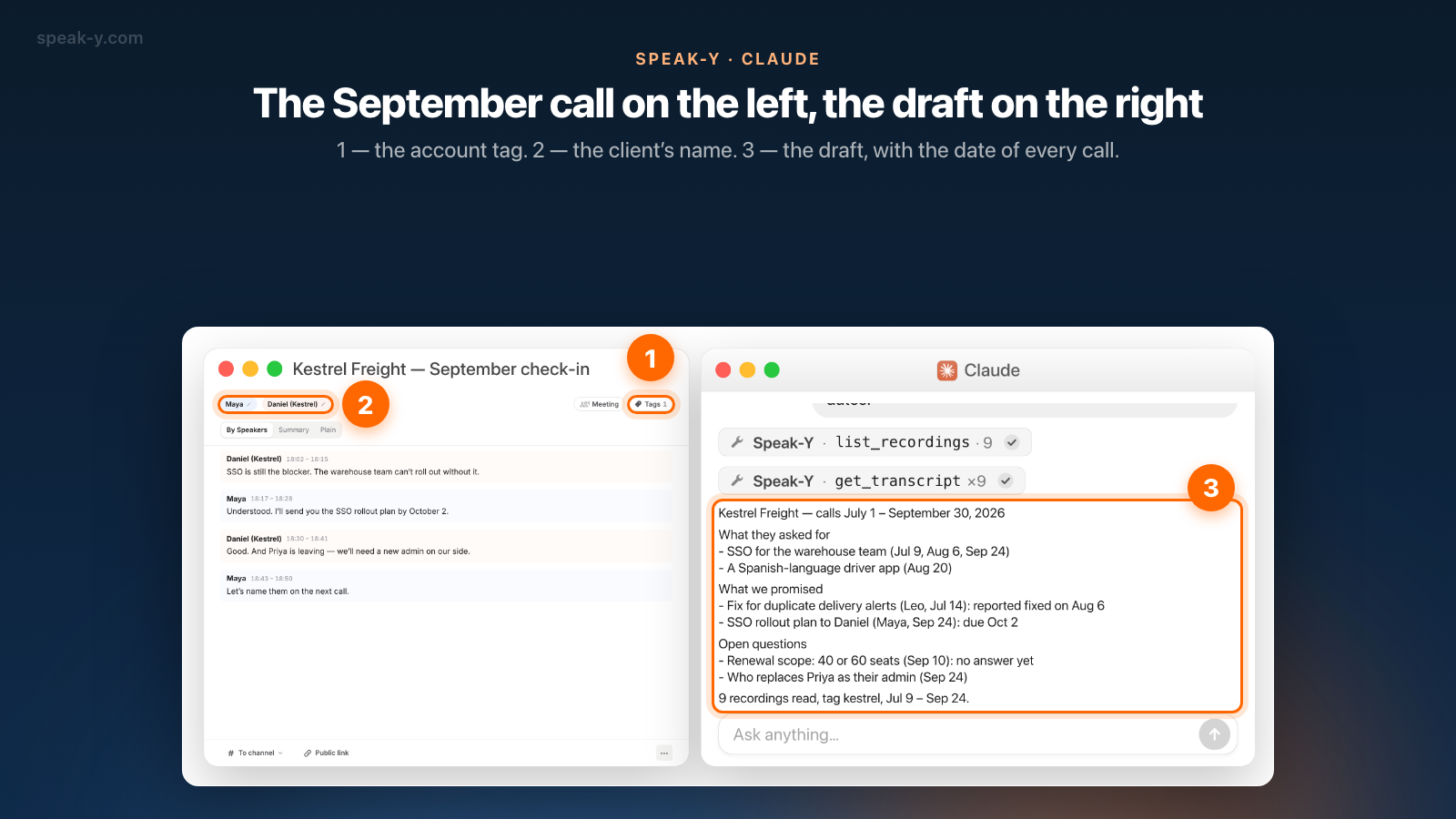
For Kestrel Freight, the answer looked like this:
Kestrel Freight — calls July 1 – September 30, 2026
What they asked for
- SSO for the warehouse team (Jul 9, Aug 6, Sep 24)
- A Spanish-language driver app (Aug 20)
What we promised
- Fix for duplicate delivery alerts (Leo, Jul 14):
  reported fixed on Aug 6
- SSO rollout plan to Daniel (Maya, Sep 24): due Oct 2
Open questions
- Renewal scope: 40 or 60 seats (Sep 10): no answer yet
- Who replaces Priya as their admin (Sep 24)
9 recordings read, tag kestrel, Jul 9 – Sep 24.
Read it as a map of the quarter, not as slides. SSO came up in three calls — that is the client's priority in their own words, and it belongs at the top of the review. "Reported fixed on Aug 6" means someone said so on the Aug 6 call; Speak-Y does not track whether an action item was done. The Sep 24 promise has a due date that has passed by the time you prepare the review: check whether the plan went out before the client asks.
The last line says what the draft stands on. If it reads "7 recordings" and your team had nine calls, two were never shared or were shared without the tag.
What should you check before it goes into the deck?
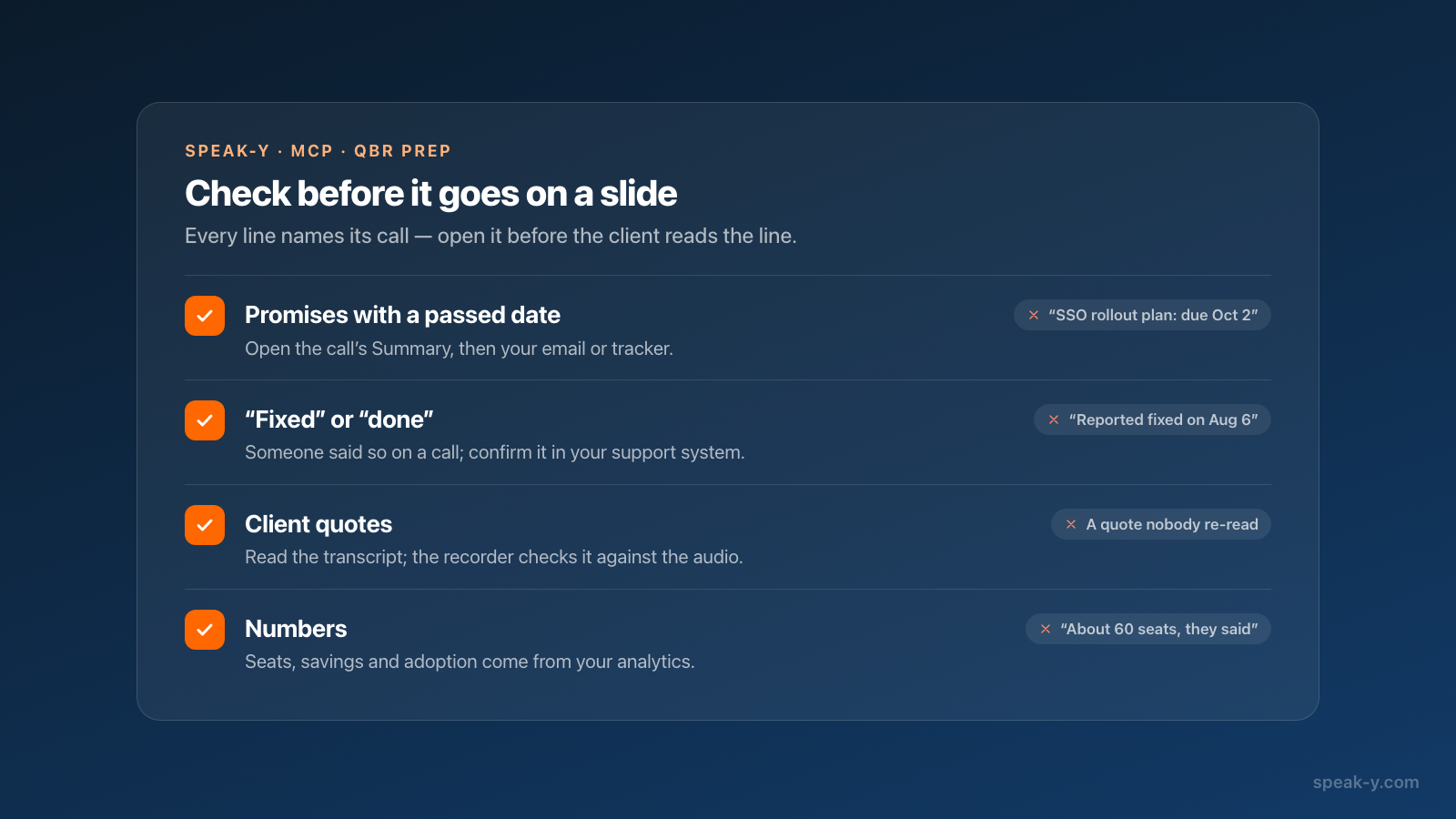
Every line points to a call you can open, and four kinds of lines deserve a look before the client sees them:
- Promises with a passed date. Open the call, read the Summary, then check your email or tracker. The QBR is the worst place to learn a promise was missed.
- "Fixed" or "done". Those words mean somebody said so on a call. Confirm them in your support or engineering system.
- Quotes. If a client's sentence goes on a slide, read it in the transcript on By Speakers, and ask whoever recorded the call to check it against the audio, which stays on their Mac: speech recognition can miss a word, and a misquote in front of their VP costs more than no quote.
- Numbers. Anything with a figure — seats, savings, adoption — comes from your analytics, not from what someone estimated on a call.
The same habit works between reviews: a brief before the next call comes from the same tagged recordings.
Who sees the account channel, and does the client know?
A channel is visible to its members (private) or to everyone in the workspace (public); calls in it are end-to-end encrypted, and the server stores them without being able to read them. The MCP server reads the copy on your Mac without uploading anything. What the assistant reads, though, becomes part of your conversation with its vendor's model — the same decision as for any AI writing tool, and for client calls it may be covered by your contract with the client. Local vs cloud MCP shows where the text goes.
Speak-Y records on your Mac without a bot joining the call, so nobody is notified automatically. Tell the client at the start that the call is recorded, and check the law on recording meetings in the places involved.
When does a customer success platform fit better?
When the numbers are the hard part, or the account team already lives in one. ChurnZero's Snapshot AI builds an account summary from call notes, surveys, health scores and usage data, and ChurnZero names QBRs among its uses. Gainsight's Copilot answers questions from account records and Timeline activity, and Gainsight publishes a Claude connector that lists QBR prep among its workflows (both checked on October 19, 2026). Those tools put health and usage next to the notes, which this route does not.
The route here suits a team whose client calls are recorded on Macs without a bot, with no CS platform or one that never sees the calls, and which wants the client's own words in the review. Usage numbers come from wherever you keep them; the conversations come from one channel per account. For the same structure before the deal is won, see sales pipeline review from deal channels; the Speak-Y Teams page has the overview of workspaces and channels.
FAQ
Can an AI assistant prepare a QBR from my client calls?
It can prepare the conversation half of it. If the account's calls are recorded in Speak-Y and carry one account tag, an MCP client such as Claude, ChatGPT or Cursor can read every call of the quarter and list what the client asked for, what your team promised and what is still open, each with the date of the call. Usage numbers, the renewal and the final deck stay with you.
Can the assistant read calls my colleagues recorded?
Yes, if they shared them into a team channel you belong to. The Speak-Y MCP server reads your own recordings plus the recordings shared into your channels, from the copy on your Mac. It filters by tag and date, not by channel, so the whole account team has to put the same account tag on a call before pressing To channel.
Why did the assistant miss the July calls?
list_recordings returns the 20 newest recordings unless asked for more, and it returns everything visible to you, not one account. Name the quarter and the tag in the request (July 1 to September 30, tag kestrel) so the assistant passes date_from, date_to and the tag, and ask for a limit above the number of calls; the tool returns up to 100 recordings per call.
Does Speak-Y know the client's product usage or renewal date?
No. Speak-Y holds the calls: transcripts with speaker names, AI summaries and action items. Logins, seats, adoption and contract dates live in your product analytics, CRM or customer success platform, and they go into the QBR from there.
What does this cost in Speak-Y?
The MCP server is included in every plan, Free too. Creating the team workspace needs Pro or higher; colleagues join free on any plan. Recording is the limit: as of October 19, 2026, Free records meetings up to 30 minutes and 2 hours a month, Pro ($10 a month) up to 60 minutes and 10 hours, Pro+ ($15) up to 4 hours and 40 hours.