Sales Pipeline Review From Deal Channels, Not Rep Recaps
A Friday pipeline review usually runs on retelling. Each rep describes their deals from memory, the manager asks "and what did they say about budget?", and the answer is a paraphrase of a call from ten days ago. The stage in the CRM says "Proposal"; whether the buyer agreed to anything is one person's recollection.
If the calls are recorded in Speak-Y, the review can run on what was said instead: one channel per deal, every call shared into it with speaker names and a stage tag, and two kinds of marks placed during the call — Objection and Next step. On Friday the manager opens each deal's channel in Week view, reads the summaries and action items, and searches the deal for the word the buyer keeps using. Reps stop preparing recaps.
This guide follows the Speak-Y macOS app as checked on 12 October 2026, for a sales lead with a handful of reps and ten to forty open deals. It assumes a workspace already exists; if not, set one up first. Speak-Y does not replace the CRM here, and the last section says exactly where the line is.
Why reviews built on recaps drift
A recap is a second-hand source with an interest in the outcome. Three things go missing in it, every week:
- The buyer's wording. "They're fine with the price" and "I can't take fifty-two to the CFO" are the same call in two tellings.
- The date of the last real contact. A deal that has had no call in three weeks sounds alive when it is described well.
- The next step's owner and day. "We're following up" is not a next step.
A recording answers all three, but nobody listens to forty calls on a Friday. The job is to make each deal readable in two minutes — which is what a channel with summaries, tags and marks does.
One channel per deal
Open the workspace's ⋯ menu in the sidebar and choose New channel. Name deals so they sort together: Deal — Acme, Deal — Globex. Two decisions to make once:
- Public (#) or private (lock). A public channel is readable by everyone in the workspace, including people who join later — the right default for a sales team, because the manager and a colleague covering a holiday see every deal without being added. A private channel is visible only to the members you pick, which suits a deal under NDA; add the manager when you create it. A public channel can never be made private later.
- When a deal gets a channel. A workspace holds up to 200 channels, so open one when a deal is qualified, not for every first conversation. Calls before that stay in the rep's own library and can be shared in later.
Reps record on their own Macs, and no bot joins the call. Say at the start that you are recording; the rules differ by place and are covered in is it legal to record meetings.
During the call: Objection and Next step
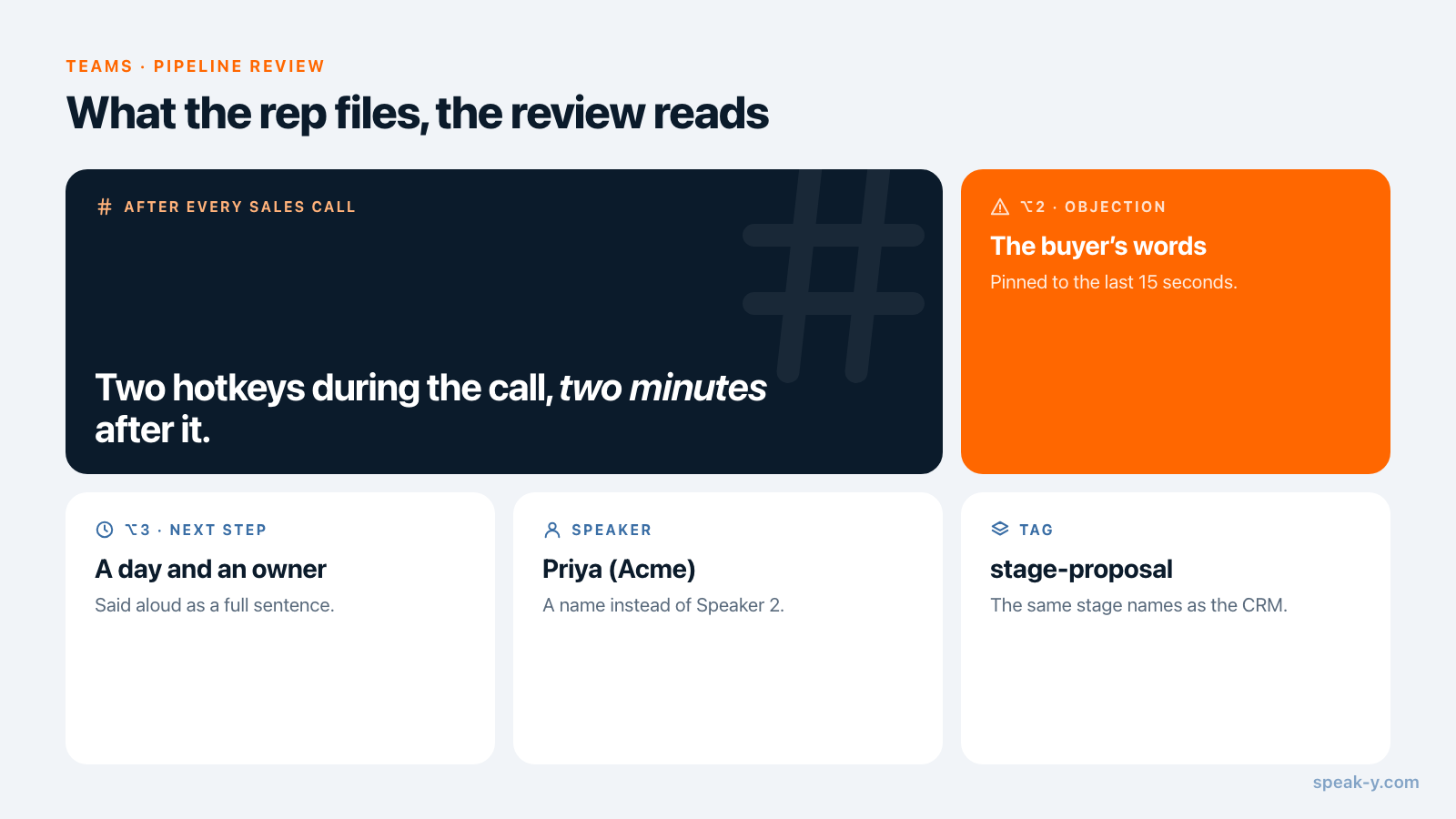
Speak-Y ships with one note type, Mark the moment on ⌥1. Add two of your
own once, in Settings → Notes: click Add note type, type Objection
into Type name, click Save, then Set hotkey and press ⌥2. Repeat
for Next step on ⌥3.
On the call, press the key right after the buyer says the thing. Speak-Y pins a mark of that type to the last 15 seconds of the transcript, in the type's colour. Nothing is typed, and the mark buttons are not visible while you share your screen, so a demo is not interrupted. Say the next step aloud as a full sentence with a day in it — "I'll send the revised proposal by Tuesday" — so the summary picks it up as an action item with an owner.
After every call: name, tag, share
Two minutes after the transcript is ready decide whether Friday will be easy:
- Name the buyer. On By Speakers, click the Speaker 2 chip and type "Priya (Acme)". Every reply and the summary now carry the name.
- Tag the stage and the account. Click Tags and create or pick
stage-proposalandacme. Use the same stage names as your CRM, with one prefix, so they sort together:stage-discovery,stage-demo,stage-proposal,stage-negotiation. - Share it. Press To channel under the transcript and pick Northbeam Sales / Deal — Acme. The transcript with names and timestamps, the AI summary and the action items go into the channel, end-to-end encrypted; the audio stays on the rep's Mac.
- Show the marks. Marks are private by default. Click the Private chip above the transcript and choose Show in 🔒 Deal — Acme — channel members will see them; the chip now reads In channel.
Order matters for the first three: the channel keeps a snapshot of the recording as it was when it was shared, so name and tag first. What exactly travels is in sharing a meeting to a team channel.
The Friday review: one deal, two minutes
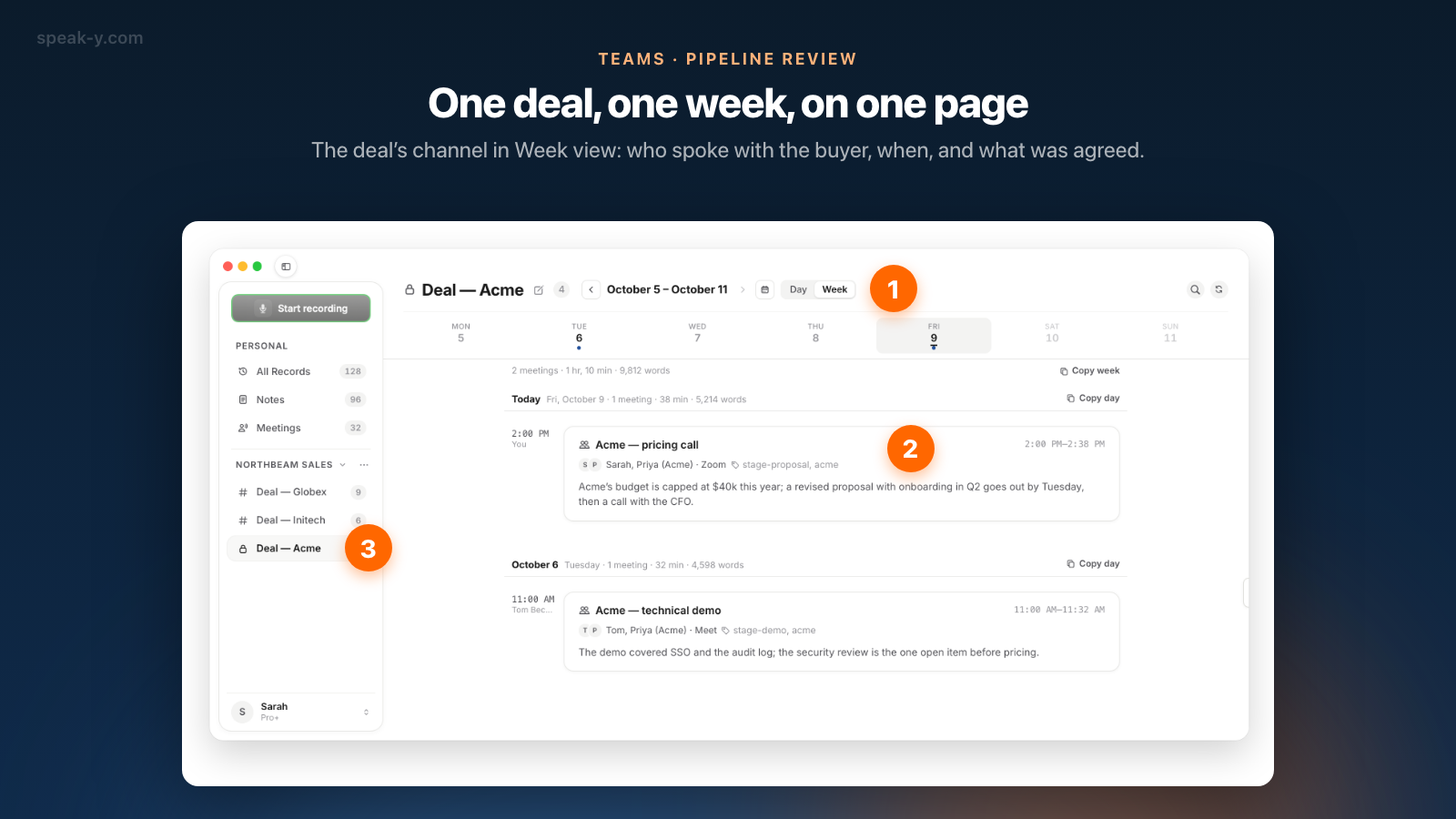
Click a deal's channel in the sidebar and switch Day to Week in the header. The page shows a strip of weekdays with a dot on each day that has a call, one line of totals — "2 meetings · 1 hr, 10 min · 9,812 words" — and the week's calls under their days. Each card carries the title, the time, the speakers, the tags, who shared it and the first lines of the summary.
For each deal, in this order:
- Look at the strip. No dots this week means nobody spoke with the buyer. Previous week tells you how long that has been true.
- Read the cards. The stage tag and two lines of summary are often enough: "budget capped at $40k; revised proposal by Tuesday, then a call with the CFO".
- Open the latest call. It opens read-only. Summary starts with the action items, then the decisions; marks the rep chose to show sit on the transcript with their type and time.
- Ask one question in the meeting, about the thing the record does not settle — not "so how is Acme going?".
Find the objection across the whole deal
The magnifier in the channel's header searches the transcripts of that channel across its whole history, not just the open week. Type the word the buyer uses — "budget", "security", "legal" — and the results come grouped by day, with the lines where it was said and their timestamps. An objection that shows up in the intro call, the discovery call and again in the pricing call has not been answered; it has been postponed three times.
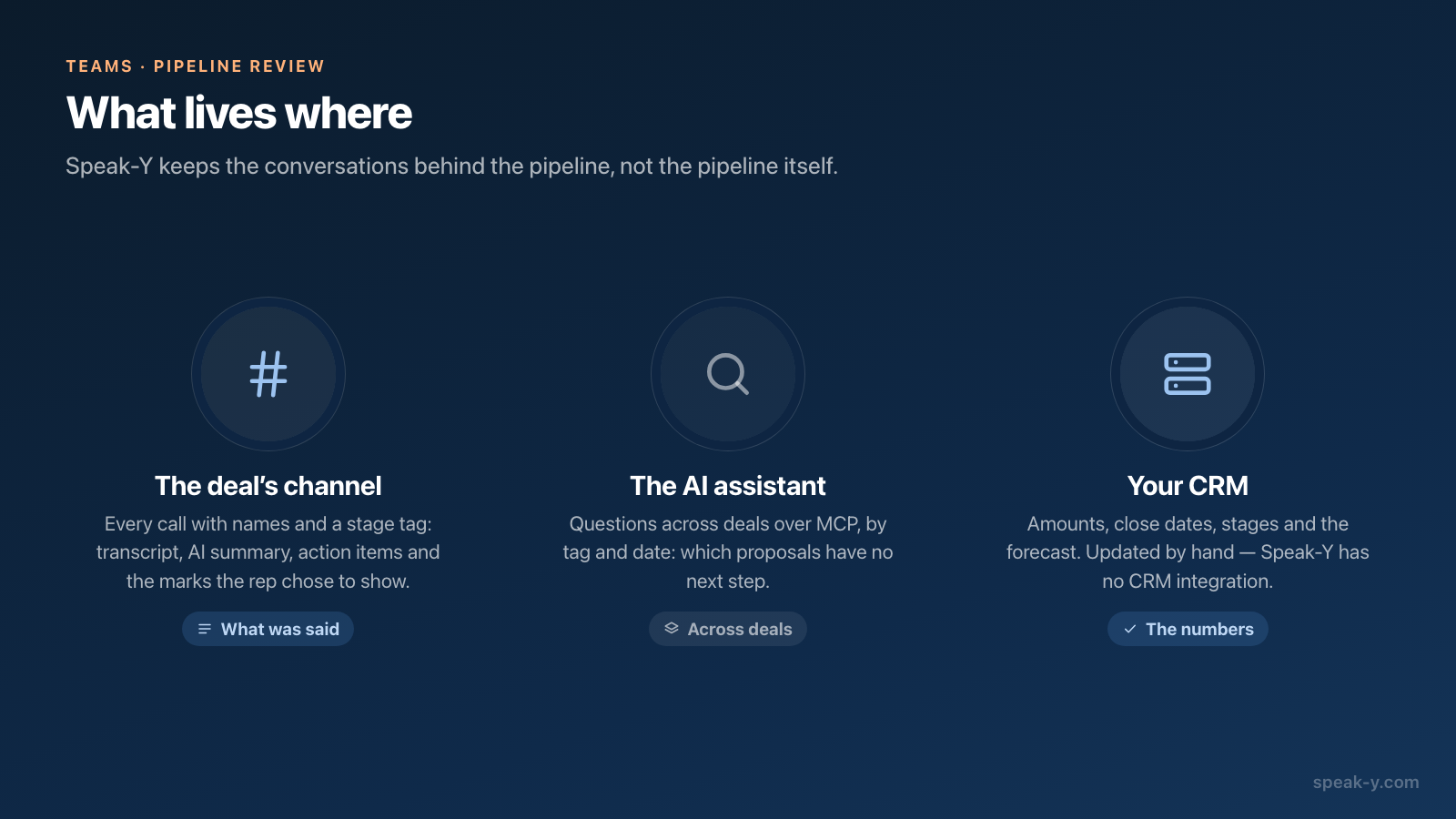
The channel search reads transcript text only, not titles, summaries or tags, and it stays inside one channel. For a question across deals — "which proposals have no next step?" — connect Claude, ChatGPT or Cursor to the Speak-Y MCP server, which is included on every plan, and ask:
List the recordings tagged stage-proposal from the last 14 days. For each: the account tag, the date, and the next step with its day from the action items. Say "none" where there is no next step.
The assistant reads your own recordings and those of every channel you belong to, from the copy on your Mac, and filters by tag and date — not by channel, which is why the stage tag is worth the ten seconds. Its model runs in the cloud, so the transcripts it reads go to that vendor; local vs cloud MCP explains what that means for a deal under NDA.
Four red flags to look for
These are the patterns a recap hides and a channel shows.
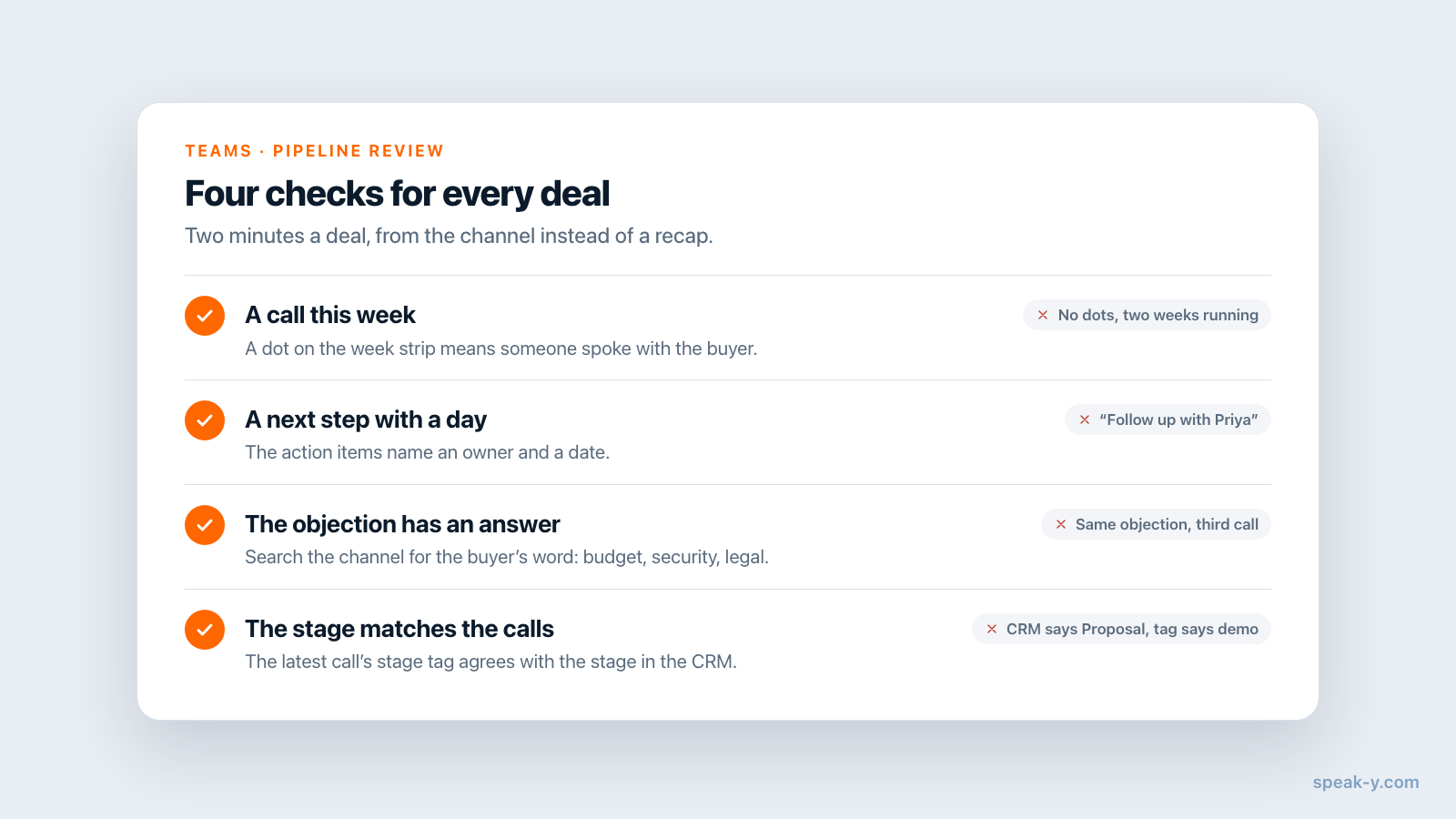
- No call this week — and none the week before. The deal is not in "Negotiation"; it is waiting.
- A next step without a day. The action items say "follow up with Priya", with no date and no owner.
- The same objection, third call. The search finds "budget" in every conversation and no call where a number was agreed.
- A stage the calls do not support. The CRM says Proposal; the latest call
is tagged
stage-demoand nobody mentions a proposal in it.
What deal channels do not replace
Speak-Y is not a revenue platform, and it is better to know that before Friday than during it:
- No CRM integration. Nothing is written to Salesforce, HubSpot or Pipedrive. The rep updates the stage and the next step in the CRM by hand, with the summary open next to it.
- No forecast and no deal fields. A channel has no amount, close date or probability. The numbers of the pipeline stay in the CRM; the channel holds the conversations behind them.
- No tracking of commitments. The action items record what was said, not whether it was done.
- Macs only for channels. Workspaces and channels are in the macOS app.
If you need calls logged to the CRM automatically, or a forecast built on call signals, that is a different category of product. Gong's Forecast works with Salesforce and HubSpot, according to Gong's help centre, and Fireflies lists CRM integrations on its paid plans (both checked on 12 October 2026). The trade is the usual one: those tools hold your calls on their servers, while a Speak-Y channel is end-to-end encrypted and the audio never leaves the rep's Mac.
Costs. Creating the workspace needs Pro or higher; everyone else joins free on any plan and reads every channel they are in. A paid plan matters for whoever records: checked on speak-y.com on 12 October 2026, Free stops a call at 30 minutes, Pro ($10 a month) at 60, and Pro+ ($15) and Max ($30) at four hours.
The short version
One channel per qualified deal. Two hotkeys during the call, a name and a stage tag after it, then To channel. On Friday: Week view, the strip, the cards, the latest summary, one search for the objection — two minutes a deal. The amounts and the forecast stay in the CRM. The Teams page has the overview of workspaces and channels, and one channel per client shows the same structure after the deal is won.
FAQ
How do I run a pipeline review from recorded sales calls?
Give every qualified deal its own channel in a Speak-Y workspace and have reps share each call into it with speaker names and a stage tag. On Friday, open each deal's channel in Week view: the cards show who spoke with the buyer, when, and the first lines of the AI summary. Open a call for its action items, and search the channel for the buyer's objection.
Does Speak-Y sync sales calls to a CRM or forecast the pipeline?
No. Speak-Y has no CRM integration and no forecast: deal amounts, close dates and stages stay in your CRM, and whoever owns the deal updates them by hand. What Speak-Y adds is the evidence behind each stage — the transcript with names, the AI summary, the action items and the rep's marks, all in the deal's channel.
How do I mark objections and next steps during a sales call?
Create two note types in Settings → Notes → Add note type, name them Objection and Next step, and give each a hotkey such as ⌥2 and ⌥3. During the call, press the key right after the buyer says it: Speak-Y pins a mark of that type to the last 15 seconds of the transcript. The mark buttons are not visible while you share your screen.
Can the sales manager see the rep's marks in the deal channel?
Only if the rep chooses so. Marks are private by default; on the shared recording the rep clicks the Private chip above the transcript and picks Show in the channel, and the chip changes to In channel. Without that step the manager still reads the transcript, the summary and the action items, but not the marks.
What does a sales team pay for deal channels in Speak-Y?
Creating the workspace needs Pro or higher; teammates join free on any plan. Whoever records needs meeting minutes on their own plan: checked on speak-y.com on 12 October 2026, Free stops a call at 30 minutes, Pro ($10 a month) at 60, and Pro+ ($15) and Max ($30) at four hours.