Team Meeting Notes to Google Drive: Speak-Y Channel Export
Speak-Y can copy team channels into Google Drive: every recording in a channel you pick becomes a Google Doc with the summary, the action items and the transcript. You connect a Google account once under Settings → Integrations in the macOS app, tick the channels, and from then on new recordings appear in a Speak-Y folder in your Drive without anyone exporting them by hand.
Three rules shape the feature. Channels are chosen one by one, never "all at once". A chosen channel uploads whole, including recordings shared by teammates. Personal recordings are never uploaded, and there is no switch that changes that. This guide walks through the setup, shows what a document looks like and when it is updated, and is plain about the trade-off: a document in Drive is a readable copy outside end-to-end encryption. Everything here was checked against the macOS app on October 10, 2026; the Storage group is marked Beta in the app.
What does the Drive integration do?
It keeps a folder in your Google Drive in step with one or more team channels. The upload runs on your Mac, not on a server: Speak-Y channels are end-to-end encrypted, so only a member's device can read a recording and turn it into a document.
- One recording, one Google Doc. A native document, not an attachment — it can be commented on, linked and found by Drive search.
- The whole channel. The first pass uploads everything already in the channel, not only what arrives after you connect. A channel switched on a month late is still complete.
- Your own Drive. The connection is a personal setting of the app on your Mac. No owner or admin role is needed, and nothing is configured for the workspace as a whole.
Google Drive is one of five destinations in the Storage group, next to Notion, Obsidian, GitHub and Confluence.
How do you set it up?
You need the Speak-Y macOS app, a Google account and at least one team channel you are a member of.
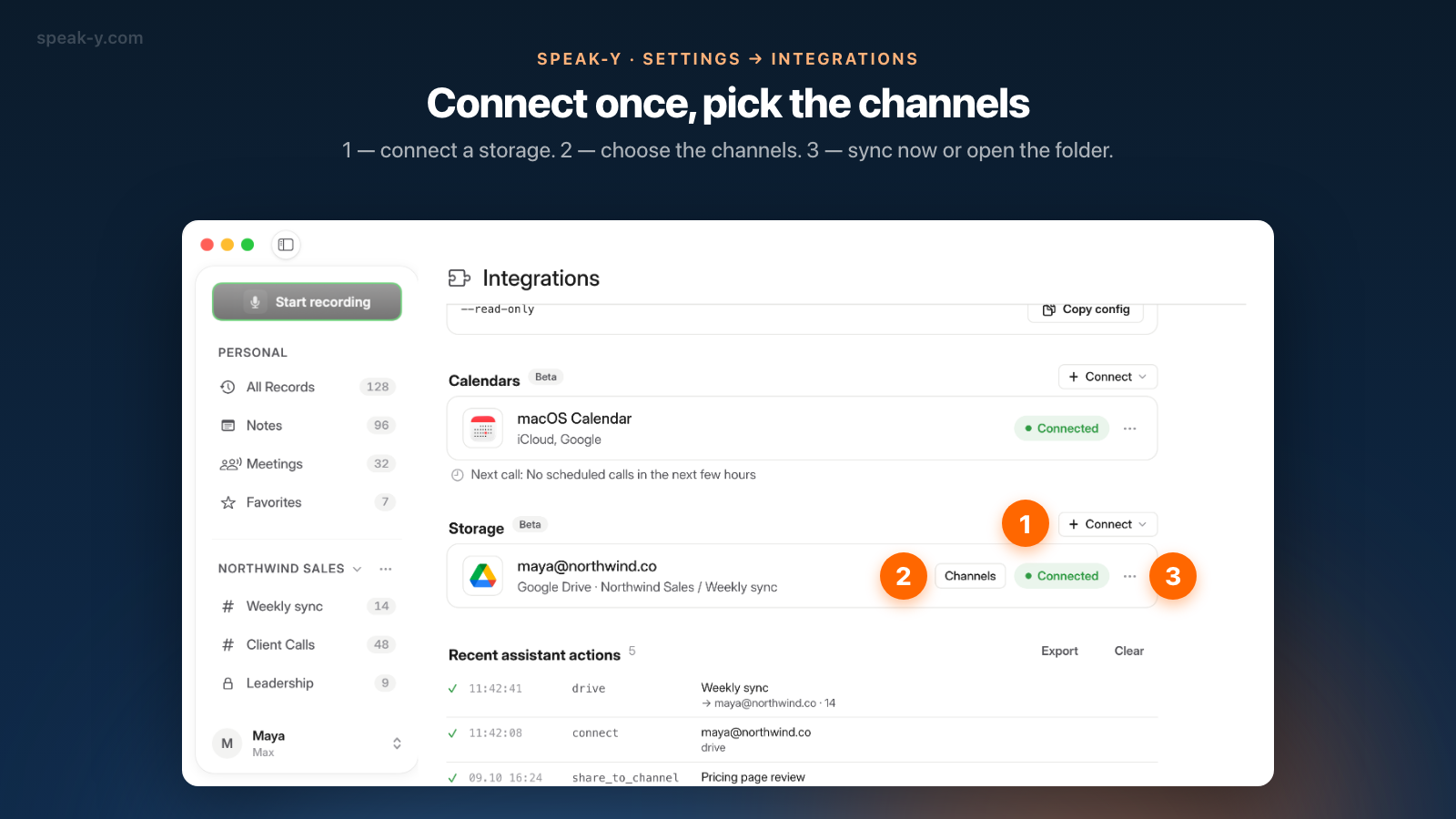
- Open Settings → Integrations and find the Storage group. While nothing is connected, the card says that channel records can flow to Google Drive, Notion, Obsidian, GitHub or Confluence.
- Press Connect and choose Google Drive. Your browser opens Google's consent screen. Approve it and return to the app.
- Check the new row. It shows the email of the connected account, the line "Google Drive · Pick the channels to upload" and a Connected badge. Nothing has been uploaded yet.
- Press Channels and tick the channels. Each entry is written as workspace / channel. Under the list the app repeats the rule: "A channel uploads whole — including records shared by teammates. Personal records are never uploaded."
- Wait for the first pass. The row lists the selected channels and shows "Uploading…" while documents are being created.
The ⋯ menu on the row holds the rest: Sync now runs a pass immediately, Open folder in Drive opens the Speak-Y folder in the browser, Reconnect repeats the consent, and Disconnect removes the account from the app.
Where do the documents land?
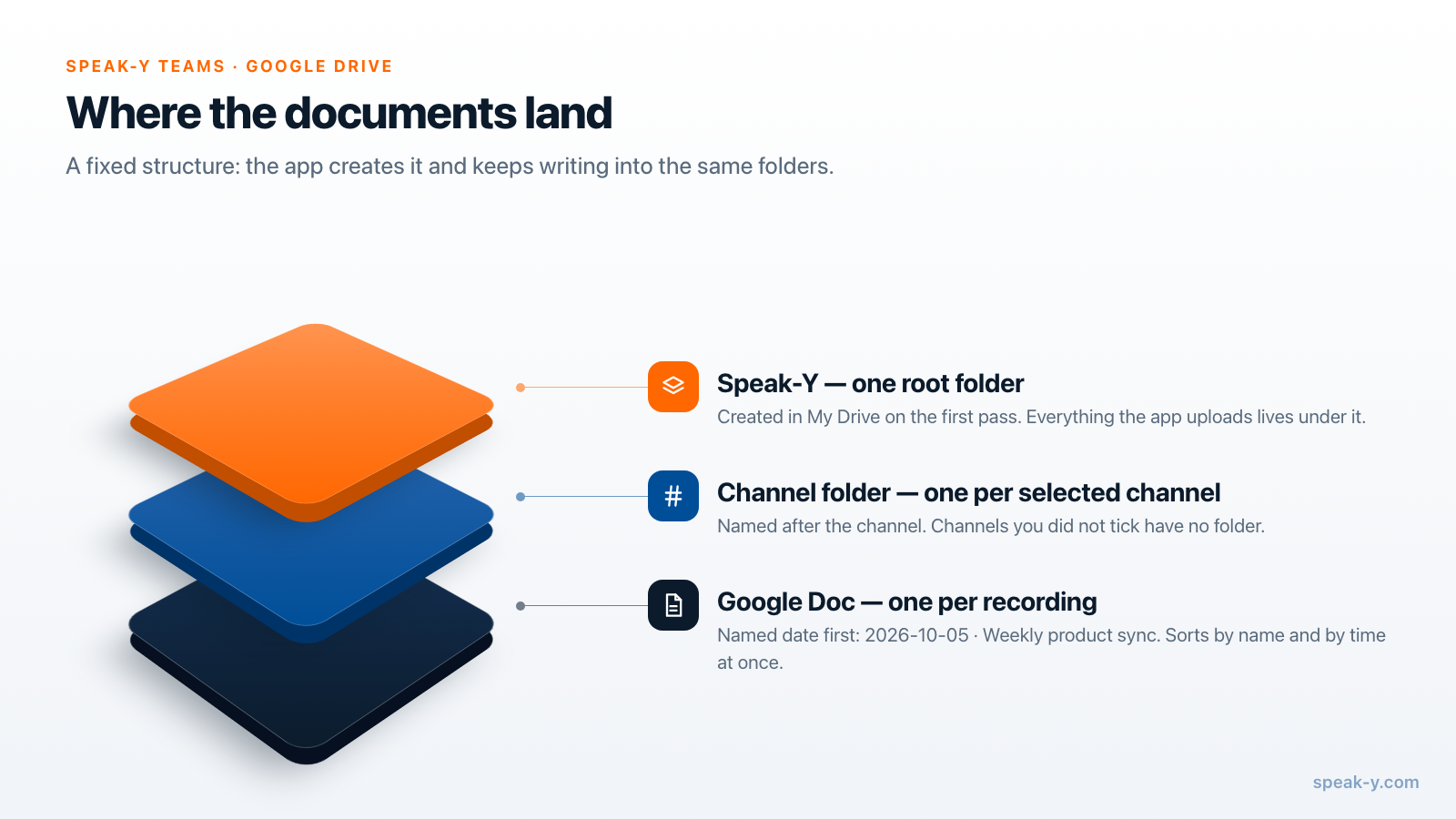
In a fixed three-level structure inside My Drive:
- a root folder named Speak-Y;
- inside it, one folder per channel, named after the channel;
- inside that, one Google Doc per recording.
A document is named with the date first and the title after it, for example
2026-10-05 · Weekly product sync. With the ISO date in front, the folder sorts by
name and by time at once, even when half the meetings share a title.
You can tidy up on your side. If you delete a channel folder, the next pass creates it again and uploads the documents again. If you delete or trash a single document, it stays gone until that recording changes in the channel — then a fresh document is created.
What is inside a document?
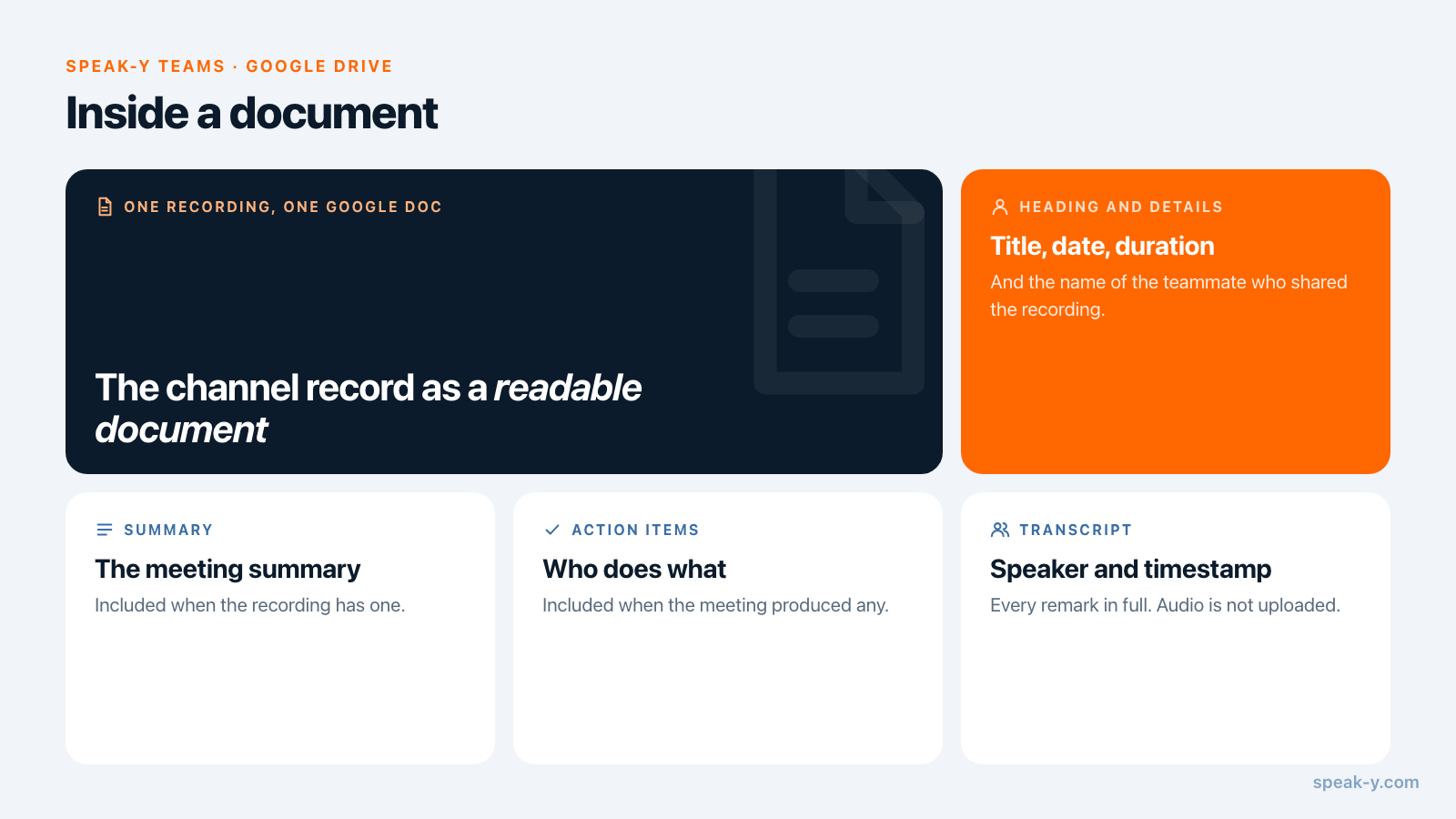
The same parts a channel member sees in the app, as plain document structure:
| Part of the document | What it contains |
|---|---|
| Heading | The title of the recording |
| Line under the heading | Date, duration and the name of the teammate who shared it |
| Summary | The meeting summary, if the recording has one |
| Action items | The action items, if there are any |
| Transcript | Each remark with the speaker's name and its timestamp |
| Footer | "Created by Speak-Y" |
A dictation, or a meeting without speaker separation, gets its transcript as plain paragraphs. Formatting is limited to what a Google Doc keeps on import: headings, paragraphs, bold and italics. Audio is not uploaded.
When does a document appear or change?
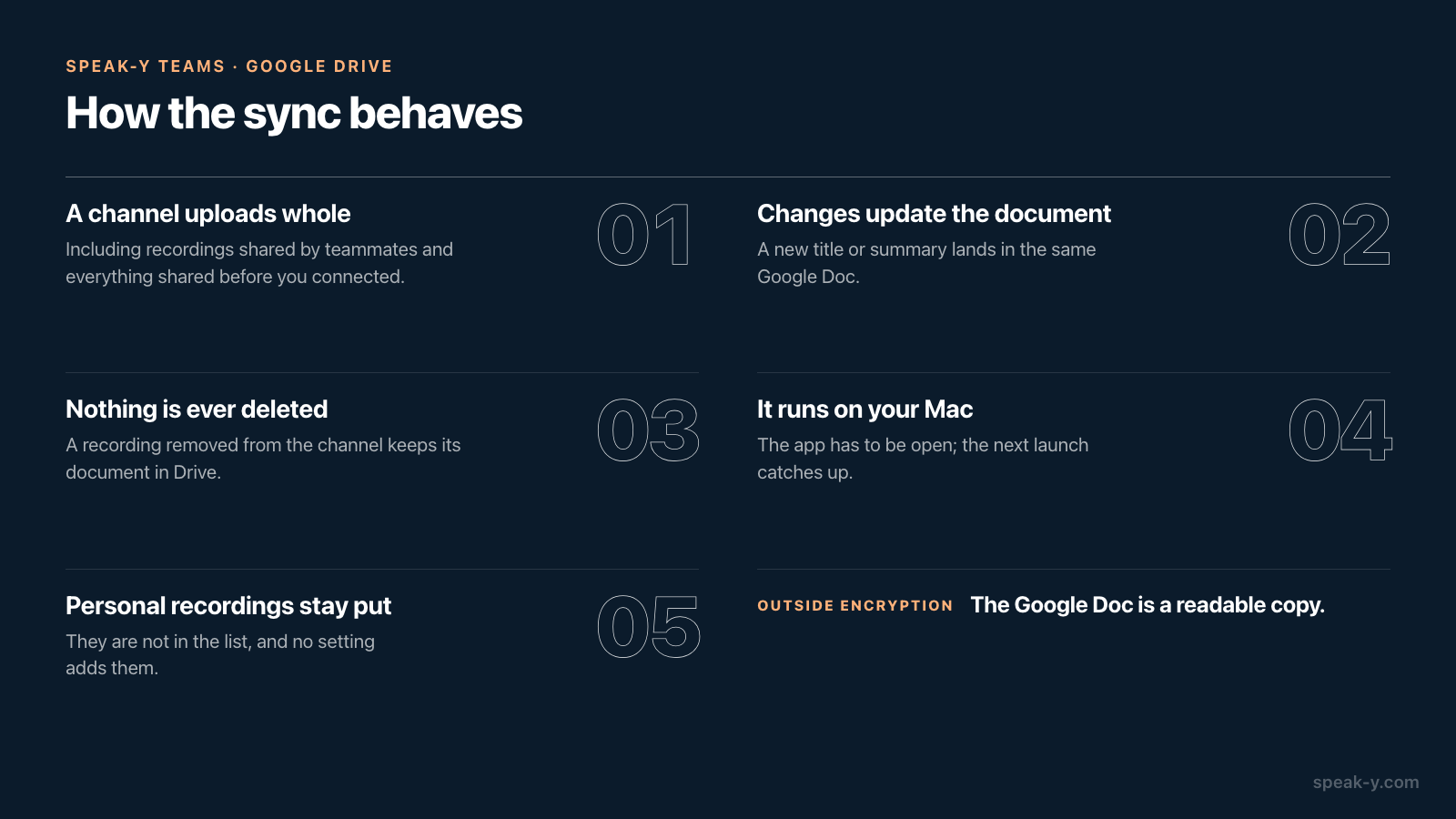
When the channel feed on your Mac changes. Speak-Y does not upload at the moment somebody presses To channel; it reacts to the recording arriving in your local copy of the channel. That covers recordings shared by teammates and from your other devices, and it has one practical consequence: the app has to be running on your Mac. A closed laptop uploads nothing; the next launch catches up, because every pass walks the whole channel.
- Changes travel. When the recording changes in the channel — a new title or a regenerated summary, for example — the same document is updated in place, including its file name.
- Removals do not. A recording taken out of the channel keeps its document. Speak-Y never deletes anything in your Drive.
- A moved recording gets a second document. Move it to another selected channel and a new document appears in that channel's folder; the old one stays where it was.
- Unticking a channel stops the uploads and leaves the folder alone. Tick it again and documents continue in the same folder, not in a duplicate.
- One broken record does not block the rest. A pass skips it, finishes the channel and shows the error in the row.
What can Speak-Y see in your Drive?
Only what it put there. The app requests the drive.file permission. Google's
Drive API documentation, checked on October 10, 2026, classifies it as
non-sensitive and describes it as access to create new files and modify the
files the user opens with the app — per-file access, as opposed to the
restricted scopes that read or manage the whole Drive. Speak-Y cannot list
your folders, open your other documents or see files teammates shared with
you.
Drive access is a separate consent from Google Calendar in the app, so disconnecting Drive does not disconnect the calendar. After Disconnect the selected channels are cleared and the documents stay in your Drive. Connect the same account again and Speak-Y continues with the same folders instead of creating everything a second time.
What does the export do to encryption?
It ends at the edge of Drive, and that is the point to decide on before you tick a channel. Inside Speak-Y a channel is readable only on members' devices — how end-to-end encrypted team sharing works explains the keys. A Google Doc is ordinary cloud content: Google stores it in readable form, and whoever you share the folder with can read every meeting in it, whether or not they are a member of the channel.
That makes the export a deliberate act by one member, which is why channels are ticked by name. A reasonable policy for a team:
- export channels whose content already circulates as documents — weekly syncs, project channels, client notes meant for the client folder;
- leave private channels such as leadership or hiring out, or export them to a Drive folder with the same narrow access;
- agree who exports. Two members exporting the same channel produce two independent copies in two Drives.
How to split channels in the first place is covered in who sees what in meeting channels.
How do other meeting tools do it?
Cloud note-takers export from their servers, because their servers hold the text in readable form. Checked on October 10, 2026:
- Otter. Its Google Drive integration creates a text file in a Drive folder you select after each meeting, with the transcript, the summary and insights.
- Fireflies. Its Google Docs integration saves summaries — and, optionally, full transcripts — as Google Docs into the folders Fireflies Meetings > Summaries and Fireflies Meetings > Transcripts. Rules that filter which meetings are sent require the Business plan or higher.
The server-side approach has a real advantage: it works while every laptop is closed. Speak-Y's upload depends on a member's Mac being on, and that is the price of a server that cannot read the channel. If documents must appear without any device online, a cloud note-taker fits better.
If a notification is enough and the text can stay in the app, use the workspace Delivery tab instead — see email and webhook alerts for team meetings. For the full routine around a recurring meeting, from tidy notes to a shared copy, see weekly meeting notes for a team.
Team workspaces are available in the Speak-Y macOS app: creating one starts on the Pro plan, and teammates join free on any plan. The Speak-Y Teams page shows how shared channels work.
FAQ
Can Speak-Y save meeting notes to Google Drive automatically?
Yes. In the macOS app, open Settings → Integrations, connect Google Drive in the Storage group and pick the team channels to upload. Every recording in those channels becomes a Google Doc with the summary, action items and transcript, in a Speak-Y folder in your Drive.
Are personal recordings uploaded to Google Drive?
No. Only recordings shared to a team channel you selected are uploaded. Personal dictations and meetings are not in the list and there is no setting that adds them.
Can Speak-Y read the other files in my Google Drive?
No. Speak-Y asks for the drive.file permission, which Google classifies as non-sensitive: the app can create files and change the files it created itself. It cannot list, open or download anything else in your Drive.
What happens to the Google Doc if a recording is removed from the channel?
The document stays. Speak-Y creates and updates documents but never deletes them: a document in your Drive may have been edited or linked from elsewhere, so removing it is left to you.
Is a recording still end-to-end encrypted after it is uploaded to Drive?
The channel copy is. The Google Doc is a readable copy outside that encryption: anyone with access to the Drive folder can read it, and Google stores it like any other document.