Async Standup Without the Call: Post Your Status by Voice
A daily standup call costs everyone fifteen minutes and a context switch, mostly spent listening to statuses that would take ten seconds to read. An async standup replaces it: everyone posts yesterday, today and blockers in writing, and the team reads the feed when it suits them. The catch is that nobody wants to write it.
In Speak-Y you say it instead. Press ⌥ Space, talk for a minute, press ⌥ Space again, and the status is saved under Notes. Open it, press To channel and pick the team's standup channel. Teammates see every status of the morning in the channel's Day view, each with its author and time, and Copy day copies all of them at once. Your part takes about two minutes a day.
This guide covers the routine in the Speak-Y Mac app, checked on 1 October 2026, plus how an AI assistant can summarise the week's blockers.
What do you set up once?
A workspace. If your team has none yet, set one up first. Creating a workspace needs Pro, Pro+ or Max, or the 7-day trial. People you invite join free on any plan, including Free, so the standup does not add a cost per person.
A channel for the standup. Name it "Daily standup". Two decisions matter:
- Public or private. A public channel, marked #, is readable by everyone in the workspace and is created by the owner or an admin. Any member can create a private channel, marked with a lock, and add the team to it. Who sees what in team channels explains the difference.
- Email delivery. If an owner or admin has turned it on for the workspace, every new recording in a public channel sends a "New dictation in Speak-Y" notice — ten statuses, ten emails. Private channels are never announced.
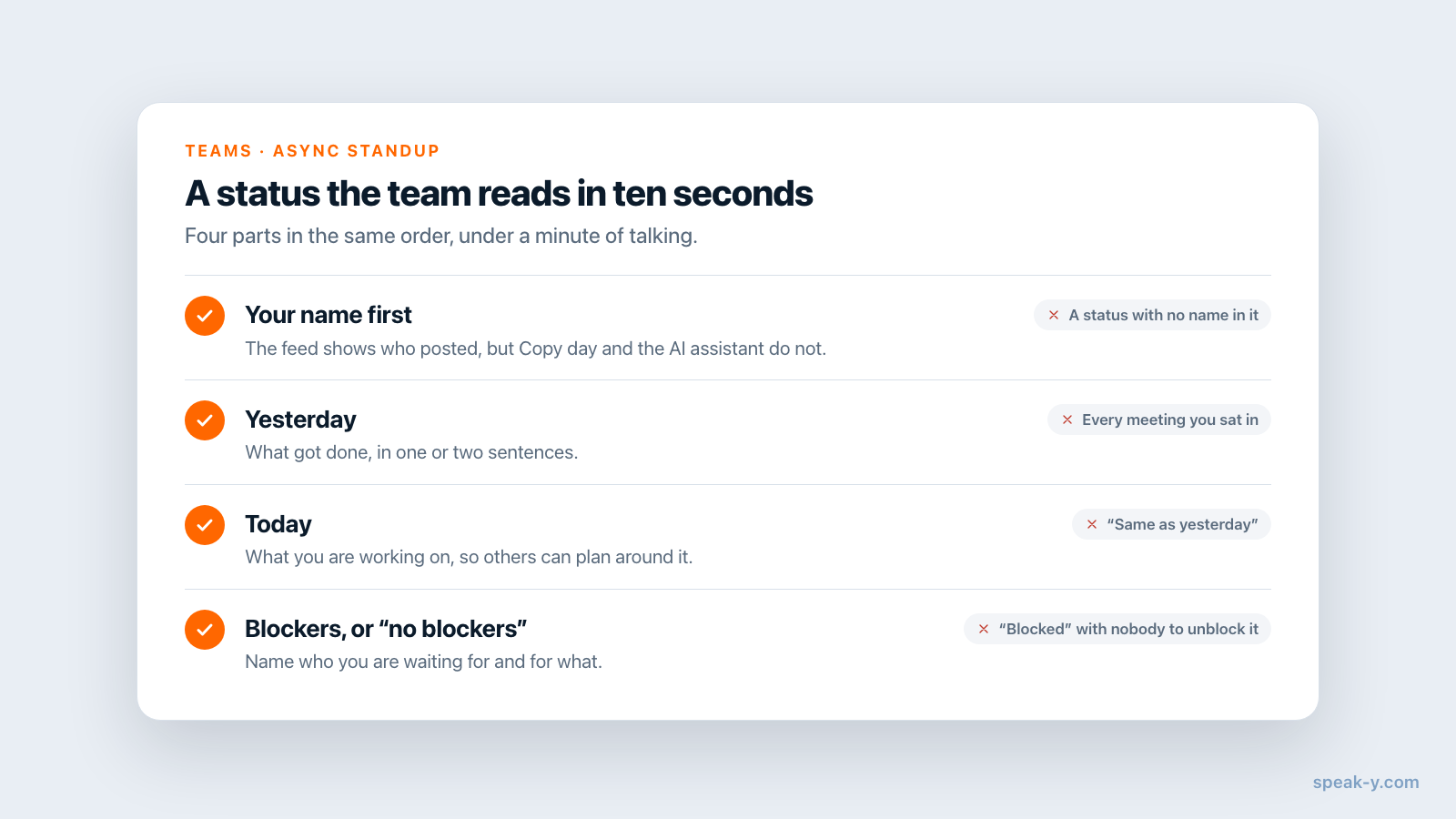
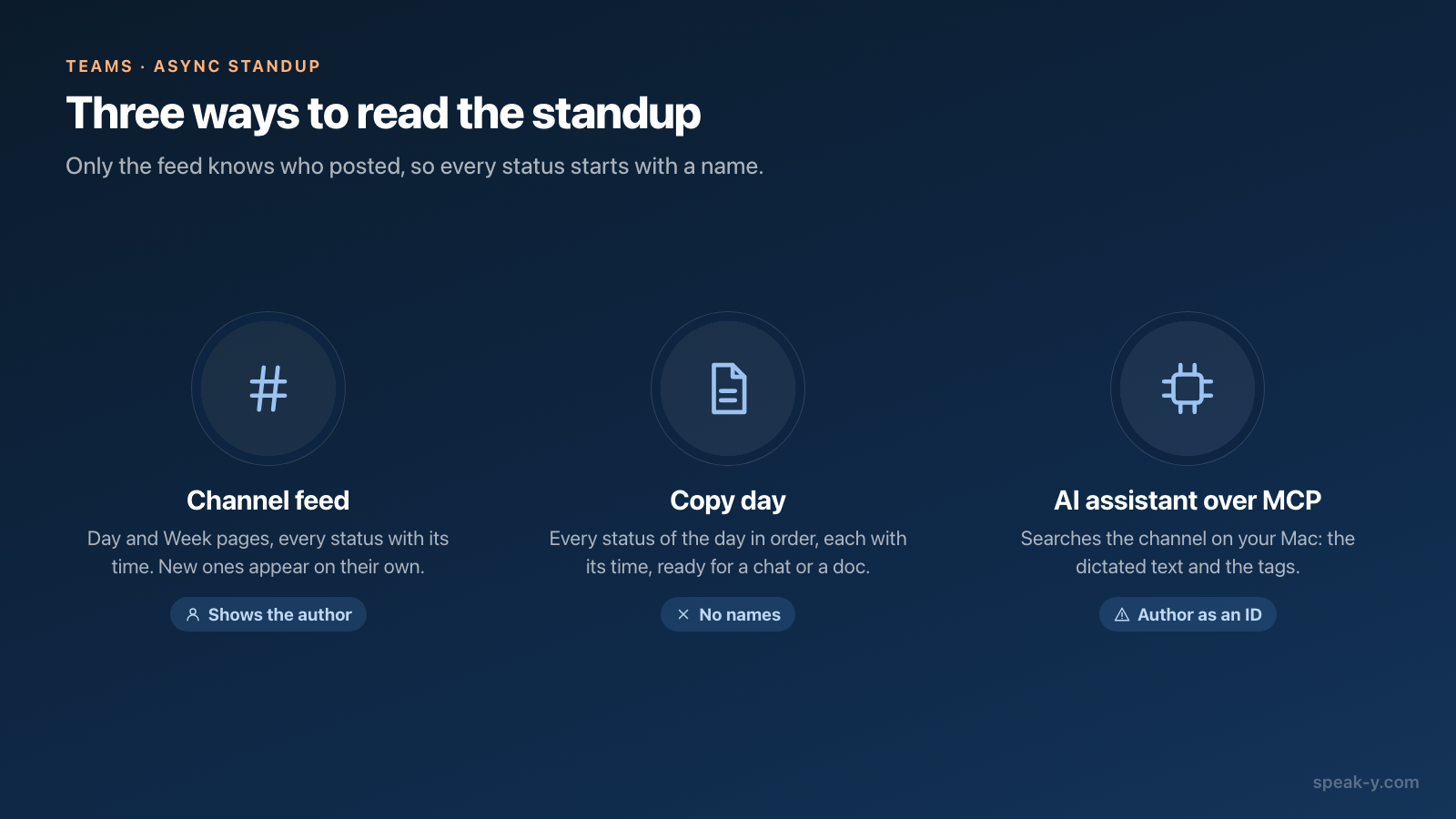
One format for everyone. Agree to say four things in the same order: your name, what you did yesterday, what you are doing today, and your blockers — or "no blockers". The name matters: the channel feed shows who posted each status, but text copied out of it and an AI assistant reading it do not.
Step 1. Say your status in a minute
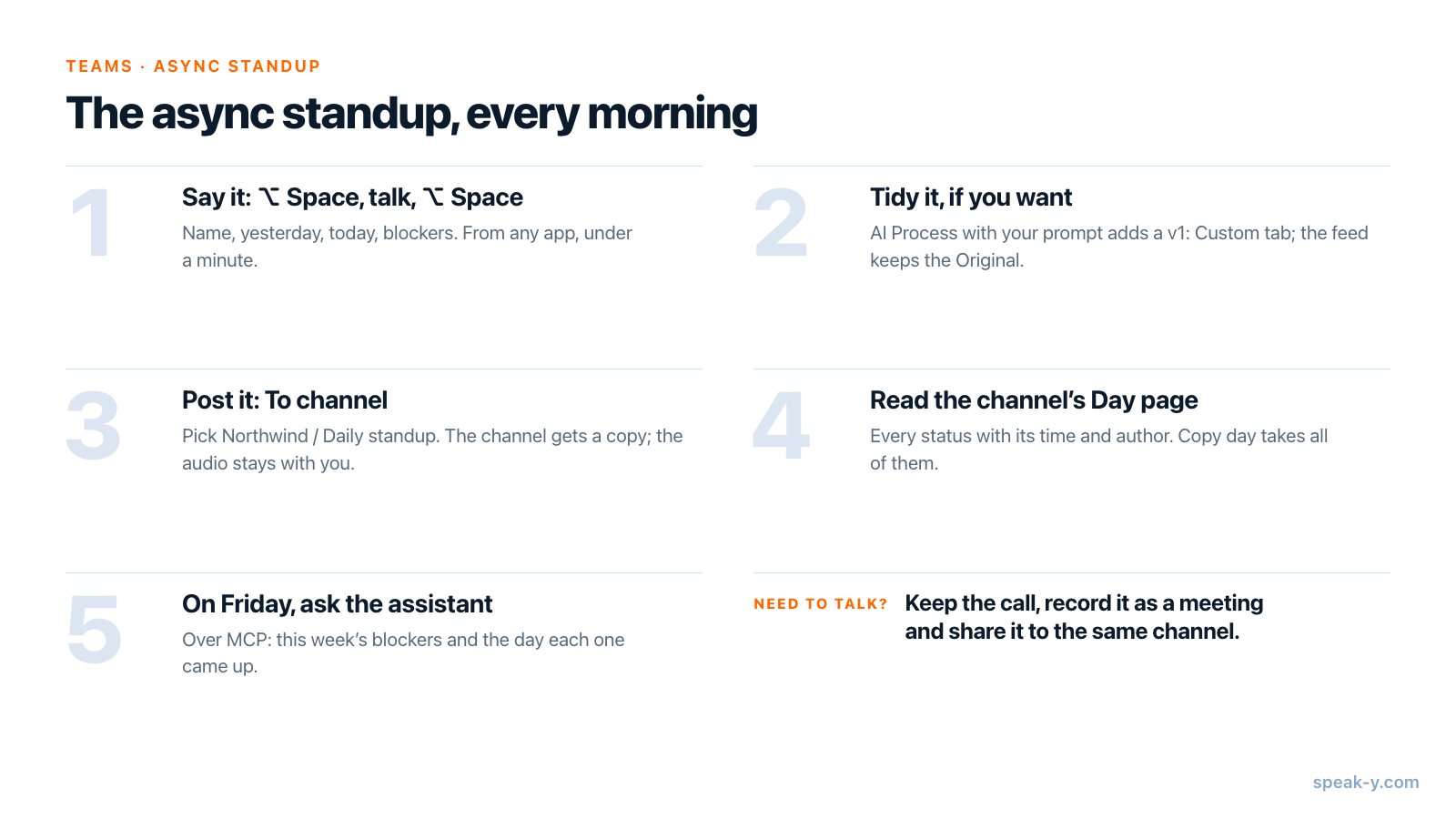
Wherever you are on the Mac, press the Toggle hotkey — ⌥ Space by default — and talk. Press ⌥ Space again when you are done. No text field needs to be active: if the cursor is not in one, the recording button offers Copy to clipboard?, which you can ignore. Either way, the status is saved under Notes in the Speak-Y window.
A status sounds like this:
Maya here. Yesterday I finished the pricing page copy and sent it to legal. Today I'm reviewing Tom's onboarding flow and writing the release notes. Blocker: I still need the final prices from finance.
That is 34 words, about fifteen seconds of talking; Speak-Y adds the punctuation. Three habits keep statuses quick to read:
- Say the section words out loud. "Yesterday", "today", "blocker" become the structure of the text, and they are what people search for later.
- Name who you are waiting for. "Blocked on finance" gets fixed; "blocked" does not.
- Stay under a minute. A status that needs three minutes is a topic for a call.
Step 2 (optional). Tidy it with AI Process
If your statuses come out rambling, let the AI shape them. Open the note under Notes, press AI Process, type your own instruction in the Prompt field and press Apply:
Format as a standup: Yesterday, Today, Blockers, one or two short lines each. Keep my wording. Don't add anything I didn't say.
The result appears as a new tab, v1: Custom, next to Original; the dictation itself is not changed. Know what travels: the channel feed and Copy day show the Original text, while the tidy version goes along as a tab teammates see when they open your status. Run AI Process before you share — the channel receives the note as it is at that moment. Voice notes to a structured draft covers AI Process in more detail.
To get the formatted text into the feed itself, use a voice command (Pro and higher): in Settings → Command mode → Configure voice commands, press Add Command with the trigger phrase "format as standup" and the prompt above. End your dictation with that phrase, and Speak-Y saves two notes, the dictation marked 📝 [Original] and the result marked ✨ [AI Processed]. Share the second.
Step 3. Post it with To channel
With the note open, press To channel in the bar under the text. The menu lists channels as workspace / channel; pick Northwind / Daily standup. The button now shows the channel's name, and the status line says "Shared to # Daily standup".
The channel receives an end-to-end encrypted copy: the text, any AI versions, the title and the tags. The audio is never shared. If you tag the note first — click Tags, type "standup" in Search or create… and choose Create new tag — the tag travels with the status, which helps the AI assistant later.
The copy does not follow later edits. To post a correction, choose Remove from # Daily standup in the same menu, fix the note and share it again.
Read the morning in the channel's Day view
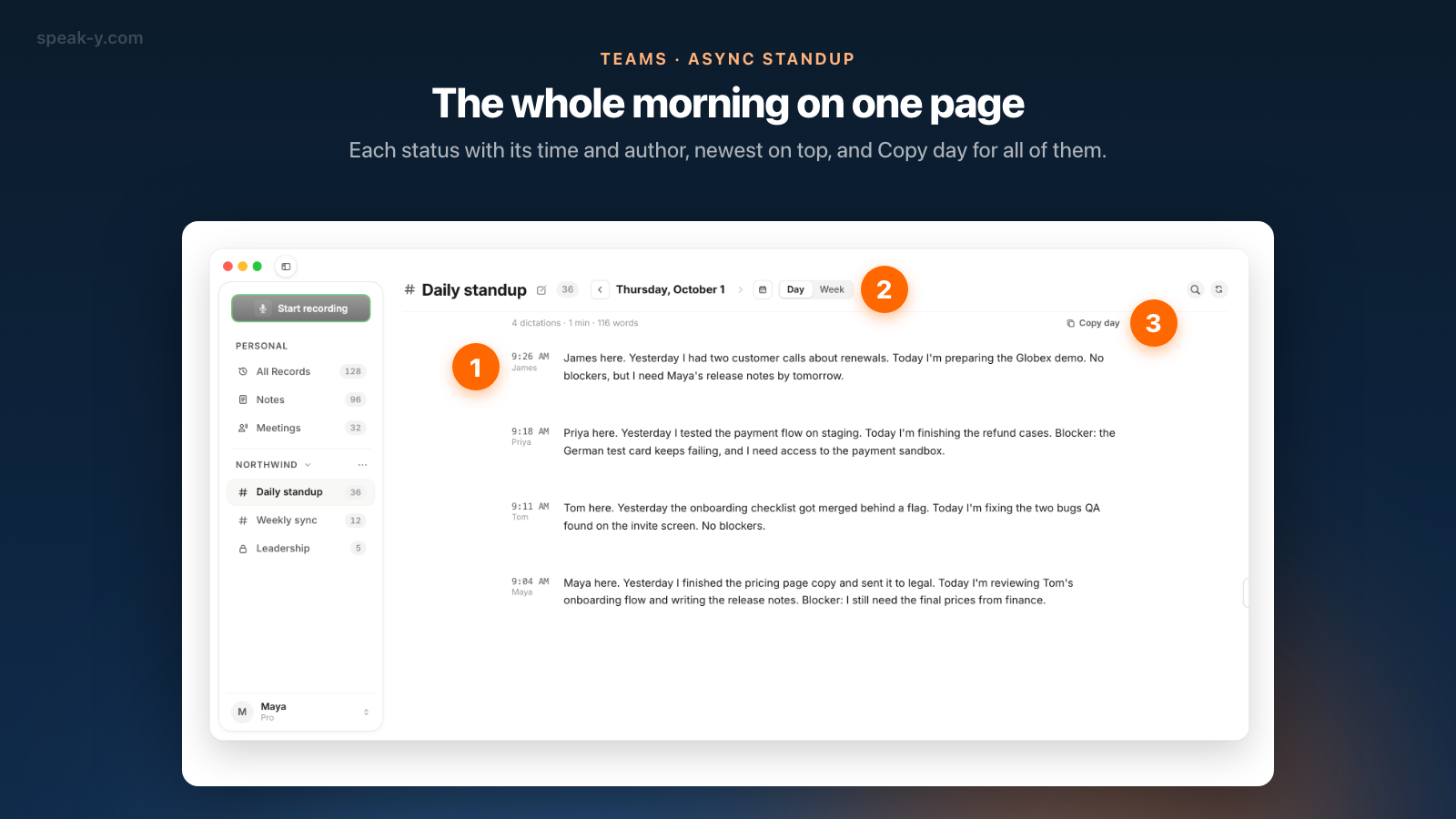
Anyone in the channel opens it from the sidebar, under the workspace's name. The feed has the same pages as All Records — Day or Week, switched next to the date — and opens on the latest day with a status. On a Day page each status is a paragraph with the time on the margin and the author's name under it, newest at the top; the time is when it was recorded, not shared. The line above sums up the day — "4 dictations · 1 min · 116 words" — and new statuses appear on their own while the channel is open.
Three ways to use the page:
- Read it. Ten statuses take a minute or two; click one to open it, with its v1: Custom tab if there is one.
- Copy day. Copies every status on the page in the order of the day, each with its time, ready to paste into a chat or a document. The copied text has no author names — another reason to start with your name.
- Search. The magnifier in the channel's header searches every status's text: "blocker" finds each day someone said it.
On Friday, switch to Week to see the whole week day by day; Copy week works the same way.
Ask your assistant for the week's blockers
The Speak-Y MCP server, free on every plan, lets Claude, ChatGPT or Cursor read your recordings on your Mac, including recordings teammates shared into channels you belong to (marked read-only). They come from the copy of each channel the Speak-Y app has already downloaded; if a fresh status is missing, ask the assistant to sync first.
Questions that work well on a Friday:
- "Find this week's standup statuses that mention a blocker and list each blocker with the day it first came up."
- "Summarise what the team did this week in five bullets for the Friday update."
Two details decide how good the answer is. The assistant reads the text as it was dictated, the Original, not the AI Process version. And it knows the author of a channel recording only by an account ID, not by name, so statuses that open with "Maya here" produce a summary with names in it. If everyone tags their status "standup", the assistant can ask for exactly those recordings instead of searching for words.
What if a call is still needed?
Some blockers need ten minutes of talking. Keep the call and record it as a meeting: with Meeting mode on Auto in Settings, Speak-Y notices when Zoom, Microsoft Teams, Webex, FaceTime or another known call app starts a call and asks Record as Meeting? on the recording button; no bot joins. Afterwards the recording has speakers and a Summary that opens with the action items, each with its owner, and To channel puts it into "Daily standup" next to the statuses, for everyone who was not on the call. On Free a meeting stops at 30 minutes, with 2 meeting hours a month — enough for an occasional short call. Weekly meeting notes nobody has to write covers recurring calls.
The daily routine on one card
Which plans does this need?
As of 1 October 2026 (pricing):
- Workspace. Created on Pro, Pro+, Max or the 7-day trial; members join free on any plan.
- Dictation. Every plan. Free includes 2,000 words a week on the Mac — a daily 50-word status uses about 250; paid plans are unlimited.
- AI Process. One request per Apply: 50 a week on Free, 200 on Pro, unlimited on Pro+ and Max. Voice commands: Pro and higher.
- Meetings. Free: 30 minutes per meeting, 2 hours a month. Pro: 60 minutes, 10 hours. Pro+: 4 hours, 40 hours.
- MCP server. Free on every plan. The Mac app runs on macOS 14.2 and later.
For what exactly travels when you share and how to take it back, see sharing to a team channel; the Teams page has the overview of workspaces, channels and encryption.
FAQ
Can I share a dictation to a Speak-Y team channel, or only meetings?
Any recording can go to a channel, dictations included. Open the note under Notes, press To channel in the bar under the text and pick the channel. In the channel feed it appears as a paragraph with your name and the time you recorded it; the audio is not shared.
Which Speak-Y plan does an async standup need?
Creating the team workspace needs Pro, Pro+ or Max, or the 7-day trial. Everyone else joins free on any plan, including Free. As of 1 October 2026, Free includes 2,000 dictated words a week on the Mac, and a daily 50-word status uses about 250 of them.
Does the channel feed show the AI-formatted version of my status?
No. The feed and Copy day show the text you dictated. A version made with AI Process travels as a tab, v1: Custom, that teammates see when they open your status. If you want the formatted text in the feed itself, use a voice command (Pro and higher): its result is saved as a separate note marked ✨ [AI Processed], and you share that one.
Can an AI assistant summarise the week's blockers from the standup channel?
Yes, through the free Speak-Y MCP server. Claude, ChatGPT or Cursor can search the recordings on your Mac, including statuses teammates shared into channels you belong to. The assistant sees the dictated text and tags, but it knows a channel recording's author only by account ID, so ask everyone to start their status with their name.
Will the team get an email for every status?
Only if a workspace owner or admin has turned on Email delivery. It then sends a notice titled New dictation in Speak-Y for each new recording in a public channel of the workspace. Private channels are never announced, so a private standup channel keeps inboxes quiet.