Hiring Panel Interview Notes: Debrief on Evidence, Not Memory
A hiring debrief usually runs on memory: four interviewers, four impressions, and whoever speaks first sets the tone. Speak-Y lets the panel debrief on what the candidate actually said instead. Each interviewer records their own interview without a bot, presses a hotkey to mark answers as Strong, Concern or Follow-up, names the candidate and tags the recording, then shares it into a private channel that only the panel can read. In the debrief everyone sees every interview's transcript with its marks — and an AI assistant can pull every Concern from all four interviews, with quotes and times.
This guide follows one hiring round in the macOS app as of 1 October 2026: four interviewers and a candidate, Priya Shah, for a backend role — including the parts that are easy to skip: telling the candidate, keeping the AI out of the decision and deleting the recordings afterwards.
The routine at a glance
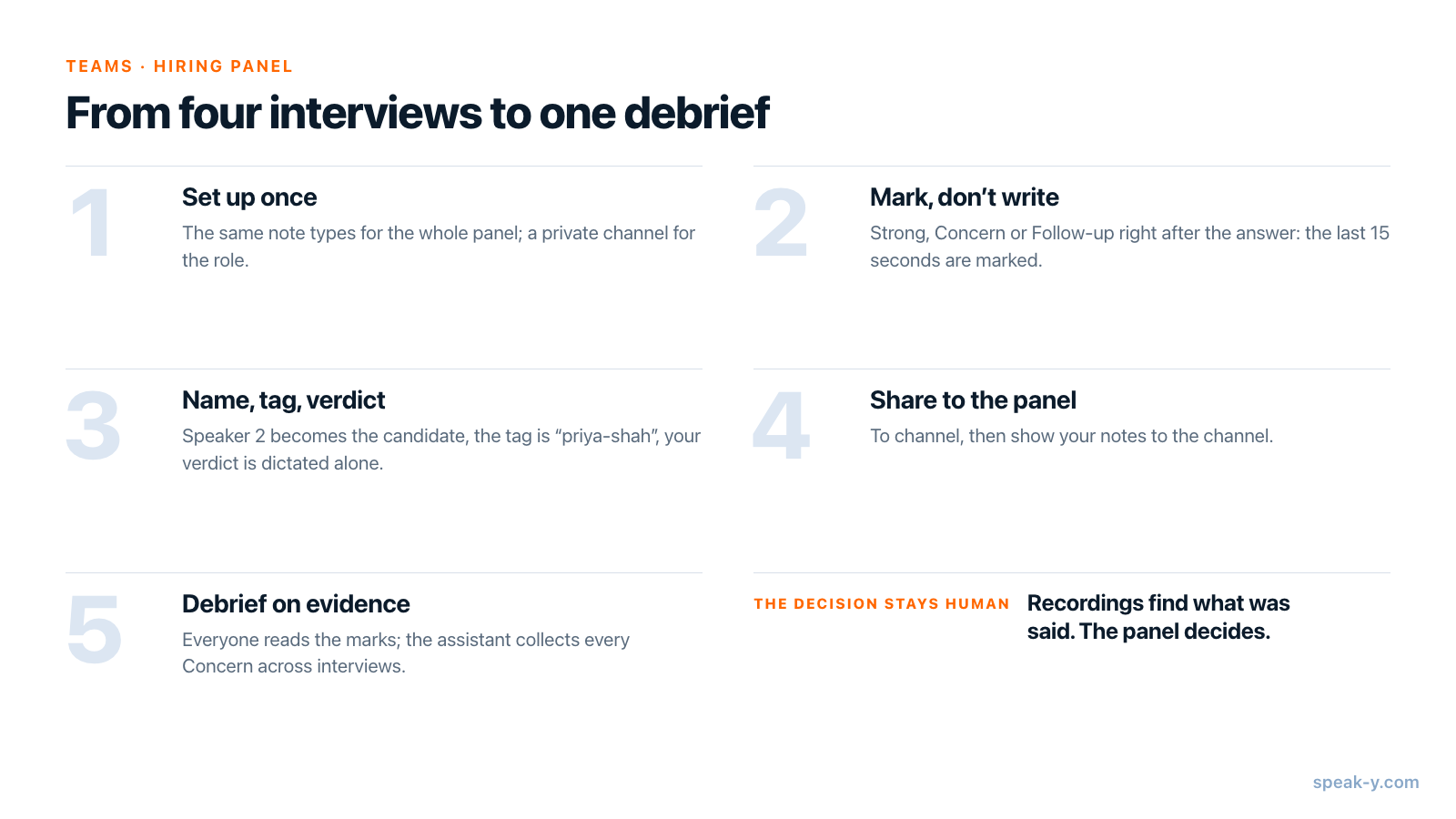
Panel interviews fail in the debrief: notes are uneven, written from memory, and the first confident opinion anchors the rest. The routine moves the evidence into the interview and keeps each verdict independent until everyone has written theirs.
Before the first interview: note types, a private channel, a plan
Agree on three note types. In Settings → Notes, the default type is Mark the moment on ⌥1. Rename it to Strong, then use Add note type twice to create Concern and Follow-up, each with its own colour and a hotkey from Set hotkey — for example ⌥2 and ⌥3. Every interviewer sets up the same names on their own Mac: notes keep their type name, so "Concern" from four interviewers can later be gathered as one list.
Create a private channel for the role. A private channel is visible only to its creator and the members they pick. In your workspace choose New channel, name it "Hiring — Backend Engineer", switch the type to Private and tick the interviewers under Who can see this channel. Any member can create a private channel; creating the workspace itself starts on Pro, and teammates join free on any plan. If you have no workspace yet, set one up first; who sees what in team channels explains the access rules in detail.
Check each interviewer's plan. Every interviewer records on their own Mac, so each needs a plan that covers their interview. As of 1 October 2026:
| Plan | Longest meeting | Meeting time per month |
|---|---|---|
| Free | 30 minutes | 2 hours |
| Pro | 60 minutes | 10 hours |
| Pro+ | 4 hours | 40 hours |
A 45-minute interview needs Pro; on Free the recording stops at 30 minutes.
Tell the candidate. Speak-Y records on your Mac and never joins the call, so nothing will announce the recording for you. Say it in the invitation and again in the first minute — "we record interviews so the whole panel works from the same notes; the recordings are deleted after the decision" — and be ready to run the interview unrecorded if the candidate prefers. Whether that is enough or you need explicit consent depends on where you and the candidate are: is it legal to record meetings goes through the rules.
During the interview: mark answers, don't write them down
When the call starts, Speak-Y asks Record as Meeting?; click the check mark. From then on your attention belongs to the candidate. When an answer is worth discussing, press its hotkey right after it: Speak-Y marks the last 15 seconds and the button briefly reads Last 15s marked.
- A mark holds a type and a time, not text: the candidate sees you listening, not writing.
- The note buttons next to the recording button work without hotkeys and are hidden while you share your screen — useful in a live coding interview.
- Missed one? After the call, hover over the answer and click +, or right-click it → Add note.
Marks are pointers, not scores: "Concern" means "the panel should look at this answer", not "this answer failed".
Right after the call: a name, a tag and your own verdict
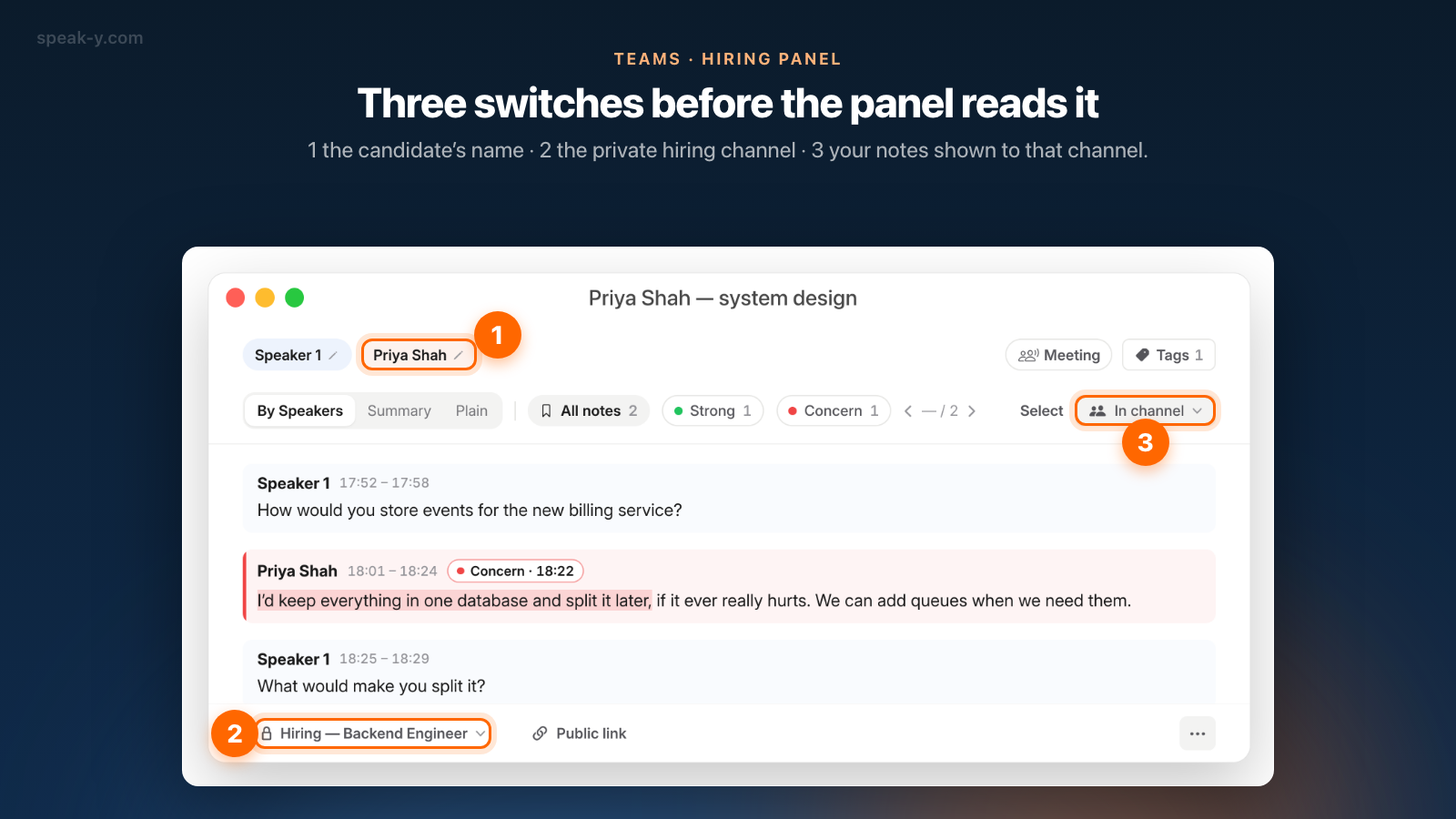
- Name the candidate. Open the recording, click the Speaker 2 chip, type "Priya Shah" and press Enter. Every reply now carries her name.
- Tag the recording. Click Tags and create a tag for the candidate,
such as
priya-shah. Agree on the format with the panel, since the tag is how all four interviews are found together. - Dictate your verdict before reading anyone else's. Press ⌥ Space,
talk through the evidence for each competency you assessed and your
recommendation, and press ⌥ Space again. The dictation is saved under
Notes; tag it
priya-shahtoo.
The third step is the one panels skip. Structured interviewing asks each interviewer to commit to a written assessment before the debrief, because a verdict formed after hearing a senior colleague is mostly an echo.
Share it with the panel
Order matters: name and tag first, share second, because the channel holds a snapshot taken at the moment you share. Then:
- Press To channel in the action bar under the transcript and pick Northwind / Hiring — Backend Engineer. The button now shows the channel's name.
- Your marks stay private by default. Click the Private chip above the transcript and choose Show in 🔒 Hiring — Backend Engineer — channel members will see them. The chip now reads In channel.
- Open your dictated verdict under Notes and share it to the same channel.
The channel receives the transcript with names and times, the AI summary, the tags and, once you show them, your marks — end-to-end encrypted, so only the panel's Macs can read it. The audio is never shared. Sharing a meeting to a team channel describes exactly what travels.
The debrief: read the evidence, then ask across all interviews
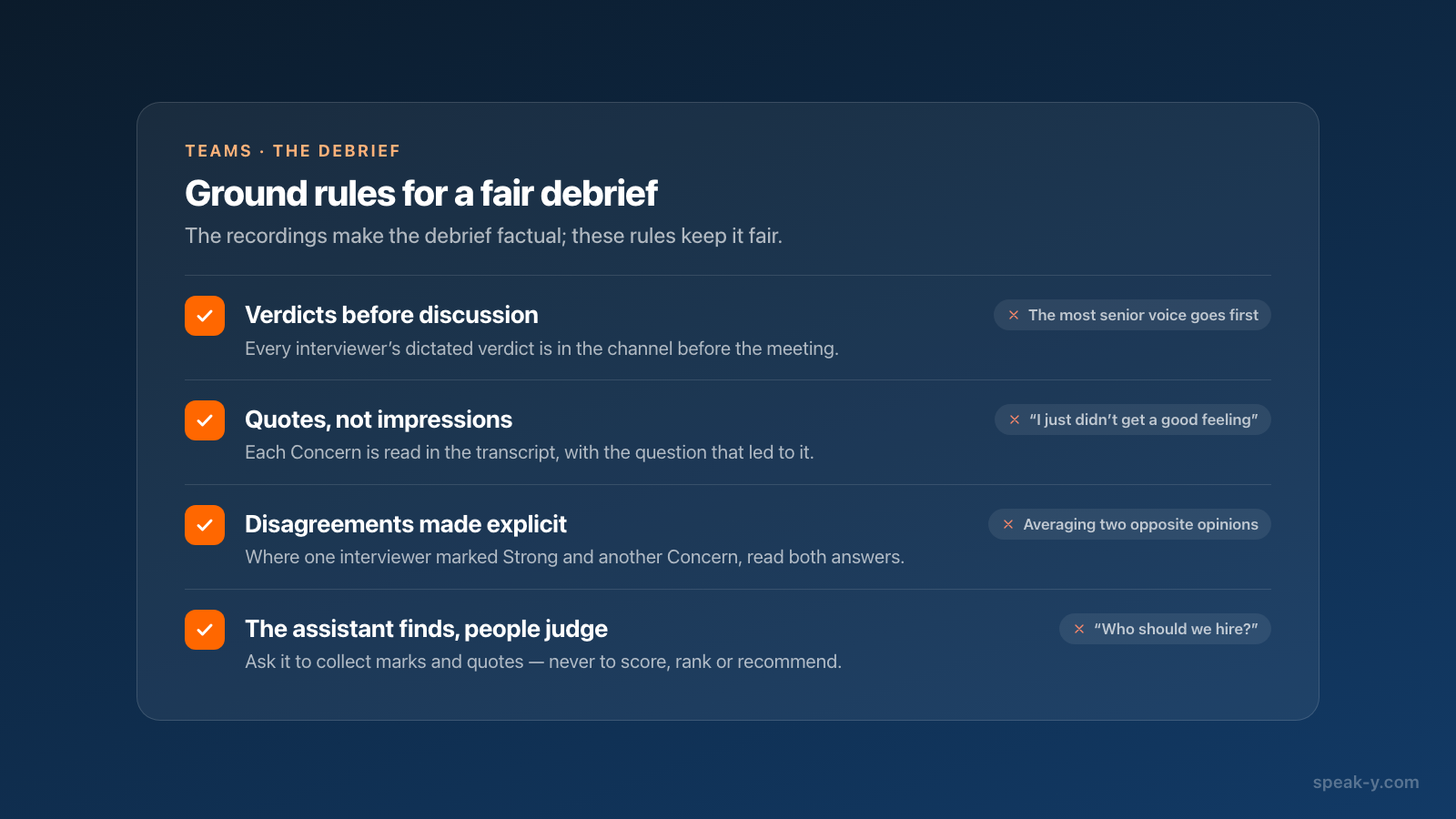
Before the meeting, each interviewer reads the other interviews in the channel. Each card shows its author, speakers and tags; inside, the strip above the transcript starts with All notes, and a chip per type — Concern, say — filters the marks so the arrows step from one concern to the next. Read the transcript, not the summary: the summary may predate the candidate's name, and it compresses exactly the nuance a hiring decision depends on.
For a cross-interview view, ask an AI assistant connected over the Speak-Y MCP server:
- "From recordings tagged priya-shah, list every Concern note with the answer it points to, the time and which interview it came from."
- "Where did two interviewers mark the same topic differently — Strong in one interview, Concern in another?"
- "Which Follow-up questions are still open after all four interviews?"
The assistant reads colleagues' recordings in the channel as read-only, with their marks if the author showed them. Reading happens locally from the Speak-Y library on your Mac; if an interview is missing, ask the assistant to sync first. Connecting meeting notes to AI assistants walks through the setup.
Keep the assistant's role narrow: it finds what was said, it does not decide. Do not ask it to score, rank or recommend candidates — the EU AI Act classifies AI systems used to evaluate candidates as high-risk, and a model's opinion is not evidence anyway. Its model also runs in the cloud, so the transcripts it reads go to its provider: check your company's policy on candidate data first.
After the decision: keep what you must, delete the rest
Interview recordings are personal data. Decide how long you keep them before the first interview, with HR or legal: under the GDPR you need a defined retention period, and in the US federal rules require employers to keep hiring records for one year from the decision (29 CFR 1602.14), longer if a discrimination charge is filed.
When the period ends, each interviewer deletes their own recordings — only the author can remove a recording from a channel:
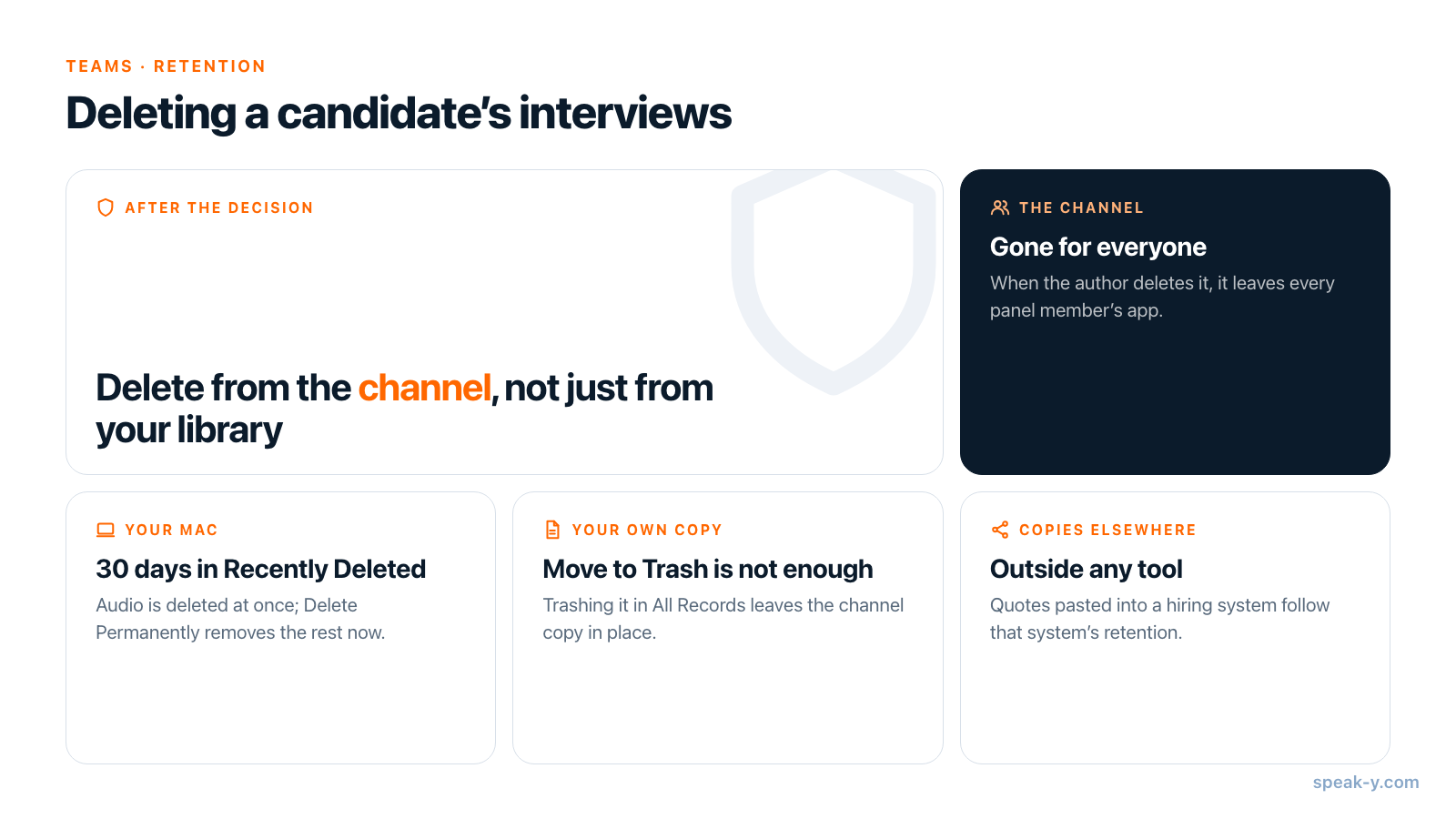
- Open your interview in the channel and delete it. The confirmation says what happens: it is removed from the channel for everyone and deleted from your Mac.
- It goes to Recently Deleted for 30 days; the audio is deleted right away. To remove it for good now, open Settings → Storage → Recently Deleted → Open and choose Delete Permanently.
- Do the same for your dictated verdict, and once the channel is empty, the workspace owner or an admin can delete the channel.
Two traps. Move to Trash on your own copy in All Records does not take the recording out of the channel — delete it from the channel. And no tool reaches copies people made: quotes pasted into a hiring system or exported transcripts follow that system's retention, not Speak-Y's.
What the panel gets
Four interviews in the candidate's own words, every Strong and Concern pinned to a time, and four verdicts written before anyone heard the others. The debrief becomes a reading of evidence, and the decision stays with the people in the room. The Teams page covers workspaces, private channels and encryption.
FAQ
How can I take interview notes without losing eye contact with the candidate?
Record the interview as a meeting in Speak-Y and, instead of writing, press a hotkey right after an answer you will want to discuss. Speak-Y marks the last 15 seconds of the transcript with the type you chose — for example Strong, Concern or Follow-up — so you can find the answer later without typing anything during the call.
Can every interviewer on a hiring panel see the others' notes in Speak-Y?
Yes, if each interviewer shares their recording into the same private channel and switches their notes from Private to Show in the channel. Channel members then read the transcript with the candidate's name, the author's Strong and Concern marks with their times, and any assessment notes shared alongside. The audio is never shared; it stays on the interviewer's Mac.
Can an AI assistant collect the concerns about a candidate from all interviews?
Yes. Over the Speak-Y MCP server, Claude, ChatGPT or Cursor can read recordings colleagues shared into your channels, filter them by the candidate's tag and list every Concern mark with the answer it points to and its time. Use it to find what was said, not to score or rank candidates: the decision stays with the panel.
Do I need the candidate's consent to record a job interview?
Tell the candidate in the invitation and again at the start of the call, and offer an interview without recording if they decline. Speak-Y never joins the call, so nobody else will announce the recording for you. Whether telling them is enough or you need explicit consent depends on where you and the candidate are.
How do I delete a candidate's interview recordings after the hiring decision?
The interviewer who shared a recording opens it in the channel and deletes it: it is removed from the channel for everyone and moved to Recently Deleted on their Mac, with the audio deleted right away. Settings → Storage → Recently Deleted → Delete Permanently removes it for good; otherwise it is erased after 30 days. Moving your own copy to Trash does not take it out of the channel.