Which MCP Clients Can Run a Local Server? 2026 Comparison
The question sounds like it should have one answer per company, and it does not. The dividing line in 2026 runs between surfaces, not vendors: the ChatGPT desktop app can start an MCP server on your machine, ChatGPT in a browser tab cannot. Claude Code and Claude Desktop both can. Every code editor with an MCP client — Cursor, VS Code, Zed, Devin Desktop — can. Anything that runs in someone else's cloud, by definition, cannot.
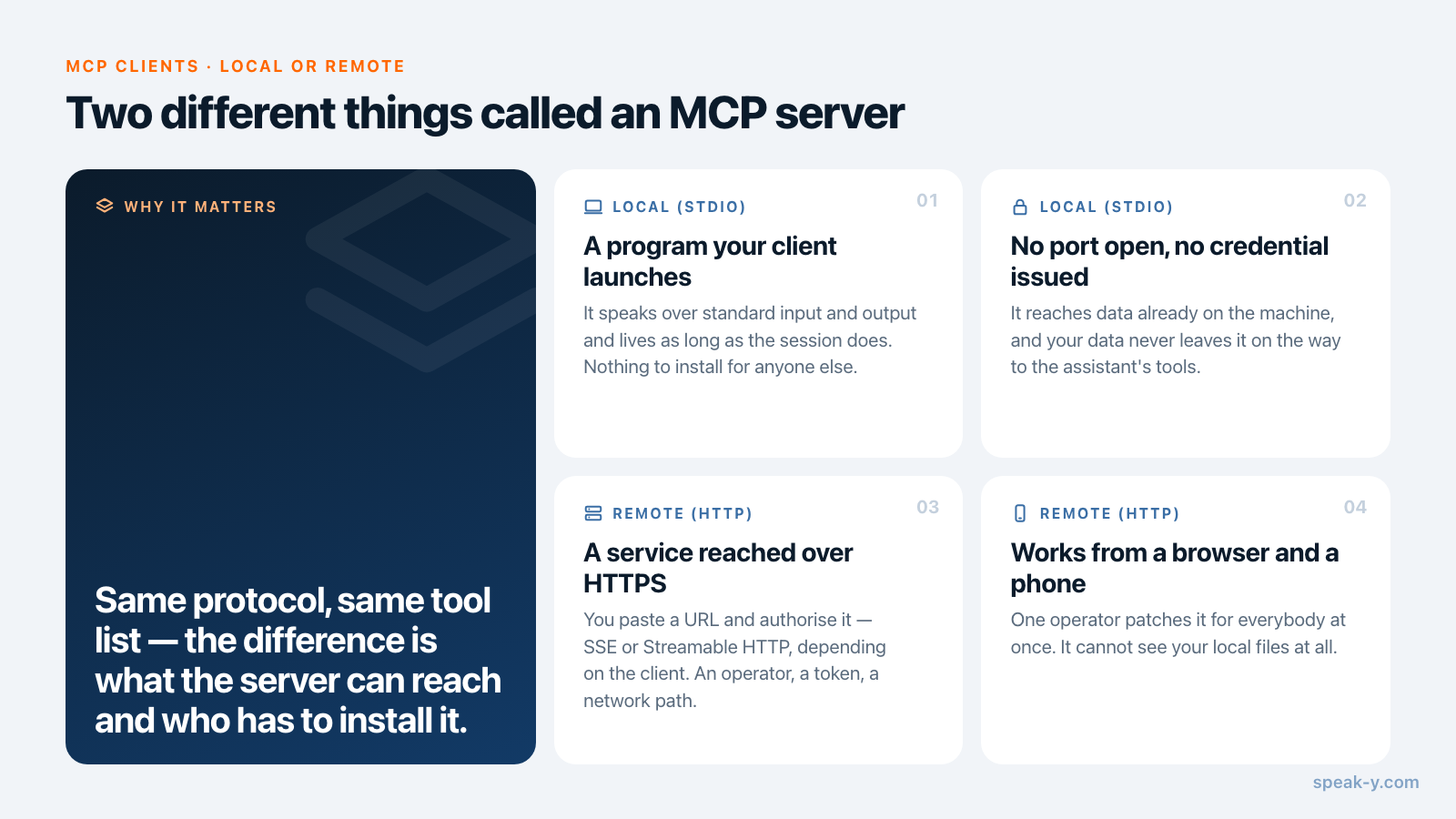
That distinction matters more than it looks. A local server is a program your client launches and speaks to over standard input and output; no port is open, no credential is issued, and your data never leaves the machine on its way to the assistant's tools. A remote server is a URL, which means an operator, a token, and a network path. Choosing a client is therefore partly a choice about where your data has to be before an assistant can use it.
This is a survey of who supports what, checked against each vendor's own documentation on 15 August 2026. If the protocol itself is new to you, what an MCP server is covers the vocabulary; if you have already picked a client and just need the config path, MCP setup in VS Code, Zed and Devin Desktop is the file-by-file version.
The short answer
| Client | Local stdio | Remote | How it asks |
|---|---|---|---|
| Claude Code | Yes | HTTP, SSE, WebSocket | Prompts; project-scoped servers need approval first |
| Claude Desktop | Yes | Yes | Explicit approval before each action |
| ChatGPT desktop app | Yes | Yes | Four approval modes, shared with Codex |
| Codex CLI / IDE extension | Yes | Yes | default_tools_approval_mode |
| ChatGPT on the web | No | Yes, HTTPS only | Connector-level, plan-gated |
| Cursor | Yes | SSE, Streamable HTTP | Asks by default; Run Modes can allowlist |
| VS Code | Yes | HTTP | Trust the server once, then per-invocation |
| Zed | Yes | Yes | Prompts before any tool action |
| Devin Desktop | Yes | Streamable HTTP, SSE | Prompts by default; per-tool rules |
One row in that table is the reason this article exists.
ChatGPT: the answer changed, and most write-ups did not
Search for this question and you will find confident statements in both directions, often on pages updated this year. Both were true at some point, which is why they persist.
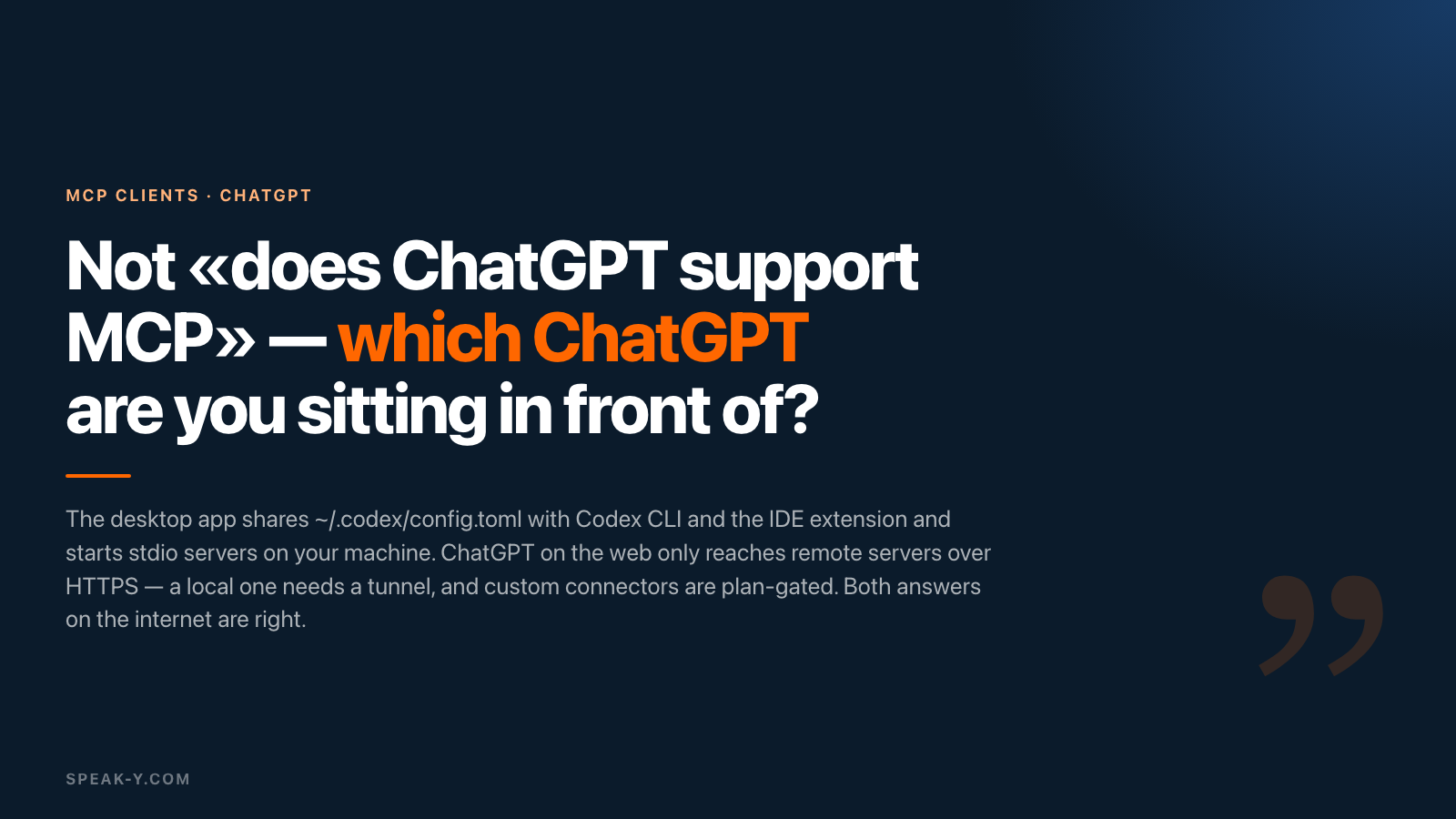
The current state, from OpenAI's own documentation: "The ChatGPT desktop app,
Codex CLI, and IDE extension support MCP servers and share MCP configuration
for the same Codex host." That shared configuration lives in
~/.codex/config.toml, or in a project-scoped .codex/config.toml for trusted
projects, and it explicitly supports "STDIO servers: Servers that run as a local
process (started by a command)."
So the desktop app is a local MCP client. Configure a server once and the CLI, the editor extension and the desktop app all see it — you are not setting it up three times.
ChatGPT on the web is a different product with a different answer. A custom connector there is a remote MCP server reached over HTTPS using SSE or Streamable HTTP: you paste a URL, you do not point it at a command. ChatGPT runs in OpenAI's cloud, so it can only reach servers exposed to the internet, and running a local one means putting a tunnel in front of it. Custom connectors are also plan-gated — available on Plus, Pro, Business, Enterprise and Edu, not on Free or Go.
Neither half of the internet's answer is wrong. They are answers to different questions, and the question worth asking is which ChatGPT you are sitting in front of.
Claude: both surfaces run local servers
Claude Code takes stdio servers with claude mcp add --transport stdio, and
remote ones over HTTP, SSE — deprecated in favour of HTTP — and WebSocket.
Configuration has three scopes: local, project (.mcp.json, committed) and user
(~/.claude.json). A committed .mcp.json does not silently connect: servers
from it sit at "Pending approval" until you run Claude interactively in a
trusted workspace and approve them, which is a sensible default for a file that
arrives with a git clone.
Claude Desktop reads claude_desktop_config.json — on macOS at
~/Library/Application Support/Claude/, on Windows at %APPDATA%\Claude\ — and
starts each configured server when the app launches. The documented model is
approval-per-action: "All actions require your explicit approval before
execution, ensuring you maintain full control over what Claude can access and
modify." Extensions installed from Settings → Extensions are the packaged
version of the same thing, which is why one-click installs and hand-written JSON
end up in the same place.
The editors: all local, all slightly different
Cursor documents three transports — stdio, SSE and Streamable HTTP — with
project config in .cursor/mcp.json and global config in ~/.cursor/mcp.json.
On consent it is explicit: "Cursor asks for approval before using MCP tools by
default." Automation is opt-in through Run Modes, where allowlisted MCP tools
run immediately in Auto-review mode and everything else is routed through a
classifier.
VS Code supports both remote HTTP servers and local stdio servers, configured at
workspace level in .vscode/mcp.json or at user level through the MCP: Open
User Configuration command. It adds a step the others do not emphasise: before
a server starts for the first time you have to confirm that you trust it, with
the option to review its configuration from the dialog. Trust is a property of
the server, not of each call.
Zed configures MCP servers from Settings → AI → MCP Servers, taking a
command/args/env shape for local servers and a url/headers shape for
remote ones. Permissions are the most granular of the group:
agent.tool_permissions.default prompts for approval before running any tool
action including MCP tool calls, and individual rules can be written against
mcp:<server>:<tool_name> — so you can pre-approve reading and keep a prompt on
anything that writes.
Devin Desktop is the one whose name changed. Cognition renamed Windsurf to Devin Desktop on 2 June 2026 via an over-the-air update; plans, extensions, keybindings and existing MCP connections carried over without user action, and the local agent Cascade was replaced by Devin Local, with Cascade deprecated on 1 July 2026. MCP support survived intact: servers "can be configured in two ways: as a local command (stdio transport) or as a remote server (HTTP transport)", with user, project and gitignored local override files, and MCP tools default to prompting for approval. If you are following an old Windsurf tutorial, the protocol advice still holds and only the product name and file paths have moved.
What "asks for confirmation" actually means
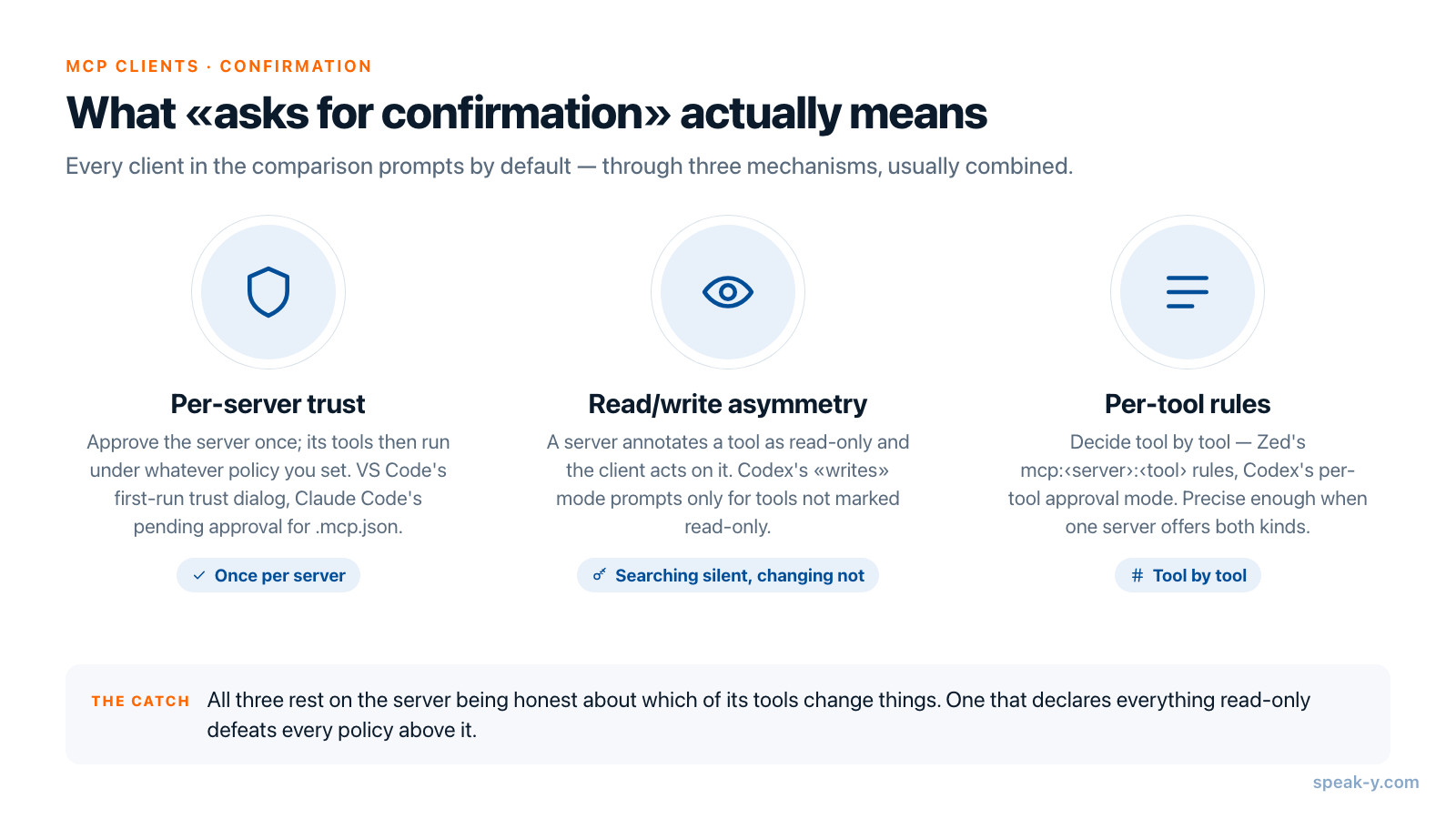
Every client in this comparison prompts by default. That is the good news, and it is also where the useful detail hides, because a prompt on every call is unusable and a prompt on none of them is unsafe. The interesting design question is what a client does in between.
Three mechanisms are in use, and most clients combine them:
- Per-server trust. You approve the server once, then its tools run under
whatever policy you set. VS Code's first-run trust dialog and Claude Code's
pending-approval state for
.mcp.jsonwork this way. - Read/write asymmetry. The MCP specification lets a server annotate a tool
as read-only, and clients act on it. Codex's
writesapproval mode "prompts for tools that aren't marked read-only" — searching is silent, changing is not. - Per-tool rules. Zed's
mcp:<server>:<tool_name>and Codex'stools.<tool>.approval_modelet you decide tool by tool, which is the only mechanism precise enough when one server offers both kinds.
The asymmetry is the one worth understanding, because it depends on the server being honest about which of its tools change things. A server that declares everything read-only defeats every client-side policy above it. When you connect a server you did not write, that declaration is part of what you are trusting — the same judgement call covered in what makes MCP write access safe.
When remote-only is the right answer
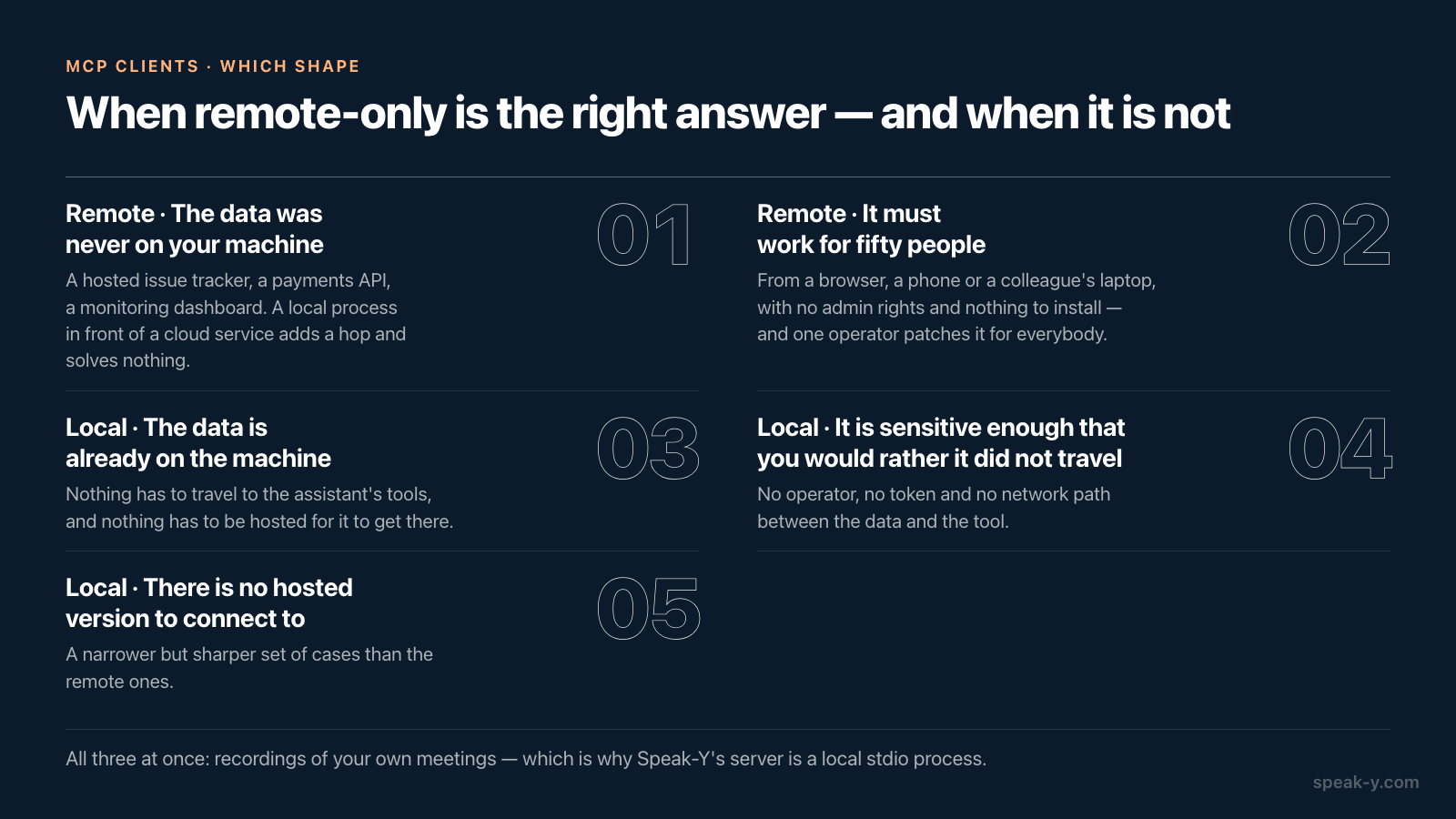
Local servers are not automatically the better choice, and a comparison that concluded otherwise would be selling something.
A remote server is the right shape when the data is not on your machine to begin with — a hosted issue tracker, a payments API, a monitoring dashboard. Putting a local process in front of a cloud service adds a hop and solves nothing. Remote servers also work from a browser, from a phone, and from a colleague's laptop without anyone installing anything, and one operator can patch a bug for everybody at once. If your team's constraint is "it must work for fifty people who do not have admin rights", remote-only is not a limitation, it is the requirement.
Local servers win on a narrower but sharper set of cases: the data is already on the machine, it is sensitive enough that you would rather it not travel, or there is no hosted version to connect to. Recordings of your own meetings are all three at once.
How this looks in Speak-Y
The Speak-Y MCP server is a local stdio process, which is what puts it in the left column of the table for every client that has one. Your assistant searches recordings and reads transcripts, summaries and action items straight off the library on your machine, with no cloud relay in the path and nothing to tunnel.
The read/write split lines up with the client mechanisms above. Reading needs
nothing else running. Commands that change something — tags, titles, speaker
names, re-transcription, sharing into a team channel — go through the running
Speak-Y app, are declared to your MCP client as data-changing so it asks before
running them unless you grant standing permission, and are logged in the app,
where they can also be switched off. If you would rather an assistant could only
ever read, starting the server with --read-only in that client's config means
the changing commands are never published to it at all.
Installation is one click from Settings → Integrations, and it is free on every plan, including Free — which is not the norm among meeting notetakers, where MCP tends to sit behind a paid cloud tier.
For ChatGPT specifically, the practical consequence of everything above is that the desktop app is the surface to use. It shares the Codex configuration, so the server you add for Codex CLI is already there. The ChatGPT desktop and your personal data guide walks through that setup, and if you are weighing the two shapes against each other more generally, local versus cloud MCP is about what each one exposes and to whom.
FAQ
Can ChatGPT connect to an MCP server running on my own computer?
It depends on which ChatGPT you mean. The ChatGPT desktop app can: it shares MCP configuration with Codex CLI and the IDE extension through the same Codex host, and that configuration supports STDIO servers started by a command on your machine. ChatGPT on the web cannot — a web connector is a remote MCP server reached over HTTPS, so a local server has to be exposed through a tunnel first. Checked 15 August 2026.
What is the difference between a local stdio MCP server and a remote one?
A local stdio server is a program the client starts on your machine and talks to over standard input and output. Nothing listens on a network port and no data leaves the computer to reach it. A remote server is an HTTPS endpoint the client connects to over the internet, usually authenticated with a token, and your requests travel to whoever operates it.
Do MCP clients ask before an assistant changes something?
Every major client prompts by default, but the granularity differs. Cursor asks before using MCP tools by default and runs allowlisted tools immediately in Auto-review mode; Zed prompts before any tool action and accepts per-tool rules like mcp:server:tool_name; Codex has four approval modes, of which writes prompts only for tools that are not marked read-only. Servers can also mark individual tools as read-only so the client knows which ones are safe.
Is Windsurf still called Windsurf?
No. Cognition renamed Windsurf to Devin Desktop on 2 June 2026 through an over-the-air update, and the local agent formerly called Cascade was replaced by Devin Local, with Cascade deprecated on 1 July 2026. Plans, extensions, keybindings and existing MCP connections carried over without user action.
Which MCP clients work with Speak-Y?
All of the ones in this comparison that can run a local server, because the Speak-Y MCP server is a local process rather than a hosted endpoint: Claude Code, Claude Desktop, the ChatGPT desktop app and Codex, Cursor, VS Code, Zed and Devin Desktop. It is free on every plan, including Free, and installs in one click from Settings → Integrations.