Onboard New Hires With Meeting History, Not Catch-Up Calls
A new hire usually learns a team's history the expensive way: a week of catch-up calls in which five people retell decisions from memory, each version a little different. If your team records its meetings in Speak-Y and shares them into channels, there is a shorter route: the newcomer joins the workspace and reads the history themselves — the same summaries and action items the team has used for months, sorted by day and week, searchable, and open to an AI assistant.
The short answer to the question every lead asks first: yes, a new member sees meetings shared before they joined — every recording in the workspace's public channels, from the moment they accept the invite. Private channels stay closed until someone adds them. The new hire joins free on any plan; creating the workspace is what needs Pro or higher.
This guide covers both sides — what the lead does before day one and what the new hire does on it — in the Speak-Y macOS app, checked on 30 September 2026. It assumes the workspace exists; if not, set one up first.
What each side needs
- The new hire: a Mac with Speak-Y and an account with an email address, on any plan, Free included. Workspaces and channels are in the macOS app only; the Windows and iOS apps do not have them yet.
- The lead: owner or admin rights in a workspace created on Pro, Pro+, Max or the trial.
Before day one: the lead sends the invite
Open the workspace page (⋯ next to the workspace → Edit workspace) and go to Members. Under Invite a member, type the new hire's work email and press Invite: the link then works only for an account signed in with that address. Speak-Y does not email the link — copy it and send it yourself, in the welcome email or the first chat message.
Public channels, marked #, will open to the new hire automatically. A private channel, marked with a lock, opens only when one of its members adds them in Channel settings under Add members, and only workspace members appear in that list. So the order is: invite, wait for them to join, then add them to the private channels they need.
Day one: joining takes one password
The link opens Speak-Y with a Join a workspace sheet: "You've been invited to «Northwind Sales»", with the role and who invited them. If a chat did not make the link clickable, Join with a code in the sidebar's ⋯ menu takes the same link.
Two things can appear on the sheet before Accept:
- The data processing terms, if this account has never accepted them. Nothing leaves the Mac until the new hire presses Accept terms.
- Encryption password (min 8 chars). It creates the new hire's team key on this Mac and never leaves the device. The sheet says plainly that it unlocks team channels and does not upload the personal archive. Worth writing down: on a second Mac, the same password gives the same key.
Press Accept, and the sheet answers "You're in": the workspace appears in the sidebar with its public channels.
Will they see meetings from before they joined?
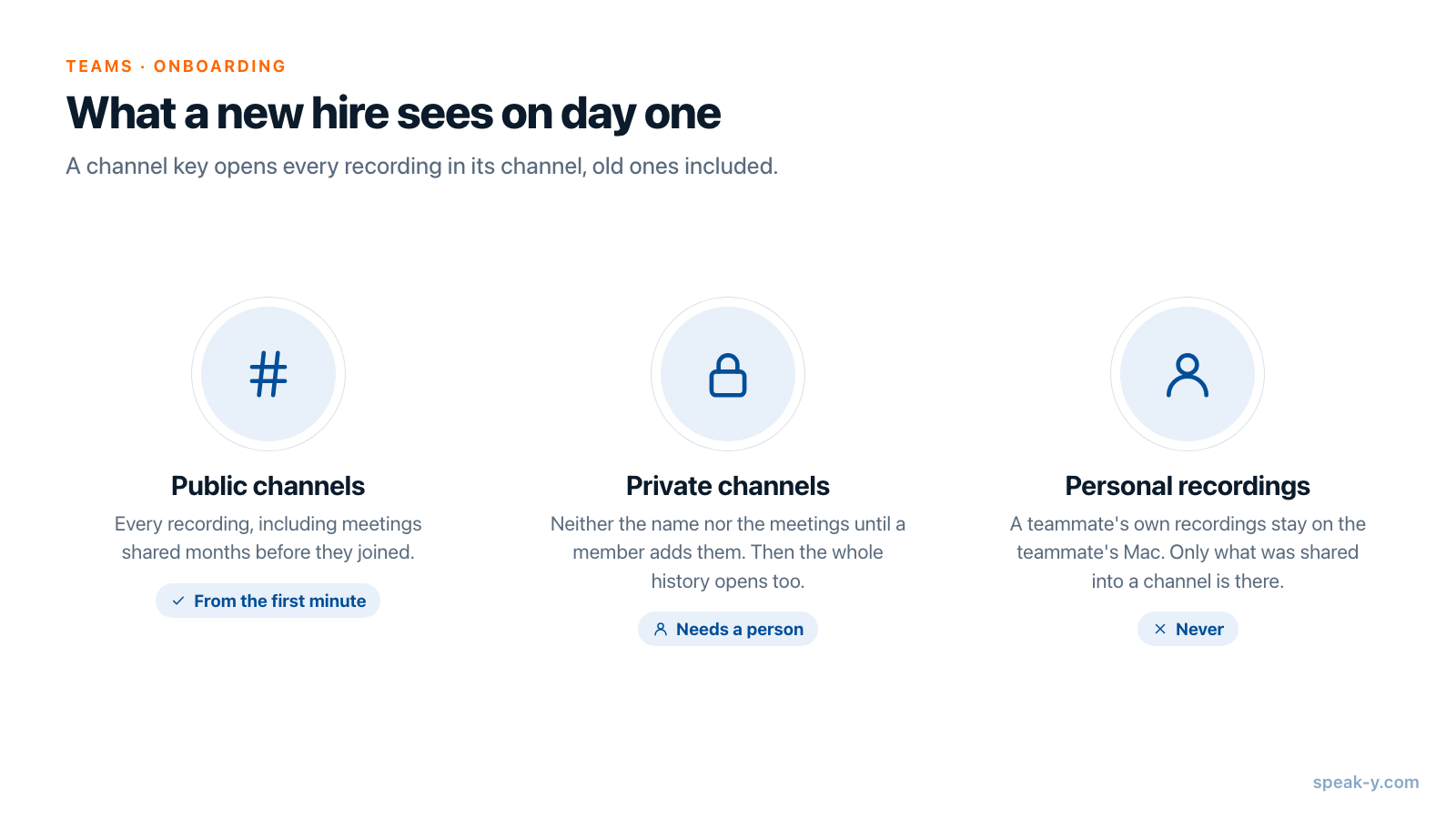
Yes, and this is what makes the routine work. A Speak-Y invite link carries the workspace key in the part of the URL that is never sent to the server, and each channel keeps a copy of its own key locked under that workspace key. So the moment the new hire accepts, their Mac can open every public channel — and a channel key opens every recording in the channel, not only new ones. A meeting shared in March is as readable as one shared this morning.
Three limits to say out loud to the team:
- Private channels need a person. The newcomer sees neither the name nor the meetings of a private channel until a member adds them. Then its whole history opens too.
- Personal recordings never travel. Only what someone shared into a channel is there.
- Rarely, a channel waits for its key. If a channel shows Waiting for the channel key, a member who already has the key passes it on when they open the workspace page. Ask someone to open it, then press Retry.
Read the channel by week, not by call
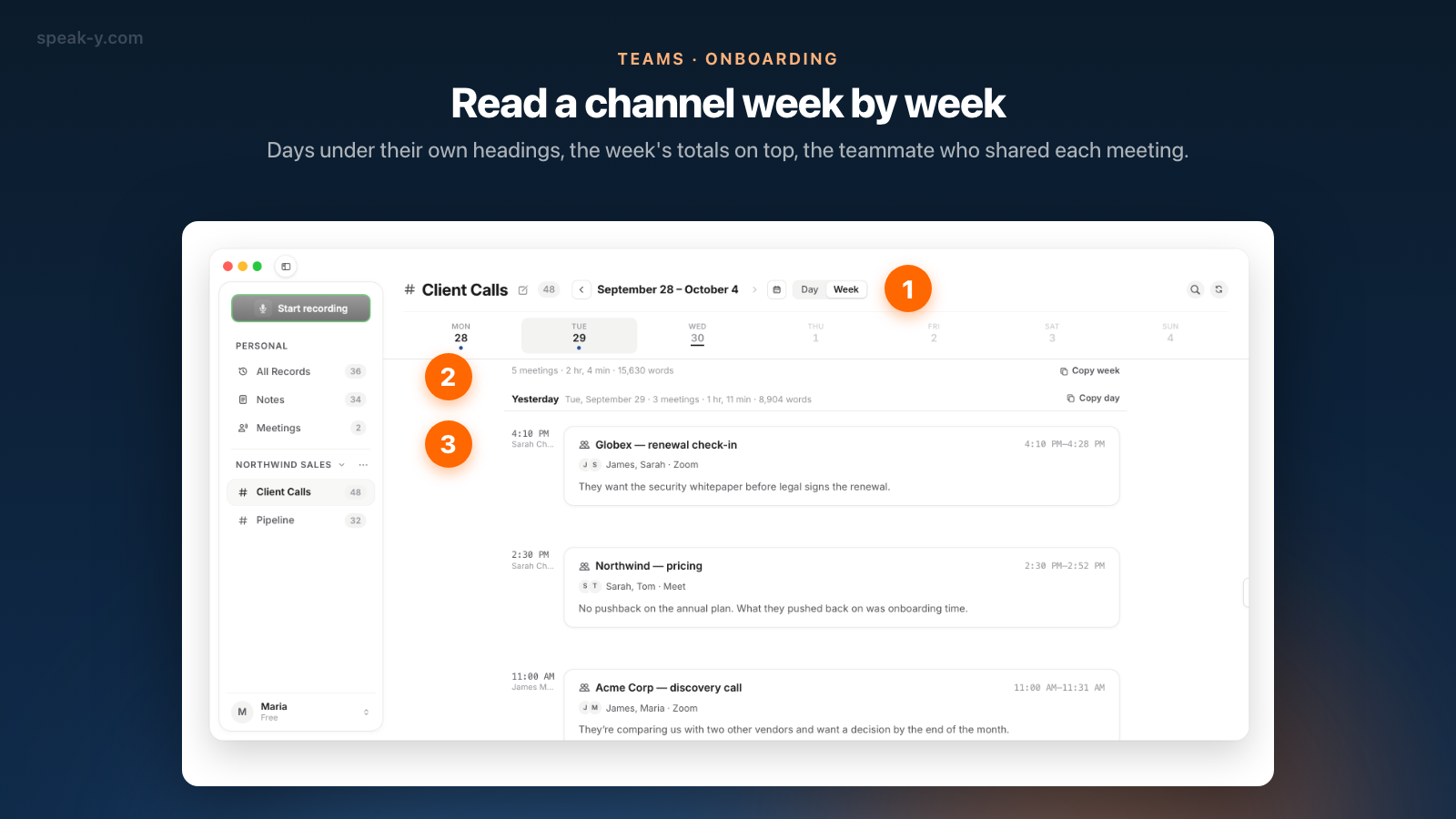
Click a channel in the sidebar. The feed opens on the page with the most recent recording, not on an empty "today" — channels do not get a meeting every day.
In the header, switch Day to Week. A week page lists its days under their own headings, with a strip of weekdays on top: click a day to jump to it. One line above the recordings sums up the page — "5 meetings · 2 hr, 4 min · 15,630 words" — so it is obvious which weeks were heavy. Previous week at the bottom goes further back, and the calendar button (Go to date) jumps to any date, with dots on the days that have recordings.
Each card shows the meeting's title, time, speakers and the first lines of its summary. Under the time is the teammate who shared it — a first answer to "who do I ask about this client?".
A reading plan that works: the last four weeks of the channels closest to the new role, newest first, opening only the meetings whose summary mentions a decision, a customer or a deadline.
Open a meeting: Summary first, Action Items second
Clicking a card opens the meeting read-only, with the channel and the teammate who shared it in the top bar — "# Client Calls · James Miller". The tabs are the same as for your own recordings:
- Summary — decisions and open questions. For most meetings, all a new hire needs.
- Action Items — who agreed to do what: the quickest map of who owns which topic.
- By Speakers — the transcript with names, for meetings where the reasoning matters as much as the outcome.
Only text is shared, never audio, and nothing here can be edited, so there is no risk in clicking around. Open in separate window in a card's right-click menu keeps a meeting beside the feed.
Search for the words people said
The magnifier in the channel's header searches that channel's transcripts across every day, not just the open week. Results come grouped by day, each day's heading says how many meetings match, and each card shows the lines where the word was said, highlighted. Search for words someone would say in a meeting — "pricing", "renewal", a client's name.
One detail catches new users: the global search on ⌘K ("Search everything…") covers only your own recordings, not team channels. For a channel, use its magnifier.
Ask an AI assistant about the team's decisions
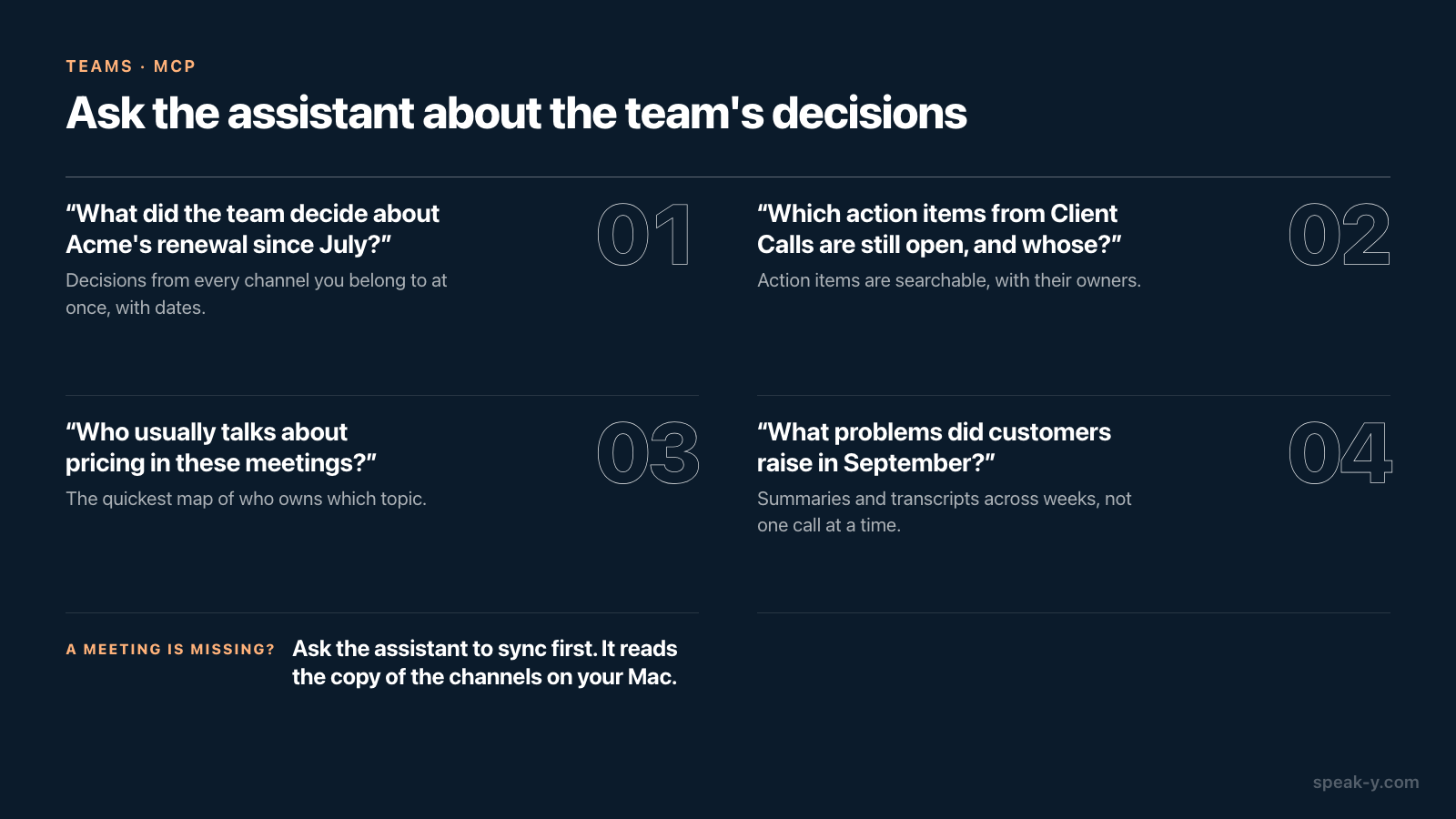
For questions that cut across channels, connect Claude, ChatGPT or Cursor to the Speak-Y MCP server, free on every plan. It reads the new hire's own recordings plus the meetings in every channel they belong to, marked read-only, and its search covers titles, summaries and action items as well as transcripts. Reading happens locally, from the copy of the channels already on the Mac.
Questions a new hire can ask on day one:
- "Summarise what the team decided about Acme's renewal since July, with dates."
- "Which action items from the last month of Client Calls are still open, and whose are they?"
- "Who usually talks about pricing in these meetings?"
- "List the recurring problems customers raised in September."
If a meeting shared an hour ago is missing, ask the assistant to sync first. Setup is covered in connecting meeting notes to AI assistants, and more questions in prompts to ask AI about your meetings.
Organize channels so the history reads
A new hire's first week is the best test of your channel structure. History reads well when each channel is about one thing people will look for later:
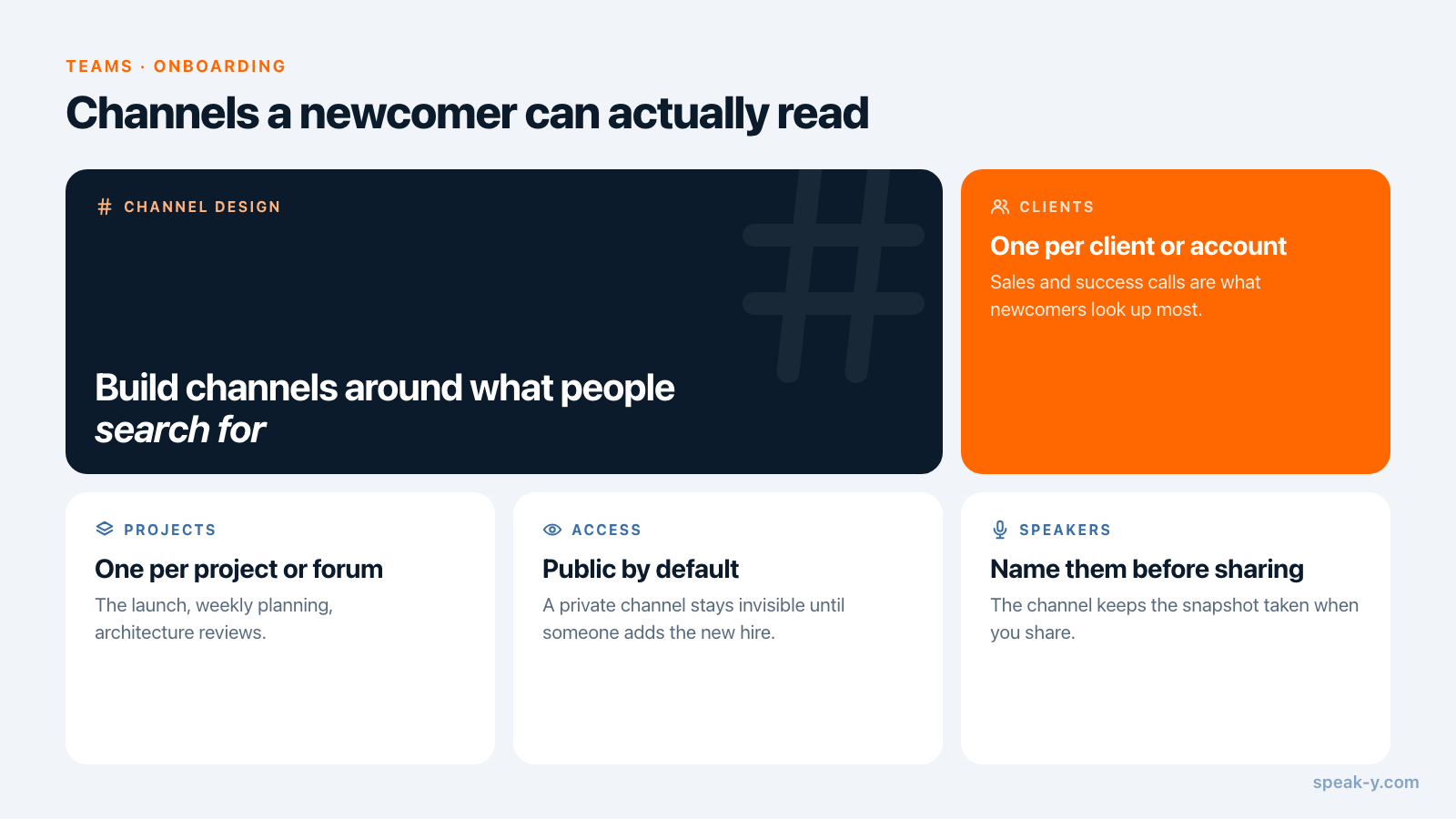
- One channel per client or account. Sales and success calls are what newcomers look up most.
- One per project or recurring forum — the launch, weekly planning, architecture reviews.
- Public by default. A private channel is invisible to a newcomer until someone remembers to add them.
- Name speakers before sharing. The channel keeps a snapshot taken when you share, and "Speaker 2 will send the plan" tells a new hire nothing.
One extra that pays off: before the new hire starts, record a ten-minute walkthrough of the project and share it into the channel — dictations appear in the feed next to meetings. Who sees what in team channels goes deeper into structure and access.
The first afternoon
The whole routine: the lead invites before day one and adds the new hire to private channels once they join; the new hire sets one password, reads each key channel week by week, opens Summary and Action Items, and searches or asks an assistant for the rest. For the weekly habit that fills those channels, see weekly meeting notes nobody has to write; the Teams page has the overview of workspaces and encryption.
FAQ
Will a new team member see meetings that were shared before they joined?
Yes, for public channels. When the new hire accepts the invite and sets their encryption password, their Mac receives the keys of the workspace's public channels, and a channel key opens every recording in that channel, including ones shared months earlier. Private channels open only after a member of that channel adds them.
Which Speak-Y plan does a new hire need to read the team's meetings?
None in particular. Joining a workspace by invitation works on any plan, including Free. Creating the workspace is what needs a paid plan: as of 30 September 2026 that is Pro, Pro+ or Max, or the trial.
Can the new hire search all team meetings at once?
In the app, search works one channel at a time: the magnifier in the channel's header matches transcript text across every day of that channel. The global search on Cmd+K covers only your own recordings. To search every channel you belong to at once, including summaries and action items, ask an AI assistant connected through the Speak-Y MCP server.
Does the AI assistant see team channels or only my own recordings?
Both. The Speak-Y MCP server reads your own recordings plus the recordings in channels you belong to, marked read-only, from the copy already on your Mac. Private channels you are not a member of never reach it, because your Mac cannot decrypt them.
Can a new hire read the channel history on Windows or iPhone?
Not yet. Workspaces, channels and the channel feed are in the Speak-Y macOS app, so a new hire needs a Mac with Speak-Y installed to read the team's meeting history.