Release Notes From Sprint Demo Calls, With the Team's Own Words
The release goes out on Tuesday and the notes are still a blank page. What went into it was said out loud: two sprint demos, a developer showing each change, someone mentioning on the way that recurring jobs still do not sync in one case. The commit log has the code, not the explanation, and the tracker says "Done" in the developers' shorthand. The best description of each change is what the developer said while showing it.
A shorter route: record sprint demos in Speak-Y, press a hotkey when a developer shows something that ships or names a known issue, and before the release ask your AI assistant to collect the marks over MCP for the release tag and draft the notes. Each line comes back with who said it, in their words, the demo date and the time in the recording, and the ticket to check. Confirming what ships, writing for customers and promising dates stay with people.
This guide follows the Speak-Y macOS app and its MCP server as checked on 17 November 2026, with one invented example: Priya Nair, product manager at Crewboard, a scheduling app for field service teams, ships release 4.2 to customers on 24 November. It contains the work of two sprints, shown at demos on 30 October and 13 November.
What do release notes need from a sprint demo?
Release notes guides agree on the shape. Keep a Changelog (version 1.1.0) starts from "changelogs are for humans, not machines", groups changes by type — Added, Changed, Deprecated, Removed, Fixed, Security — and warns against dumping the git log into them. MongoDB's documentation style guide keeps a Known issues section in every set of release notes, even when it says "None for this release", and asks for each issue's effect on the user and any workaround (both searched on 17 November 2026).
The demo is where these facts are said out loud. The Scrum Guide describes the Sprint Review as a working session with stakeholders, not only a presentation — so the explanation, the questions and the caveats are all on the call. Four things get lost between the demo and the notes:
- The plain-language description. "Technicians can now drag jobs to reorder their day" is what a customer needs; the ticket title says "CB-412 reorder endpoint".
- The caveat said in passing. "It doesn't sync if the series has an exception" is a known issue, and it is easy to forget by release day.
- What is still uncertain. "CSV export should be in, if QA passes it on Friday" needs the tracker before it goes in.
- Who to ask. Each line needs the person who built it, so the writer can check a detail in one message.
Before the first demo: two note types and a release tag
Open Settings → Notes. Under Note types, rename the default Mark the
moment to Shipped and keep it on ⌥1. Click Add note type, type
Known issue into Type name, click Save, then Set hotkey and
press ⌥2.
Pick one tag for the release, such as release-4-2, and put it on every demo
whose work goes into it. Before the release the assistant then reads exactly
these calls, and nothing from an earlier release or a customer call.
During the demo: let the developer show it, press the key
Record the demo as a meeting. No bot joins: Speak-Y records your microphone and the call's sound on your Mac, so it works the same in Zoom, Google Meet or Microsoft Teams. If people outside the team attend, say at the start that the demo is recorded — see is it legal to record meetings for how consent rules differ.
Three habits make the marks useful:
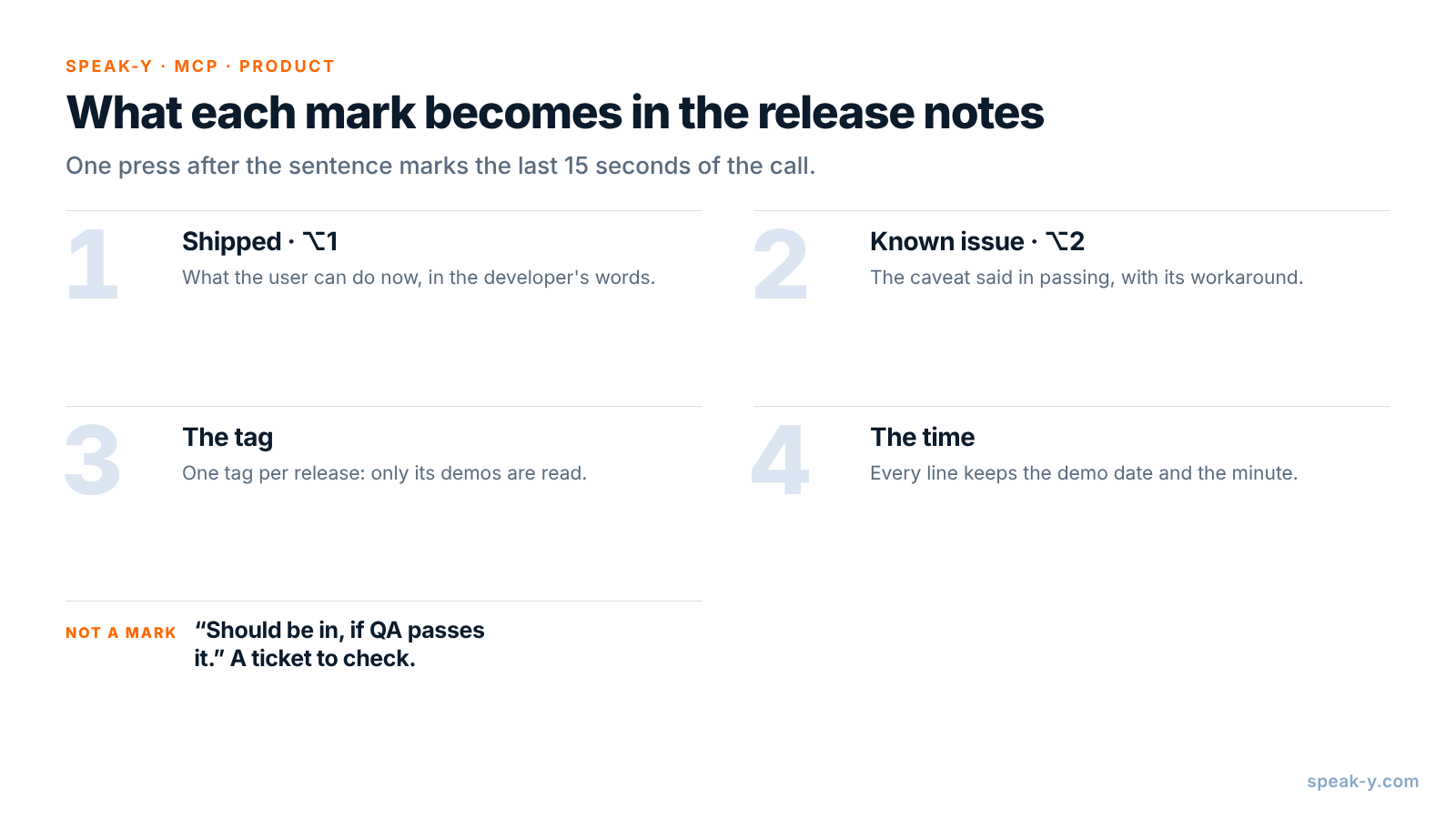
- Press after the sentence. A mark covers the last 15 seconds of the call, so the description just said lands inside it.
- Ask "what can the user do now?" It turns a demo of an endpoint into a sentence a customer understands. Mark the answer on ⌥1.
- Ask about the edges. "Does it work for recurring jobs?" brings out the caveat while the developer is still on screen. Mark it on ⌥2.
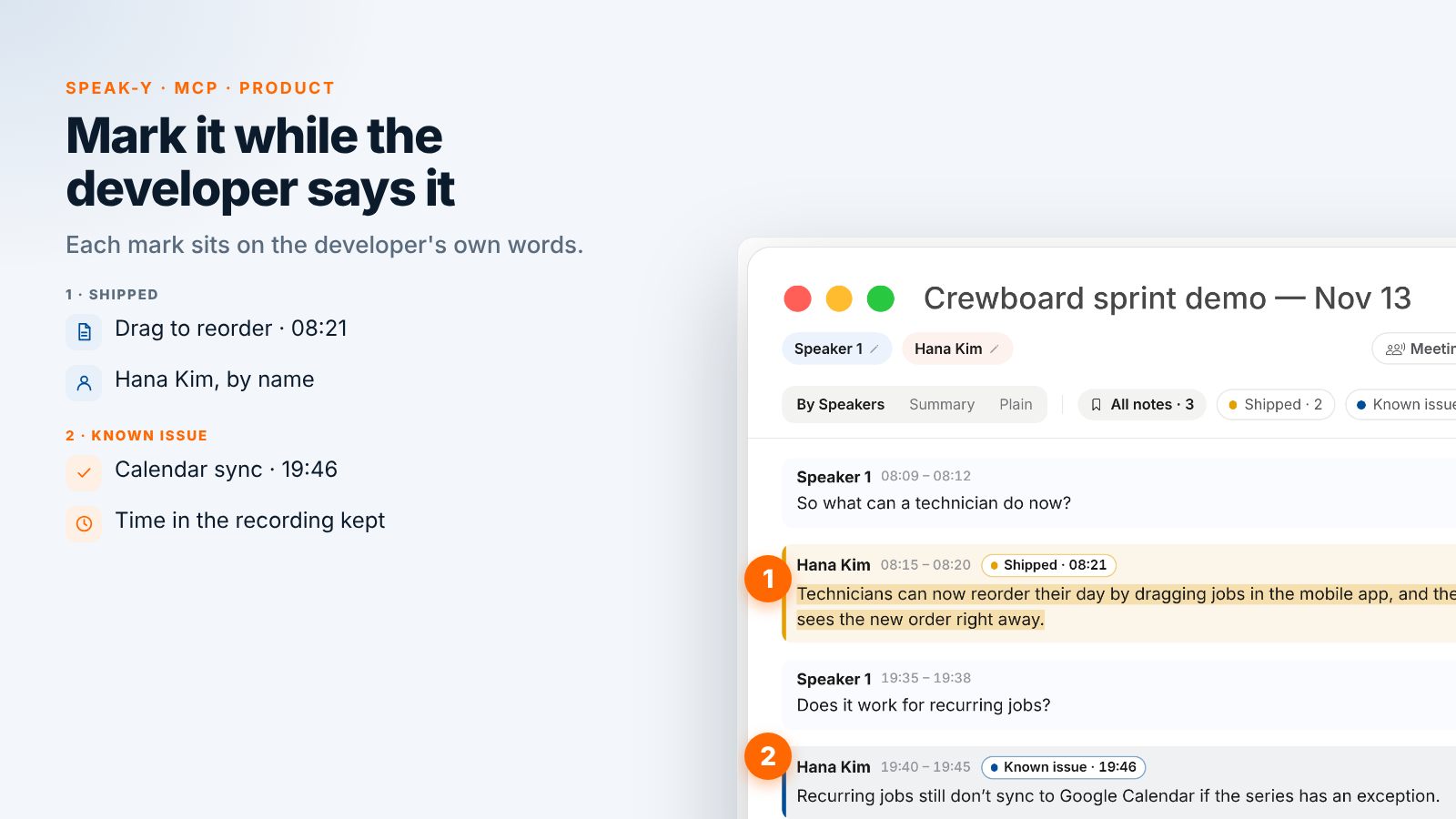
At the 13 November demo, Priya marks two changes and one known issue. At 08:15 the mobile developer Hana Kim says, "Technicians can now reorder their day by dragging jobs in the mobile app, and the dispatcher sees the new order right away." Asked at 19:35 whether it works for recurring jobs, Hana answers, "Recurring jobs still don't sync to Google Calendar if the series has an exception. You have to edit the event by hand." Priya marks it as a known issue. When the backend developer Marco Lee adds that CSV export "should be in, if QA passes it on Friday", she does not mark it: it is something to check, not something to announce.
After the demo: name the speakers, add the tag
On By Speakers, click each speaker chip and type the name and role —
"Hana Kim, mobile" — so the draft quotes people, not numbers. Add the
release-4-2 tag. The chips above the transcript count the marks by type,
and a click on a chip shows only those replies.
The same recording serves the next meeting too: the retrospective can start from it, as in sprint retro follow-through.
Ask your assistant for the draft
Connect your assistant to the Speak-Y MCP server once: Connect AI assistant in the account menu at the bottom of the sidebar, or Settings → Integrations, then Connect next to Claude, ChatGPT or Cursor. The steps are in how to connect meeting notes to AI assistants. The server is free on every plan and reads the library on your Mac.
Save standing instructions in a project in Claude or ChatGPT, so before each release the request is one line:
Draft the release notes for Crewboard 4.2:
demo calls tagged "release-4-2".

Rules:
- Use only my Shipped and Known issue marks.
- Group as Added, Changed, Fixed, Known issues.
- For each: the developer's words, who said it,
  the demo date and the time, like (Nov 13, 08:15).
- Add "Check:" with the ticket to confirm. Never
  invent a ticket number.
- List anything said with "should be" or "I think"
  as unconfirmed.
- No customer-facing wording and no dates.
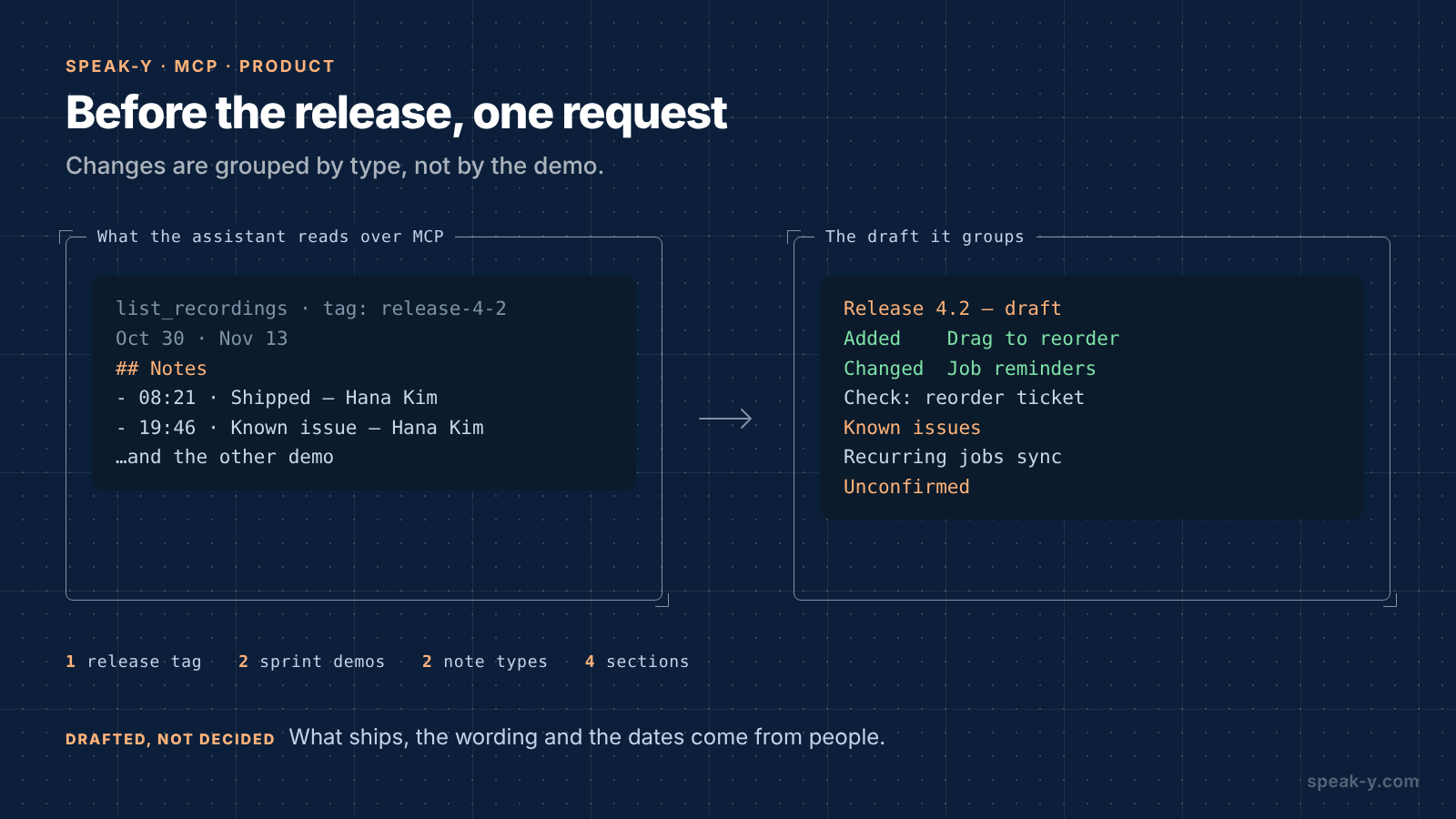
The assistant calls list_recordings with the tag and reads each demo.
Alongside the transcript, Speak-Y hands it a Notes list — each mark with
its time, type, speaker and first words. A mark's time is the moment you
pressed the key, a few seconds after the reply began; the draft cites the
start of the reply:
Release 4.2 — draft (from sprint demos)
Added
- Drag to reorder the day. Hana Kim: "Technicians
  can now reorder their day by dragging jobs in the
  mobile app." (Nov 13, 08:15)
  Check: reorder ticket, mobile release
Changed
- Job reminders. Marco Lee: "Reminders now go out
  an hour before the job, not the night before."
  (Oct 30, 14:05)
  Check: reminder settings ticket

Known issues
- Hana Kim: "Recurring jobs still don't sync to
  Google Calendar if the series has an exception.
  You have to edit the event by hand." (Nov 13, 19:40)

Unconfirmed
- CSV export. Marco Lee: "Should be in, if QA
  passes it on Friday." (Nov 13, 23:10)
The demos do not know what happened after them. If QA moves CSV export to the next release, say so in the same chat: hold Right ⌘ in the message field, dictate "CSV export didn't pass QA, it moves to 4.3", release and send. The assistant takes the line out of the draft and keeps what was said at the demo next to it.
What stays with the product manager
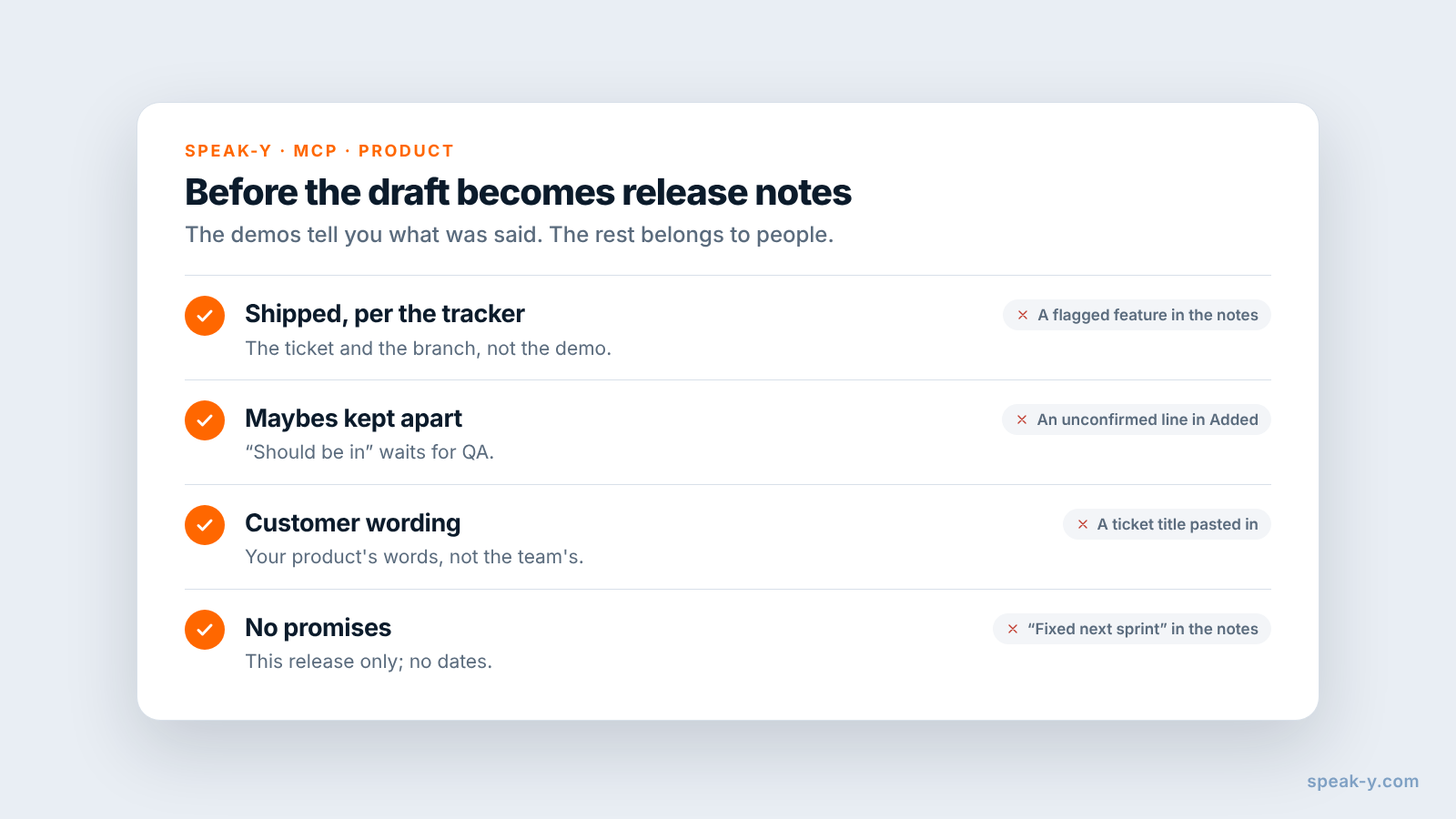
The draft knows what the team said. Four things it cannot do:
- What ships. A feature shown at the demo can still be behind a flag, or reverted after QA. The tracker and the release branch decide; the demo only tells you where to look.
- The customer's wording. "Technicians can reorder their day" is a good start; whether customers call them technicians, jobs or visits is your product's language, not the developer's.
- Dates and promises. "We're fixing the calendar sync next sprint" said at a demo is a plan, not a commitment to customers. Release notes describe this release.
- Who reads what. Support may need the workaround in detail, customers a single line. The same draft can feed both, written by people.
Limits and costs
- Length. Checked on speak-y.com on 17 November 2026: Free stops a meeting recording at 30 minutes, Pro ($10 a month) at one hour, Pro+ ($15) and Max ($30) at four hours. A 45-minute demo needs Pro or higher. The MCP server is free on every plan.
- Audio only. What is on the shared screen is not in the recording. Ask the developer to say what the user sees: "the dispatcher sees the new order right away" makes the draft; a silent click does not.
- Mac for marks. Note types, marks and the MCP server are in the macOS app; the recordings stay in the library on your Mac.
- Not a tracker. Tickets, versions, flags and the release branch stay in Jira, Linear or GitHub. Speak-Y keeps what was said at the demo.
- Your assistant's terms. The MCP server reads the library on your Mac; Claude or ChatGPT receive the transcripts they read, and their terms and your account settings decide what happens next. Demos that show customer data deserve the same care as the data itself.
The short version
Shipped on ⌥1, Known issue on ⌥2, one tag per release. Ask what the user can do now, ask about the edges, press the key; then speaker names and the tag. Before the release one request gives a draft grouped by type, with the developers' words, times and the ticket to check; what ships, the customer wording and any promise are yours. To turn the planning meeting at the other end of the sprint into tasks, see sprint planning to task drafts in Claude Code.
FAQ
Can an AI assistant draft release notes from recorded sprint demos?
It can draft them from what the team said. Connected to the Speak-Y MCP server, Claude, ChatGPT or Cursor reads the demo calls with your release tag — the transcript by speaker and a Notes list of your marks with their times — and groups the marked moments into Shipped and Known issues, with the developer's words, the demo date and the time in the recording. What actually ships is then checked against the tracker.
How do I mark what shipped during a sprint demo?
Create note types in Speak-Y under Settings → Notes: rename the default Mark the moment to Shipped on ⌥1 and add Known issue on ⌥2. A press marks the last 15 seconds of the call with that type, so the sentence the developer just said lands in the assistant's list sorted, with the speaker and the time.
Is a demo enough to say a feature is in the release?
No. A demo shows that something works on someone's machine; the tracker and the release branch say whether it ships. Ask the assistant to add a Check line with the ticket to confirm for every item, to list anything said with 'should be' or 'I think' as unconfirmed, and never to invent a ticket number.
Should release notes keep the developers' wording?
Keep it in the draft, not in the published notes. The developer's sentence is the most accurate description of the change and the time in the recording lets you replay it; the customer-facing wording is rewritten by the product manager or writer, in terms of what the user can now do.
Which Speak-Y plan do I need for 45-minute sprint demos?
Pro or higher. Checked on speak-y.com on 17 November 2026: Free stops a meeting recording at 30 minutes, Pro ($10 a month) at one hour, and Pro+ ($15) and Max ($30) at four hours. The MCP server is free on every plan.