Tidy Up Meeting Recordings With an AI Assistant Over MCP
After a quarter of client calls, a recording library tends to look the same: a hundred meetings, a third of them called "Weekly sync", some with no title at all, every transcript full of Speaker 1 and Speaker 2, and no tags at all. Searching still works. Finding the Northwind renewal call from three weeks ago does not.
An AI assistant connected to Speak-Y over MCP can do the tidying: read each
recording, propose a real title, client tags and speaker names, and apply them
once you say yes. Three MCP tools do the work — update_recording,
set_tags and rename_speaker — and none of them touches the transcript text
or the audio. Every change is listed in the app afterwards, so nothing happens
that you cannot check.
This guide follows the Speak-Y macOS app as checked on 15 October 2026, with Claude as the assistant; ChatGPT and Cursor work the same way.
Why does a recording library get messy?
The app fills the gaps on its own, and the defaults are generic:
- Titles. A meeting usually gets a title from its summary, and those are often broad: "Weekly sync", "Project check-in". A recording without any title is listed simply as "Meeting"; the assistant sees its first six words.
- Speakers. Meetings start with labels: Speaker 1, Speaker 2. Until someone names them, every later summary reads "Speaker 2 agreed to send the numbers".
- Tags. Tags are yours, so nothing adds them for you. After a busy week
nobody goes back to add
northwindto four calls.
Before you start
- Connect the assistant. Open the Integrations page — Connect AI assistant in the account menu at the bottom of the sidebar, or Settings → Integrations — and click Connect next to Claude, ChatGPT or Cursor. One click writes the MCP config and the instructions the assistant reads. Details are in connecting meeting notes to AI assistants.
- Keep Speak-Y running. Reading works with the app closed; anything that changes a recording goes through the running app and is refused otherwise.
- Check Assistant actions is on. It is on by default, on the same page. Off means read-only for every assistant.
Step 1: ask for a plan, not for changes
The single most useful habit: ask the assistant to show what it would change before it changes anything.
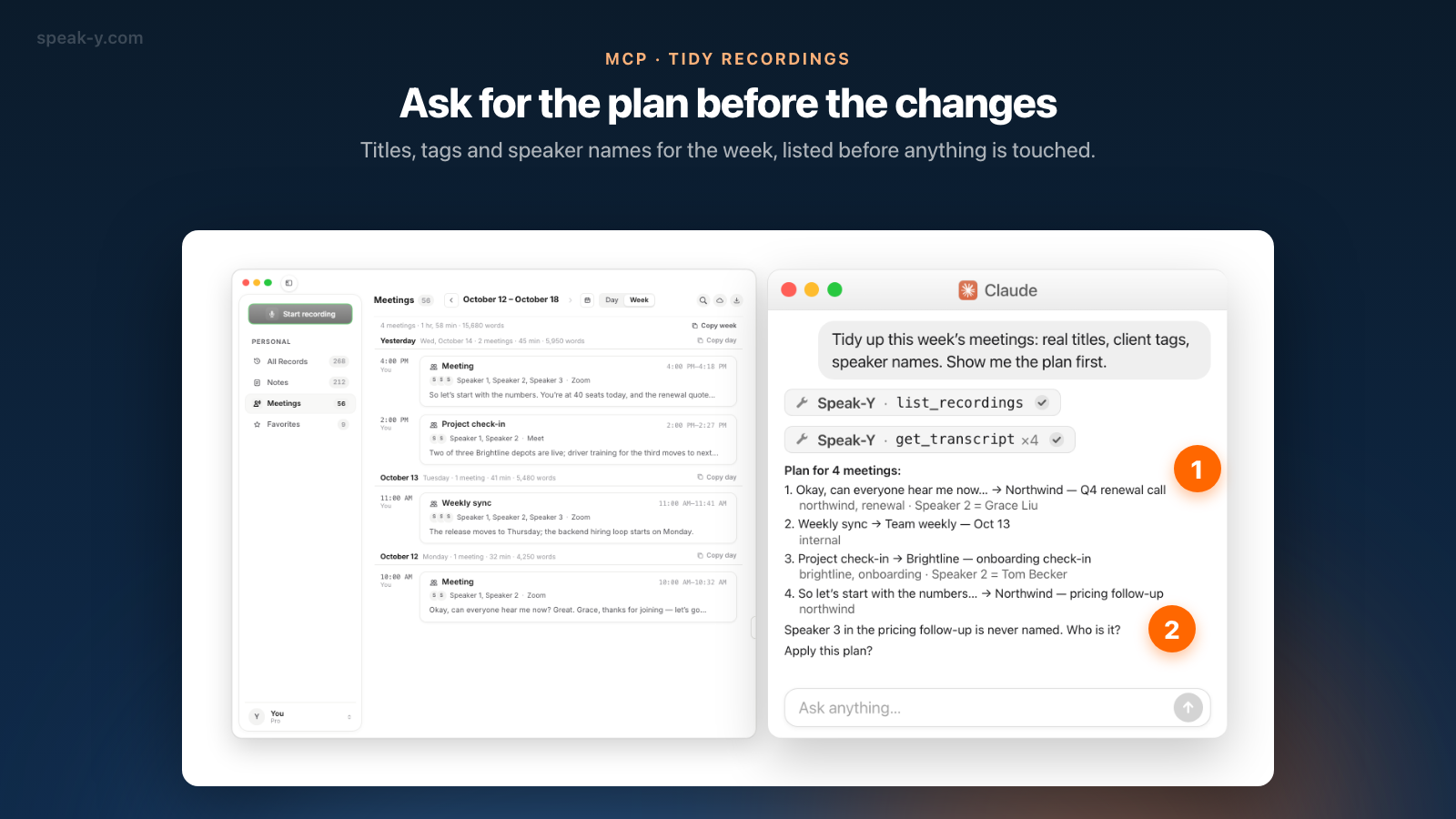
Tidy up this week's meetings: real titles, client tags, speaker names. Show me the plan first.
The assistant lists the week's recordings, reads each one — usually the summary, and the speaker view when it needs to work out who is who — and answers with a table:
| Now, as the assistant reads it | New title | Tags | Speakers |
|---|---|---|---|
| Okay, can everyone hear me now… | Northwind — Q4 renewal call | northwind, renewal | Speaker 2 = Grace Liu |
| Weekly sync | Team weekly — Oct 13 | internal | — |
| Project check-in | Brightline — onboarding check-in | brightline, onboarding | Speaker 2 = Tom Becker |
| So let's start with the numbers… | Northwind — pricing follow-up | northwind | Speaker 3 = ? |
Speaker names come from the conversation itself: people greet each other, introduce themselves, get addressed by name. When a speaker is never named, the assistant should ask rather than guess — here, "Speaker 3 in the pricing follow-up is never named. Who is it?"
Step 2: approve, and three tools do the work
Answer the question and approve: "Speaker 3 is Ravi Shah. Apply it." The assistant then calls three tools, one recording at a time:
| Tool | What it changes | What it leaves alone |
|---|---|---|
update_recording |
the title, and the favourite mark | transcript, audio, summary |
set_tags |
adds, removes or replaces tags; a new tag is created, an existing one is matched regardless of case | other recordings, the tag catalog |
rename_speaker |
puts a name on a speaker label everywhere in that recording | the words each speaker said |
The Speak-Y window updates as the calls land. Asking for Northwind reuses
the northwind tag you already have instead of creating a twin.
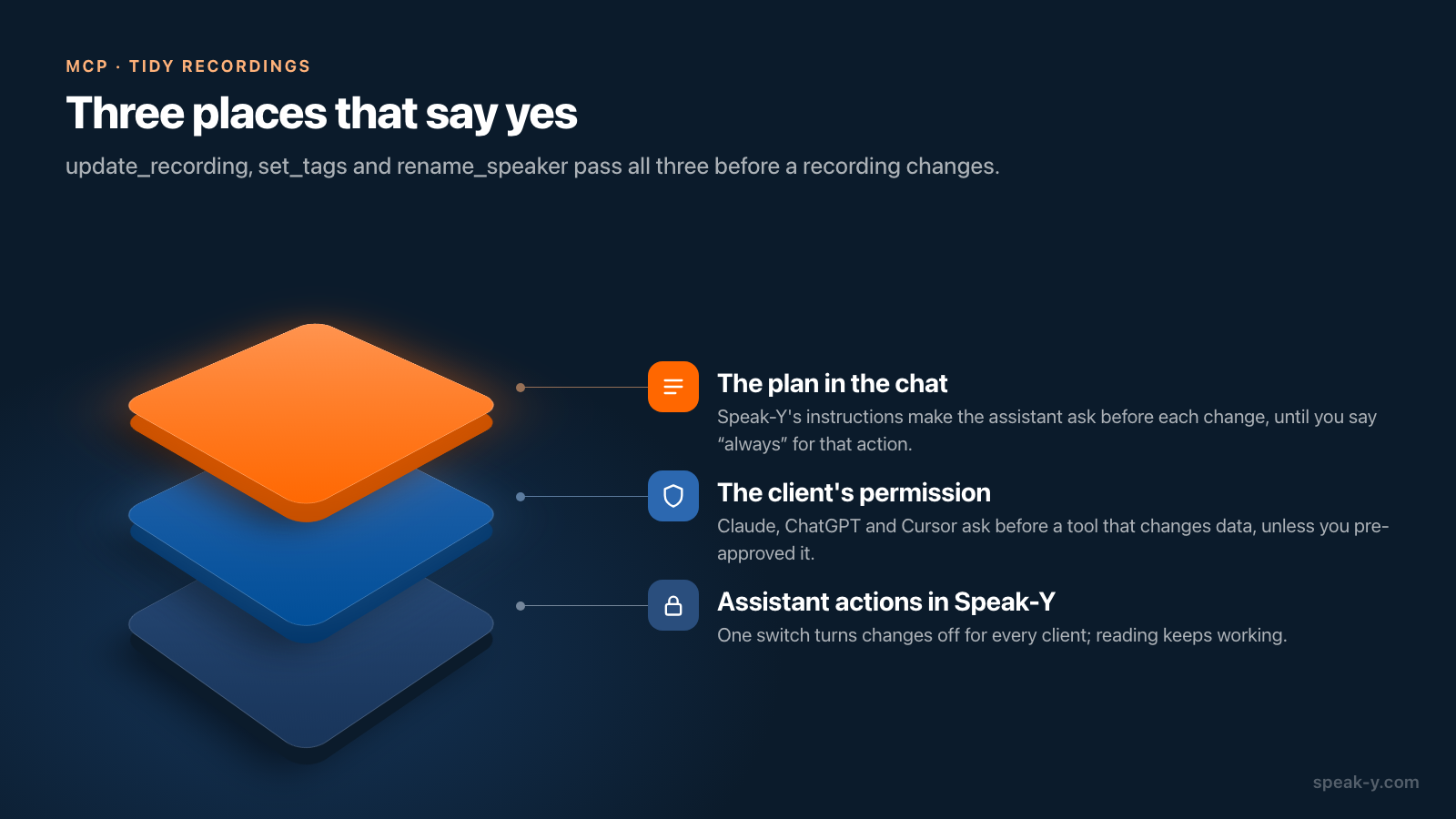
Who says yes, and where? Three layers, from the conversation down to the app:
- The plan in the chat. Speak-Y installs instructions for the assistant alongside the server. They tell it to say what it is about to do and ask before each change — titles, tags, speaker names — until you say it may always do that one. "Always" is remembered per action, so you can let it tag freely and still be asked before it renames anything.
- The client's own prompt. Clients ask before a tool that changes data unless you have pre-approved it: Claude sorts connector tools into Always allow, Needs approval and Blocked, and ChatGPT's developer mode treats any tool not marked read-only as a write action that needs confirmation. How each client does it is in how MCP clients ask before AI changes your data.
- The app's switch. Assistant actions in Speak-Y turns every change off
for all clients at once;
--read-onlyin one client's config hides the changing tools from that client only.
What should the assistant do by itself, and what should it ask?
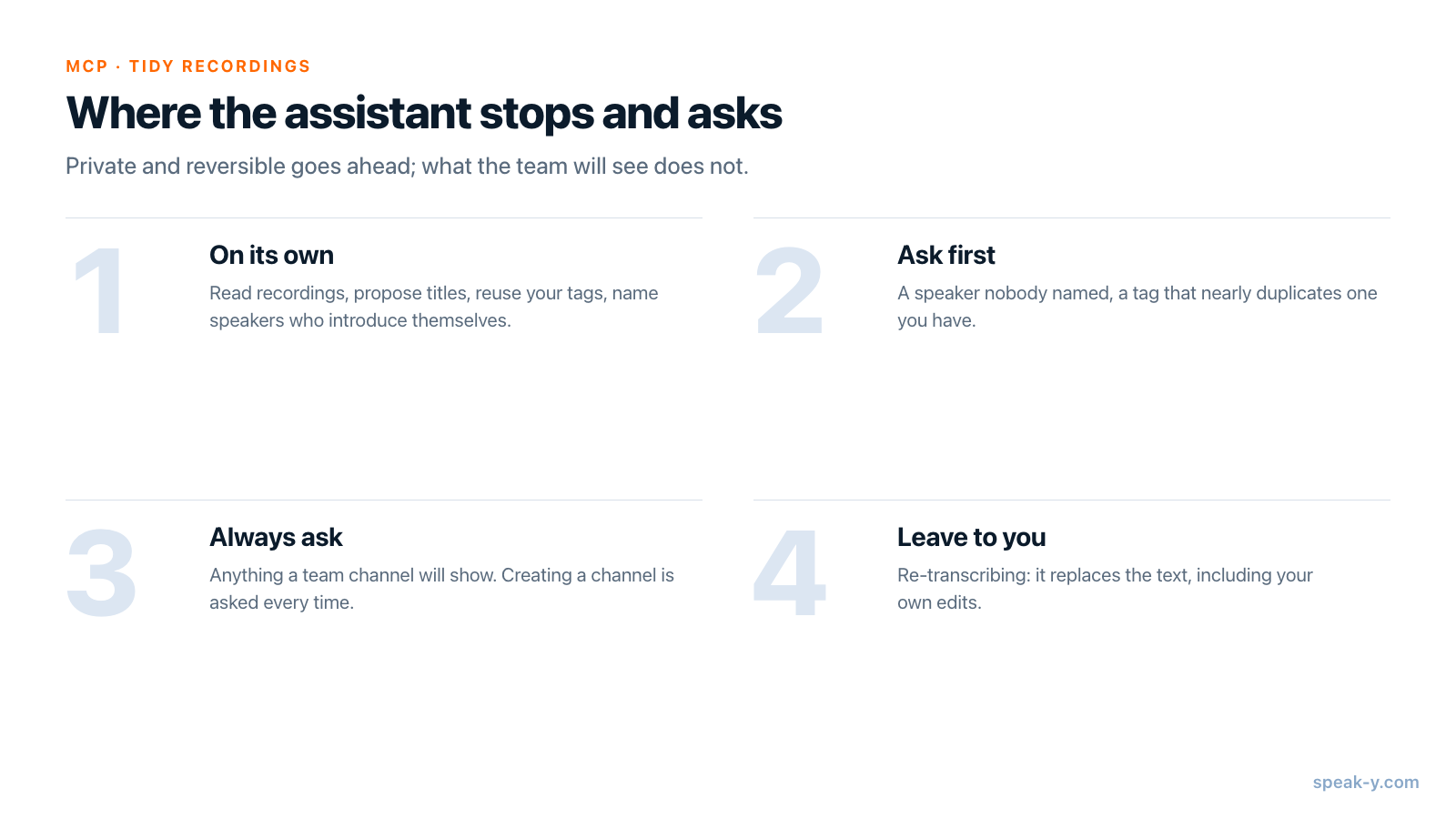
A tidy-up is reversible and private, which is why it is a good first job to hand over. The line runs where a change becomes visible to other people or hard to undo:
- On its own: read recordings, propose titles from what was said, reuse tags from your catalog, name speakers who introduce themselves.
- Ask first: a speaker who is never named, a new tag that nearly duplicates an old one, a title for a call it could not read properly.
- Always ask: anything that goes to a team channel. Tags are private to your library; a channel is read by the team, and while a share can be taken back, whoever read it has read it. Creating a channel is asked every time, by design.
- Leave to you: re-transcribing a recording. It replaces the current text, including edits you made by hand.
How Speak-Y's instructions draw these lines is in MCP tool descriptions and skills.
Check what changed: Recent assistant actions
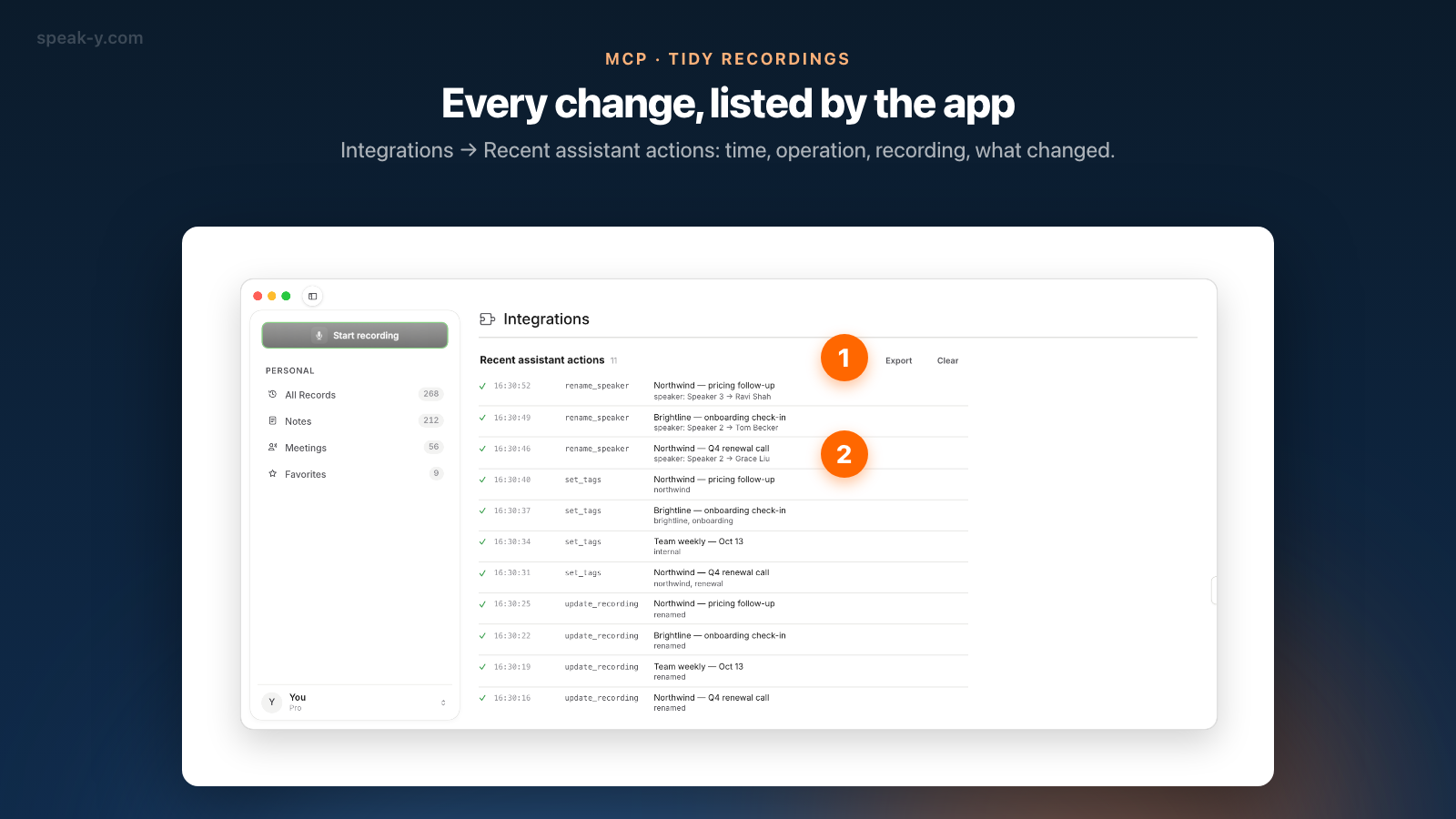
The app keeps its own record, independent of what the assistant says it did. Open the Integrations page and scroll to Recent assistant actions. Each line is one call:
- the time, with seconds for today;
- the operation:
update_recording,set_tags,rename_speaker; - the recording's title;
- a detail: "renamed", the full tag list after the change, or "speaker: Speaker 2 → Grace Liu".
The log keeps the last 50 actions, failed ones included with the reason, and can be exported as text. It holds titles and details, never transcript text.
Undoing is the same edit in reverse: rename the speaker again, remove a tag, type the old title back. The log shows a speaker's previous label, but for a title it only says "renamed" — the old title is in the plan the assistant showed you, which is one more reason to ask for the plan first.
Make it a weekly five minutes
The first pass over a hundred recordings is the long one. After that, a Friday request keeps the library in order:
Tidy up this week's meetings like last time. Plan first.
Two habits keep it tidy:
- Agree on a tag scheme once. Client or project name plus the kind of
call (
renewal,onboarding,internal) is enough for most people. - Grant "always" only for tags. Tags are the cheapest thing to undo; keep being asked for titles and speaker names until the plans stop surprising you.
Limits
- Your recordings only. A recording a teammate shared into a channel can be read but not changed: the assistant gets "read-only" back, and the log says so.
- The app must be running for any change; reading works without it.
- The text goes to the assistant's vendor. The assistant reads your recordings on your Mac, but its model runs in the cloud; what that means is in local vs cloud MCP.
- Cost. The MCP server is free on every plan, including Free, as stated on speak-y.com on 15 October 2026.
A tidy library is what makes the next step work: asking the assistant about your meetings by client and by person. The MCP page covers what else it can do, and prompts to ask AI about your meetings is a good list to try once the titles and names are right.
FAQ
Can an AI assistant rename and tag my Speak-Y recordings?
Yes. With Claude, ChatGPT or Cursor connected to the Speak-Y MCP server, the assistant can give a recording a new title (update_recording), add or remove tags (set_tags) and put names on meeting speakers instead of Speaker 1 or Speaker 2 (rename_speaker). Changes go through the running Speak-Y app on your Mac, the same code as the buttons in the app.
Does the assistant change recordings without asking?
Not by default. Speak-Y's instructions for the assistant tell it to say what it is about to do and ask before each change until you say it may always do that one. On top of that, clients such as Claude, ChatGPT and Cursor ask before a tool that changes data unless you have pre-approved it.
How do I see what the assistant changed?
Open the Integrations page in Speak-Y (Connect AI assistant in the account menu) and scroll to Recent assistant actions. Each line shows the time, the operation, the recording and a short detail, such as the new tags or 'speaker: Speaker 2 → Grace Liu'. The log keeps the last 50 actions and stores no transcript text.
Can I stop an assistant from changing anything?
Yes. Turn off Assistant actions on the Integrations page and every connected assistant can still read but not change. To limit a single client, add --read-only to the Speak-Y server's args in that client's MCP config; it then sees only the reading tools.
Does tidying recordings over MCP cost extra?
No. The Speak-Y MCP server is free on every plan, including Free, as stated on speak-y.com on 15 October 2026. The assistant itself is billed by its own vendor.