Usability Test Notes: Code Five Zoom Sessions as You Moderate
A moderated usability test asks you to run the script, watch the participant and write down what went wrong, all at once. Speak-Y takes the writing off your hands. Before the study, turn your observation codes — Problem, Confusion, Quote, Idea — into note types in Settings → Notes, each with its own hotkey. During each Zoom session you press ⌥1…⌥4 the moment something happens, without looking away; Speak-Y pins a mark of that type to the transcript. After the session, name the participant P3 and tag the recording study-checkout. At the end, you review the sessions type by type and ask your AI assistant to group every Problem across the study, with participant codes and times.
This guide follows the macOS app as of 1 October 2026 and one ordinary study: five 50-minute sessions of a checkout prototype, a moderator on Zoom, and a product team that wants findings with evidence by Friday.
Why typed marks, not one "mark the moment"
For customer interviews, one mark per quote is enough — customer interviews to quotes in one evening shows that routine. A usability test produces something different: observations that you will later sort into problems, confusions, quotes and ideas. Sorting them after the fact means re-listening to five hours of audio.
Typed marks move that sort into the session. Pressing ⌥2 for Confusion is the first pass of coding: every observation already has a category, a time and the participant's words, so affinity mapping starts from sorted evidence instead of a blank wall.
Before the first session: turn your codes into note types
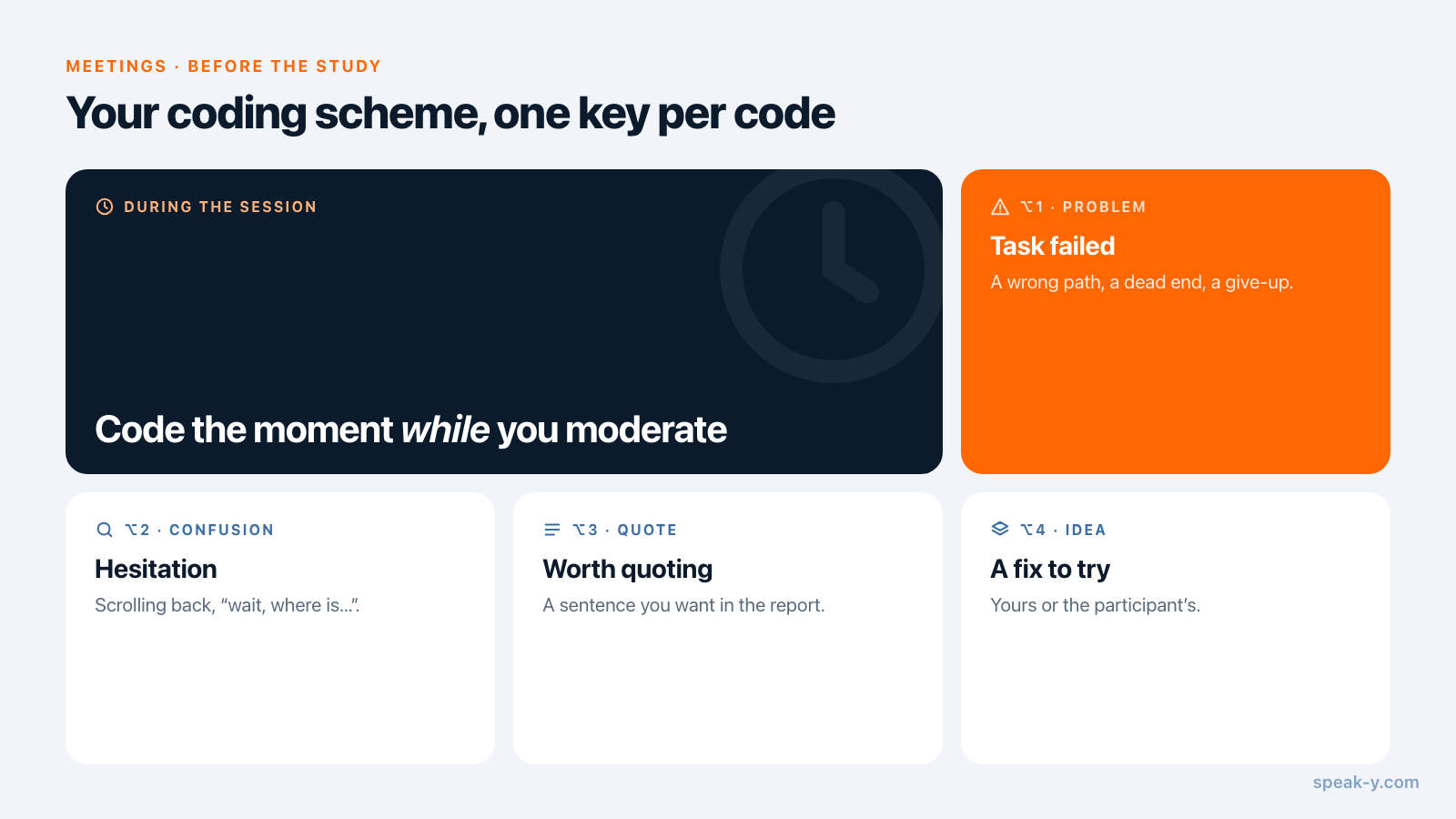
Open Settings → Notes. Under Note types there is one type already — Mark the moment on ⌥1. Click the pencil next to it and rename it Problem. Then, for each other code:
- Click Add note type, type the name and press Save. Speak-Y gives the type the next free colour from its palette of eight; click the colour dot to pick another.
- Click Set hotkey on the new row and press the combination, for example ⌥2. Speak-Y asks you to press it once more to check that macOS or another app does not intercept it, and shows Works when the combination reached the app.
| Code | Use it when | Hotkey |
|---|---|---|
| Problem | the participant fails a task or takes a wrong path | ⌥1 |
| Confusion | they hesitate, scroll back, say "wait, where is…" | ⌥2 |
| Quote | a sentence you will want in the report | ⌥3 |
| Idea | a fix occurs to you or the participant suggests one | ⌥4 |
Keep it to four or five types, or you start thinking about keys instead of watching. Settle the names before the first session. A mark keeps the type name it was placed with, so renaming "Confusion" to "Friction" after session three splits your study into two names. The hotkeys only act while a meeting is being recorded; the rest of the time ⌥2 does whatever it normally does.
Check the plan against the length of your sessions. As of 1 October 2026:
| Plan | Longest meeting | Meeting time per month |
|---|---|---|
| Free | 30 minutes | 2 hours |
| Pro | 60 minutes | 10 hours |
| Pro+ | 4 hours | 40 hours |
Five 50-minute sessions fit Pro. A session booked for an hour that runs over would stop at the 60-minute mark, so for longer sessions use Pro+. The Windows app records meetings with speaker names and tags, but not marks, so this routine needs the Mac.
Consent comes next. Speak-Y records on your Mac and never joins the call, so the platform will not announce it: say at the start that you are recording and who will hear it, and put the same line in the invitation. Is it legal to record meetings covers the rules by country. Tell the participant what is recorded, too: sound — your microphone and the audio your Mac plays — not the screen they share.
During the session: moderate, press, keep going
Start the Zoom call. Speak-Y asks Record as Meeting? above the recording button; click the check mark (if nothing appears, set Settings → Interface & Behavior → Meeting mode to Manual or Auto). A panel above the recording button lists your types with their colours and hotkeys. It shows when the recording starts, when you hover the button and when you place a mark, and it stays invisible to the participant while you share your screen.
- Press right after the moment. A mark looks back: the words of the last 15 seconds are highlighted in the type's colour. The button briefly reads Last 15s marked.
- Make the screen audible. Since Speak-Y hears the call, not the screen, a silent wrong click leaves no trace in the transcript. Keep the participant thinking aloud, and narrate what you see — "you went to Account, what did you expect there?" — so your sentence carries the observation into the transcript, right next to your mark.
- Missed one? After the session, hover a reply and click +, or right-click it → Add note, and pick the type.
- Need the video too? Record it with the meeting platform, with consent; the times on your marks tell you where to scrub.
Right after each session: participant code, study tag, your name
Open the recording from Meetings. Speak-Y numbers the speakers in the order they first spoke; you usually open, so you are Speaker 1 and the participant Speaker 2.
- Name the participant with a code. Click the Speaker 2 chip, type
P3and press Enter. Use the code, not the name: everything built from the transcript — copied quotes, shared recordings, what your assistant reads — takes this label. Keep the code-to-name list in your recruiting sheet. - Name yourself. Click Speaker 1 and type your name or "Moderator", so a quote never gets attributed to the wrong side. Ask observers to stay muted: every extra voice becomes another speaker.
- Tag the study. Click Tags, type
study-checkoutand click Create new tag. From the second session on the tag is one click away. Add a segment tag such asfirst-time-buyerif you want to compare groups later.
Review one session by type
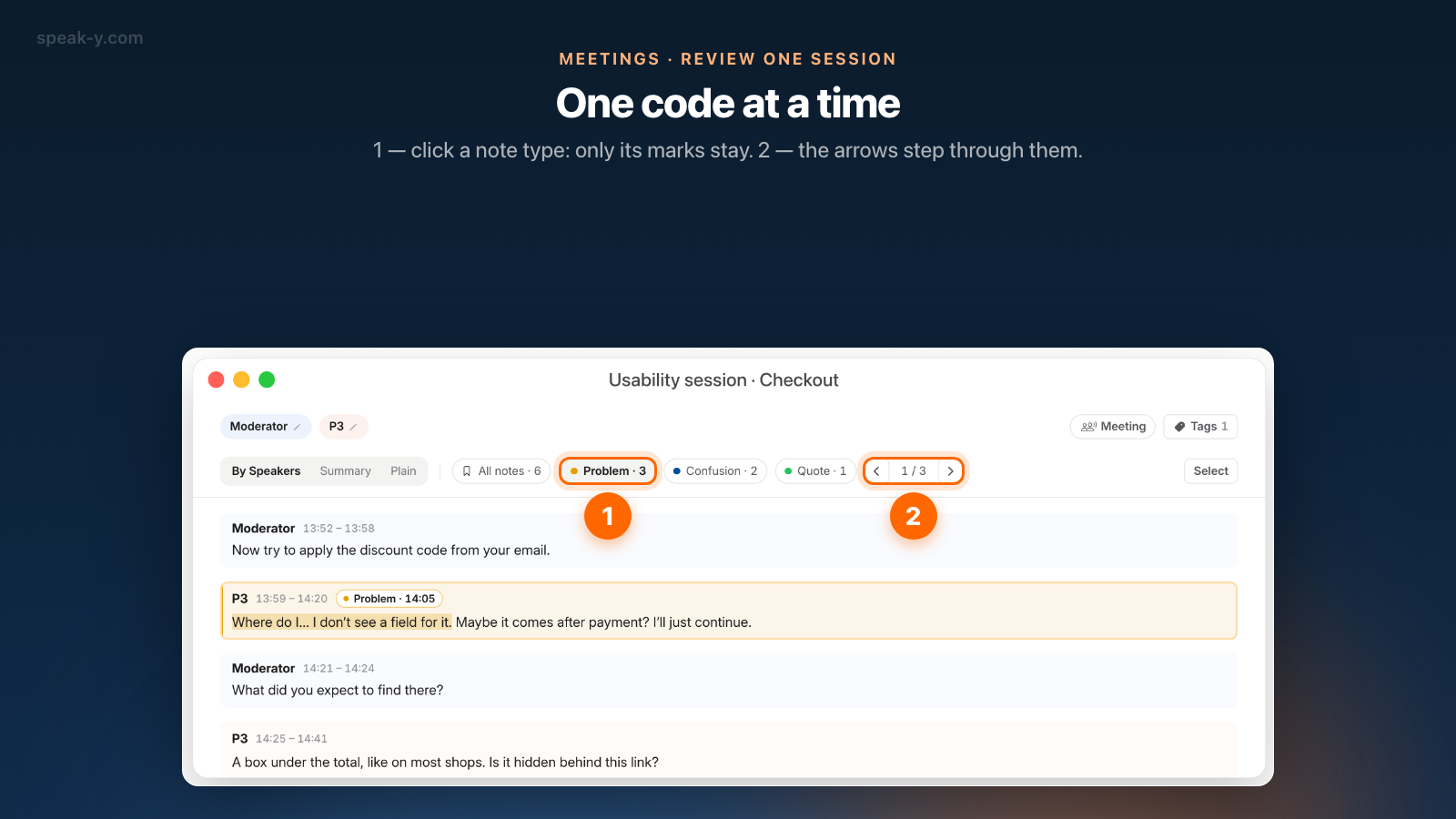
Above the transcript, next to the tabs, the recording shows a strip of chips: All notes with the total, then one chip per type with its own count — Problem · 5, Confusion · 4, Quote · 3. Click Problem and only Problem marks stay on the replies; the arrows next to the chips step from one to the next, and the counter shows where you are, 1 / 5.
Each marked reply is tinted in the type's colour and carries a badge such as Problem · 14:05, with the words of that 15-second window highlighted. To hear the moment, right-click the reply → Play from here. Problems first, then Confusions: minutes per session instead of a full re-listen.
Synthesize all five sessions with your AI assistant
Reviewing session by session shows what happened; the report needs what keeps happening. That is a job for an AI assistant that can read all five transcripts. Connect Claude, ChatGPT, Cursor or another MCP client once in Settings → Integrations — connecting meeting notes to AI assistants walks through it — and ask:
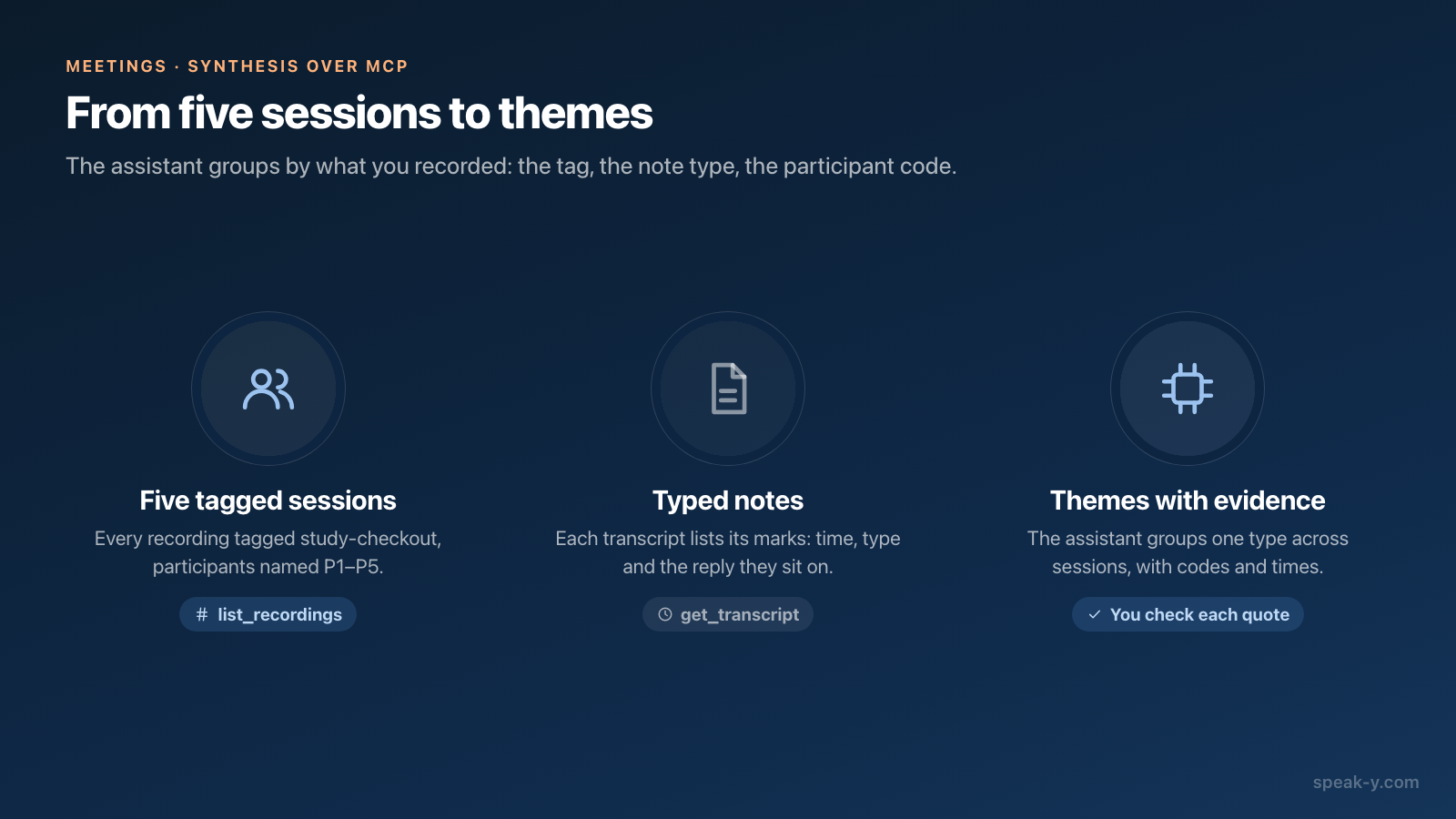
- "Take every recording tagged study-checkout. Group all Problem notes by theme; for each theme list the participants, the times and one quote."
- "Which tasks produced Confusion notes for at least three of the five participants?"
- "Make a table: themes in rows, P1–P5 in columns, a mark where the participant hit it."
The assistant lists the recordings with the tag, then reads each transcript: every reply starts with the speaker's name and time, and a Notes section lists each mark with its time, its type and the first words of the reply it sits on. The codes, the tag and the participant names are exactly what it groups by. Speak-Y's search does not look inside marks, so ask by tag, not by keyword.
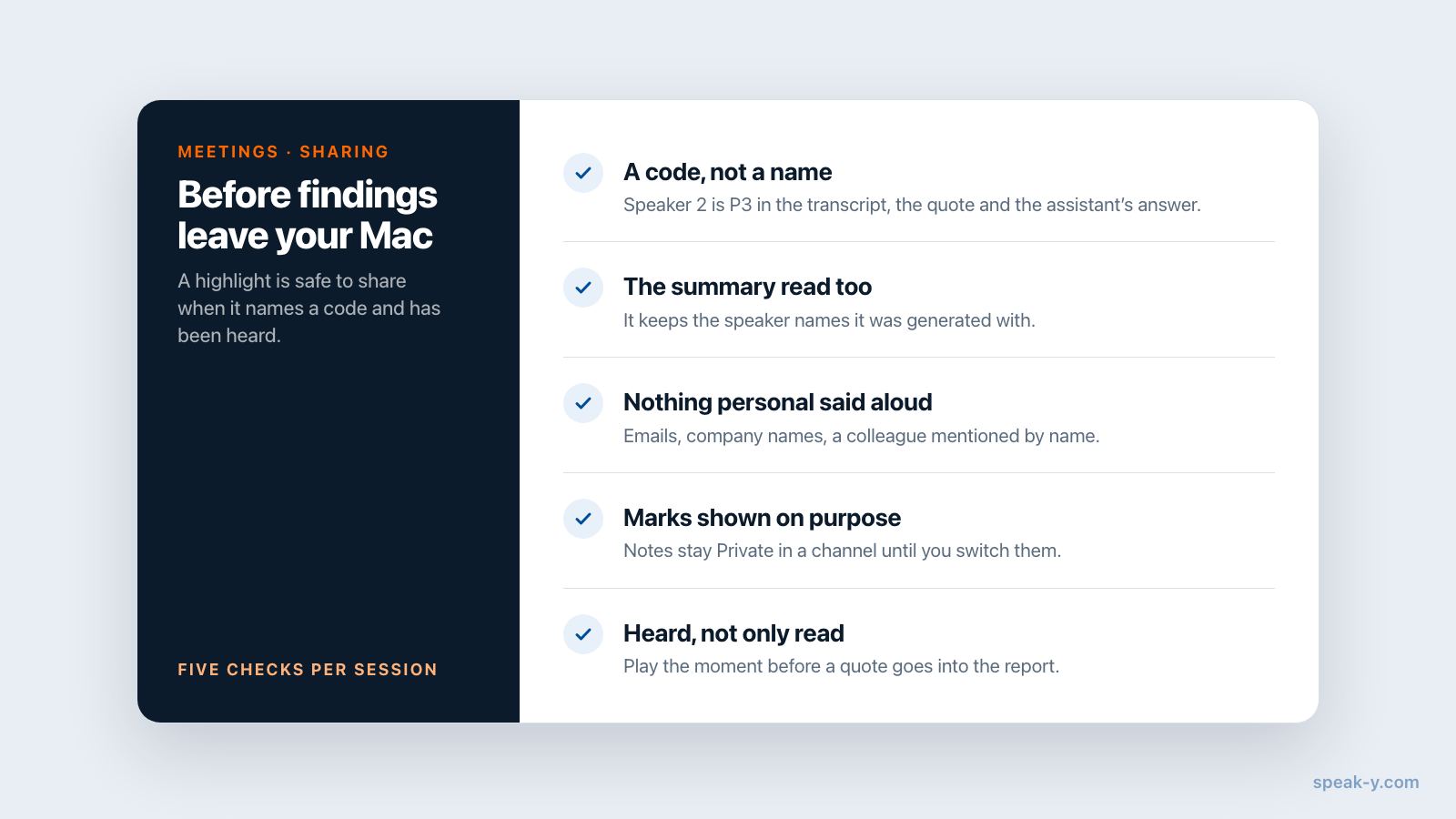
Reading happens locally from the Speak-Y library on your Mac, but the assistant's model runs in the cloud, so the transcripts it reads go to it. And the assistant chooses what to quote: before a theme goes into the report, open the recording and play the moment. Prompts to ask AI about your meetings has more requests of this kind.
Share highlights without sharing the participant
Findings travel in two forms. For the research channel, press To channel on a session: teammates get the transcript with speaker names and the meeting summary, end-to-end encrypted, while the audio stays on your Mac. The summary keeps the speaker names it was generated with — renaming Speaker 2 to P3 later does not change it — so read it before sharing, not only the transcript, and look for anything personal said aloud: an email address, a company name, a colleague mentioned by name. Your marks stay private on a shared recording — the menu at the right end of the tabs row says Private — until you switch it to show them in that channel; sharing a meeting to a team channel covers the rest.
For the report, right-click a reply → Copy reply as quote. It arrives as «text» — P3, 14:05: the participant code and the time where the reply starts, so anyone can go back to the moment.
What five sessions cost you
The codes take five minutes to set up once. Each session costs a few key presses and a minute afterwards; the synthesis is a filtered pass per recording and a couple of questions to your assistant — an afternoon, not a week of re-listening. If your research team works in a Speak-Y workspace, the Teams page explains how channels keep every session in one place.
FAQ
How do I take notes during a moderated usability test without breaking eye contact?
Turn your note categories into note types in Speak-Y (Settings → Notes → Add note type), give each one a hotkey such as ⌥1 for Problem and ⌥2 for Confusion, and record the session as a meeting. During the session you press the key right after something happens; Speak-Y pins a mark of that type to the transcript and highlights the last 15 seconds of speech in the type's colour.
Does Speak-Y record the participant's screen during a usability test?
No. Speak-Y records sound only: your microphone and the audio your Mac plays, so the participant's voice from Zoom, Teams or Meet. What the participant does on screen is not captured. Ask them to think aloud, say what you see out loud as the moderator, and record video with the meeting platform if you need it.
Can an AI assistant group my usability notes by type across sessions?
Yes, with an MCP client such as Claude, ChatGPT or Cursor connected to Speak-Y. The assistant lists the recordings with your study tag and reads each transcript, which includes a Notes section with every mark's time, type and the reply it sits on. Ask it to group every Problem note by theme with participant codes and times, then check each quote in the app.
Which Speak-Y plan fits five one-hour usability sessions?
As of 1 October 2026, Free records up to 30 minutes per meeting and 2 hours a month, Pro up to 60 minutes per meeting and 10 hours a month, and Pro+ up to 4 hours per meeting and 40 hours a month. Sessions booked for 45–50 minutes fit Pro; if they can run past an hour, use Pro+. The MCP server is included on every plan.
How do I keep participants anonymous when I share usability sessions with my team?
Name the participant's speaker with a code such as P3 instead of their real name, so shared recordings, copied quotes and what your assistant reads all say P3. Your marks stay private on a shared recording unless you switch them to show in the channel. Check the transcript for names, emails or company details the participant said aloud before you share it.