From Feature Discussion to PRD Draft the Same Day with Speak-Y
A product requirements document written the same day as the discussion is a different document from one written a week later: the arguments are fresh, the open questions are still open, and nobody has quietly changed their mind. In Speak-Y for Mac the route is this: record the discussion as a meeting without a bot, press one hotkey per kind of moment — Decision, Open question, Out of scope — and after the call let an AI assistant connected over MCP draft the PRD from the transcript and your marks. Sections nobody discussed you dictate yourself and shape with AI Process; the recording goes to the product channel with To channel, so the designer and the engineers see the context, not just the result.
The AI writes from what was said, with a time next to every point. Your part is twenty minutes of checking that no decision in the draft was invented and no open question was closed by the model. This guide follows one example — an hour-long discussion of "Shared filters" with Priya from engineering and Tom from design — and uses the labels of the Mac app as of 1 October 2026.
Why typed marks and not notes?
Taking notes during a feature discussion means arguing with half your attention. A mark takes one keystroke. What makes it useful for a PRD is the type: a mark called Decision is already a line in the Decisions section, a mark called Out of scope is already a line in Out of scope. The skeleton of the document is built while people are still talking; the AI only fills it from the transcript.
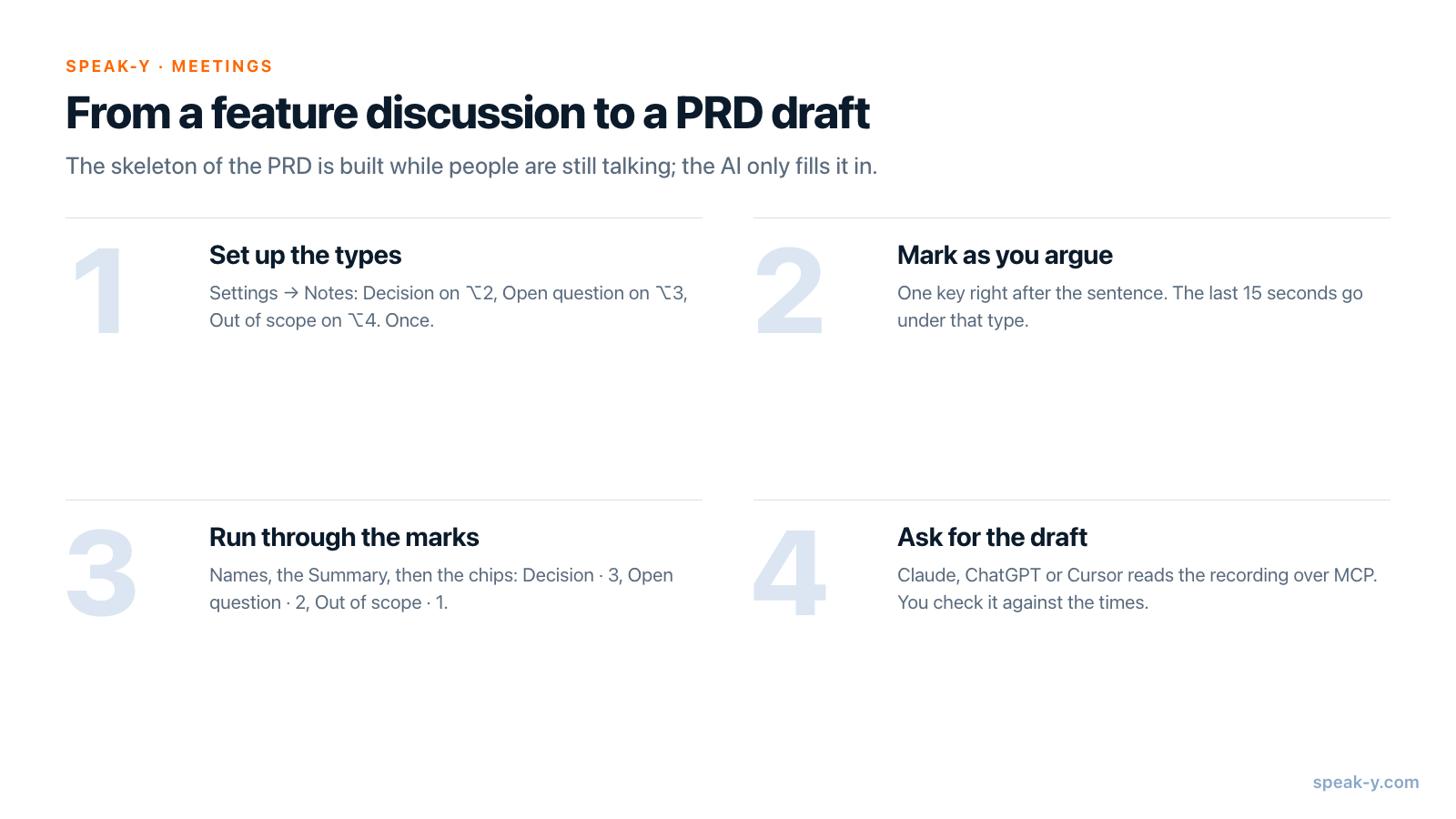
Before the discussion: three note types, a hotkey each
Speak-Y ships with one note type, Mark the moment, on ⌥1. Add the three a PRD needs in Settings → Notes:
- Click Add note type, type "Decision" in Type name and press Save. The new type gets the next free colour.
- Click Set hotkey on its row, press ⌥2, then press the combination once more: Speak-Y confirms that it reached the app globally, past the call window. Press Done.
- Repeat for "Open question" on ⌥3 and "Out of scope" on ⌥4.
Enable meeting notes at the top of the page has to be on. Show note buttons near the recording pill adds clickable buttons next to the recording button; they are hidden while you share your screen, the hotkeys still work.
Recording needs only Meeting mode (Settings → Interface & Behavior), on by default: Speak-Y records your microphone and the audio your Mac is playing, so Zoom, Google Meet, Microsoft Teams and a browser call all work the same way and no bot joins the call — tell the team you are recording. An hour-long discussion also needs a plan that allows it: Free stops a recording at 30 minutes, Pro allows 60 (table at the end).
During the discussion: one key per kind of moment
When the call starts, Speak-Y asks Record as Meeting? above the recording button; click the check mark. From then on you take part in the discussion and press a key right after the sentence that matters:
- "Let's go with per-user filters, not per-team" — ⌥2, Decision.
- "Do we need this on mobile at launch? Nobody knows" — ⌥3, Open question.
- "Sharing filters outside the workspace is a different project" — ⌥4, Out of scope.
Each press marks the last 15 seconds of the call under that type: the button briefly reads Last 15s marked and the counter grows. The mark covers what was just said, which is why you press after the sentence, not before. A moment you missed is not lost: after the call, right-click the reply in the transcript, choose Add note and pick the type.
After the call: names, summary, marks by type
When the recording ends, Speak-Y separates the speakers and writes the summary. Open the recording from Meetings and do three things before you ask for a draft.
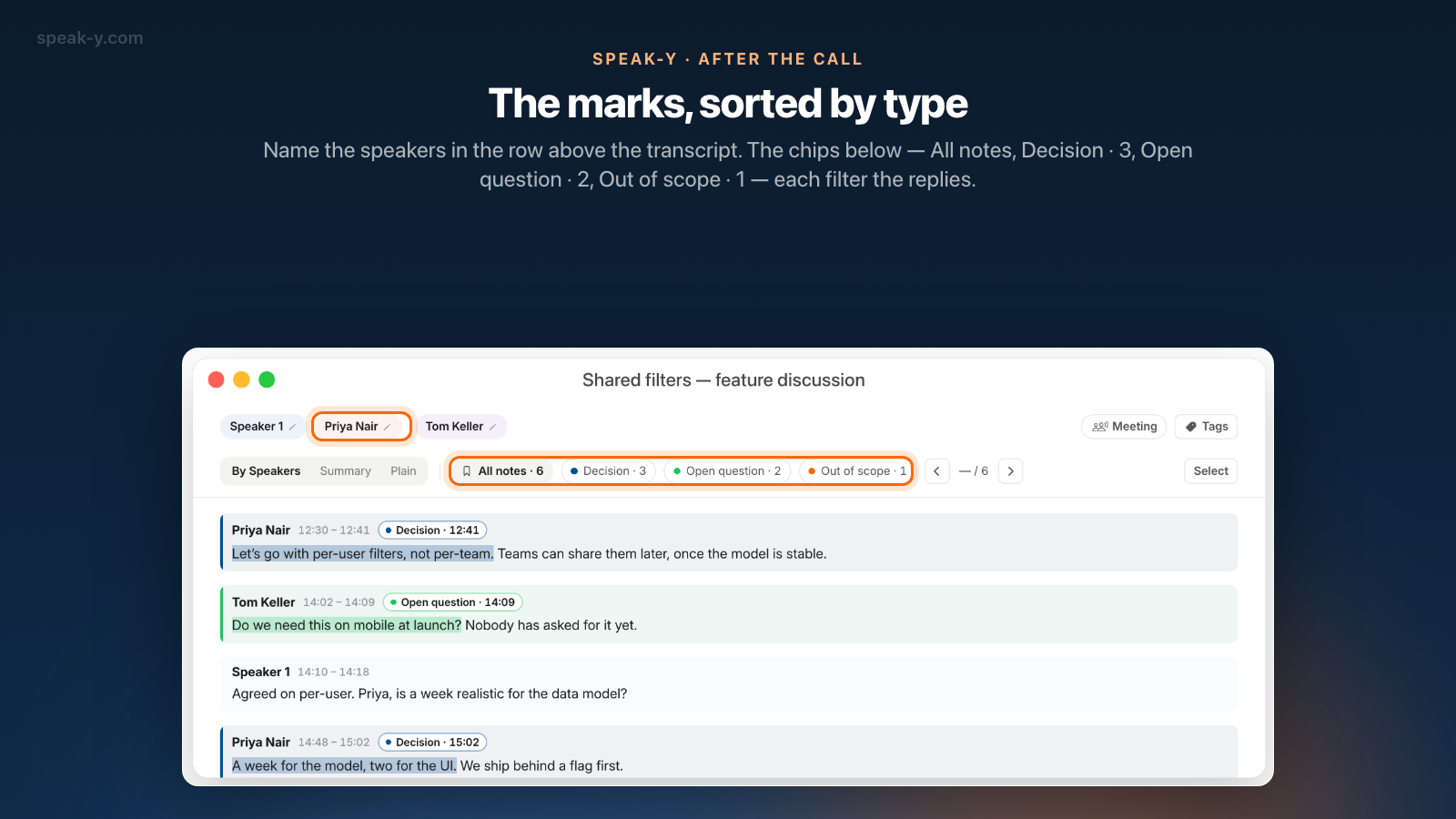
Name the speakers. Click Speaker 2 in the row above the transcript, type "Priya" in the Name field and confirm; the same for Tom. The names go into the transcript the assistant reads. The summary keeps the names known when it was generated, so a renamed speaker may still be Speaker 2 there.
Read the Summary. The tabs are By Speakers, Summary and Plain. Summary opens with Action Items — one line per person, with the time — followed by five to seven thematic sections, every point with a timestamp. The summary is included on every plan and does not count against your AI requests.
Run through the marks by type. On the By Speakers tab a strip of chips
starts with All notes and its count, followed by one chip per type:
Decision · 3, Open question · 2, Out of scope · 1. Click Decision and only
the replies with a decision stay; the arrows step from one to the next. Two
minutes here tell you whether "per-user filters" was decided or only proposed.
Finally click Tags and create a tag for the feature, such as
shared-filters: every later discussion of it gets the same tag, and that is
what you will search by in a week.
The draft: ask your assistant over MCP
Speak-Y's MCP server is free on every plan and lets Claude Desktop, ChatGPT or Cursor read your recordings locally, from the library on your Mac; connecting an assistant takes a few minutes. Then ask for the draft in one message:
Using my recording "Shared filters — feature discussion", draft a PRD with these sections: Problem, Proposed solution, Scope, Out of scope, Open questions. Build Out of scope from the marks of that type and Open questions from the Open question marks. Put the time of the discussion next to every point. Do not add decisions that were not made.
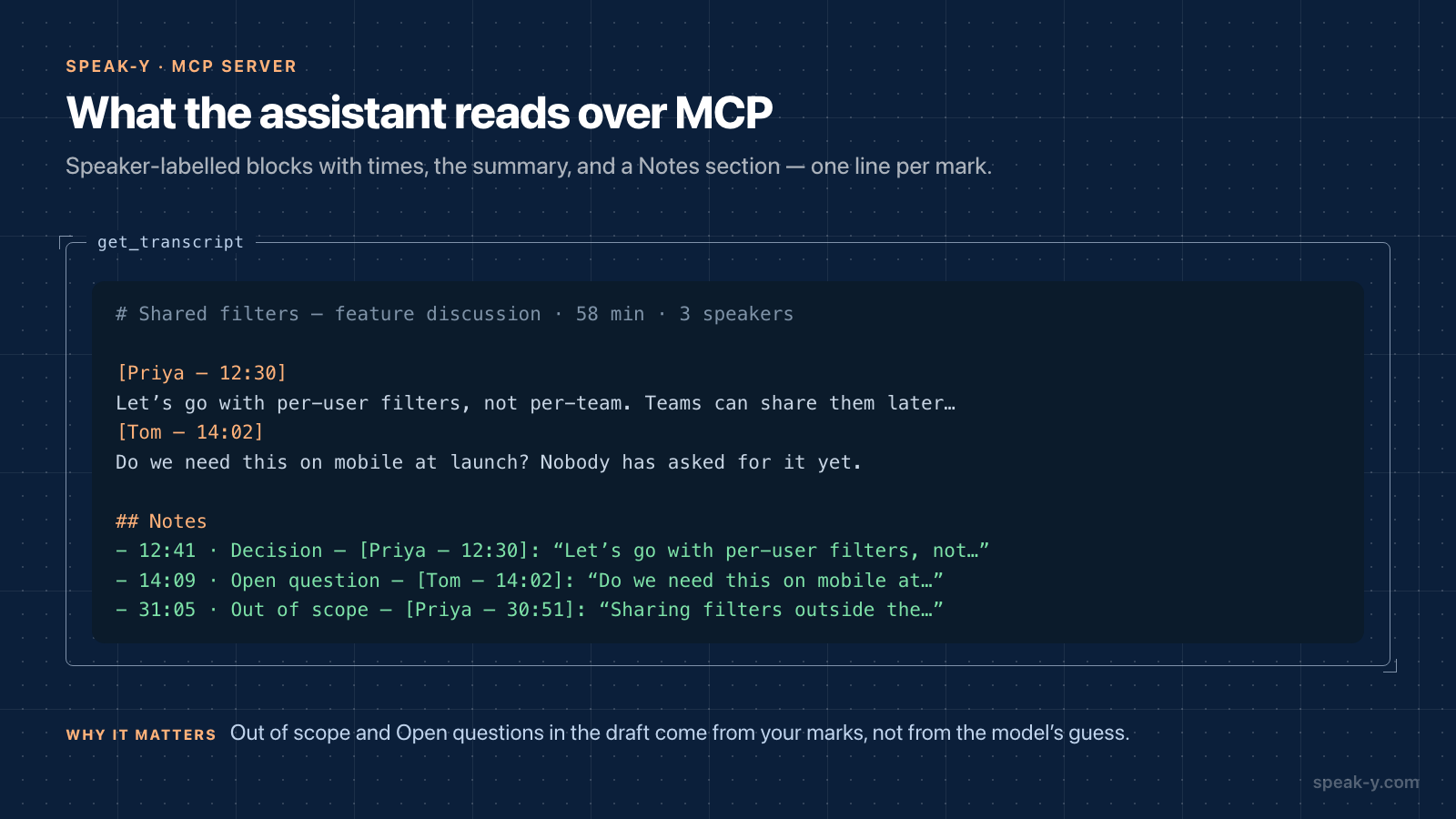
The assistant calls search_recordings or list_recordings to find the
recording and get_transcript to read it. It gets back the transcript as
speaker-labelled blocks with times, the summary, and a Notes section where
every mark is one line: its time, its type, the speaker and the start of the
reply it belongs to. So the Out of scope section comes from your ⌥4 presses,
not from the model's guess.
Three honest limits of this step:
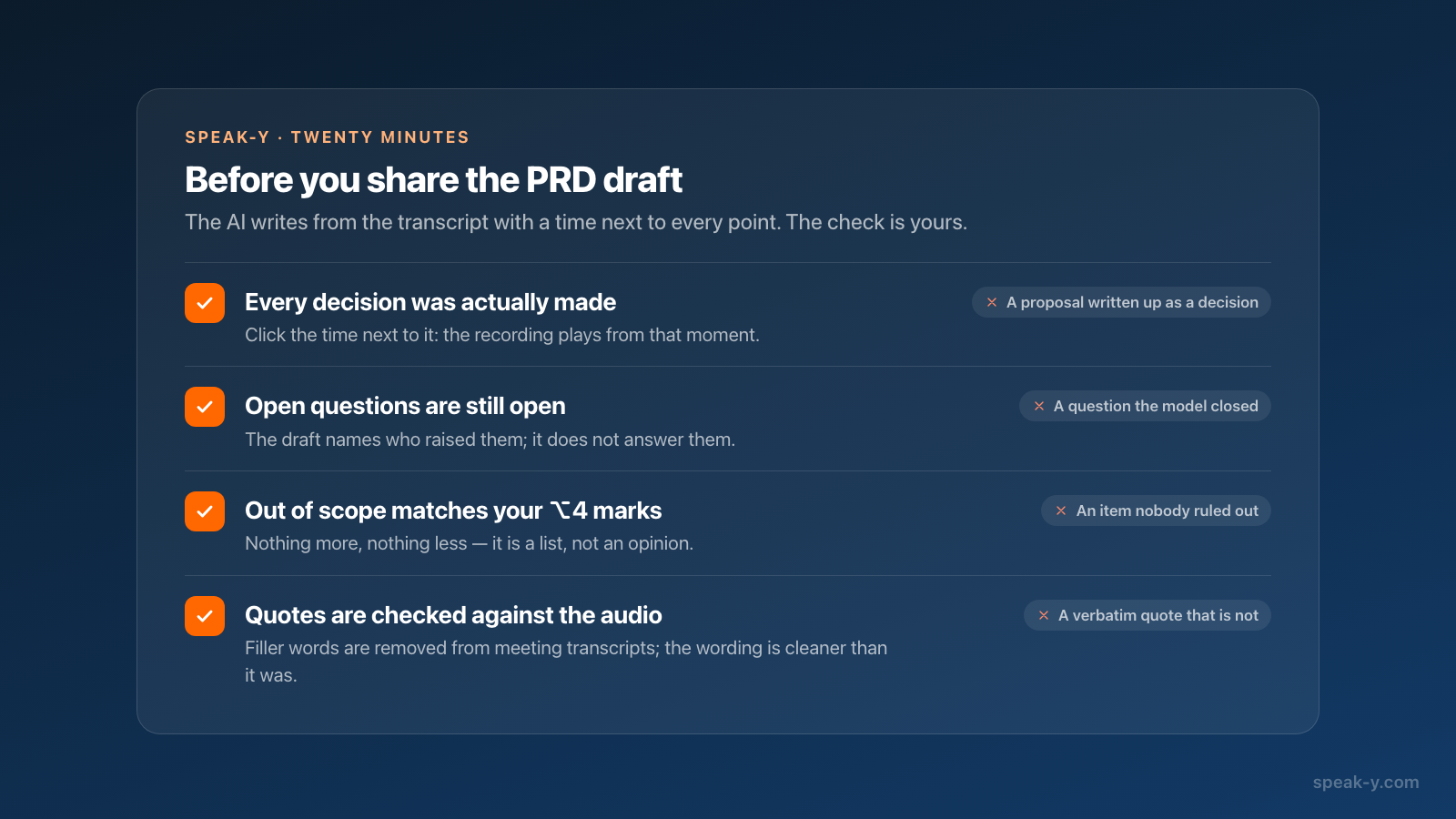
- The AI writes from the transcript, not from the room. Click the time of a reply in Speak-Y to play the recording from that moment and check that the decision was made, not merely floated.
- Quotes are not verbatim. Speak-Y removes filler words and repetitions from meeting transcripts, so a quoted sentence is cleaner than what was said. For the exact wording, listen to the moment.
- Open questions stay open. A good draft lists them with who raised them; if it answers one, that is the first thing to delete.
Fill the gaps by voice
A discussion rarely covers every section of a PRD — success metrics, rollout, risks. Dictate them: press ⌥ Space once, talk through the section, press ⌥ Space again. The note is saved under Notes in the Speak-Y window, whether or not a text field was active.
Open the note, press AI Process under the text and type your own prompt in the Prompt field — "Format as a PRD section with a heading and bullet points. Keep my wording, add nothing" — then press Apply. The result appears as a new tab, v1: Custom, next to Original; the dictation is not changed. ⋯ → Copy Text copies the tab you are looking at; paste it into the document under the sections the assistant drafted. AI Process works on notes, not on meeting recordings, and each Apply uses one of your plan's AI requests. Voice notes to a structured draft covers this step in detail.
Share the discussion, not only the PRD
A PRD tells the team what was decided; the recording tells them why. If your team has a Speak-Y workspace, press To channel in the bar under the transcript and pick the product channel, shown as workspace / channel. The transcript with speaker names, the summary and the action items appear in the channel feed, end-to-end encrypted; the audio stays on your Mac. Your marks are private by default — the Private / In channel control next to the note filters decides whether channel members see them. Sharing a meeting to a team channel covers what travels and how to take it back.
The tag pays off a week later. After two more discussions tagged
shared-filters, ask the assistant: "Which open questions from the first
Shared filters discussion were answered in the later recordings tagged
shared-filters? Quote the answer with the time." list_recordings filters by
tag, so the assistant reads exactly those recordings, including ones
teammates shared into channels you belong to. More requests of this kind are in
prompts to ask AI about your meetings,
and Cursor can read the same discussion
while you build the feature.
Which plans and platforms does this work on?
As of 1 October 2026 (pricing):
| Plan | Per meeting | Meetings per month |
|---|---|---|
| Free | 30 min | 2 h |
| Pro | 60 min | 10 h |
| Pro+ | 240 min | 40 h |
| Max | 240 min | 100 h |
A recording stops at the per-meeting limit, so an hour-long discussion needs Pro at least. Note types, marks, the summary and the MCP server are available on every plan; AI Process on a dictated note uses one AI request per Apply.
This guide describes the Mac app (macOS 14.2 and later); the Windows app records meetings with speaker names and tags but has no marks. For the other half of the follow-up — turning action items into an email — see from client call to follow-up email.
FAQ
How do I turn a feature discussion into a PRD draft with Speak-Y?
Record the discussion as a meeting and press a hotkey for each kind of moment: a Decision, an Open question, something declared Out of scope. After the call, name the speakers and read the Summary. Then ask Claude, ChatGPT or Cursor, connected over MCP, to draft the PRD from that recording: problem, solution, scope, out of scope and open questions, each with the time it was discussed. Check the draft against the timestamps before you share it.
How do I create my own note types like Decision or Open question?
Settings → Notes → Add note type. Type the name, press Save, then click Set hotkey, press the combination and press it once more so Speak-Y can confirm it works globally. Each type gets its own colour. The default type, Mark the moment, stays on ⌥1; the new ones can take ⌥2, ⌥3 and ⌥4.
Does the AI assistant see my marks and their types?
Yes. get_transcript returns the transcript with speaker names and times, the summary, and a Notes section where every mark is listed with its time, its type and the first words of the reply it belongs to — a line such as 12:41 · Decision — [Priya — 12:30]. That is enough for the assistant to build the Out of scope and Open questions sections from your marks rather than from guesswork.
Can I mark a moment I missed after the discussion is over?
Yes. In the recording, right-click the reply, choose Add note and pick the type. The mark is pinned to that reply exactly like one made during the call, and it shows up in the type filters and in what the assistant reads over MCP.
Which plan do I need for an hour-long discussion?
Meeting recording is included on every plan, but a recording stops when it reaches the plan's limit. As of 1 October 2026, Free allows 30 minutes per meeting and 2 hours a month; Pro 60 minutes and 10 hours; Pro+ 240 minutes and 40 hours; Max 240 minutes and 100 hours. For an hour-long discussion Pro is the minimum, and Pro+ if your discussions tend to run over.