Investor Questions to a Pitch FAQ: Better Answers Every Call
The fastest way to stop being surprised by the same investor question twice is to treat every call as research about your pitch. In Speak-Y, create three note types before the round — Question, Objection and Next step, each on its own hotkey — and record every investor call as a meeting. Press the hotkey the moment a partner asks something; after the call, put the partner's name on the speaker and tag the recording with the fund and the round. Once a week, ask your AI assistant to collect every question and objection from recordings tagged raise-seed, grouped by topic, with who asked and when. That list is the first draft of your pitch FAQ, and it shows you which answers to rewrite before the next call.
This guide follows the macOS app as of 1 October 2026 and one ordinary seed round: ten 30-to-45-minute calls with funds and angels over Zoom and Google Meet, and a founder who wants the eleventh call to go better than the first.
Why track investor questions at all?
Investors ask a small set of questions in many different words. "Why now?", "Who else is building this?" and "How do you get your first hundred customers?" come back in almost every call, and so do the objections: market too small, team too thin, too early. After ten calls you remember the call where an answer went badly, not how often each question came up.
A recording fixes the memory part, and marks fix the finding part: instead of re-listening to seven hours of calls, you jump to the forty moments that matter. An assistant that reads all the transcripts at once turns them into a ranked list of questions with your current answers next to them.
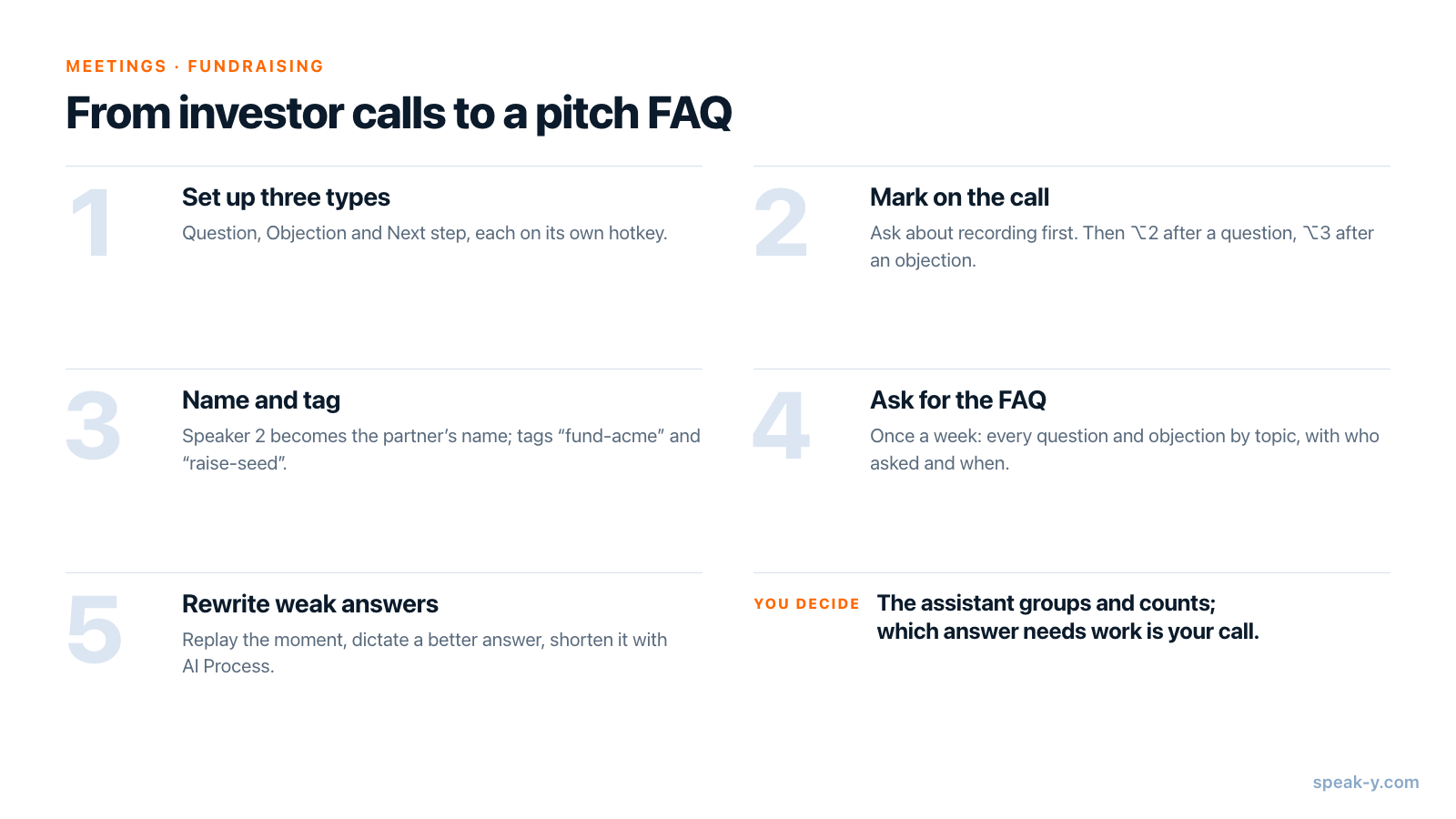
Before the round: three note types and a plan
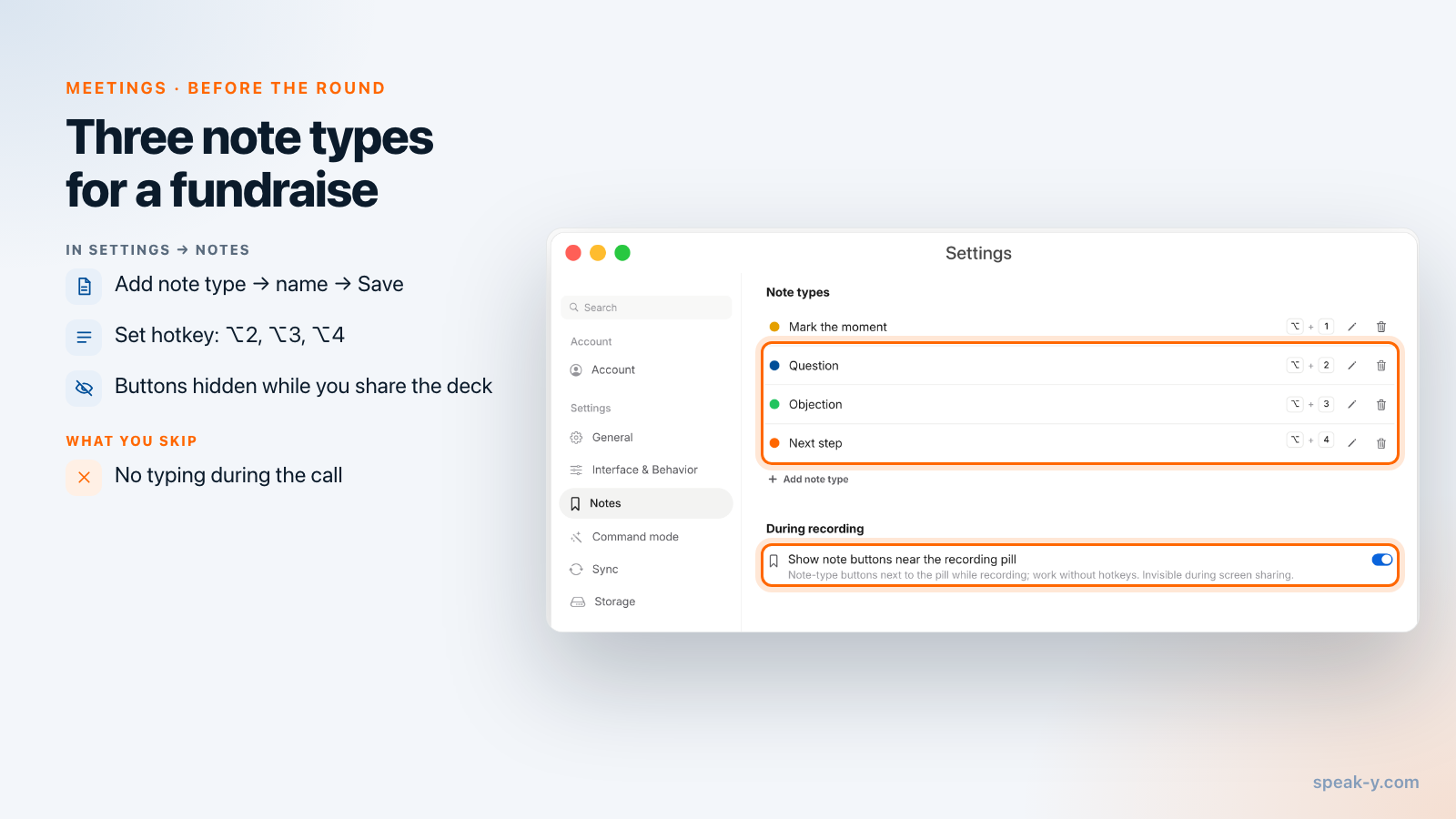
Speak-Y comes with one note type, Mark the moment on ⌥1. For a fundraise, three types of your own sort the marks as you place them, so the weekly review starts already grouped. Open Settings → Notes:
- Under Note types, click Add note type, type
Questioninto Type name and click Save. The new type gets the next free colour; click the coloured dot to pick another. - Click Set hotkey on the new row and press the combination, for example ⌥2. Speak-Y asks you to press it once more to verify that it really reaches the app — some combinations are taken by macOS or other apps.
- Repeat for
Objectionon ⌥3 andNext stepon ⌥4.
Then check the plan against your call length. As of 1 October 2026:
| Plan | Longest meeting | Meeting time per month |
|---|---|---|
| Free | 30 minutes | 2 hours |
| Pro | 60 minutes | 10 hours |
| Pro+ | 4 hours | 40 hours |
Ten 45-minute calls are 7.5 hours, which fits Pro; on Free each recording would stop at the 30-minute mark. The MCP server used for the weekly review is included on every plan. The Windows app records meetings and has speaker names and tags, but not the marks this guide relies on.
During the call: ask first, then mark without looking away
Speak-Y records on your Mac and never joins the call: no bot appears in the participant list. So ask in the first minute whether it is fine to record, and say why — "so I can get back to your questions properly". Some investors will say no; then don't record that call and write your notes right after it. Whether a polite question is enough or you need explicit consent depends on where you and the investor are; is it legal to record meetings goes through the rules by country.
When Speak-Y asks Record as Meeting? above the recording button, click the check mark. From then on:
- A question you will hear again? Press ⌥2 right after it is asked. The mark covers the last 15 seconds — the button reads Last 15s marked for a moment — so there is no need to anticipate the question.
- An objection? ⌥3. "This feels early for us" counts, even when it is said kindly.
- A promise either way? ⌥4 for "send us the cohort data", "intro to our healthcare partner", "let's talk again after your pilot".
You keep looking at the investor, not at a notes app. When you share your deck, the note buttons next to the recording button are invisible; the hotkeys keep working.
Right after the call: a name and two tags
Open the recording from Meetings. Speak-Y has separated the speakers and numbered them in the order they first spoke, so the partner is usually Speaker 2. One minute here is what the weekly review will read:
- Name the investor. Click the Speaker 2 chip, type the name — "Dana Reyes" — and press Enter. Every reply of that speaker now shows the name, and so does everything built from the transcript.
- Tag the fund and the round. Click Tags, type
fund-acmeand click Create new tag, then do the same forraise-seed. From the second call on,raise-seedis already in the list and takes one click.
Above the transcript, All notes shows how many marks the call has, with a chip for each type: click Objection to see only the objections, and use the arrows to go from one to the next.
Once a week: ask your assistant for the FAQ draft
Connect Claude, ChatGPT, Cursor or another MCP client once in Settings → Integrations — connecting meeting notes to AI assistants walks through it. Then, on Friday, ask:
Collect every Question and Objection mark from my recordings tagged raise-seed. Group them by topic. For each topic: how many times it came up, who asked (the speaker name and the fund tag), the investor's exact words with the time, and how I answered.
The assistant lists the recordings with the tag, then reads each transcript: every reply starts with the speaker's name and time, and a separate Notes list gives each mark with its type, time and the reply it belongs to. That is how it can say "Why now: six calls — Dana Reyes (fund-acme, 14:02), …" rather than guess.
The answer is a draft FAQ, or an appendix to your deck. Two follow-ups are worth keeping:
- "Which question did I answer differently in different calls? Quote both answers."
- "List every Next step mark with the fund and the sentence around it."
The second one is your follow-up list. Write each email the way from client call to follow-up email describes, and send it the same day. Prompts to ask AI about your meetings has more requests of this kind.
Fix the weak answers before the next pitch
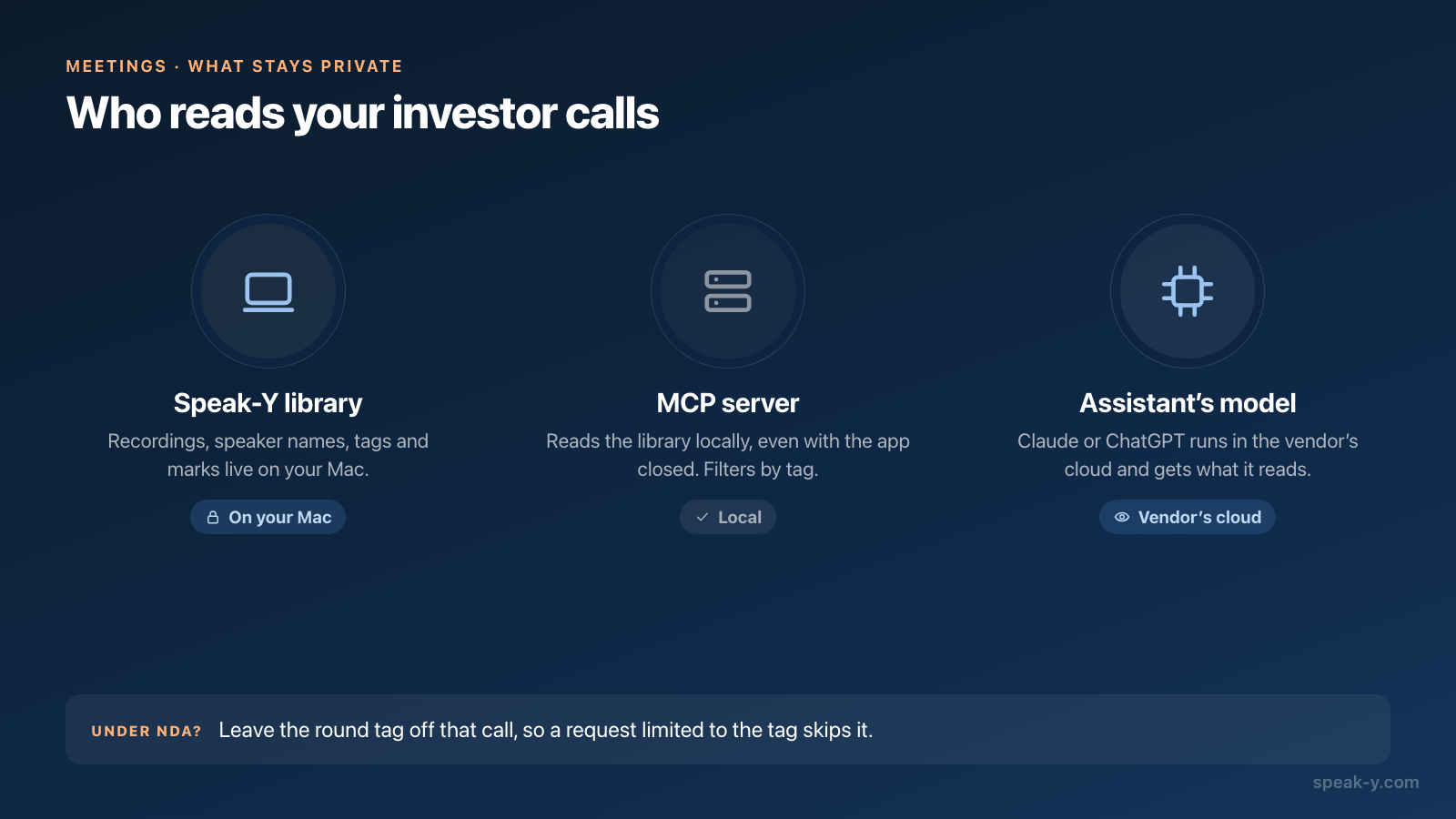
The assistant groups and counts, but it does not know which answer cost you the second meeting — deciding which answers need work is yours. Go through the list and pick the answers you would not give again.
For each one, open the recording at that moment — right-click the reply and choose Play from here — and listen to the question and your answer. Then write the better version by talking:
- Press ⌥ Space, say the answer the way you would on the next call, and press ⌥ Space again. The dictation is saved under Notes.
- Open the note, press AI Process, type your own instruction into Prompt — for example, "Shorten to three sentences. Keep my numbers and my wording." — and press Apply. A new tab, v1: Custom, appears next to Original; the dictation is not changed. Each Apply uses one AI request from your plan.
- ⋯ → Copy Text copies the tab you are looking at. Paste it into the FAQ next to the question.
Voice notes to a structured draft covers this dictation-to-text step in more detail.
What stays private, and what goes to the AI
Investor calls carry valuations, other funds' interest and a partner's opinion of a competitor. Two facts decide where that text goes.
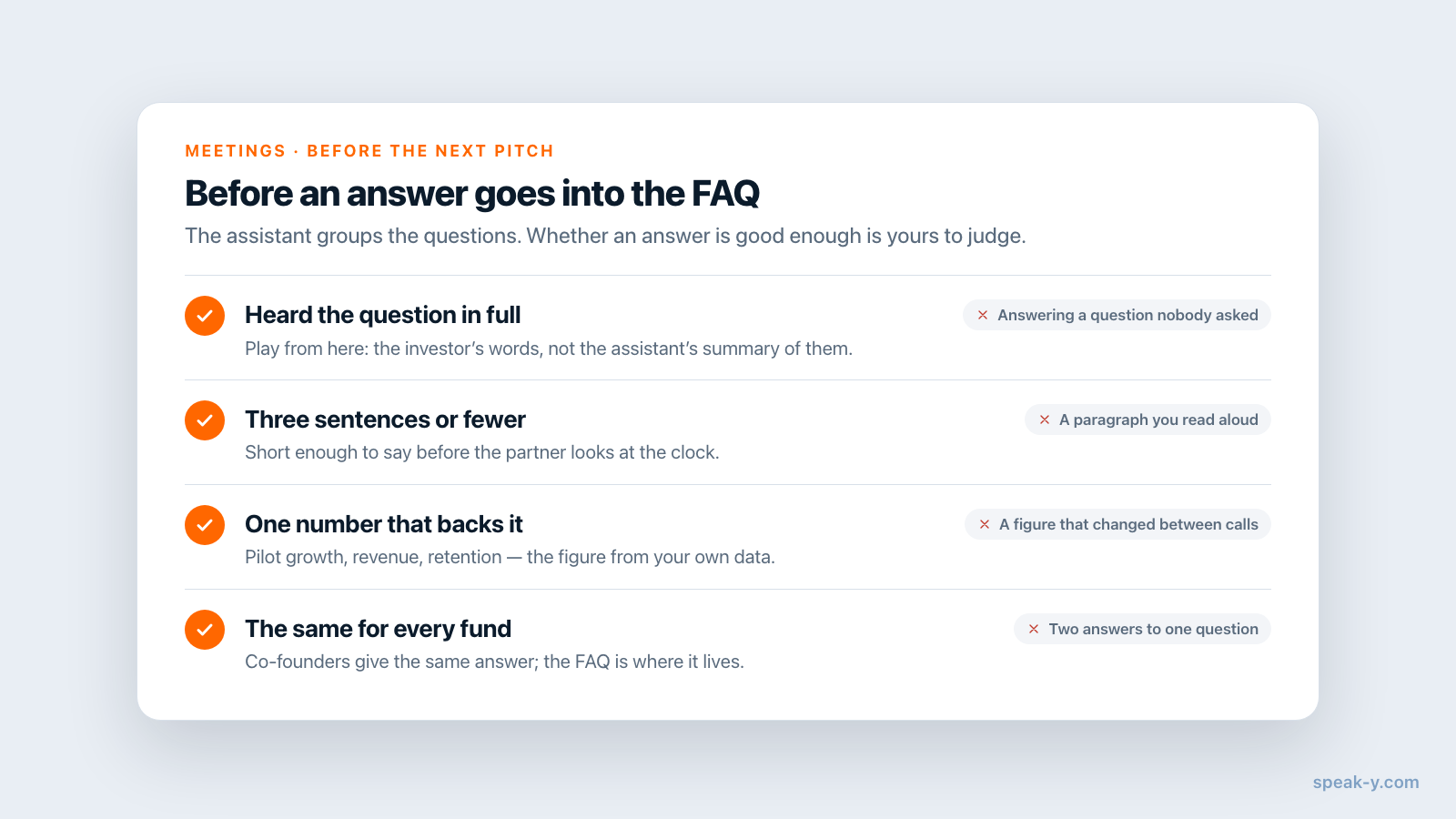
- The recordings are yours. They live in your Speak-Y library on your Mac, and nobody else sees them unless you share one. The MCP server reads them locally, straight from that library, even when the app is closed.
- The assistant is a cloud service. Claude and ChatGPT run their models on
their vendors' servers, so every transcript the assistant reads is sent
there, under that vendor's terms.
Local vs cloud MCP: what your AI can see
explains the difference. If a call is under NDA, leave the
raise-seedtag off it, so a request limited to that tag does not include it.
After three or four weeks, the FAQ stops growing: the same eight or ten questions keep coming back, and you have a tested answer to each. If co-founders should hear the calls, a Speak-Y workspace lets you share a recording to a channel with To channel, end-to-end encrypted, while the audio stays on your Mac — the Teams page covers how.
FAQ
How do I keep track of the questions investors ask during a fundraise?
Record each investor call as a meeting in Speak-Y and press a hotkey right after every question. Create your own note types first in Settings → Notes → Add note type, for example Question on ⌥2, Objection on ⌥3 and Next step on ⌥4. Each mark covers the last 15 seconds and stays pinned to the transcript with its type and time.
Can an AI assistant build a pitch FAQ from my investor calls?
Yes, if Claude, ChatGPT, Cursor or another MCP client is connected to Speak-Y. Ask it to collect every Question and Objection mark from the recordings tagged, say, raise-seed, group them by topic and count who asked. It reads each transcript with speaker names, times and your marks, so every FAQ entry links back to a moment you can replay.
Do investors see that I am recording the call?
Not from the meeting platform. Speak-Y records on your Mac and never joins Zoom, Google Meet or Teams, so no bot appears in the participant list. Ask at the start of each call whether recording is fine; some investors prefer that you don't, and whether you need explicit consent depends on where you both are.
Are the mark buttons visible when I share my pitch deck?
No. The note buttons next to the recording button are invisible during screen sharing, so the investor never sees them. The hotkeys keep working while you share, which is why it is worth assigning one to each note type before the round.
Which Speak-Y plan do I need for investor calls?
As of 1 October 2026, Free records meetings up to 30 minutes each and 2 hours a month, Pro up to 60 minutes each and 10 hours a month, and Pro+ up to 4 hours each and 40 hours a month. Ten 45-minute investor calls need Pro. The MCP server is included on every plan.