One-on-One Meeting Notes That Pick Up Where You Left Off
A 1:1 that picks up where the last one ended needs one habit per call: record it as a meeting in Speak-Y, press ⌥1 whenever you agree on something, and after the call name the other person and give the recording their tag, such as 1:1 Anna. Before the next 1:1, press ⌘K, type her name and pick the tag: the feed keeps only her 1:1s, and the last one opens with a summary that starts with the action items. Or ask your AI assistant, over Speak-Y's MCP server, what the two of you agreed on in the last three 1:1s and what is still open.
This guide follows the macOS app as of 1 October 2026 and one ordinary case: a weekly 30-minute 1:1 with Anna, an engineer on your team. It works the same from the other side, when the 1:1 is with your own manager.
Why 1:1s lose the thread
A 1:1 is the meeting where continuity matters most and notes are weakest. Nobody takes minutes, the topics are personal, and the commitments are small and spread over weeks: "I'll ask for two peer reviews", "let's come back to on-call after the release". A month later neither of you remembers who owed what. Better notes do not fix that; a thread does — every 1:1 with one person in one place, findable by her name, with the agreements marked.
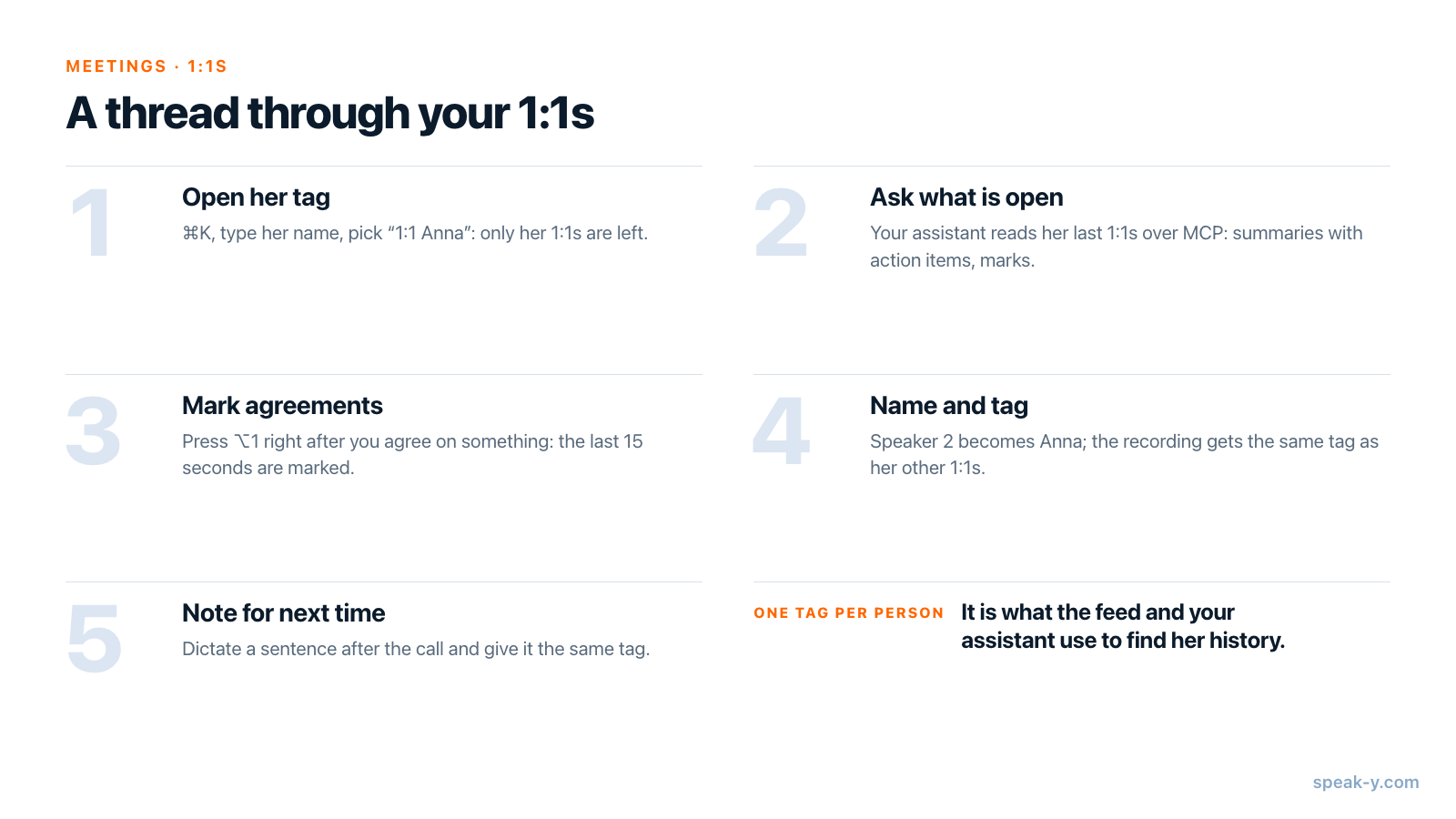
Set it up once: one tag per person
Speak-Y records calls when Meeting mode is on (Settings → Interface & Behavior → Meeting mode: Off, Manual or Auto). Nothing joins the call: the app records your microphone and the audio your Mac plays, so Zoom, Microsoft Teams, Google Meet and browser calls work the same way. The Windows app records meetings too, with speaker names and tags but without the marks this guide uses; the Linux app does not record meetings.
Give every person their own tag — 1:1 Anna, 1:1 Ben — rather than one 1:1
tag for everybody. Tags accept spaces and ignore case, and a tag per person is
what lets both the feed and your assistant pull up one person's history. If one
1:1 matters more than the others, such as the one where you set goals for the
half-year, click the star on the recording: Favorites in the sidebar lists
every starred recording.
Check the plan against your calendar. As of 1 October 2026:
| Plan | Longest meeting | Meeting time per month |
|---|---|---|
| Free | 30 minutes | 2 hours |
| Pro | 60 minutes | 10 hours |
| Pro+ | 4 hours | 40 hours |
Four people with a weekly 30-minute 1:1 need about 8 hours a month — Pro. The MCP server used later in this guide is included on every plan.
Finally, tell the other person. No bot appears in the call, so the platform will not announce the recording for you. Ask at the start of the first 1:1 — "I'd like to record our 1:1s so I don't lose what we agree on; they stay private to me" — and respect a no. Whether a sentence is enough or you need explicit consent depends on where you both are; is it legal to record meetings covers the rules by country.
Before the 1:1: open her tag and read last time
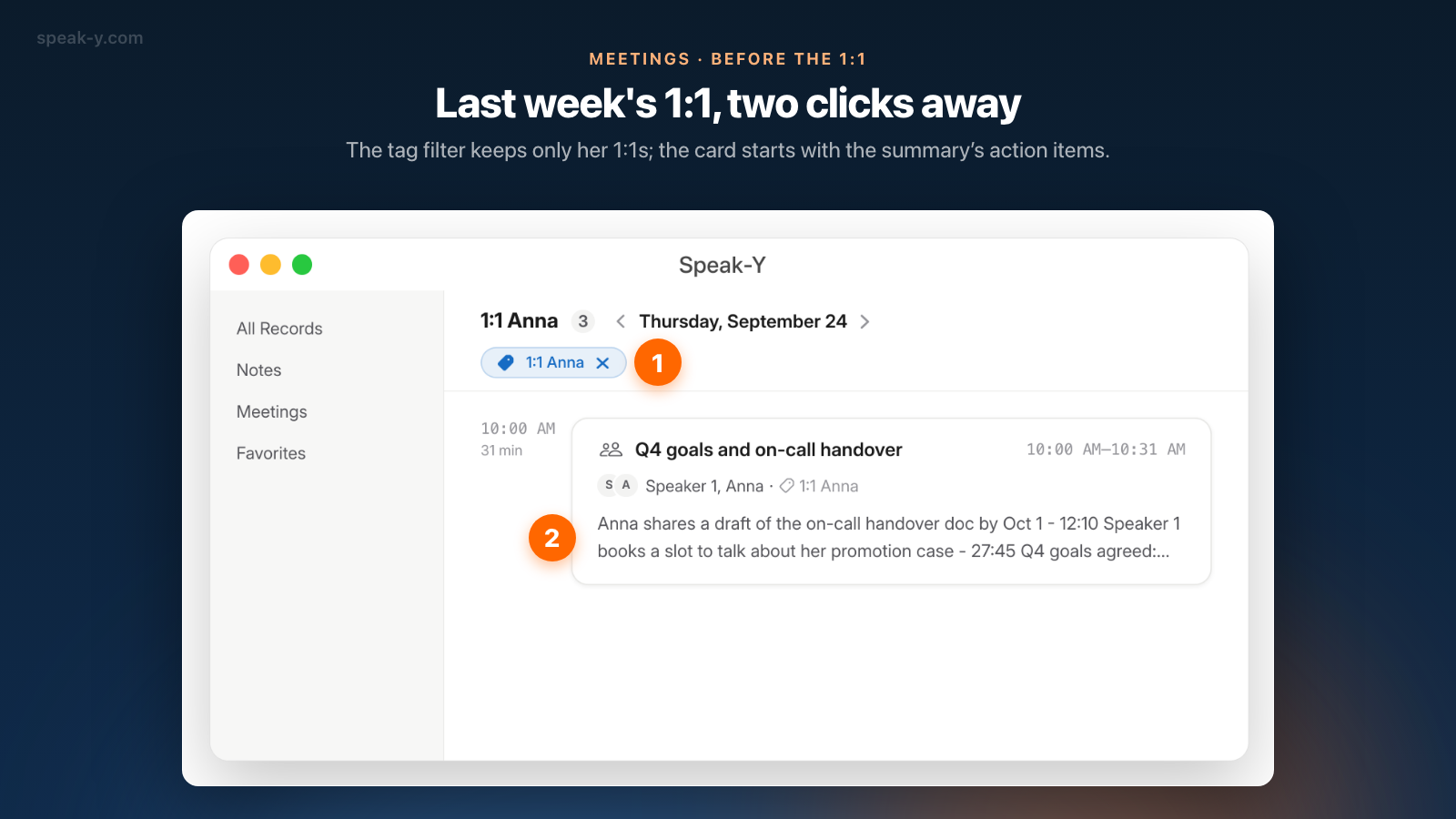
Two minutes before the call, press ⌘K anywhere in the Speak-Y window and
type anna. Search everything… shows matching tags under Tags and
recordings that mention the word under Results. Pick 1:1 Anna: the feed
switches to that tag, with the tag's name and count in the header and a chip
that says which tag is on.
The feed still opens on today. If there is nothing from today, it says No recordings yet today, shows the date of the latest recording with the tag and offers a button to open that day. Click it, and last week's 1:1 is on screen with the first lines of its summary. Open it for the rest:
- Summary — opens with the action items: who agreed to do what, with the time in the call when it was said. The rest is what you talked about, by topic. The names in it are the ones known when the summary was written: if nobody said Anna's name in the call, an item may read "Speaker 2", and naming the speaker later does not rewrite the summary.
- Your marks — the strip above the transcript starts with All notes and its count, and its arrows jump from one ⌥1 mark to the next.
Or ask your assistant what is still open
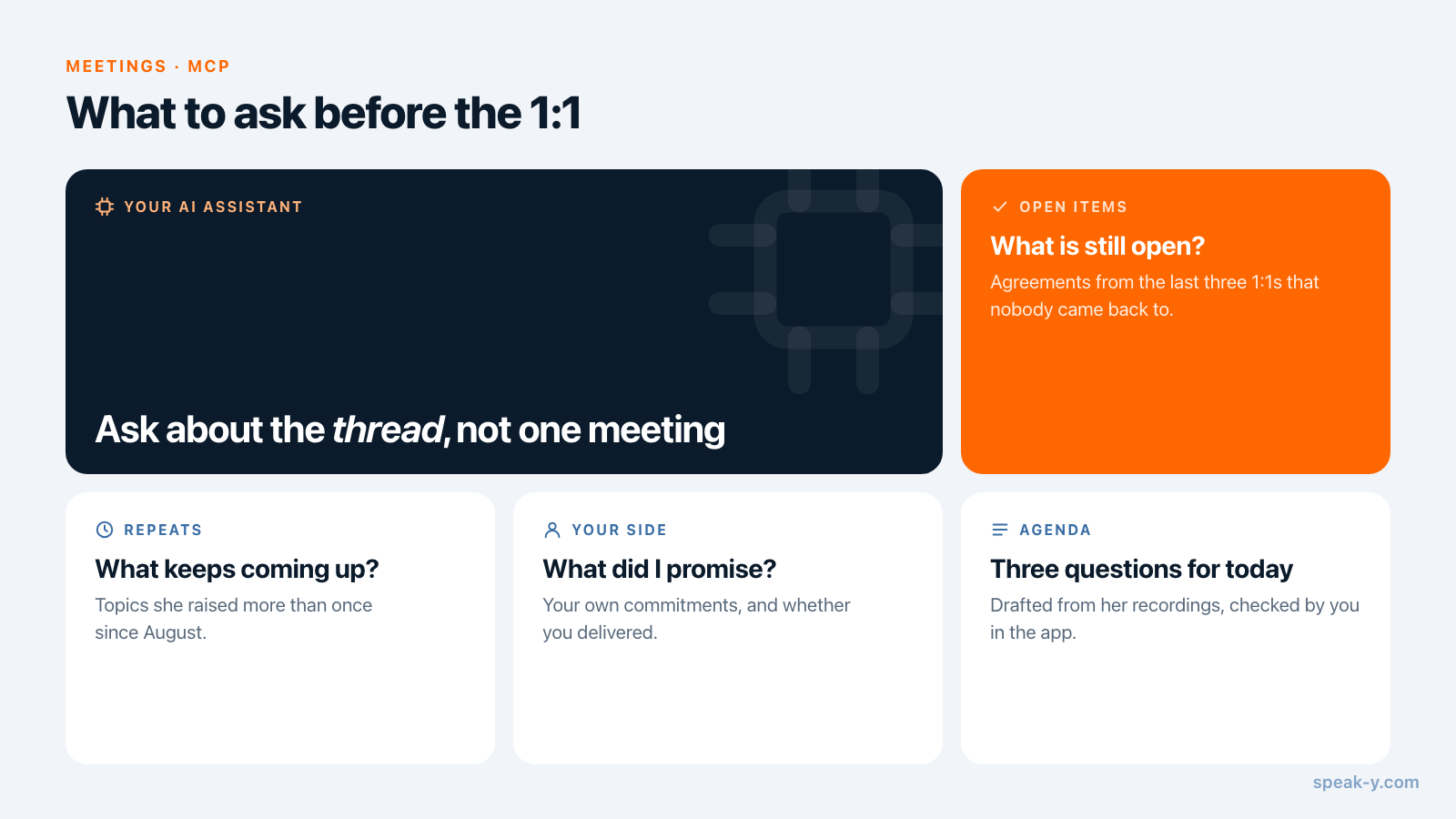
Reading one summary is quick. Reading three and working out which promises nobody has mentioned since is the part that gets skipped. That is a job for an AI assistant with access to all of her 1:1s. Connect Claude, ChatGPT, Cursor or another MCP client once in Settings → Integrations — connecting meeting notes to AI assistants walks through it — and ask:
- "What did Anna and I agree on in our last three 1:1s, and what is still open?"
- "What has Anna raised more than once since August?"
- "What did I promise Anna, and did I come back to it?"
- "Draft three questions for today's 1:1 from the recordings tagged 1:1 Anna."
The assistant lists the recordings with the tag and reads each one: the summary with its action items, your marks with their times, and the transcript with every reply under the speaker's name. Because Speak-Y does not mark items as done, "still open" is the assistant's judgement from what the later 1:1s said, not a status from the app — open the recording before you raise something as overdue. Prompts to ask AI about your meetings has more requests of this kind.
During the 1:1: mark what you agree on
When the call starts, Speak-Y asks Record as Meeting? above the recording button; click the check mark. Then talk. When you agree on something — a deadline, an owner, a topic to come back to — press ⌥1. Speak-Y marks the last 15 seconds (the button reads Last 15s marked for a moment), and the words of that window are highlighted in the transcript.
- Press right after the agreement: the mark looks back.
- A mark holds its type and time, not text, so there is nothing to type while the other person is talking.
- Missed one? After the call, hover the reply and click +, or right-click it → Add note.
- The default mark is Mark the moment. To tell agreements from follow-ups at a glance, add your own types in Settings → Notes → Add note type, each with its own colour and hotkey.
Right after: her name, her tag, a note for next time
Open the recording from Meetings. Speak-Y has separated the speakers and numbered them in the order they first spoke; you usually open a 1:1, so you are Speaker 1 and Anna Speaker 2.
- Name her. Click the Speaker 2 chip, type
Annaand press Enter. Every reply of that speaker now carries the name, and so does the transcript your assistant reads; the summary keeps the names it was written with. - Tag it. Click Tags in the same row. Her tag is already in the list from earlier 1:1s: click 1:1 Anna. The first time, type the name in Search or create… and click Create new tag.
- Leave a note for next time. Marks cannot hold text, and a recording has no comment field. Dictate the note instead — "next time: ask about the on-call draft, and whether she wants the conference talk" — with your dictation hotkey (⌥ Space by default). The dictation is saved under Notes; open it and give it the same 1:1 Anna tag. Next week it sits in her tag next to today's meeting, and your assistant reads it together with the 1:1s.
With sync on, names, tags and marks travel with the recording to your other devices.
Who sees your 1:1 notes
1:1s are the recordings that must not travel, so it is worth knowing exactly where they go.
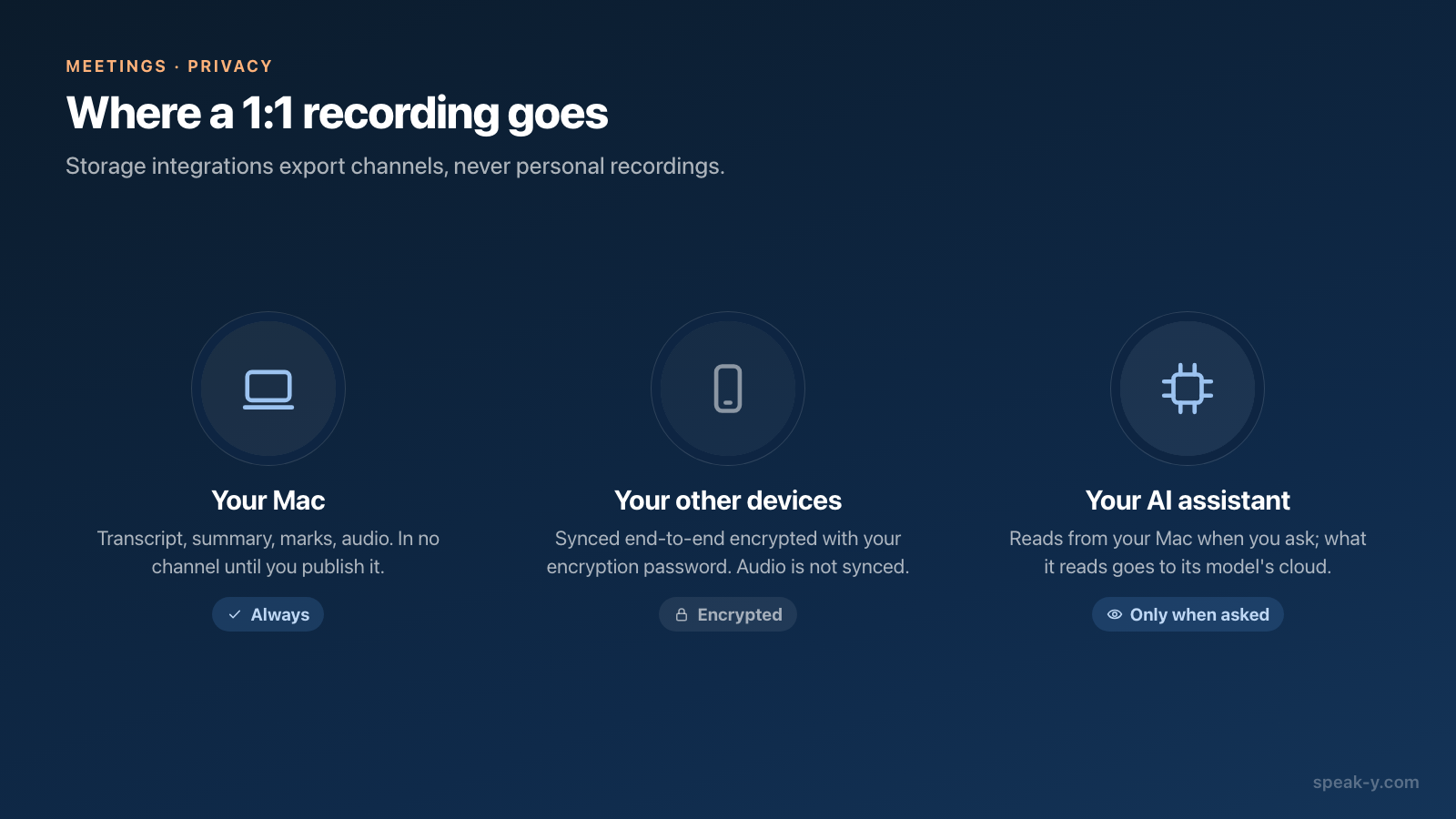
- Nobody else, by default. A recording is personal until you press To channel and publish it to a team channel. Don't: everyone in the channel reads a published meeting. The Teams page explains channels for the meetings that are meant to be shared.
- Not your team's Notion or Drive. Storage integrations export the channels you choose; personal recordings are never exported.
- Your own devices, encrypted. Sync between your Macs and iPhone is end-to-end encrypted with a key derived from your encryption password, so the server stores data it cannot read. Audio is not synced; it stays on the Mac that recorded it. Why meeting notes need E2E encryption explains what that protects against.
- Your AI assistant, when you ask. The MCP server reads straight from the library on your Mac, and nothing goes to Speak-Y's servers for it. But the assistant's model runs in its vendor's cloud, so every transcript it reads is sent there under that vendor's terms. Leave out 1:1s about health or pay, or ask narrower questions. Local vs cloud MCP goes through what each side can see.
Where the next 1:1 starts
A minute after each call — a name, a tag, a sentence dictated for next time — and two minutes before the next one are what turn a string of separate conversations into a thread. Anna does not have to repeat what she asked for in September, and you do not have to remember what you promised. For recording without a bot in the call at all, see record meetings without bots.
FAQ
How do I keep track of 1:1 meetings with Speak-Y?
Record each 1:1 as a meeting and press ⌥1 when you agree on something. After the call, click the Speaker 2 chip and type the person's name, then press Tags and add their tag, for example "1:1 Anna". Before the next 1:1, press ⌘K, type the name and pick the tag: the feed shows only that person's 1:1s, each with a summary that opens with the action items.
Can an AI assistant tell me what is still open from past 1:1s?
Yes, if Claude, ChatGPT, Cursor or another MCP client is connected to Speak-Y. It can list the recordings with a given tag and read each one's summary with its action items, your marks and the transcript by speaker. Speak-Y does not track whether an action item is done, so "still open" is the assistant's reading of what later 1:1s said; check it before you rely on it.
Can I attach a written note to a 1:1 recording?
Not as text inside the recording. A mark made with ⌥1 or Add note keeps only its type and time. For a note to yourself, dictate it after the call: the dictation is saved under Notes, and when you give it the same tag as the 1:1, it sits next to the meeting in that tag and your assistant reads it along with the 1:1s.
Who can see my 1:1 recordings in Speak-Y?
Only you, unless you press To channel and publish one to a team channel. Storage integrations such as Notion or Google Drive export channels, never personal recordings. Sync between your own devices is end-to-end encrypted. An AI assistant reads recordings locally from your Mac, but its model runs in its vendor's cloud, so what it reads goes there.
Which Speak-Y plan do I need for weekly 1:1s?
As of 1 October 2026, Free records meetings up to 30 minutes each and 2 hours a month, Pro up to 60 minutes each and 10 hours a month, and Pro+ up to 4 hours each and 40 hours a month. Four people with a weekly 30-minute 1:1 add up to about 8 hours a month, which fits Pro. The MCP server is included on every plan.