Team Meeting Channels and Your AI Assistant: What It Sees
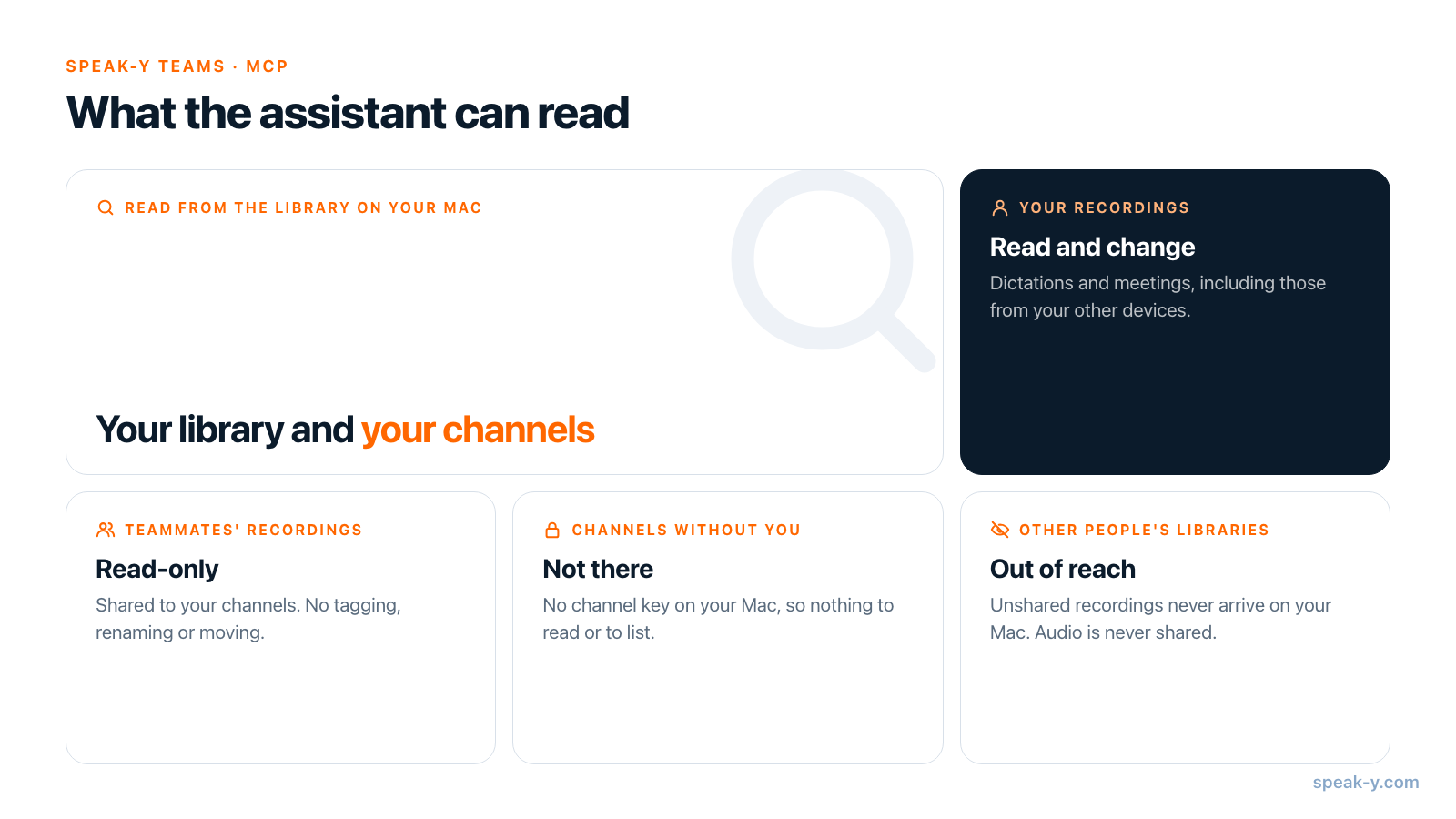
An AI assistant connected to Speak-Y over MCP reads two things: your own recordings, and the recordings in the team channels you are a member of. It reads them from the library on your Mac. Nothing it reads becomes visible to your teammates, and nothing lands in a channel because you asked a question.
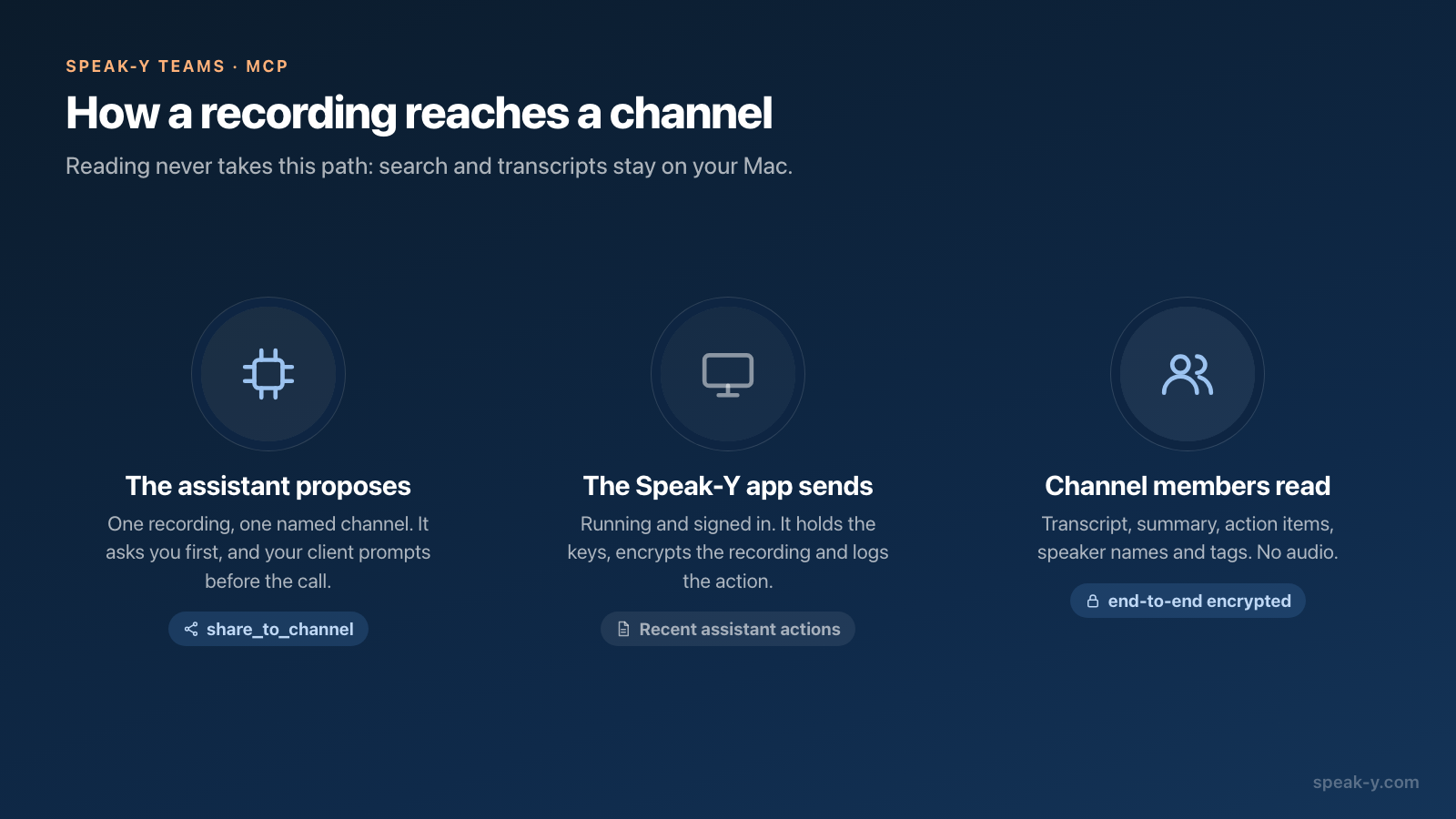
Publishing is a different operation with its own tool, share_to_channel. It
runs inside the Speak-Y app, the assistant is instructed to confirm the
recording and the channel with you first, and your MCP client asks for approval
before the call. This guide shows where the line between reading and publishing
runs, walks through one real request — "sort yesterday's meetings into
channels" — and lists what an assistant cannot do in a team workspace at all.
Everything here was checked against the macOS app on October 10, 2026.
What does the assistant see in a team workspace?
The same recordings you see in the app, minus the audio. The Speak-Y MCP server joins two sources:
- Your own recordings — dictations and meetings, including those synced from your other devices.
- Recordings in your channels — everything shared to the channels you belong to, including what teammates shared. Public channels are open to every member of the workspace; private ones only to the people added to them.
For each recording the assistant gets the transcript with speaker names, the summary, the action items, the tags and the channel it lives in. That makes a channel work as team memory: "what did we agree with the client about the deadline" is answered from the meeting a colleague recorded, not only from yours.
Two limits are built in rather than configured:
- A teammate's recording is read-only. The assistant can quote it, but tagging, renaming speakers, moving or removing it is refused: those belong to the person who shared it.
- A channel you are not in does not exist for the assistant. Channels are end-to-end encrypted; a recording reaches your Mac only after it is decrypted with the channel key, and the key is issued to members. There is no list of "channels you could ask to join".
The assistant reads the copy of the channel that is on your Mac. If the answer
looks stale, ask it to sync: the sync tool pulls new recordings from your
other devices and from channel feeds, and it needs the app running.
What stays personal?
Everything you have not shared. A team workspace does not turn your library into a shared drive, and the assistant does not change that:
- Your unshared recordings are visible to your assistant and to nobody else. A teammate's assistant reads the teammate's Mac, where your personal recordings never arrive.
- Audio never goes to a channel, so no assistant on a teammate's machine can reach it.
- Meeting notes stay private unless you chose to show them in the channel.
One caveat applies to every MCP server, local or cloud: what the assistant reads is sent to your model provider as part of the conversation. Asking about a channel means text from that channel — including what teammates said — leaves the end-to-end encrypted space for that one conversation; see local vs cloud MCP. For a channel with hiring or board material, decide as a team whether assistants should be pointed at it.
Why is publishing to a channel a separate step?
Because it is the one assistant action that other people see. Reading stays on your machine; a recording shared to a channel is delivered to every member of that channel. Speak-Y keeps the two apart in four ways:
- A separate tool. Search, lists and transcripts cannot publish. Only
share_to_channelputs a recording into a channel, and it takes one recording and one named channel per call. - An instruction to ask. The tool's description, which the model reads, says that it publishes to other people and that the recording and the channel must be confirmed with the user before calling.
- A prompt from your client. The tool is declared as changing data and reaching beyond your machine, so MCP clients ask for approval before running it unless you pre-approved it. How each client asks is compared in MCP client approval modes.
- A log. The app does not show its own confirmation dialog; instead each action is recorded under Recent assistant actions in Settings → Integrations, with the time, the operation, the recording and the outcome.
The work itself is done by the running app, signed in to your account: it holds the encryption keys, so the assistant never handles them. If Speak-Y is closed, the tool says so, and reading continues to work.
How does sorting meetings into channels look in practice?
Take a workspace with a public channel Meetings and a private channel Product. Yesterday produced three meetings; one is already in a channel, two are not where they should be. The request to the assistant is one sentence.
- Ask. "Sort yesterday's meetings into channels."
- The assistant reads. It lists yesterday's recordings
(
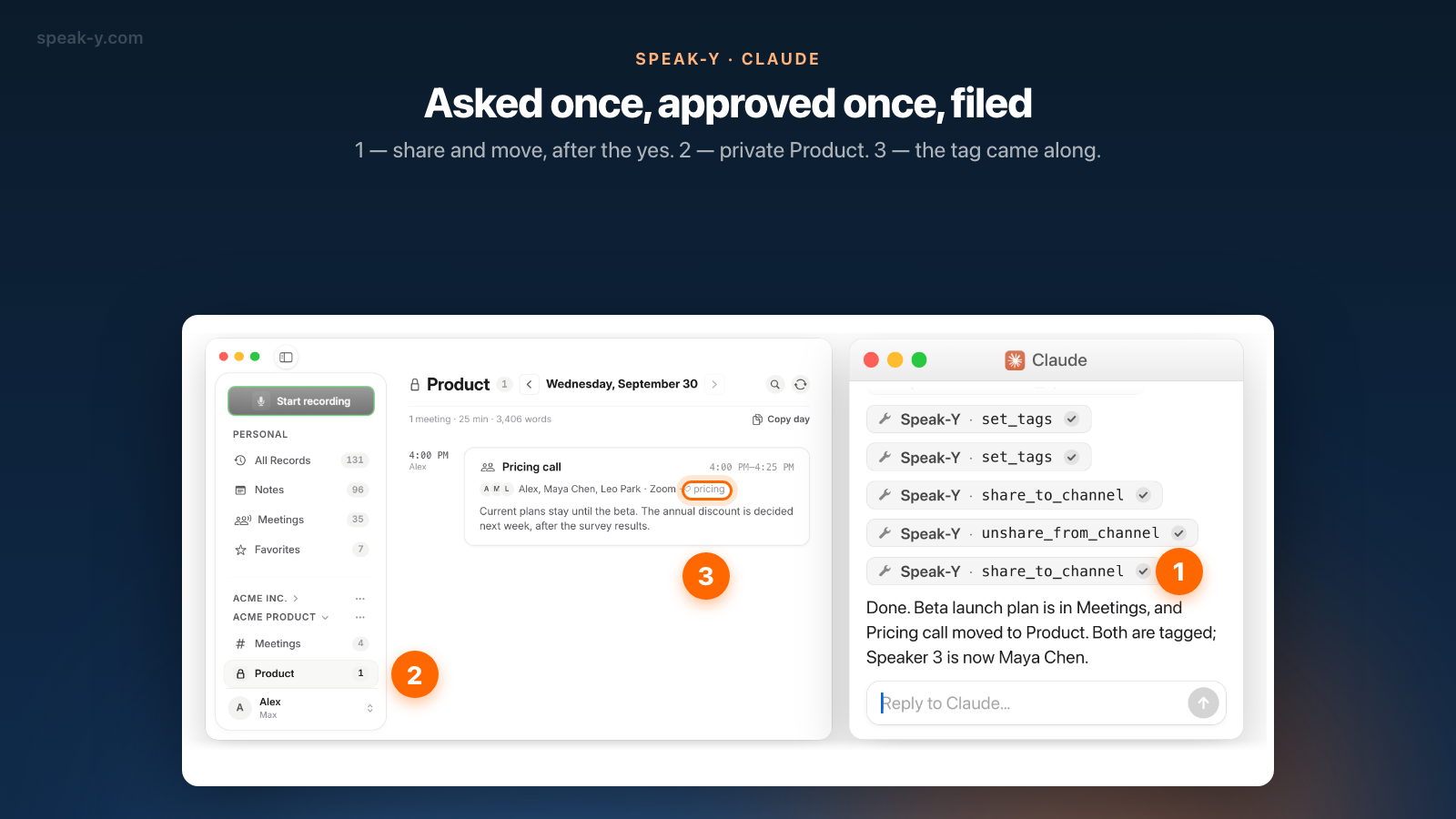
list_recordings), opens the two that need a decision (get_transcript) and asks the app for your channels (list_channels). - It proposes a plan and stops. "Beta launch plan → Meetings, tag
launch, Speaker 3 is Maya Chen. Pricing call → move from Meetings to private Product, tagpricing. Channel members will see them. Go ahead?" - You answer yes. Only now do the changing calls run:
rename_speaker,set_tagstwice, thenshare_to_channelfor the launch plan andunshare_from_channelfollowed byshare_to_channelfor the pricing call. - Check the result in the app. Meetings shows the launch plan with Maya Chen's name and the tag; the pricing call is gone from it and sits in Product, behind the lock.
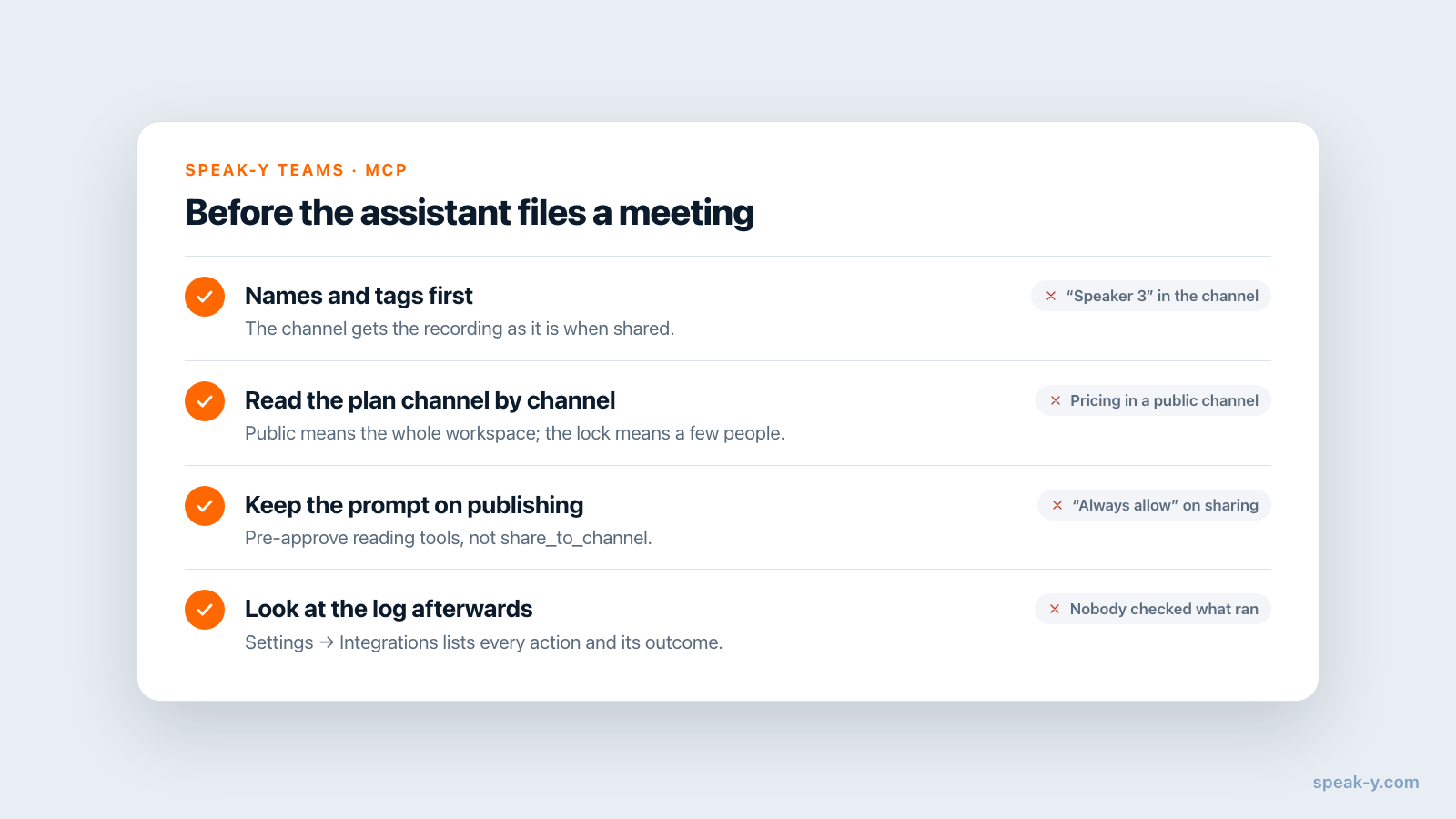
Two details of the order matter. Names and tags go first, publishing second: the channel receives the recording as it is at the moment of sharing, and a speaker renamed afterwards stays "Speaker 3" for the team. And a move is two calls, because a recording lives in exactly one channel: it is taken out of the old one, then shared to the new one. Between the two calls it is in no channel, so if the second one fails, share it again by hand with To channel — the route described in how to share a meeting to a team channel.
What can the assistant not do in a team workspace?
The list is short and deliberate:
- Change a teammate's recording. Readable, never editable.
- Take someone else's recording out of a channel. Removal is for the person who shared it and for the workspace owner or an admin.
- Create a workspace, invite or remove people. A workspace is the team's structure and a billed entity; a person sets it up.
- Create a channel without asking. The
create_channeltool exists for the case "these interviews need a place that does not exist yet", and its description requires asking you every time. A public channel can only be created by the owner or an admin; any member may create a private one. - Publish to a channel you cannot post to. A private channel without your membership is not in the list, and the server refuses the upload.
How do you keep control of what gets published?
Three settings, from narrow to broad:
- Keep the prompt on the sharing tools. Pre-approve the reading tools if
the prompts get in the way, and leave
share_to_channel,unshare_from_channelandcreate_channelon "ask". An "always allow" on a tool that publishes to colleagues removes the one human check in the chain. - Give one client a read-only server. Start it with
--read-onlyin that client's config and the changing tools are not offered to it at all — a reasonable default for an editor plugin you only use for questions. - Turn off Assistant actions. The switch in Settings → Integrations refuses changes for every client at once; reading works either way.
And read the plan before you say yes. The assistant picks a channel from a transcript and a channel name, so it can file a pricing discussion into a public channel as readily as a person in a hurry. Which meetings belong where is a decision the team makes once — see who sees what in meeting channels.
How do other meeting tools handle shared notes over MCP?
Most keep the assistant on the reading side. Checked on October 10, 2026:
- Granola. Its documentation lists six MCP tools, all of them reading: the assistant can query meetings, list folders and fetch notes and transcripts. On paid plans that includes notes shared with you and folders you are a member of.
- Otter. Its MCP server has three tools — search, fetch and user info. It reaches the meetings you captured and those shared with you by other users in your workspace, and changes nothing.
- Fireflies. Its MCP server goes further: next to search and transcripts it documents tools that share a meeting with given email addresses, revoke that access, rename a meeting and move it to a channel. The documentation requires the user to be the meeting's owner or a team admin for those.
All three run in the vendor's cloud, which has a practical advantage: they answer while your laptop is closed. Speak-Y's reading is local and its changes need the app, because only the app holds the keys of an end-to-end encrypted channel. If a server-side agent must reach team notes with no Mac online, a cloud note-taker fits better.
The Speak-Y MCP server is included in every plan, Free too. Team workspaces live in the macOS app: creating one starts on the Pro plan, and teammates join free on any plan. The Speak-Y Teams page shows how shared channels work, and what makes MCP write access safe goes deeper into approvals, logs and the two off switches.
FAQ
Can my AI assistant read meetings that teammates shared to a channel?
Yes, if you are a member of that channel. The Speak-Y MCP server reads your own recordings and the recordings in the team channels you can open, from the copy on your Mac. Teammates' recordings are read-only for the assistant: it cannot tag, rename or move them.
Can an AI assistant share a meeting to a team channel on its own?
It can call the share_to_channel tool, but not silently. The tool tells the assistant to confirm the recording and the channel with you, it is marked as an action that reaches other people so the client asks for approval, and every call is listed under Recent assistant actions in Settings → Integrations.
Does asking the assistant a question publish anything to the team?
No. Reading and publishing are separate tools. Searching, listing and opening transcripts change nothing and send nothing to a channel; a recording reaches a channel only through share_to_channel, which runs in the Speak-Y app after you agree.
Can the assistant see private channels I am not a member of?
No. A channel's recordings reach your Mac only after they are decrypted with the channel key, and that key is issued to members. A private channel you were not added to is not in the data the MCP server reads, and it does not appear in list_channels.
How do I stop an assistant from changing or sharing recordings?
Turn off Assistant actions in Settings → Integrations: reading keeps working, changes are refused for every client. To restrict one client only, start the server with --read-only in that client's config; the changing tools then disappear from its tool list.